Open-source RightAI Tools Directory
  • Discover AI
  • Submit
  • Startup
  • Blog
Open-source RightAI Tools Directory
Discover the best AI tools of 2025 with the RightAI Tools Directory!

Friend Links

AI Anime GeneratorToolsApp AI

Support

Tap4
Privacy policyTerms & ConditionsContact Us
Loading...
loading...

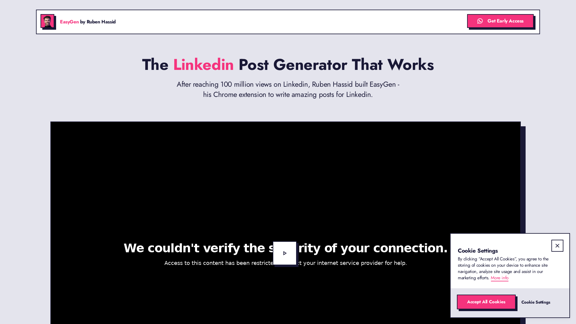
EasyGen | AI to write LinkedIn posts

After reaching 78 million views on LinkedIn, Ruben Hassid built EasyGen - his AI to write LinkedIn posts.
Visit Website
EasyGen | AI to write LinkedIn posts
Visit Website

Introduction

EasyGen is a Chrome extension designed to revolutionize LinkedIn post creation. Developed by Ruben Hassid, a LinkedIn influencer with over 100 million views, this AI-powered tool helps users craft engaging content effortlessly. EasyGen aims to enhance professionals' social media presence by leveraging artificial intelligence and proven strategies for viral content.

Feature

AI-Driven Content Creation

EasyGen utilizes advanced artificial intelligence algorithms to generate compelling LinkedIn posts tailored to each user's specific needs and preferences.

User-Friendly Chrome Extension

Seamlessly integrated into your browser, EasyGen offers a convenient and efficient way to create posts without disrupting your workflow.

Proven Track Record

Built on strategies that have generated over 100 million views, EasyGen incorporates the expertise of its creator, Ruben Hassid, a successful LinkedIn influencer.

Free Trial Offer

Users can test EasyGen's capabilities with three complimentary posts, requiring no credit card information to start.

Affordable Pricing

After the trial period, full access is available for $59.99 per month, positioned as less than the cost of a daily coffee.

Easy Setup Process

  1. Visit the EasyGen website
  2. Click "Get Early Access"
  3. Install the Chrome extension
  4. Start generating LinkedIn posts

Privacy-Focused

EasyGen prioritizes user privacy and offers customizable cookie settings:

  • Strictly Necessary Cookies
  • Marketing Cookies
  • Personalization Cookies
  • Analytics Cookies

FAQ

What is EasyGen?

EasyGen is an AI-powered Chrome extension designed to help users create engaging LinkedIn posts. It was developed by Ruben Hassid, a LinkedIn influencer with a track record of generating over 100 million views.

How does EasyGen work?

EasyGen uses artificial intelligence to craft compelling LinkedIn posts tailored to your needs. As a browser extension, it integrates seamlessly into your workflow, making post creation quick and efficient.

What is the pricing structure for EasyGen?

EasyGen offers a free trial for the first 3 posts with no credit card required. After the trial, full access is available for $59.99 per month.

How can I get started with EasyGen?

To start using EasyGen:

  1. Visit the EasyGen website
  2. Click on "Get Early Access"
  3. Install the Chrome extension
  4. Begin generating your LinkedIn posts

Does EasyGen respect user privacy?

Yes, EasyGen respects user privacy and provides detailed cookie settings. Users can customize their cookie preferences or accept all cookies for full site functionality.

Latest Traffic Insights

  • Monthly Visits

    63.03 K

  • Bounce Rate

    40.42%

  • Pages Per Visit

    2.03

  • Time on Site(s)

    48.81

  • Global Rank

    520928

  • Country Rank

    India 102296

Recent Visits

Traffic Sources

  • Social Media:
    4.38%
  • Paid Referrals:
    0.95%
  • Email:
    0.12%
  • Referrals:
    7.89%
  • Search Engines:
    42.92%
  • Direct:
    43.69%
More Data

Related Websites

Trade Ideas: AI-Driven Stock Scanning & Charting Platform
View Detail

Trade Ideas: AI-Driven Stock Scanning & Charting Platform

Trade Ideas: AI-Driven Stock Scanning & Charting Platform

Trade Ideas: Real-time AI stock scanning, automated trades, entry/exit signals & trade alerts. Manage your portfolio, mitigate risk, backtest, & analyze markets

355.16 K
YouTube Transcript Generator
View Detail

YouTube Transcript Generator

YouTube Transcript Generator

Extract transcripts from any YouTube video instantly. Just paste the video URL to get accurate subtitles without having to watch the entire video.

7.45 K
Tomat.AI - Data Analysis with AI
View Detail

Tomat.AI - Data Analysis with AI

Tomat.AI - Data Analysis with AI

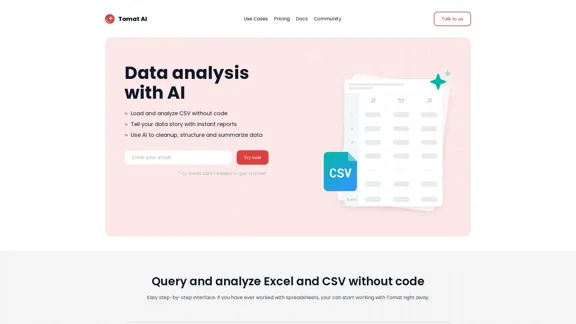
Load CSV and analyze it in a visual step-by-step interface. Cleanup, extract, summarize, or make sentiment analysis with your personal AI agent.

5.64 K
Create a Stack on Splice: AI-Powered Songwriting Inspiration | Splice
View Detail

Create a Stack on Splice: AI-Powered Songwriting Inspiration | Splice

Create a Stack on Splice: AI-Powered Songwriting Inspiration | Splice

Choose a style. Splice AI will present you with millions of unique musical combinations never heard before, showcasing sounds created by the industry's leading producers.

3.79 M
PodExtra AI—Unleash the power of podcast
View Detail

PodExtra AI—Unleash the power of podcast

PodExtra AI—Unleash the power of podcast

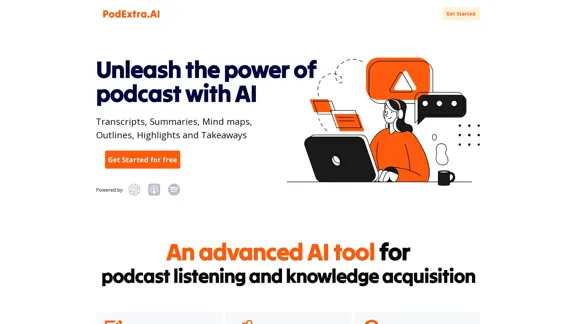
PodExtra is an innovative AI-powered podcast tool that provides transcripts, summaries, mind maps, outlines, highlights, and takeaways for your favorite podcasts. It allows you to quickly browse through the content, saving time and improving efficiency.

1.70 K
Home | Dispute Panda | AI-Powered Credit Repair
View Detail

Home | Dispute Panda | AI-Powered Credit Repair

Home | Dispute Panda | AI-Powered Credit Repair

DisputePanda is an AI-powered Credit Repair Software that delivers a completely new experience and revolutionizes the way you serve clients.

8.49 K
Copilot for Microsoft 365 – Microsoft Adoption

Copilot for Microsoft 365 is a powerful AI assistant that helps you work smarter and faster across Microsoft 365 apps and services. It combines the power of large language models (LLMs) with your organization's data in the Microsoft Graph and Microsoft 365 apps to turn your words into the most powerful productivity tool on the planet.

Copilot is designed to help you:

• Unleash creativity
• Unlock productivity
• Uplevel skills

Copilot is built on Microsoft's comprehensive approach to security, compliance, and privacy. Copilot in Microsoft 365 apps and services:

• Does not use your data to train the underlying LLM
• Does not replace human ingenuity and judgment
• Is designed to keep humans in the loop

Copilot is currently available in Word, Excel, PowerPoint, Outlook, Teams, and more.

Getting Started with Copilot

To get started with Copilot, follow these steps:

1. Check availability: Ensure your organization has access to Copilot.
2. Learn the basics: Familiarize yourself with Copilot's capabilities and how to use it effectively.
3. Explore use cases: Discover how Copilot can help you in your specific role and tasks.
4. Practice and refine: Use Copilot regularly and refine your prompts for better results.
5. Share and collaborate: Collaborate with colleagues using Copilot and share best practices.

Best Practices for Using Copilot

1. Be specific in your prompts
2. Provide context for better results
3. Review and edit Copilot's output
4. Use Copilot as a starting point, not a final product
5. Experiment with different approaches
6. Stay informed about new features and updates

Copilot in Different Microsoft 365 Apps

• Word: Draft, edit, summarize, and rewrite content
• Excel: Analyze data, create formulas, and generate insights
• PowerPoint: Create presentations, design slides, and generate content
• Outlook: Compose emails, summarize threads, and manage your inbox
• Teams: Summarize meetings, generate action items, and create meeting notes

Responsible AI and Copilot

Microsoft is committed to developing AI systems responsibly. When using Copilot, keep in mind:

• AI-generated content may contain biases or inaccuracies
• Always review and verify Copilot's output
• Use your judgment and expertise alongside Copilot's suggestions
• Be aware of your organization's policies regarding AI use

Conclusion

Copilot for Microsoft 365 is a powerful tool that can significantly enhance your productivity and creativity. By understanding its capabilities, following best practices, and using it responsibly, you can make the most of this AI assistant in your daily work.
View Detail

Copilot for Microsoft 365 – Microsoft Adoption Copilot for Microsoft 365 is a powerful AI assistant that helps you work smarter and faster across Microsoft 365 apps and services. It combines the power of large language models (LLMs) with your organization's data in the Microsoft Graph and Microsoft 365 apps to turn your words into the most powerful productivity tool on the planet. Copilot is designed to help you: • Unleash creativity • Unlock productivity • Uplevel skills Copilot is built on Microsoft's comprehensive approach to security, compliance, and privacy. Copilot in Microsoft 365 apps and services: • Does not use your data to train the underlying LLM • Does not replace human ingenuity and judgment • Is designed to keep humans in the loop Copilot is currently available in Word, Excel, PowerPoint, Outlook, Teams, and more. Getting Started with Copilot To get started with Copilot, follow these steps: 1. Check availability: Ensure your organization has access to Copilot. 2. Learn the basics: Familiarize yourself with Copilot's capabilities and how to use it effectively. 3. Explore use cases: Discover how Copilot can help you in your specific role and tasks. 4. Practice and refine: Use Copilot regularly and refine your prompts for better results. 5. Share and collaborate: Collaborate with colleagues using Copilot and share best practices. Best Practices for Using Copilot 1. Be specific in your prompts 2. Provide context for better results 3. Review and edit Copilot's output 4. Use Copilot as a starting point, not a final product 5. Experiment with different approaches 6. Stay informed about new features and updates Copilot in Different Microsoft 365 Apps • Word: Draft, edit, summarize, and rewrite content • Excel: Analyze data, create formulas, and generate insights • PowerPoint: Create presentations, design slides, and generate content • Outlook: Compose emails, summarize threads, and manage your inbox • Teams: Summarize meetings, generate action items, and create meeting notes Responsible AI and Copilot Microsoft is committed to developing AI systems responsibly. When using Copilot, keep in mind: • AI-generated content may contain biases or inaccuracies • Always review and verify Copilot's output • Use your judgment and expertise alongside Copilot's suggestions • Be aware of your organization's policies regarding AI use Conclusion Copilot for Microsoft 365 is a powerful tool that can significantly enhance your productivity and creativity. By understanding its capabilities, following best practices, and using it responsibly, you can make the most of this AI assistant in your daily work.

Copilot for Microsoft 365 – Microsoft Adoption Copilot for Microsoft 365 is a powerful AI assistant that helps you work smarter and faster across Microsoft 365 apps and services. It combines the power of large language models (LLMs) with your organization's data in the Microsoft Graph and Microsoft 365 apps to turn your words into the most powerful productivity tool on the planet. Copilot is designed to help you: • Unleash creativity • Unlock productivity • Uplevel skills Copilot is built on Microsoft's comprehensive approach to security, compliance, and privacy. Copilot in Microsoft 365 apps and services: • Does not use your data to train the underlying LLM • Does not replace human ingenuity and judgment • Is designed to keep humans in the loop Copilot is currently available in Word, Excel, PowerPoint, Outlook, Teams, and more. Getting Started with Copilot To get started with Copilot, follow these steps: 1. Check availability: Ensure your organization has access to Copilot. 2. Learn the basics: Familiarize yourself with Copilot's capabilities and how to use it effectively. 3. Explore use cases: Discover how Copilot can help you in your specific role and tasks. 4. Practice and refine: Use Copilot regularly and refine your prompts for better results. 5. Share and collaborate: Collaborate with colleagues using Copilot and share best practices. Best Practices for Using Copilot 1. Be specific in your prompts 2. Provide context for better results 3. Review and edit Copilot's output 4. Use Copilot as a starting point, not a final product 5. Experiment with different approaches 6. Stay informed about new features and updates Copilot in Different Microsoft 365 Apps • Word: Draft, edit, summarize, and rewrite content • Excel: Analyze data, create formulas, and generate insights • PowerPoint: Create presentations, design slides, and generate content • Outlook: Compose emails, summarize threads, and manage your inbox • Teams: Summarize meetings, generate action items, and create meeting notes Responsible AI and Copilot Microsoft is committed to developing AI systems responsibly. When using Copilot, keep in mind: • AI-generated content may contain biases or inaccuracies • Always review and verify Copilot's output • Use your judgment and expertise alongside Copilot's suggestions • Be aware of your organization's policies regarding AI use Conclusion Copilot for Microsoft 365 is a powerful tool that can significantly enhance your productivity and creativity. By understanding its capabilities, following best practices, and using it responsibly, you can make the most of this AI assistant in your daily work.

Microsoft Copilot combines the power of large language models (LLMs) with your organization's data to turn your words into one of the most powerful productivity tools on the planet.

608.60 K
UCG - Chrome Web Store
View Detail

UCG - Chrome Web Store

UCG - Chrome Web Store

ChatGPT without leaving the tab or visible chat!

193.90 M