Open-source RightAI Tools Directory
  • Discover AI
  • Submit
  • Startup
  • Blog
Open-source RightAI Tools Directory
Discover the best AI tools of 2025 with the RightAI Tools Directory!

Friend Links

AI Anime GeneratorToolsApp AI

Support

Tap4
Privacy policyTerms & ConditionsContact Us
Loading...
loading...

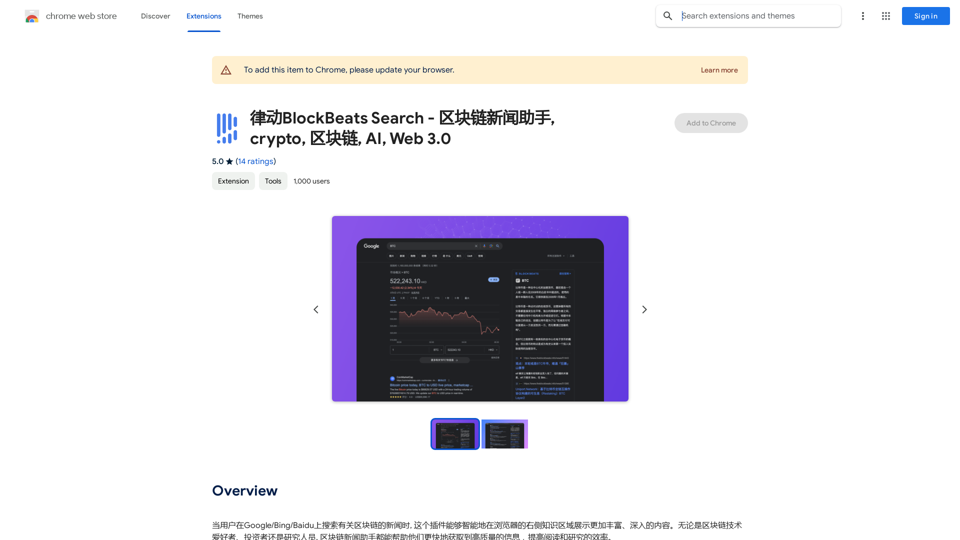
BlockBeats Search - Your Blockchain News Assistant, covering crypto, blockchain, AI, and Web 3.0.

When users search for blockchain news on Google/Bing/Baidu, this plugin can intelligently display more comprehensive and in-depth content in the browser's right-side knowledge area. Whether you are a blockchain technology enthusiast, investor, or researcher, the Blockchain News Assistant can help you quickly access high-quality information and improve your reading and research efficiency.
Visit Website
BlockBeats Search - Your Blockchain News Assistant, covering crypto, blockchain, AI, and Web 3.0.
Visit Website

Introduction

BlockBeats Search is an AI-driven platform that provides access to a wide range of AI technologies for various needs. It offers high-quality blockchain news and articles, featuring an intuitive user interface and real-time updates. The platform is designed to enhance the user's search experience by displaying curated content alongside Google search results, ensuring users receive accurate and in-depth information about blockchain technology.

Feature

Quality Content Display

  • Smart filtering and recommendation of high-quality blockchain news and articles
  • Ensures users receive accurate and in-depth information

Intuitive User Interface

  • Displays curated content in the knowledge area to the right of Google search results
  • Enhances the search experience without interfering with normal browsing

Real-time Updates

  • Provides the latest blockchain news in real-time
  • Ensures users don't miss any important information

AI-Powered Tools

  • Utilizes ChatGPT and GPT-4o for text generation and image understanding
  • Incorporates Dalle3 for image creation and document analysis

Free Chrome Extension

  • Available as a free extension for Chrome browsers
  • No additional costs or subscription fees

FAQ

What is BlockBeats Search?

BlockBeats Search is an AI-driven platform that provides access to a vast array of AI technologies for various needs, including ChatGPT, GPT-4o for text generation and image understanding, and Dalle3 for image creation and document analysis.

How to use BlockBeats Search?

Every user can utilize BlockBeats Search to quickly filter out high-quality blockchain news and articles, saving time and improving reading efficiency.

How can I maximize my use of BlockBeats Search?

By leveraging the daily free uses of GPT-4o document reading and Dalle's image generation, users can explore a vast range of AI-powered tools to support various tasks.

How much does BlockBeats Search cost?

BlockBeats Search is a free extension that can be added to Chrome, with no additional costs or subscription fees.

Latest Traffic Insights

  • Monthly Visits

    193.90 M

  • Bounce Rate

    56.27%

  • Pages Per Visit

    2.71

  • Time on Site(s)

    115.91

  • Global Rank

    -

  • Country Rank

    -

Recent Visits

Traffic Sources

  • Social Media:
    0.48%
  • Paid Referrals:
    0.55%
  • Email:
    0.15%
  • Referrals:
    12.81%
  • Search Engines:
    16.21%
  • Direct:
    69.81%
More Data

Related Websites

Batch Save ChatGPT to Notion

This is a guide on how to save multiple ChatGPT responses to Notion in a batch. 

Tools You'll Need:

* ChatGPT: An AI chatbot that can generate text.
* Notion: A note-taking and project management tool.
* Python: A programming language.
* Requests Library: A Python library for making HTTP requests.

Steps:

1. Get Your Notion API Token:
   - Go to your Notion workspace settings.
   - Navigate to the "Integrations" tab.
   - Click "Create new integration" and choose "API Token".
   - Copy your API token.

2. Install Python Libraries:
   - Open your terminal or command prompt.
   - Type `pip install requests` and press Enter.

3. Write Python Script:
   - Create a new Python file (e.g., `save_chatgpt_to_notion.py`).
   - Paste the following code into the file, replacing `YOUR_NOTION_API_TOKEN` with your actual token:

```python
import requests

def save_chatgpt_response_to_notion(response, page_id, token):
  """Saves a ChatGPT response to a Notion page."""
  url = f"https://api.notion.com/v1/pages/{page_id}/children"
  headers = {"Authorization": f"Bearer {token}"}
  data = {
    "parent": {
      "page_id": page_id
    },
    "properties": {
      "title": {
        "title": [
          {
            "text": {
              "content": "ChatGPT Response"
            }
          }
        ]
      },
      "content": {
        "rich_text": [
          {
            "text": {
              "content": response
            }
          }
        ]
      }
    }
  }
  response = requests.post(url, headers=headers, json=data)
  print(response.status_code)

Example usage
page_id = "YOUR_NOTION_PAGE_ID"
token = "YOUR_NOTION_API_TOKEN"

Get ChatGPT responses (replace with your actual ChatGPT interaction)
chatgpt_responses = [
  "This is the first ChatGPT response.",
  "This is the second ChatGPT response.",
  "This is the third ChatGPT response."
]

Save each response to Notion
for response in chatgpt_responses:
  save_chatgpt_response_to_notion(response, page_id, token)
```

4. Run the Script:
   - In your terminal, navigate to the directory where you saved the Python file.
   - Type `python save_chatgpt_to_notion.py` and press Enter.

5. Check Notion:
   - Open your Notion workspace and go to the page specified by `page_id`.
   - You should see your ChatGPT responses saved as separate blocks.
View Detail

Batch Save ChatGPT to Notion This is a guide on how to save multiple ChatGPT responses to Notion in a batch. Tools You'll Need: * ChatGPT: An AI chatbot that can generate text. * Notion: A note-taking and project management tool. * Python: A programming language. * Requests Library: A Python library for making HTTP requests. Steps: 1. Get Your Notion API Token: - Go to your Notion workspace settings. - Navigate to the "Integrations" tab. - Click "Create new integration" and choose "API Token". - Copy your API token. 2. Install Python Libraries: - Open your terminal or command prompt. - Type `pip install requests` and press Enter. 3. Write Python Script: - Create a new Python file (e.g., `save_chatgpt_to_notion.py`). - Paste the following code into the file, replacing `YOUR_NOTION_API_TOKEN` with your actual token: ```python import requests def save_chatgpt_response_to_notion(response, page_id, token): """Saves a ChatGPT response to a Notion page.""" url = f"https://api.notion.com/v1/pages/{page_id}/children" headers = {"Authorization": f"Bearer {token}"} data = { "parent": { "page_id": page_id }, "properties": { "title": { "title": [ { "text": { "content": "ChatGPT Response" } } ] }, "content": { "rich_text": [ { "text": { "content": response } } ] } } } response = requests.post(url, headers=headers, json=data) print(response.status_code) Example usage page_id = "YOUR_NOTION_PAGE_ID" token = "YOUR_NOTION_API_TOKEN" Get ChatGPT responses (replace with your actual ChatGPT interaction) chatgpt_responses = [ "This is the first ChatGPT response.", "This is the second ChatGPT response.", "This is the third ChatGPT response." ] Save each response to Notion for response in chatgpt_responses: save_chatgpt_response_to_notion(response, page_id, token) ``` 4. Run the Script: - In your terminal, navigate to the directory where you saved the Python file. - Type `python save_chatgpt_to_notion.py` and press Enter. 5. Check Notion: - Open your Notion workspace and go to the page specified by `page_id`. - You should see your ChatGPT responses saved as separate blocks.

Batch Save ChatGPT to Notion This is a guide on how to save multiple ChatGPT responses to Notion in a batch. Tools You'll Need: * ChatGPT: An AI chatbot that can generate text. * Notion: A note-taking and project management tool. * Python: A programming language. * Requests Library: A Python library for making HTTP requests. Steps: 1. Get Your Notion API Token: - Go to your Notion workspace settings. - Navigate to the "Integrations" tab. - Click "Create new integration" and choose "API Token". - Copy your API token. 2. Install Python Libraries: - Open your terminal or command prompt. - Type `pip install requests` and press Enter. 3. Write Python Script: - Create a new Python file (e.g., `save_chatgpt_to_notion.py`). - Paste the following code into the file, replacing `YOUR_NOTION_API_TOKEN` with your actual token: ```python import requests def save_chatgpt_response_to_notion(response, page_id, token): """Saves a ChatGPT response to a Notion page.""" url = f"https://api.notion.com/v1/pages/{page_id}/children" headers = {"Authorization": f"Bearer {token}"} data = { "parent": { "page_id": page_id }, "properties": { "title": { "title": [ { "text": { "content": "ChatGPT Response" } } ] }, "content": { "rich_text": [ { "text": { "content": response } } ] } } } response = requests.post(url, headers=headers, json=data) print(response.status_code) Example usage page_id = "YOUR_NOTION_PAGE_ID" token = "YOUR_NOTION_API_TOKEN" Get ChatGPT responses (replace with your actual ChatGPT interaction) chatgpt_responses = [ "This is the first ChatGPT response.", "This is the second ChatGPT response.", "This is the third ChatGPT response." ] Save each response to Notion for response in chatgpt_responses: save_chatgpt_response_to_notion(response, page_id, token) ``` 4. Run the Script: - In your terminal, navigate to the directory where you saved the Python file. - Type `python save_chatgpt_to_notion.py` and press Enter. 5. Check Notion: - Open your Notion workspace and go to the page specified by `page_id`. - You should see your ChatGPT responses saved as separate blocks.

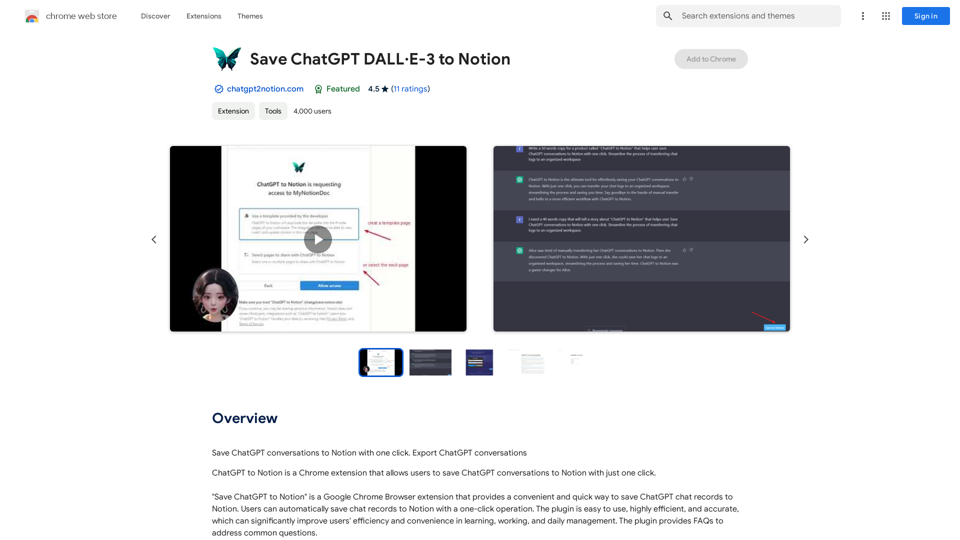
Save ChatGPT Conversations to Notion with One Click Export your ChatGPT conversations directly to Notion with a single click.

193.90 M
MyBunny.AI 🐰
View Detail

MyBunny.AI 🐰

MyBunny.AI 🐰

22.58 K
Ai Club
View Detail

Ai Club

Ai Club

This extension acts as a container, giving you quick access to 5 of the top artificial intelligence platforms with a single click.

193.90 M
Two-Way Voice for ChatGPT
View Detail

Two-Way Voice for ChatGPT

Two-Way Voice for ChatGPT

This extension for ChatGPT allows you to ask using voice and listen to response.

193.90 M
AI Infographic Generator
View Detail

AI Infographic Generator

AI Infographic Generator

Discover our AI-powered Infographic maker, infographic generator online ,infographics,infographic of infographics, infographic, infographic examples,piktochart, text to infographic,infographic of infographics

3.33 K
Abacus.AI - Effortlessly Embed Cutting-Edge AI in Your Applications.
View Detail

Abacus.AI - Effortlessly Embed Cutting-Edge AI in Your Applications.

Abacus.AI - Effortlessly Embed Cutting-Edge AI in Your Applications.

Abacus.AI is the world’s first AI super assistant built on our state-of-the-art generative AI technology. Abacus Enterprise is a fully featured AI platform where AI, not humans, builds enterprise-scale applied AI systems and agents. ChatLLM is our AI super assistant for small teams and individuals.

3.84 M
Image Splitter: Free Online Instagram Grid Maker
View Detail

Image Splitter: Free Online Instagram Grid Maker

Image Splitter: Free Online Instagram Grid Maker

Create stunning Instagram grids with our free online image splitter. Easily divide your images into multiple squares to enhance your feed. Perfect for creating eye-catching layouts and boosting your social media presence!

0
Free AI YouTube Video Tags Generator TubeAide
View Detail

Free AI YouTube Video Tags Generator TubeAide

Free AI YouTube Video Tags Generator TubeAide

Boost Your Video with Free AI YouTube Video Tag Generator TubeAIde: Titles, Tags, Descriptions, Hooks, and Outlines in 25 Languages

193.90 M