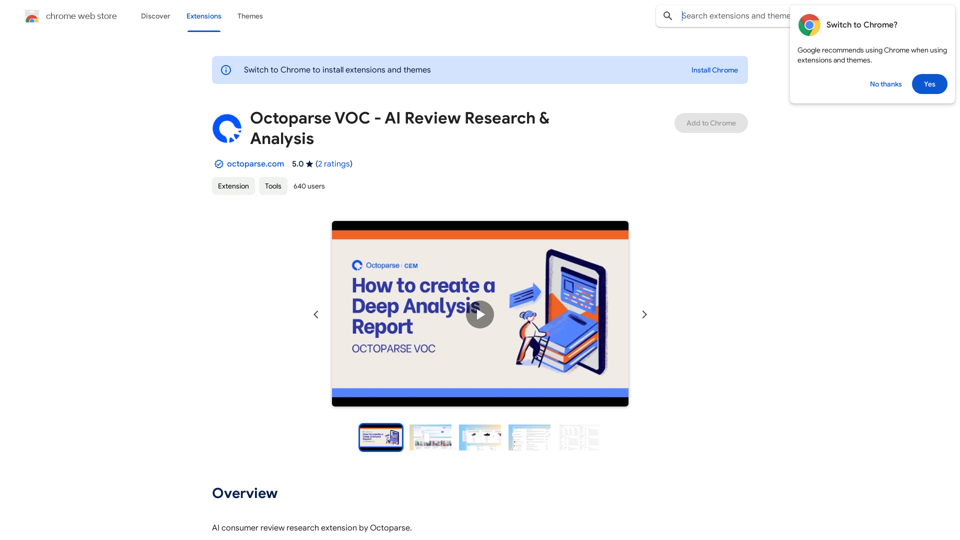
Octoparse VOC is an AI-powered review research extension designed for businesses to aggregate, analyze, and understand customer reviews from Amazon. It offers actionable insights and practical steps to enhance business decisions through advanced AI capabilities.
Octoparse VOC - AI Review Research & Analysis This is a document outlining the research and analysis conducted on user voice (VOC) data using Octoparse's AI capabilities.
AI Consumer Review Research Extension by Octoparse.
Introduction
Feature
Analyze on Page
- Single-click generation of quick review insights reports
- Creation of data-driven buyer personas directly on Amazon product pages
Aggregate with Ease
- Input multiple URLs, keywords, or ASINs from product portfolio
- Automated review navigation and highlight generation
- Preserves essence of original review content
Compare with Clarity
- Side-by-side chart views for report comparison
- Identification of gaps in product or service offerings
- Pinpointing critical areas for improvement
Dive into Q&As
- Analysis of customer concerns, pain points, and sentiment
- Actionable insights derived from customer Q&As
Platform Compatibility
- Currently supports 6 Amazon country/region websites (UK, US, CA, JP, DE & FR)
- Future expansion planned for other e-commerce platforms
Pricing
- Free extension with a range of features for review research and analysis
FAQ
What platforms does Octoparse VOC support?
Octoparse VOC currently supports 6 Amazon country/region websites: UK, US, CA, JP, DE & FR. Support for other e-commerce platforms is in development.
Is Octoparse VOC a paid extension?
No, Octoparse VOC is a free extension that offers a variety of features to help businesses improve their review research and analysis processes.
How can Octoparse VOC benefit my business?
Octoparse VOC can benefit your business by:
- Providing quick insights into customer reviews and sentiment
- Generating data-driven buyer personas
- Identifying trends and areas for improvement in products or services
- Offering actionable insights from customer Q&As
- Enabling easy comparison of product performance across your portfolio
Related Websites
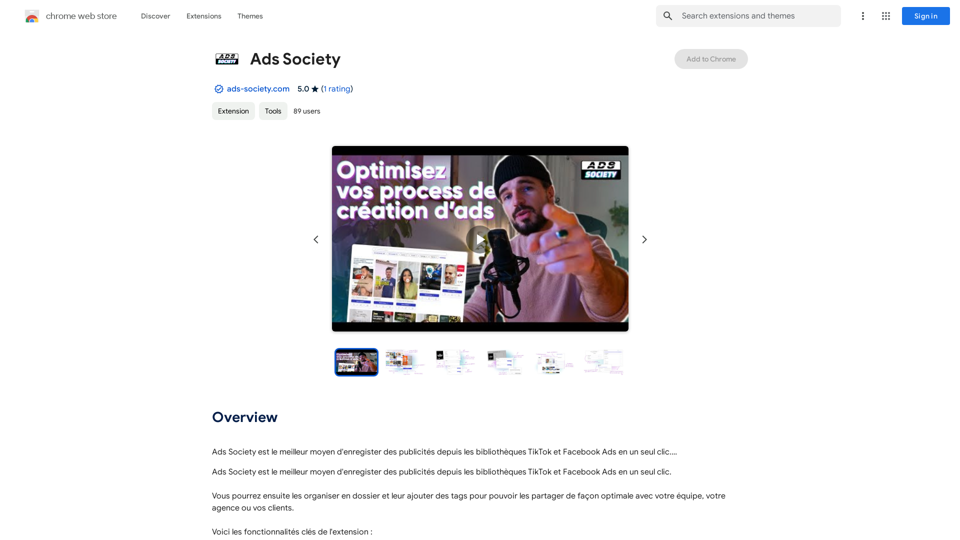
Ads Society is the best way to save ads from TikTok and Facebook Ads libraries with one click.
193.90 M
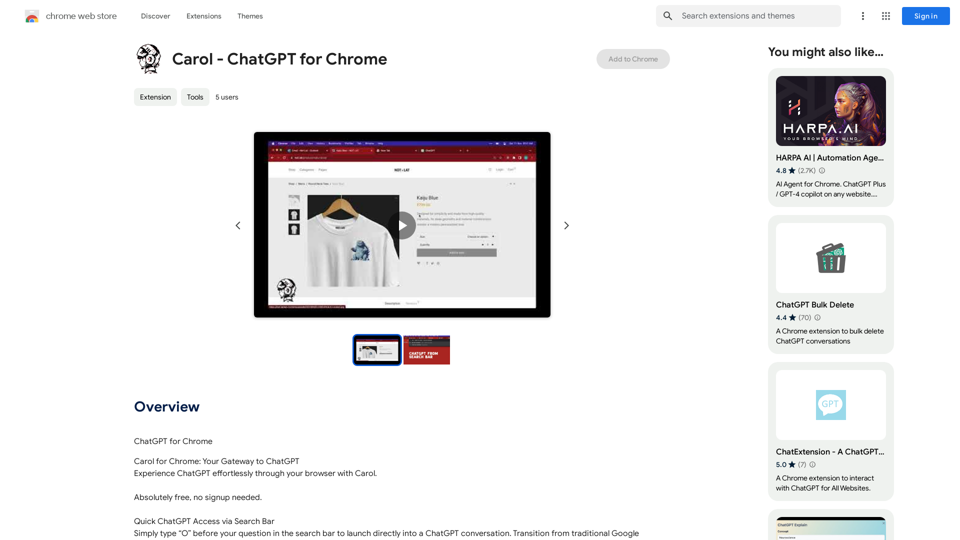
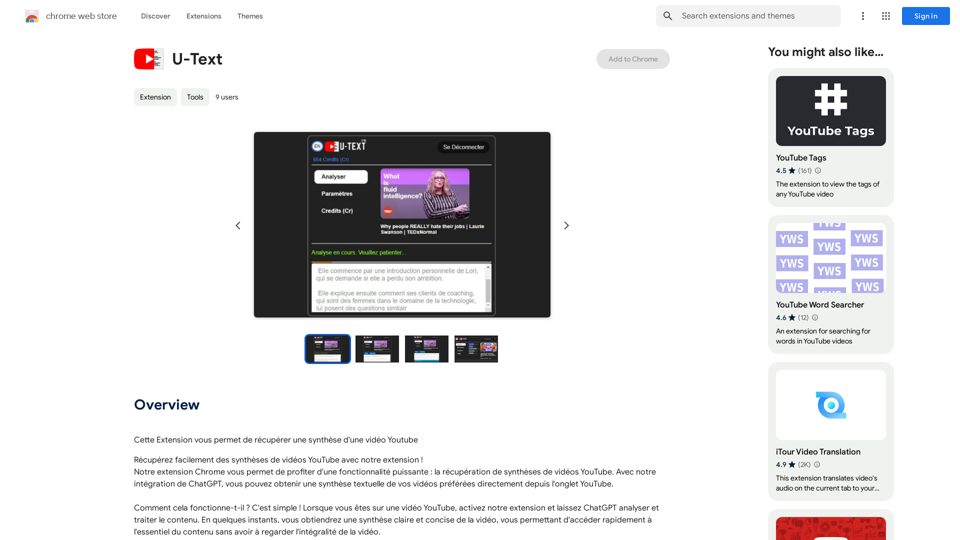
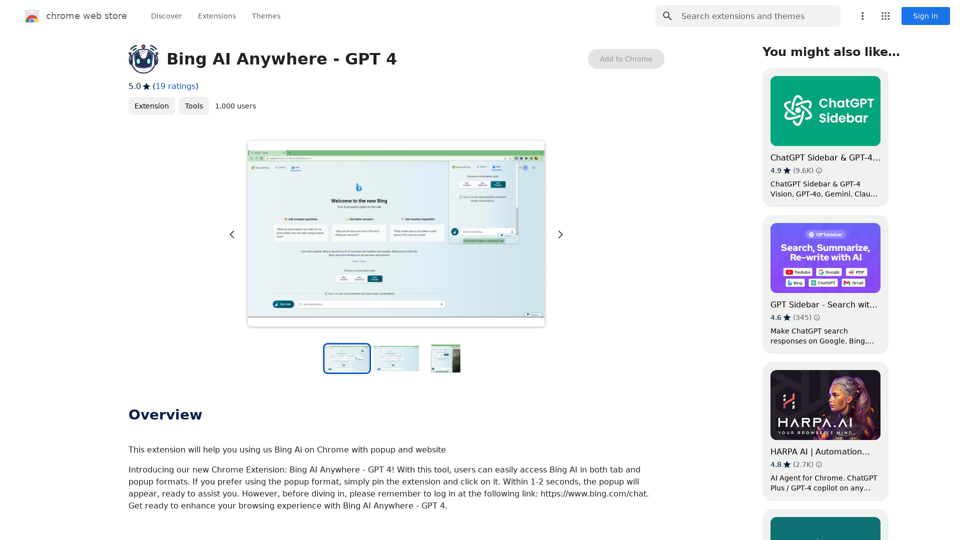
Bing AI Anywhere - GPT 4 Bing AI Anywhere is a cutting-edge technology that integrates the power of artificial intelligence into various aspects of our daily lives. With the latest GPT-4 model, this innovative platform is poised to revolutionize the way we interact, work, and live. What is GPT-4? GPT-4 is the fourth generation of the Generative Pre-trained Transformer (GPT) model, a type of artificial intelligence language model developed by OpenAI. This advanced language model is trained on a massive dataset of text from the internet and can generate human-like language, making it an ideal tool for a wide range of applications. Key Features of Bing AI Anywhere with GPT-4 * Conversational AI: Engage in natural-sounding conversations with Bing AI Anywhere, which can understand and respond to voice or text inputs. * Contextual Understanding: GPT-4's advanced language model enables Bing AI Anywhere to comprehend context, nuances, and subtleties of language, making interactions more human-like. * Multitasking: This technology can handle multiple tasks simultaneously, making it an efficient and productive tool for various industries and applications. * Personalization: Bing AI Anywhere with GPT-4 can learn and adapt to individual preferences, providing a tailored experience for each user. Potential Applications of Bing AI Anywhere with GPT-4 * Virtual Assistants: Integrate Bing AI Anywhere into virtual assistants to create more conversational and helpful AI-powered companions. * Customer Service: Implement this technology in customer service platforms to provide 24/7 support and improve customer satisfaction. * Healthcare: Utilize Bing AI Anywhere with GPT-4 to develop AI-powered chatbots that can assist with medical inquiries, appointments, and more. * Education: Create interactive and engaging educational tools that can provide personalized learning experiences for students. The Future of AI with Bing AI Anywhere and GPT-4 As Bing AI Anywhere continues to evolve with the power of GPT-4, we can expect to see even more innovative applications and use cases emerge. This technology has the potential to transform industries, revolutionize the way we work and live, and bring us closer to a future where humans and AI collaborate seamlessly.
Bing AI Anywhere - GPT 4 Bing AI Anywhere is a cutting-edge technology that integrates the power of artificial intelligence into various aspects of our daily lives. With the latest GPT-4 model, this innovative platform is poised to revolutionize the way we interact, work, and live. What is GPT-4? GPT-4 is the fourth generation of the Generative Pre-trained Transformer (GPT) model, a type of artificial intelligence language model developed by OpenAI. This advanced language model is trained on a massive dataset of text from the internet and can generate human-like language, making it an ideal tool for a wide range of applications. Key Features of Bing AI Anywhere with GPT-4 * Conversational AI: Engage in natural-sounding conversations with Bing AI Anywhere, which can understand and respond to voice or text inputs. * Contextual Understanding: GPT-4's advanced language model enables Bing AI Anywhere to comprehend context, nuances, and subtleties of language, making interactions more human-like. * Multitasking: This technology can handle multiple tasks simultaneously, making it an efficient and productive tool for various industries and applications. * Personalization: Bing AI Anywhere with GPT-4 can learn and adapt to individual preferences, providing a tailored experience for each user. Potential Applications of Bing AI Anywhere with GPT-4 * Virtual Assistants: Integrate Bing AI Anywhere into virtual assistants to create more conversational and helpful AI-powered companions. * Customer Service: Implement this technology in customer service platforms to provide 24/7 support and improve customer satisfaction. * Healthcare: Utilize Bing AI Anywhere with GPT-4 to develop AI-powered chatbots that can assist with medical inquiries, appointments, and more. * Education: Create interactive and engaging educational tools that can provide personalized learning experiences for students. The Future of AI with Bing AI Anywhere and GPT-4 As Bing AI Anywhere continues to evolve with the power of GPT-4, we can expect to see even more innovative applications and use cases emerge. This technology has the potential to transform industries, revolutionize the way we work and live, and bring us closer to a future where humans and AI collaborate seamlessly.This extension helps you use Bing AI on Chrome with a popup and website.
193.90 M
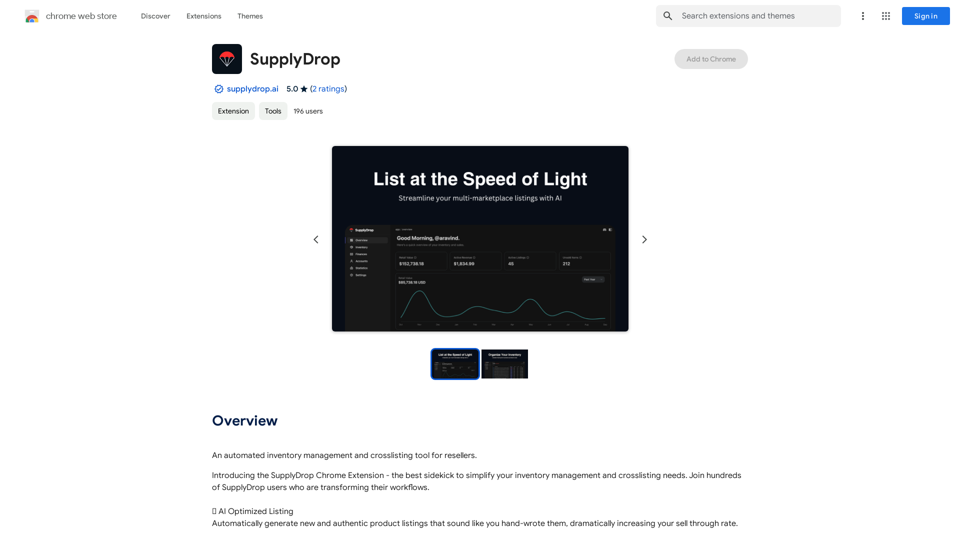
A tool that automatically manages inventory and lists products on multiple platforms for resellers.
193.90 M
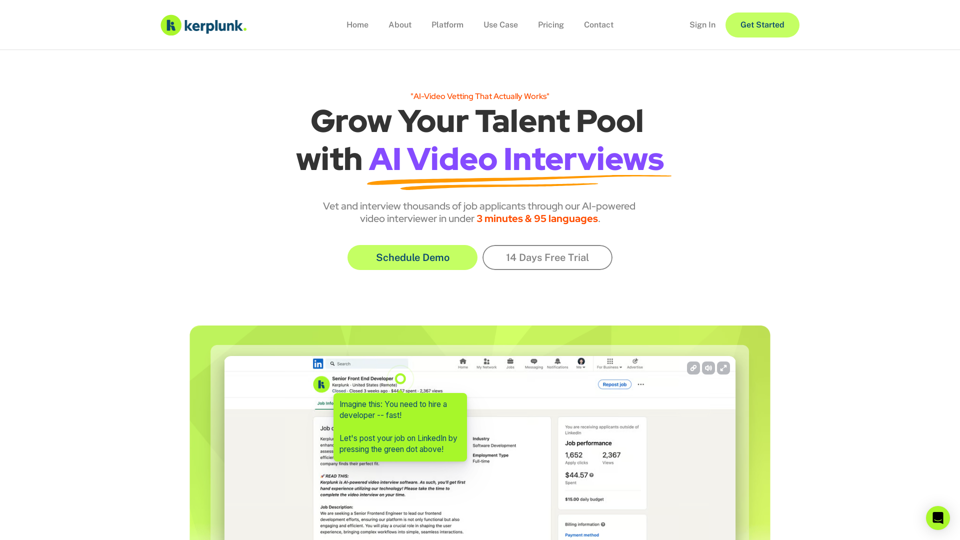
Optimize your hiring with our AI-powered video interviewer. Kerplunk delivers insightful interviews. Get an AI Interview Assistant for your recruitment.
7.59 K
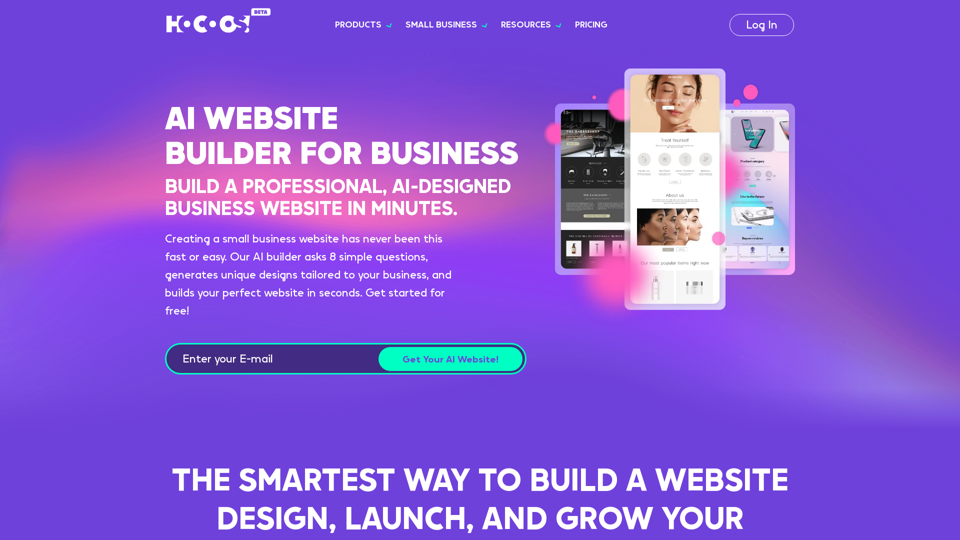
Hocoos AI Website Builder - Create Your Website in 5 Minutes
Hocoos AI Website Builder - Create Your Website in 5 MinutesCreate professional websites in seconds with Hocoos AI website builder. Get all the sales and marketing tools to start & grow your online business now.
111.35 K
![CrackerJack Resume
Objective: To obtain a challenging and rewarding position in a fast-paced environment where I can utilize my skills and experience to contribute to the success of a dynamic team.
Summary of Qualifications:
* Highly motivated and results-oriented individual with a proven track record of success in [mention your field].
* Excellent communication, interpersonal, and problem-solving skills.
* Strong analytical and critical thinking abilities.
* Proficient in [list your relevant skills].
* Adaptable and eager to learn new technologies and processes.
Experience:
* [Job Title], [Company Name], [City, State] - [Dates of Employment]
* [List your responsibilities and achievements using action verbs]
* [Job Title], [Company Name], [City, State] - [Dates of Employment]
* [List your responsibilities and achievements using action verbs]
Education:
* [Degree Name], [Major], [University Name], [City, State] - [Year of Graduation]
* [List any relevant coursework, honors, or awards]
Skills:
* [List your hard and soft skills]
Projects:
* [List any relevant projects you have worked on, including a brief description and your role]
Awards and Recognition:
* [List any awards or recognition you have received]
Volunteer Experience:
* [List any volunteer experience you have]
References:
* Available upon request.](https://static.right-ai.com/tools/2024/7/4/chromewebstore-google-com-detail-crackerjack-resume-fgbdkdeofkmfocghddgppkdelglifokg-thumbnail-1720061173.png "CrackerJack Resume
Objective: To obtain a challenging and rewarding position in a fast-paced environment where I can utilize my skills and experience to contribute to the success of a dynamic team.
Summary of Qualifications:
* Highly motivated and results-oriented individual with a proven track record of success in [mention your field].
* Excellent communication, interpersonal, and problem-solving skills.
* Strong analytical and critical thinking abilities.
* Proficient in [list your relevant skills].
* Adaptable and eager to learn new technologies and processes.
Experience:
* [Job Title], [Company Name], [City, State] - [Dates of Employment]
* [List your responsibilities and achievements using action verbs]
* [Job Title], [Company Name], [City, State] - [Dates of Employment]
* [List your responsibilities and achievements using action verbs]
Education:
* [Degree Name], [Major], [University Name], [City, State] - [Year of Graduation]
* [List any relevant coursework, honors, or awards]
Skills:
* [List your hard and soft skills]
Projects:
* [List any relevant projects you have worked on, including a brief description and your role]
Awards and Recognition:
* [List any awards or recognition you have received]
Volunteer Experience:
* [List any volunteer experience you have]
References:
* Available upon request.")
CrackerJack Resume Objective: To obtain a challenging and rewarding position in a fast-paced environment where I can utilize my skills and experience to contribute to the success of a dynamic team. Summary of Qualifications: * Highly motivated and results-oriented individual with a proven track record of success in [mention your field]. * Excellent communication, interpersonal, and problem-solving skills. * Strong analytical and critical thinking abilities. * Proficient in [list your relevant skills]. * Adaptable and eager to learn new technologies and processes. Experience: * [Job Title], [Company Name], [City, State] - [Dates of Employment] * [List your responsibilities and achievements using action verbs] * [Job Title], [Company Name], [City, State] - [Dates of Employment] * [List your responsibilities and achievements using action verbs] Education: * [Degree Name], [Major], [University Name], [City, State] - [Year of Graduation] * [List any relevant coursework, honors, or awards] Skills: * [List your hard and soft skills] Projects: * [List any relevant projects you have worked on, including a brief description and your role] Awards and Recognition: * [List any awards or recognition you have received] Volunteer Experience: * [List any volunteer experience you have] References: * Available upon request.
CrackerJack Resume Objective: To obtain a challenging and rewarding position in a fast-paced environment where I can utilize my skills and experience to contribute to the success of a dynamic team. Summary of Qualifications: * Highly motivated and results-oriented individual with a proven track record of success in [mention your field]. * Excellent communication, interpersonal, and problem-solving skills. * Strong analytical and critical thinking abilities. * Proficient in [list your relevant skills]. * Adaptable and eager to learn new technologies and processes. Experience: * [Job Title], [Company Name], [City, State] - [Dates of Employment] * [List your responsibilities and achievements using action verbs] * [Job Title], [Company Name], [City, State] - [Dates of Employment] * [List your responsibilities and achievements using action verbs] Education: * [Degree Name], [Major], [University Name], [City, State] - [Year of Graduation] * [List any relevant coursework, honors, or awards] Skills: * [List your hard and soft skills] Projects: * [List any relevant projects you have worked on, including a brief description and your role] Awards and Recognition: * [List any awards or recognition you have received] Volunteer Experience: * [List any volunteer experience you have] References: * Available upon request.Are you frustrated by the lack of response to your job applications? The secret may lie within your resume. Stop getting rejected…
193.90 M