Open-source RightAI Tools Directory
  • Discover AI
  • Submit
  • Startup
  • Blog
Open-source RightAI Tools Directory
Discover the best AI tools of 2025 with the RightAI Tools Directory!

Friend Links

AI Anime GeneratorToolsApp AI

Support

Tap4
Privacy policyTerms & ConditionsContact Us
Loading...
loading...

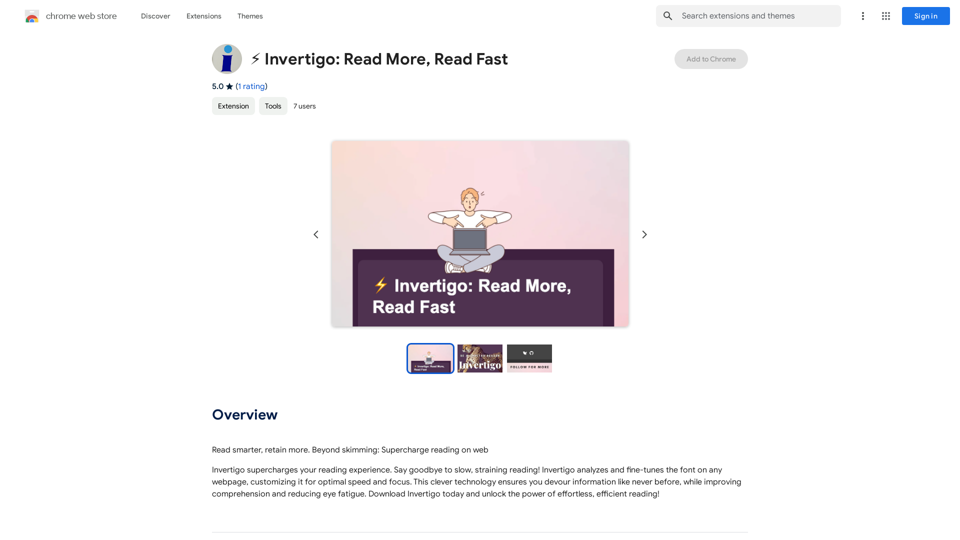
⚡️ Invertigo: Read More, Read Faster

Read smarter, retain more. Go beyond skimming: Supercharge your web reading.
Visit Website
⚡️ Invertigo: Read More, Read Faster
Visit Website

Introduction

Invertigo is a Chrome extension designed to enhance online reading experiences. By analyzing and optimizing webpage fonts, it reduces eye strain and improves reading speed and comprehension. This innovative tool is suitable for students, professionals, and anyone who reads extensively online, offering a seamless and efficient way to consume digital content.

Feature

Font Analysis and Optimization

Invertigo automatically analyzes and adjusts fonts on any webpage, ensuring optimal reading speed and focus. This feature helps users read more efficiently without straining their eyes.

Customizable Settings

Users can personalize their reading experience by adjusting font settings to match their preferences. This flexibility allows for a tailored approach to digital reading.

Cross-Device Compatibility

Invertigo can be installed on multiple devices, providing a consistent reading experience across different platforms that support Chrome.

Free to Use

As a free Chrome extension, Invertigo offers its benefits without any subscription fees or payments, making it accessible to all users.

Improved Comprehension

By optimizing font display, Invertigo enhances information retention and understanding, making it an valuable tool for learning and professional development.

Seamless Integration

The extension works automatically upon installation, requiring no additional effort from the user to enjoy its benefits on any webpage.

FAQ

How does Invertigo improve reading efficiency?

Invertigo analyzes and optimizes webpage fonts, reducing eye fatigue and improving reading speed. This allows users to consume information more quickly and efficiently, enhancing overall productivity.

Can Invertigo be used with other reading tools?

Yes, Invertigo can be combined with other reading tools and extensions to further enhance the user's reading experience, providing a comprehensive approach to digital content consumption.

Is Invertigo suitable for all types of readers?

Invertigo is beneficial for a wide range of users, including students, professionals, and anyone who reads extensively online. Its customizable features make it adaptable to various reading preferences and needs.

Latest Traffic Insights

  • Monthly Visits

    193.90 M

  • Bounce Rate

    56.27%

  • Pages Per Visit

    2.71

  • Time on Site(s)

    115.91

  • Global Rank

    -

  • Country Rank

    -

Recent Visits

Traffic Sources

  • Social Media:
    0.48%
  • Paid Referrals:
    0.55%
  • Email:
    0.15%
  • Referrals:
    12.81%
  • Search Engines:
    16.21%
  • Direct:
    69.81%
More Data

Related Websites

AI Paragraph Generator – Quickly generate paragraphs on any topic with our state-of-the-art AI Paragraph Generator
View Detail

AI Paragraph Generator – Quickly generate paragraphs on any topic with our state-of-the-art AI Paragraph Generator

AI Paragraph Generator – Quickly generate paragraphs on any topic with our state-of-the-art AI Paragraph Generator

AI Paragraph Generator – Quickly generate paragraphs on any topic with our state-of-the-art AI Paragraph Generator

0
Converting JPG Images to Text

Converting a JPG image to text is a process known as Optical Character Recognition (OCR). This technology enables you to extract text from images, scanned documents, and photos. Here's how to do it:

Method 1: Online OCR Tools

You can use online OCR tools to convert JPG images to text. Here are the steps:

1. Upload your JPG image: Go to an online OCR tool website, such as Online OCR Tools or OCR.space, and upload your JPG image.
2. Select the language: Choose the language of the text in your image.
3. Click on "Convert": The tool will convert the image to text.
4. Download the text: You can download the extracted text as a Word document, PDF, or plain text file.

Method 2: Google Drive

You can also use Google Drive to convert JPG images to text. Here's how:

1. Upload your JPG image: Upload your JPG image to Google Drive.
2. Right-click on the image: Right-click on the uploaded image and select "Open with" > "Google Docs".
3. The image will be converted: Google Docs will automatically convert the image to text.
4. Edit and download: You can edit the extracted text and download it as a Word document or PDF.

Method 3: Adobe Acrobat

If you have Adobe Acrobat installed on your computer, you can use it to convert JPG images to text. Here's how:

1. Open Adobe Acrobat: Open Adobe Acrobat on your computer.
2. Create a new document: Create a new document and click on "Tools" > "Recognize Text".
3. Select the image: Select the JPG image you want to convert.
4. Click on "Recognize": Adobe Acrobat will convert the image to text.
5. Edit and save: You can edit the extracted text and save it as a Word document or PDF.

These are the three methods to convert JPG images to text. Choose the method that works best for you!
View Detail

Converting JPG Images to Text Converting a JPG image to text is a process known as Optical Character Recognition (OCR). This technology enables you to extract text from images, scanned documents, and photos. Here's how to do it: Method 1: Online OCR Tools You can use online OCR tools to convert JPG images to text. Here are the steps: 1. Upload your JPG image: Go to an online OCR tool website, such as Online OCR Tools or OCR.space, and upload your JPG image. 2. Select the language: Choose the language of the text in your image. 3. Click on "Convert": The tool will convert the image to text. 4. Download the text: You can download the extracted text as a Word document, PDF, or plain text file. Method 2: Google Drive You can also use Google Drive to convert JPG images to text. Here's how: 1. Upload your JPG image: Upload your JPG image to Google Drive. 2. Right-click on the image: Right-click on the uploaded image and select "Open with" > "Google Docs". 3. The image will be converted: Google Docs will automatically convert the image to text. 4. Edit and download: You can edit the extracted text and download it as a Word document or PDF. Method 3: Adobe Acrobat If you have Adobe Acrobat installed on your computer, you can use it to convert JPG images to text. Here's how: 1. Open Adobe Acrobat: Open Adobe Acrobat on your computer. 2. Create a new document: Create a new document and click on "Tools" > "Recognize Text". 3. Select the image: Select the JPG image you want to convert. 4. Click on "Recognize": Adobe Acrobat will convert the image to text. 5. Edit and save: You can edit the extracted text and save it as a Word document or PDF. These are the three methods to convert JPG images to text. Choose the method that works best for you!

Converting JPG Images to Text Converting a JPG image to text is a process known as Optical Character Recognition (OCR). This technology enables you to extract text from images, scanned documents, and photos. Here's how to do it: Method 1: Online OCR Tools You can use online OCR tools to convert JPG images to text. Here are the steps: 1. Upload your JPG image: Go to an online OCR tool website, such as Online OCR Tools or OCR.space, and upload your JPG image. 2. Select the language: Choose the language of the text in your image. 3. Click on "Convert": The tool will convert the image to text. 4. Download the text: You can download the extracted text as a Word document, PDF, or plain text file. Method 2: Google Drive You can also use Google Drive to convert JPG images to text. Here's how: 1. Upload your JPG image: Upload your JPG image to Google Drive. 2. Right-click on the image: Right-click on the uploaded image and select "Open with" > "Google Docs". 3. The image will be converted: Google Docs will automatically convert the image to text. 4. Edit and download: You can edit the extracted text and download it as a Word document or PDF. Method 3: Adobe Acrobat If you have Adobe Acrobat installed on your computer, you can use it to convert JPG images to text. Here's how: 1. Open Adobe Acrobat: Open Adobe Acrobat on your computer. 2. Create a new document: Create a new document and click on "Tools" > "Recognize Text". 3. Select the image: Select the JPG image you want to convert. 4. Click on "Recognize": Adobe Acrobat will convert the image to text. 5. Edit and save: You can edit the extracted text and save it as a Word document or PDF. These are the three methods to convert JPG images to text. Choose the method that works best for you!

It is an online tool that uses Optical Character Recognition (OCR) to make it possible to extract text from images in JPG format.

193.90 M
Best AI Sound Effects Generator | Soundify.
View Detail

Best AI Sound Effects Generator | Soundify.

Best AI Sound Effects Generator | Soundify.

Discover the best AI sound effects generator for free. Generate unique sound effects for your videos and memes effortlessly with our AI tools!

2.37 K
BlockP: AI Website, App & Porn Blocker
View Detail

BlockP: AI Website, App & Porn Blocker

BlockP: AI Website, App & Porn Blocker

Free AI-Based Chrome Productivity & Porn Blocker Protects Against Websites, Keywords, and Adult Content.

193.90 M
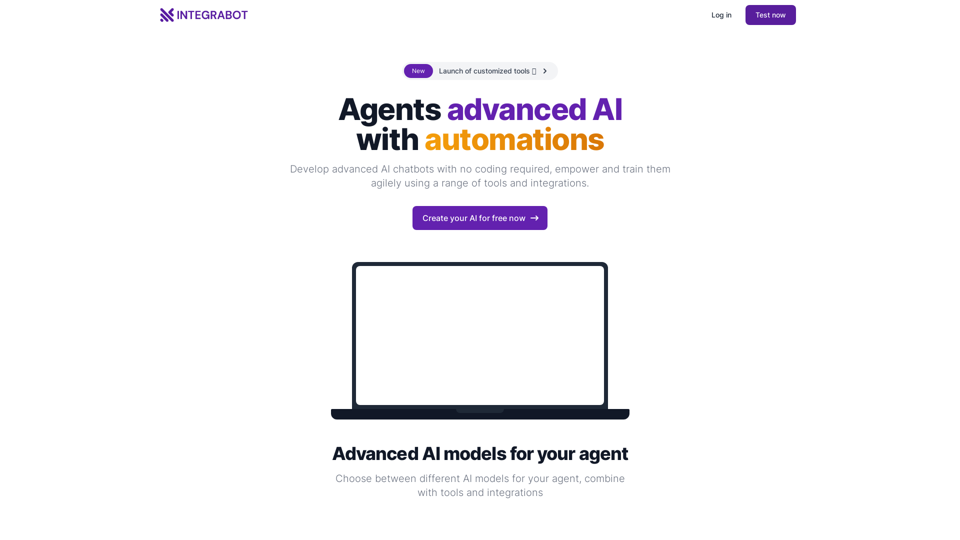
IntegraBot - Advanced Agents with AI and Automations
View Detail

IntegraBot - Advanced Agents with AI and Automations

IntegraBot - Advanced Agents with AI and Automations

Create an AI chatbot from your knowledge base and add it to your website or interact with it through our API.

357
ProductLocker - AI Powered Amazon FBA Tool
View Detail

ProductLocker - AI Powered Amazon FBA Tool

ProductLocker - AI Powered Amazon FBA Tool

Revolutionize Your Amazon FBA Arbitrage Product Research with AI-Driven Real-time Data!

193.90 M
Quest
View Detail

Quest

Quest

Find information fast.

193.90 M
Open AI Chat GPT For Email
View Detail

Open AI Chat GPT For Email

Open AI Chat GPT For Email

Email Completion Suggestions ============================= Powered by OpenAI, this feature provides intelligent suggestions to complete your emails, saving you time and effort. How it Works --------------- 1. Start Writing: Begin composing your email as you normally would. 2. AI Takes Over: Our AI engine, powered by OpenAI, kicks in and analyzes the context of your email. 3. Suggestions Appear: Relevant and contextual suggestions will appear, helping you complete your email quickly and efficiently. Benefits ------------ * Save Time: Get suggestions in real-time, reducing the time spent on writing emails. * Improve Quality: Enhance the clarity and coherence of your emails with AI-driven suggestions. * Boost Productivity: Focus on more important tasks while our AI handles the email completion. Get Started -------------- Try our email completion suggestions today and experience the power of AI-driven productivity!

193.90 M