Talefy is an innovative AI-powered platform that offers interactive storytelling experiences. It allows users to both read AI-generated stories and create their own unique narratives using advanced AI algorithms. Talefy combines cutting-edge technology with creative storytelling to provide an immersive and engaging experience for users of all backgrounds.
Talefy - AI Story Generator | Interactive Stories
Unleash your imagination with Talefy, the AI-powered story generator. Explore interactive tales across various genres, unbounded by choices.

Introduction
Feature
AI-Generated Stories
A vast library of pre-created stories across various genres, offering diverse reading experiences.
Story Creation Tools
Powerful tools for users to craft their own interactive narratives, including character customization and world-building features.
Multiple Genres
Support for various storytelling styles including romance, thriller, sci-fi, fantasy, and more.
Interactive Storytelling
Reader choices influence story outcomes, creating a personalized and engaging reading experience.
User-Friendly Interface
Easy navigation for both story creation and reading, making it accessible to users of all skill levels.
Character Customization
Detailed character creation options allow users to develop rich, multi-dimensional personalities.
World-Building Tools
Features to design intricate story settings, enhancing the immersion of the narrative.
FAQ
How do I get started with Talefy?
To get started:
- Sign up on the Talefy platform
- Gain access to AI-generated stories and interactive story games
- Explore the story library or start creating your own story
What are the pricing options for Talefy?
While specific pricing details are not provided, prices start from $1.99. Users are advised to check the Talefy platform for the most up-to-date subscription and pricing information.
Can I use Talefy for free?
While the platform offers some free features, there are subscription options available. Check the Talefy website for current pricing and free trial information.
How often are new stories added to Talefy?
The platform regularly updates its library of AI-generated stories. Keep an eye on announcements for new releases and updates.
Is there a mobile app for Talefy?
Information about a mobile app is not provided in the given text. Check the Talefy website or app stores for the most current information on mobile accessibility.
Related Websites
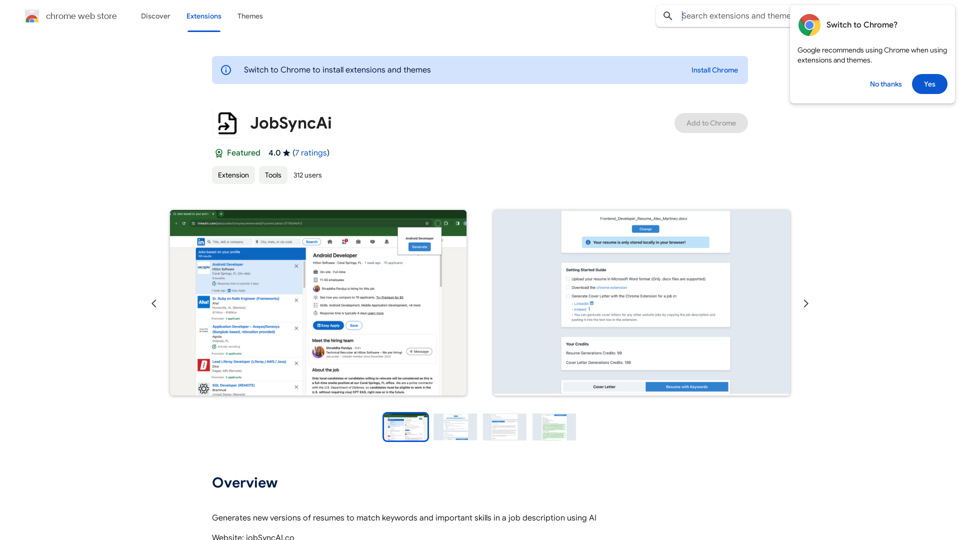
Generates new versions of resumes to match keywords and important skills in a job description using AI
193.90 M
TikTok Voice Generator ========================== The TikTok voice generator is a popular feature on the social media platform that allows users to create and share videos with unique and entertaining voiceovers. This feature has become a sensation among TikTok users, with many using it to add humor, creativity, and personality to their videos. How Does it Work? -------------------- The TikTok voice generator uses advanced AI technology to convert written text into a spoken voice. Users can type in the text they want to convert, and the generator will produce a natural-sounding voiceover in a matter of seconds. The voice generator offers a range of voices, accents, and languages to choose from, allowing users to customize their voiceovers to fit their style and preferences. Features and Benefits ------------------------- Variety of Voices The TikTok voice generator offers a vast library of voices, including male and female voices, different accents, and languages. This allows users to experiment with different voices and find the one that best suits their content. Easy to Use The voice generator is incredibly easy to use. Users simply need to type in the text they want to convert, select the voice they want to use, and the generator will do the rest. Add Humor and Creativity The TikTok voice generator is a great way to add humor and creativity to videos. Users can use the generator to create funny voiceovers, parody songs, or even create their own characters. Increase Engagement Videos with voiceovers generated by the TikTok voice generator tend to perform better in terms of engagement. The unique and entertaining voiceovers can help capture viewers' attention and increase the chances of going viral. Conclusion ---------- The TikTok voice generator is a powerful tool that can help users take their content to the next level. With its advanced AI technology, ease of use, and variety of voices, it's no wonder why it has become a favorite among TikTok users. Whether you're looking to add humor, creativity, or personality to your videos, the TikTok voice generator is definitely worth trying out.
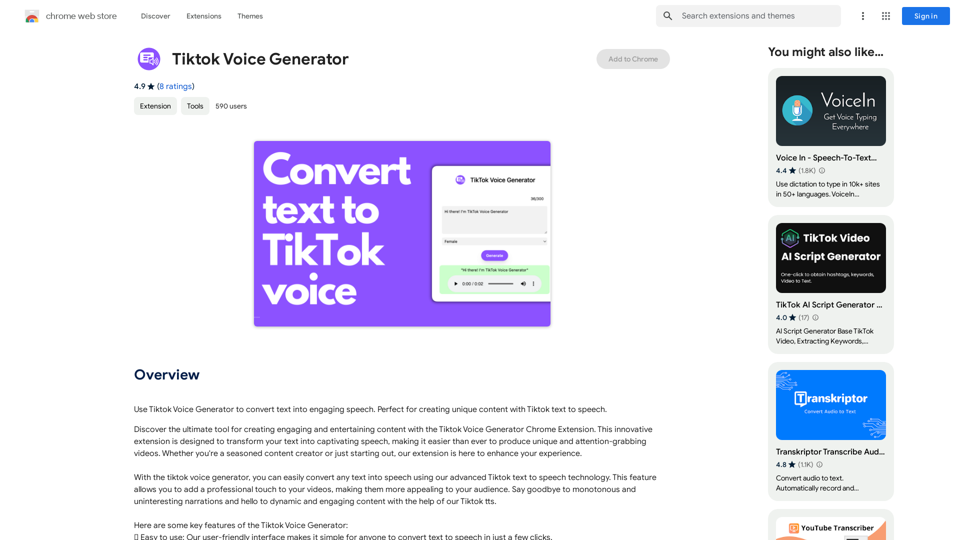
TikTok Voice Generator ========================== The TikTok voice generator is a popular feature on the social media platform that allows users to create and share videos with unique and entertaining voiceovers. This feature has become a sensation among TikTok users, with many using it to add humor, creativity, and personality to their videos. How Does it Work? -------------------- The TikTok voice generator uses advanced AI technology to convert written text into a spoken voice. Users can type in the text they want to convert, and the generator will produce a natural-sounding voiceover in a matter of seconds. The voice generator offers a range of voices, accents, and languages to choose from, allowing users to customize their voiceovers to fit their style and preferences. Features and Benefits ------------------------- Variety of Voices The TikTok voice generator offers a vast library of voices, including male and female voices, different accents, and languages. This allows users to experiment with different voices and find the one that best suits their content. Easy to Use The voice generator is incredibly easy to use. Users simply need to type in the text they want to convert, select the voice they want to use, and the generator will do the rest. Add Humor and Creativity The TikTok voice generator is a great way to add humor and creativity to videos. Users can use the generator to create funny voiceovers, parody songs, or even create their own characters. Increase Engagement Videos with voiceovers generated by the TikTok voice generator tend to perform better in terms of engagement. The unique and entertaining voiceovers can help capture viewers' attention and increase the chances of going viral. Conclusion ---------- The TikTok voice generator is a powerful tool that can help users take their content to the next level. With its advanced AI technology, ease of use, and variety of voices, it's no wonder why it has become a favorite among TikTok users. Whether you're looking to add humor, creativity, or personality to your videos, the TikTok voice generator is definitely worth trying out.Use the Tiktok Voice Generator to convert text into engaging speech. Perfect for creating unique content with Tiktok text to speech.
193.90 M
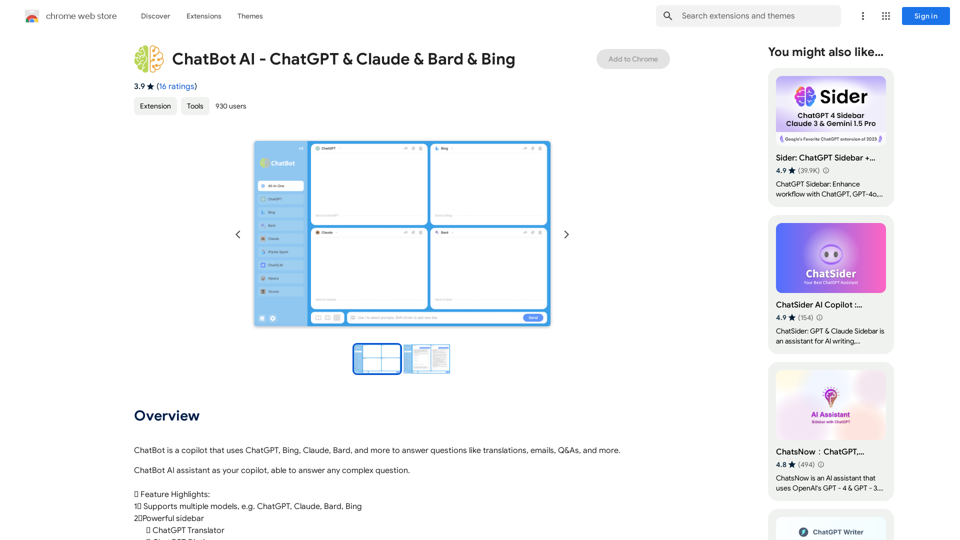
ChatBot AI - ChatGPT & Claude & Bard & BingOverviewChatBot AI
ChatBot AI - ChatGPT & Claude & Bard & BingOverviewChatBot AIChatBot is a copilot that uses ChatGPT, Bing, Claude, Bard, and more to answer questions like translations, emails, Q&As, and more.
193.90 M
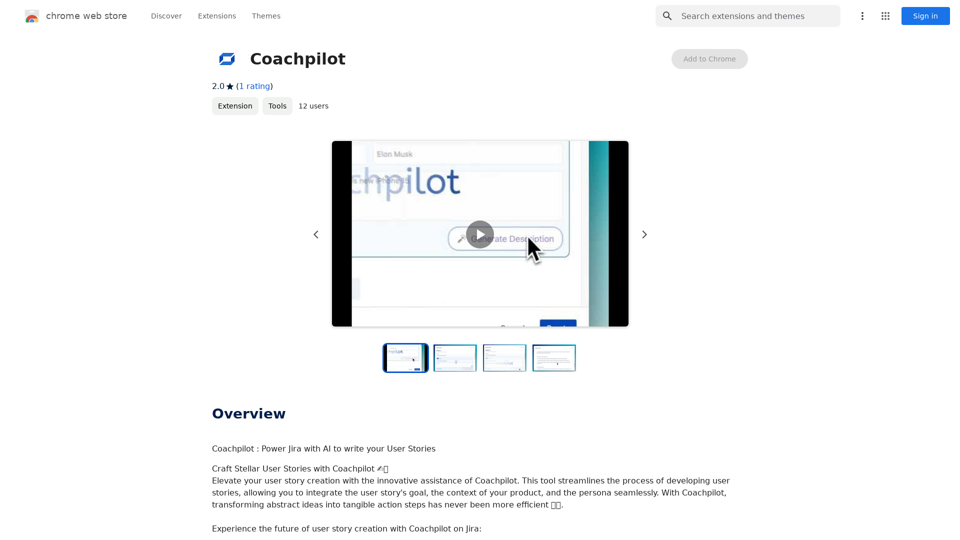
Coachpilot: Use AI to Write User Stories in Jira Coachpilot helps you write better user stories in Jira using the power of artificial intelligence.
193.90 M

CleanerPro, our AI-powered image editor, transforms e-commerce visuals by enabling effortless removal of logos, text, and unwanted elements with just one click.
0