Open-source RightAI Tools Directory
  • Discover AI
  • Submit
  • Startup
  • Blog
Open-source RightAI Tools Directory
Discover the best AI tools of 2025 with the RightAI Tools Directory!

Friend Links

AI Anime GeneratorToolsApp AI

Support

Tap4
Privacy policyTerms & ConditionsContact Us
Loading...
loading...

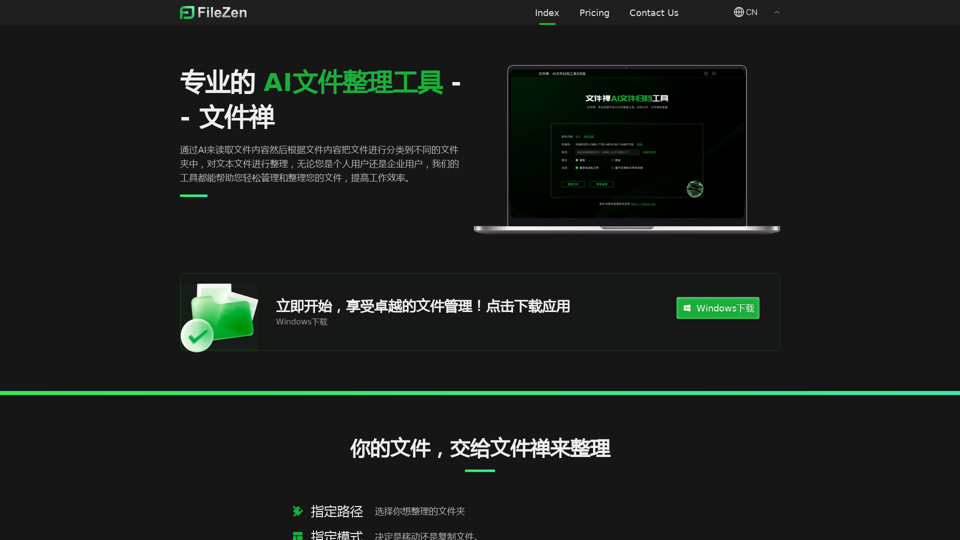
File Zen, a tool for AI-powered intelligent file organization and classification.

FileNeatAI is a professional AI-powered file organization tool designed to streamline the process of categorizing and organizing text files on your computer. By leveraging advanced AI capabilities, FileNeatAI reads the content of each file within a specified folder and intelligently categorizes these files into different folders based on their content.
Visit Website
File Zen, a tool for AI-powered intelligent file organization and classification.
Visit Website

Introduction

FileZen is an AI-powered file organization and categorization tool that uses advanced artificial intelligence to analyze file contents and sort them into different folders. It caters to both individual and business users, enhancing productivity through effortless file management. FileZen employs cutting-edge AI models like GPT3.5 and GPT4 to deliver high-quality file organization services.

Feature

AI-driven File Categorization

FileZen's core feature is its AI-powered file analysis and categorization system, which automatically sorts files into appropriate folders based on their content.

Customizable Settings

Users can tailor FileZen to their needs by:

  • Specifying file paths
  • Selecting files for organization
  • Choosing between moving or copying files
  • Selecting preferred AI models (GPT3.5 or GPT4)

User-Friendly Interface

FileZen offers a simple three-step process:

  1. Download and install the application
  2. Specify the file path
  3. Customize settings

Tiered Service Options

FileZen provides both free and paid versions:

FeatureFree VersionPaid Version
File LimitUp to 15 filesOver 100 files
AI ModelGPT3.5GPT4
Network SpeedNormalPriority
SupportNo human supportOne-on-one human support

Windows Compatibility

FileZen is designed for Windows devices, ensuring compatibility with a widely-used operating system.

FAQ

What are the main benefits of using FileZen?

FileZen offers several key benefits:

  • Improved productivity through efficient file management
  • Advanced AI technology for high-quality file organization
  • Customizable settings to meet specific user needs

How does FileZen's AI technology work?

FileZen utilizes advanced AI models like GPT3.5 and GPT4 to analyze file contents and categorize them into appropriate folders, streamlining the organization process.

Is there a limit to the number of files FileZen can handle?

The file limit depends on the version:

  • Free version: Up to 15 files
  • Paid version: Over 100 files

What kind of support is available for FileZen users?

Support options vary by version:

  • Free version: No human support
  • Paid version: One-on-one human support

Can I customize how FileZen organizes my files?

Yes, FileZen allows users to customize settings such as file paths, selection of files to organize, and the option to move or copy files.

Related Websites
Conveyor
View Detail

Conveyor

Conveyor

Precise and customized responses to each customer's security inquiries.

193.90 M
ChatFlow: ChatGPT Prompt Populator
View Detail

ChatFlow: ChatGPT Prompt Populator

ChatFlow: ChatGPT Prompt Populator

ChatFlow for ChatGPT makes it easy to manage your prompts, so you can have more efficient and enjoyable conversations.

193.90 M
Converting JPG Images to Text

Converting a JPG image to text is a process known as Optical Character Recognition (OCR). This technology enables you to extract text from images, scanned documents, and photos. Here's how to do it:

Method 1: Online OCR Tools

You can use online OCR tools to convert JPG images to text. Here are the steps:

1. Upload your JPG image: Go to an online OCR tool website, such as Online OCR Tools or OCR.space, and upload your JPG image.
2. Select the language: Choose the language of the text in your image.
3. Click on "Convert": The tool will convert the image to text.
4. Download the text: You can download the extracted text as a Word document, PDF, or plain text file.

Method 2: Google Drive

You can also use Google Drive to convert JPG images to text. Here's how:

1. Upload your JPG image: Upload your JPG image to Google Drive.
2. Right-click on the image: Right-click on the uploaded image and select "Open with" > "Google Docs".
3. The image will be converted: Google Docs will automatically convert the image to text.
4. Edit and download: You can edit the extracted text and download it as a Word document or PDF.

Method 3: Adobe Acrobat

If you have Adobe Acrobat installed on your computer, you can use it to convert JPG images to text. Here's how:

1. Open Adobe Acrobat: Open Adobe Acrobat on your computer.
2. Create a new document: Create a new document and click on "Tools" > "Recognize Text".
3. Select the image: Select the JPG image you want to convert.
4. Click on "Recognize": Adobe Acrobat will convert the image to text.
5. Edit and save: You can edit the extracted text and save it as a Word document or PDF.

These are the three methods to convert JPG images to text. Choose the method that works best for you!
View Detail

Converting JPG Images to Text Converting a JPG image to text is a process known as Optical Character Recognition (OCR). This technology enables you to extract text from images, scanned documents, and photos. Here's how to do it: Method 1: Online OCR Tools You can use online OCR tools to convert JPG images to text. Here are the steps: 1. Upload your JPG image: Go to an online OCR tool website, such as Online OCR Tools or OCR.space, and upload your JPG image. 2. Select the language: Choose the language of the text in your image. 3. Click on "Convert": The tool will convert the image to text. 4. Download the text: You can download the extracted text as a Word document, PDF, or plain text file. Method 2: Google Drive You can also use Google Drive to convert JPG images to text. Here's how: 1. Upload your JPG image: Upload your JPG image to Google Drive. 2. Right-click on the image: Right-click on the uploaded image and select "Open with" > "Google Docs". 3. The image will be converted: Google Docs will automatically convert the image to text. 4. Edit and download: You can edit the extracted text and download it as a Word document or PDF. Method 3: Adobe Acrobat If you have Adobe Acrobat installed on your computer, you can use it to convert JPG images to text. Here's how: 1. Open Adobe Acrobat: Open Adobe Acrobat on your computer. 2. Create a new document: Create a new document and click on "Tools" > "Recognize Text". 3. Select the image: Select the JPG image you want to convert. 4. Click on "Recognize": Adobe Acrobat will convert the image to text. 5. Edit and save: You can edit the extracted text and save it as a Word document or PDF. These are the three methods to convert JPG images to text. Choose the method that works best for you!

Converting JPG Images to Text Converting a JPG image to text is a process known as Optical Character Recognition (OCR). This technology enables you to extract text from images, scanned documents, and photos. Here's how to do it: Method 1: Online OCR Tools You can use online OCR tools to convert JPG images to text. Here are the steps: 1. Upload your JPG image: Go to an online OCR tool website, such as Online OCR Tools or OCR.space, and upload your JPG image. 2. Select the language: Choose the language of the text in your image. 3. Click on "Convert": The tool will convert the image to text. 4. Download the text: You can download the extracted text as a Word document, PDF, or plain text file. Method 2: Google Drive You can also use Google Drive to convert JPG images to text. Here's how: 1. Upload your JPG image: Upload your JPG image to Google Drive. 2. Right-click on the image: Right-click on the uploaded image and select "Open with" > "Google Docs". 3. The image will be converted: Google Docs will automatically convert the image to text. 4. Edit and download: You can edit the extracted text and download it as a Word document or PDF. Method 3: Adobe Acrobat If you have Adobe Acrobat installed on your computer, you can use it to convert JPG images to text. Here's how: 1. Open Adobe Acrobat: Open Adobe Acrobat on your computer. 2. Create a new document: Create a new document and click on "Tools" > "Recognize Text". 3. Select the image: Select the JPG image you want to convert. 4. Click on "Recognize": Adobe Acrobat will convert the image to text. 5. Edit and save: You can edit the extracted text and save it as a Word document or PDF. These are the three methods to convert JPG images to text. Choose the method that works best for you!

It is an online tool that uses Optical Character Recognition (OCR) to make it possible to extract text from images in JPG format.

193.90 M
Summarize and Translate with Gemini
Gemini是一个基于人工智能的多语言翻译和文本摘要工具。它可以将长篇文本转换为简洁的摘要,同时提供多种语言的翻译选项。

#Key Features
* Multilingual Translation: Gemini支持多种语言的翻译,包括英语、法语、德语、西班牙语、葡萄牙语、意大利语、荷兰语、俄语、中文、日语和韩语等。
* Text Summarization: Gemini可以将长篇文本转换为简洁的摘要,帮助用户快速了解文本的主要内容。
* AI-powered: Gemini基于人工智能技术,能够智能地识别和处理语言,提供高质量的翻译和摘要结果。

#How to Use Gemini
1. Copy and Paste: 将需要翻译或摘要的文本复制并粘贴到Gemini的输入框中。
2. Select Language: 选择需要翻译的语言或摘要的格式。
3. Get Result: Gemini将提供翻译或摘要结果,用户可以根据需要进行调整和编辑。

#Benefits
* Save Time: Gemini可以快速地翻译和摘要长篇文本,节省用户的时间和精力。
* Improve Efficiency: Gemini的翻译和摘要结果可以帮助用户更好地理解和处理文本,提高工作效率。
* Enhance Productivity: Gemini可以帮助用户更好地与他人交流和合作,提高生产力和效率。
View Detail

Summarize and Translate with Gemini Gemini是一个基于人工智能的多语言翻译和文本摘要工具。它可以将长篇文本转换为简洁的摘要,同时提供多种语言的翻译选项。 #Key Features * Multilingual Translation: Gemini支持多种语言的翻译,包括英语、法语、德语、西班牙语、葡萄牙语、意大利语、荷兰语、俄语、中文、日语和韩语等。 * Text Summarization: Gemini可以将长篇文本转换为简洁的摘要,帮助用户快速了解文本的主要内容。 * AI-powered: Gemini基于人工智能技术,能够智能地识别和处理语言,提供高质量的翻译和摘要结果。 #How to Use Gemini 1. Copy and Paste: 将需要翻译或摘要的文本复制并粘贴到Gemini的输入框中。 2. Select Language: 选择需要翻译的语言或摘要的格式。 3. Get Result: Gemini将提供翻译或摘要结果,用户可以根据需要进行调整和编辑。 #Benefits * Save Time: Gemini可以快速地翻译和摘要长篇文本,节省用户的时间和精力。 * Improve Efficiency: Gemini的翻译和摘要结果可以帮助用户更好地理解和处理文本,提高工作效率。 * Enhance Productivity: Gemini可以帮助用户更好地与他人交流和合作,提高生产力和效率。

Summarize and Translate with Gemini Gemini是一个基于人工智能的多语言翻译和文本摘要工具。它可以将长篇文本转换为简洁的摘要,同时提供多种语言的翻译选项。 #Key Features * Multilingual Translation: Gemini支持多种语言的翻译,包括英语、法语、德语、西班牙语、葡萄牙语、意大利语、荷兰语、俄语、中文、日语和韩语等。 * Text Summarization: Gemini可以将长篇文本转换为简洁的摘要,帮助用户快速了解文本的主要内容。 * AI-powered: Gemini基于人工智能技术,能够智能地识别和处理语言,提供高质量的翻译和摘要结果。 #How to Use Gemini 1. Copy and Paste: 将需要翻译或摘要的文本复制并粘贴到Gemini的输入框中。 2. Select Language: 选择需要翻译的语言或摘要的格式。 3. Get Result: Gemini将提供翻译或摘要结果,用户可以根据需要进行调整和编辑。 #Benefits * Save Time: Gemini可以快速地翻译和摘要长篇文本,节省用户的时间和精力。 * Improve Efficiency: Gemini的翻译和摘要结果可以帮助用户更好地理解和处理文本,提高工作效率。 * Enhance Productivity: Gemini可以帮助用户更好地与他人交流和合作,提高生产力和效率。

Summarize and Translate Web Pages This tool utilizes Gemini as its backend to provide a convenient way to summarize and translate web pages.

193.90 M
ReText
View Detail

ReText

ReText

An AI-powered text processing tool to fix and simplify your text, making your texting experience as easy as possible.

193.90 M
Landing Page | Guide
View Detail

Landing Page | Guide

Landing Page | Guide

Upload any outfit photo and try it on virtually. Upload your photo and try it for free.

0
S32 | Your Personal AI Conveyancer for Section 32 and Rental Agreements
View Detail

S32 | Your Personal AI Conveyancer for Section 32 and Rental Agreements

S32 | Your Personal AI Conveyancer for Section 32 and Rental Agreements

The Closest Thing to a Human Conveyancer

69
AI Group Tabs
View Detail

AI Group Tabs

AI Group Tabs

Group your tabs with AI This is a simple and effective way to organize your browser tabs using artificial intelligence. Here's how it works: * Select multiple tabs: Choose the tabs you want to group together. * AI grouping: Our AI will analyze the content of the selected tabs and suggest relevant groups. * Customize groups: You can adjust the suggested groups or create your own. * Save and access: Save your grouped tabs for easy access later. Let AI help you stay organized and productive!

193.90 M