Open-source RightAI Tools Directory
  • Discover AI
  • Submit
  • Startup
  • Blog
Open-source RightAI Tools Directory
Discover the best AI tools of 2025 with the RightAI Tools Directory!

Friend Links

AI Anime GeneratorToolsApp AI

Support

Tap4
Privacy policyTerms & ConditionsContact Us
Loading...
loading...

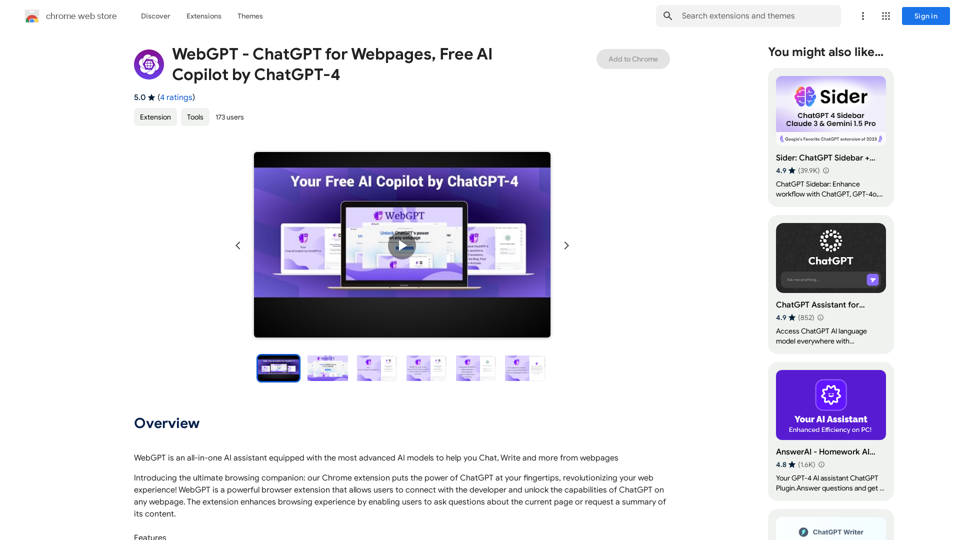
WebGPT - ChatGPT for Webpages, Free AI Copilot by ChatGPT-4

WebGPT is an all-in-one AI assistant with the most advanced AI models to help you chat, write, and more, all from webpages.
Visit Website
WebGPT - ChatGPT for Webpages, Free AI Copilot by ChatGPT-4
Visit Website

Introduction

WebGPT is an all-in-one AI assistant that enhances your web browsing experience. It integrates advanced AI models to provide features like chatting, writing, and more directly from webpages. This powerful browser extension brings the capabilities of ChatGPT to your fingertips, transforming how you interact with online content.

Feature

Chat with Website

Users can engage in conversations with blogs, articles, or news content using WebGPT, allowing for interactive exploration of web content.

Summarize Content

WebGPT can generate concise summaries of various file types, including webpages, PDFs, documents, and DOCX files.

Rewrite Post with WebGPT

This feature enables users to rephrase or restructure existing content using AI assistance.

Translate with WebGPT

WebGPT offers translation capabilities, helping users overcome language barriers while browsing.

Fix Grammar with WebGPT

The extension can identify and correct grammatical errors in text, improving writing quality.

Generate Social Media Posts

WebGPT can create tailored posts for Twitter, Facebook, and LinkedIn based on webpage content, streamlining social media sharing.

Free AI Copilot

WebGPT is available as a free AI copilot powered by ChatGPT-4, accessible through the Chrome Web Store.

FAQ

What is WebGPT?

WebGPT is an all-in-one AI assistant that integrates advanced AI models to enhance web browsing. It allows users to chat, write, and perform various tasks directly from webpages, bringing ChatGPT's capabilities to any website.

What are the main features of WebGPT?

WebGPT offers several key features:

  1. Chat with Website
  2. Summarize Content
  3. Rewrite Post
  4. Translate Content
  5. Fix Grammar
  6. Generate Social Media Posts (Twitter, Facebook, LinkedIn)

How do I use WebGPT?

WebGPT is a browser extension that connects users with the developer and unlocks ChatGPT capabilities on any webpage. Users can ask questions about the current page or request content summaries, enhancing their browsing experience.

Is WebGPT free?

Yes, WebGPT is a free AI copilot powered by ChatGPT-4, available for download on the Chrome Web Store.

Related Websites
Ready - Author Tool Hub
View Detail

Ready - Author Tool Hub

Ready - Author Tool Hub

Tá Pronto - Author Tool Hub is a collection of tools for digital content creators.

193.90 M
Midjourney SREF Codes Library for Style Reference

What are SREF Codes?

SREF codes are special text strings used in Midjourney to quickly and easily apply specific artistic styles to your image generations. 

How to Use SREF Codes:

Simply add an SREF code to your Midjourney prompt. For example:

`/imagine a majestic dragon, SREF:cyberpunk`

SREF Code Library:

This library contains a collection of SREF codes categorized by style. 

* Art Styles:
    * `photorealistic`: Creates images with high levels of realism.
    * `impressionistic`:  Captures the essence of a scene with loose brushstrokes and vibrant colors.
    * `cubist`:  Breaks down objects into geometric shapes.
    * `surrealist`:  Creates dreamlike and fantastical images.
    * `abstract`:  Focuses on form, color, and composition rather than representational imagery.

* Visual Effects:
    * `cinematic`:  Gives images a cinematic look and feel.
    * `HDR`:  Creates images with high dynamic range, resulting in greater detail and contrast.
    * `neon`:  Adds vibrant neon lights to the image.
    * `pixel art`:  Generates images in a retro pixel art style.

* Other Styles:
    * `anime`:  Creates images in the style of Japanese animation.
    * `manga`:  Similar to anime, but with a more comic book aesthetic.
    * `sketch`:  Generates images that resemble pencil sketches.
    * `watercolor`:  Creates images with the look and feel of watercolor paintings.

Note: This is just a small sample of the many SREF codes available. 

Explore and Experiment:

The best way to learn about SREF codes is to experiment with them! Try combining different codes to create unique and interesting styles.
View Detail

Midjourney SREF Codes Library for Style Reference What are SREF Codes? SREF codes are special text strings used in Midjourney to quickly and easily apply specific artistic styles to your image generations. How to Use SREF Codes: Simply add an SREF code to your Midjourney prompt. For example: `/imagine a majestic dragon, SREF:cyberpunk` SREF Code Library: This library contains a collection of SREF codes categorized by style. * Art Styles: * `photorealistic`: Creates images with high levels of realism. * `impressionistic`: Captures the essence of a scene with loose brushstrokes and vibrant colors. * `cubist`: Breaks down objects into geometric shapes. * `surrealist`: Creates dreamlike and fantastical images. * `abstract`: Focuses on form, color, and composition rather than representational imagery. * Visual Effects: * `cinematic`: Gives images a cinematic look and feel. * `HDR`: Creates images with high dynamic range, resulting in greater detail and contrast. * `neon`: Adds vibrant neon lights to the image. * `pixel art`: Generates images in a retro pixel art style. * Other Styles: * `anime`: Creates images in the style of Japanese animation. * `manga`: Similar to anime, but with a more comic book aesthetic. * `sketch`: Generates images that resemble pencil sketches. * `watercolor`: Creates images with the look and feel of watercolor paintings. Note: This is just a small sample of the many SREF codes available. Explore and Experiment: The best way to learn about SREF codes is to experiment with them! Try combining different codes to create unique and interesting styles.

Midjourney SREF Codes Library for Style Reference What are SREF Codes? SREF codes are special text strings used in Midjourney to quickly and easily apply specific artistic styles to your image generations. How to Use SREF Codes: Simply add an SREF code to your Midjourney prompt. For example: `/imagine a majestic dragon, SREF:cyberpunk` SREF Code Library: This library contains a collection of SREF codes categorized by style. * Art Styles: * `photorealistic`: Creates images with high levels of realism. * `impressionistic`: Captures the essence of a scene with loose brushstrokes and vibrant colors. * `cubist`: Breaks down objects into geometric shapes. * `surrealist`: Creates dreamlike and fantastical images. * `abstract`: Focuses on form, color, and composition rather than representational imagery. * Visual Effects: * `cinematic`: Gives images a cinematic look and feel. * `HDR`: Creates images with high dynamic range, resulting in greater detail and contrast. * `neon`: Adds vibrant neon lights to the image. * `pixel art`: Generates images in a retro pixel art style. * Other Styles: * `anime`: Creates images in the style of Japanese animation. * `manga`: Similar to anime, but with a more comic book aesthetic. * `sketch`: Generates images that resemble pencil sketches. * `watercolor`: Creates images with the look and feel of watercolor paintings. Note: This is just a small sample of the many SREF codes available. Explore and Experiment: The best way to learn about SREF codes is to experiment with them! Try combining different codes to create unique and interesting styles.

Explore a list of 177 unique Midjourney sref codes and style references to find your perfect Midjourney sref code effect.

149.96 K
SpeechGeneratorAI - Write Speeches in Seconds with AI
View Detail

SpeechGeneratorAI - Write Speeches in Seconds with AI

SpeechGeneratorAI - Write Speeches in Seconds with AI

Need to write a speech instantly? Use our free AI speech writer to create a speech for any occasion in seconds!

63.54 K
Chat-GPT PDF

What is Chat-GPT PDF?

Chat-GPT PDF is a tool that allows users to generate PDF files from Chat-GPT conversations. This innovative tool enables users to save and share their conversations in a more organized and visually appealing format.

How does Chat-GPT PDF work?

The process is simple and straightforward. Here's a step-by-step guide:

1. Copy the conversation: Copy the entire conversation from the Chat-GPT platform.
2. Paste the conversation: Paste the copied conversation into the Chat-GPT PDF tool.
3. Customize the layout: Customize the layout, font, and design of the PDF file according to your preferences.
4. Generate the PDF: Click the "Generate PDF" button to create a downloadable PDF file.

Features of Chat-GPT PDF

Chat-GPT PDF offers several features that make it an essential tool for users:

* Customizable layout: Customize the layout, font, and design of the PDF file to suit your needs.
* Easy sharing: Share the PDF file with others via email, social media, or messaging apps.
* Offline access: Access your conversations offline, even without an internet connection.
* Organization: Organize your conversations in a neat and tidy format, making it easier to review and reference.

Benefits of Chat-GPT PDF

The benefits of using Chat-GPT PDF are numerous:

* Improved productivity: Save time and increase productivity by having all your conversations in one place.
* Enhanced collaboration: Collaborate with others more effectively by sharing conversations in a clear and concise format.
* Better organization: Keep your conversations organized, making it easier to review and reference them later.

Conclusion

Chat-GPT PDF is a game-changer for anyone who uses Chat-GPT regularly. With its ease of use, customization options, and benefits, it's an essential tool for anyone looking to get the most out of their conversations.
View Detail

Chat-GPT PDF What is Chat-GPT PDF? Chat-GPT PDF is a tool that allows users to generate PDF files from Chat-GPT conversations. This innovative tool enables users to save and share their conversations in a more organized and visually appealing format. How does Chat-GPT PDF work? The process is simple and straightforward. Here's a step-by-step guide: 1. Copy the conversation: Copy the entire conversation from the Chat-GPT platform. 2. Paste the conversation: Paste the copied conversation into the Chat-GPT PDF tool. 3. Customize the layout: Customize the layout, font, and design of the PDF file according to your preferences. 4. Generate the PDF: Click the "Generate PDF" button to create a downloadable PDF file. Features of Chat-GPT PDF Chat-GPT PDF offers several features that make it an essential tool for users: * Customizable layout: Customize the layout, font, and design of the PDF file to suit your needs. * Easy sharing: Share the PDF file with others via email, social media, or messaging apps. * Offline access: Access your conversations offline, even without an internet connection. * Organization: Organize your conversations in a neat and tidy format, making it easier to review and reference. Benefits of Chat-GPT PDF The benefits of using Chat-GPT PDF are numerous: * Improved productivity: Save time and increase productivity by having all your conversations in one place. * Enhanced collaboration: Collaborate with others more effectively by sharing conversations in a clear and concise format. * Better organization: Keep your conversations organized, making it easier to review and reference them later. Conclusion Chat-GPT PDF is a game-changer for anyone who uses Chat-GPT regularly. With its ease of use, customization options, and benefits, it's an essential tool for anyone looking to get the most out of their conversations.

Chat-GPT PDF What is Chat-GPT PDF? Chat-GPT PDF is a tool that allows users to generate PDF files from Chat-GPT conversations. This innovative tool enables users to save and share their conversations in a more organized and visually appealing format. How does Chat-GPT PDF work? The process is simple and straightforward. Here's a step-by-step guide: 1. Copy the conversation: Copy the entire conversation from the Chat-GPT platform. 2. Paste the conversation: Paste the copied conversation into the Chat-GPT PDF tool. 3. Customize the layout: Customize the layout, font, and design of the PDF file according to your preferences. 4. Generate the PDF: Click the "Generate PDF" button to create a downloadable PDF file. Features of Chat-GPT PDF Chat-GPT PDF offers several features that make it an essential tool for users: * Customizable layout: Customize the layout, font, and design of the PDF file to suit your needs. * Easy sharing: Share the PDF file with others via email, social media, or messaging apps. * Offline access: Access your conversations offline, even without an internet connection. * Organization: Organize your conversations in a neat and tidy format, making it easier to review and reference. Benefits of Chat-GPT PDF The benefits of using Chat-GPT PDF are numerous: * Improved productivity: Save time and increase productivity by having all your conversations in one place. * Enhanced collaboration: Collaborate with others more effectively by sharing conversations in a clear and concise format. * Better organization: Keep your conversations organized, making it easier to review and reference them later. Conclusion Chat-GPT PDF is a game-changer for anyone who uses Chat-GPT regularly. With its ease of use, customization options, and benefits, it's an essential tool for anyone looking to get the most out of their conversations.

Exporting Chat History to PDF You can export your chat history with Chat-GPT to a PDF file using the following methods: #Method 1: Browser Print Function 1. Open your chat conversation with Chat-GPT in a web browser. 2. Press `Ctrl + P` (Windows) or `Cmd + P` (Mac) to open the print dialog box. 3. Select "Save as PDF" as the printer destination. 4. Choose a location to save the PDF file and set the file name. 5. Click "Save" to export the chat history to a PDF file. #Method 2: Online PDF Conversion Tools 1. Copy the entire chat conversation by pressing `Ctrl + A` (Windows) or `Cmd + A` (Mac) and then `Ctrl + C` (Windows) or `Cmd + C` (Mac). 2. Go to an online PDF conversion tool, such as SmallPDF or Convertio. 3. Paste the chat conversation into the conversion tool's text box. 4. Select the PDF format and click "Convert" to generate the PDF file. 5. Download the PDF file to your computer. #Method 3: Browser Extensions 1. Install a browser extension, such as Print Friendly & PDF or FireShot, that allows you to save web pages as PDF files. 2. Open your chat conversation with Chat-GPT in a web browser. 3. Click the browser extension's icon in the toolbar. 4. Select the "Save as PDF" option and choose a location to save the file. 5. Click "Save" to export the chat history to a PDF file. By following these methods, you can easily export your chat history with Chat-GPT to a PDF file for future reference or sharing.

193.90 M
Claude to Notion

This is a guide on how to connect Claude, an AI assistant, with Notion, a note-taking and workspace app. 

Why connect Claude and Notion?

* Boost your productivity: Use Claude to generate content, summarize information, and automate tasks directly within Notion.
* Enhance your research: Ask Claude questions about your Notion notes and get insightful answers.
* Unlock new creative possibilities: Leverage Claude's generative capabilities to brainstorm ideas, write stories, or compose emails within your Notion workspace.

How to connect Claude and Notion:

1. API Keys: Obtain an API key for both Claude and Notion. 
2. Integration Tool: Explore integration tools like Zapier or Integromat to connect Claude and Notion. These platforms allow you to create workflows that trigger actions in one app based on events in the other.
3. Custom Development: For advanced users, you can develop your own custom integration using the Claude and Notion APIs. This gives you the most flexibility but requires coding knowledge.

Example Use Cases:

* Meeting Summarization: After a meeting, paste the transcript into Notion and use Claude to generate a concise summary.
* Content Creation:  Use Claude to write blog posts, articles, or social media captions directly within your Notion pages.
* Idea Generation: Brainstorm new ideas for projects or tasks by prompting Claude with specific questions within your Notion workspace.


Remember to review the documentation and terms of service for both Claude and Notion to ensure proper usage and security.
View Detail

Claude to Notion This is a guide on how to connect Claude, an AI assistant, with Notion, a note-taking and workspace app. Why connect Claude and Notion? * Boost your productivity: Use Claude to generate content, summarize information, and automate tasks directly within Notion. * Enhance your research: Ask Claude questions about your Notion notes and get insightful answers. * Unlock new creative possibilities: Leverage Claude's generative capabilities to brainstorm ideas, write stories, or compose emails within your Notion workspace. How to connect Claude and Notion: 1. API Keys: Obtain an API key for both Claude and Notion. 2. Integration Tool: Explore integration tools like Zapier or Integromat to connect Claude and Notion. These platforms allow you to create workflows that trigger actions in one app based on events in the other. 3. Custom Development: For advanced users, you can develop your own custom integration using the Claude and Notion APIs. This gives you the most flexibility but requires coding knowledge. Example Use Cases: * Meeting Summarization: After a meeting, paste the transcript into Notion and use Claude to generate a concise summary. * Content Creation: Use Claude to write blog posts, articles, or social media captions directly within your Notion pages. * Idea Generation: Brainstorm new ideas for projects or tasks by prompting Claude with specific questions within your Notion workspace. Remember to review the documentation and terms of service for both Claude and Notion to ensure proper usage and security.

Claude to Notion This is a guide on how to connect Claude, an AI assistant, with Notion, a note-taking and workspace app. Why connect Claude and Notion? * Boost your productivity: Use Claude to generate content, summarize information, and automate tasks directly within Notion. * Enhance your research: Ask Claude questions about your Notion notes and get insightful answers. * Unlock new creative possibilities: Leverage Claude's generative capabilities to brainstorm ideas, write stories, or compose emails within your Notion workspace. How to connect Claude and Notion: 1. API Keys: Obtain an API key for both Claude and Notion. 2. Integration Tool: Explore integration tools like Zapier or Integromat to connect Claude and Notion. These platforms allow you to create workflows that trigger actions in one app based on events in the other. 3. Custom Development: For advanced users, you can develop your own custom integration using the Claude and Notion APIs. This gives you the most flexibility but requires coding knowledge. Example Use Cases: * Meeting Summarization: After a meeting, paste the transcript into Notion and use Claude to generate a concise summary. * Content Creation: Use Claude to write blog posts, articles, or social media captions directly within your Notion pages. * Idea Generation: Brainstorm new ideas for projects or tasks by prompting Claude with specific questions within your Notion workspace. Remember to review the documentation and terms of service for both Claude and Notion to ensure proper usage and security.

Save Claude conversations to Notion with one click. Export Claude conversations.

193.90 M
FatfoxTab New Tab Page
View Detail

FatfoxTab New Tab Page

FatfoxTab New Tab Page

FatfoxTab, a new tab page, provides an all-around online experience covering gaming, office, and entertainment scenarios. With advanced language models, it's easy to get started and use, offering a vast array of websites, card-style apps, dynamic wallpapers, and a customizable user interface, all at your fingertips. It's a must-have browser plugin for building your personalized learning and working platform.

193.90 M
Online Voice Generator for Free ❤️
View Detail

Online Voice Generator for Free ❤️

Online Voice Generator for Free ❤️

Online Voice Generator for Free with over 600 voices. Generate realistic voices on our website quickly and download it as MP3.

5.84 K
Notion Flow
View Detail

Notion Flow

Notion Flow

Show Notion Page Table of Contents Publish Notion Pages to a GitHub Jekyll Blog Upload Blog Images to an OSS Service

193.90 M