Open-source RightAI Tools Directory
  • Discover AI
  • Submit
  • Startup
  • Blog
Open-source RightAI Tools Directory
Discover the best AI tools of 2025 with the RightAI Tools Directory!

Friend Links

AI Anime GeneratorToolsApp AI

Support

Tap4
Privacy policyTerms & ConditionsContact Us
Loading...
loading...

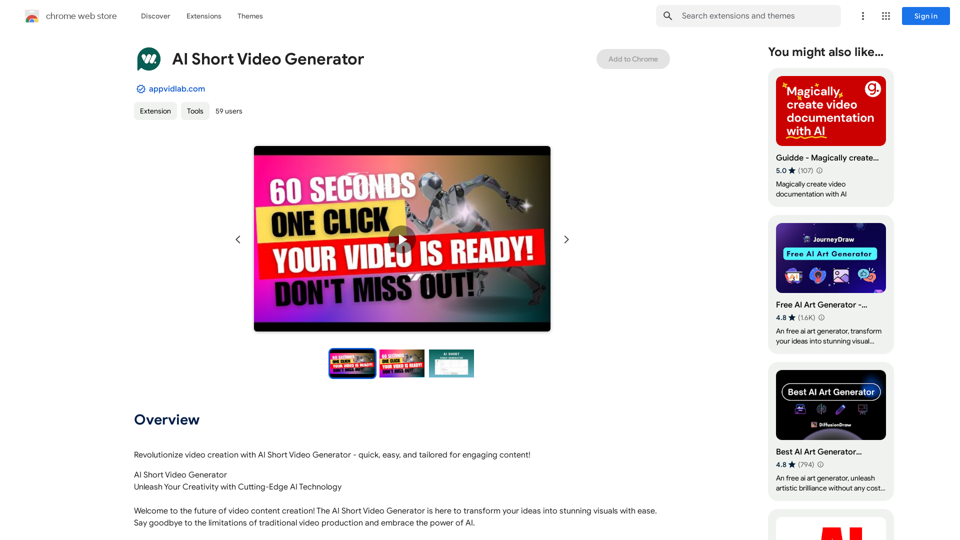
AI Short Video Generator

Revolutionize video creation with AI Short Video Generator - quick, easy, and tailored for engaging content!
Visit Website
AI Short Video Generator
Visit Website

Introduction

AI Short Video Generator is an innovative tool that leverages cutting-edge AI technology to empower creators, marketers, and businesses in producing captivating video content effortlessly. This platform offers unique and engaging visuals, text-to-speech, and speech-to-text capabilities, making video creation accessible to everyone regardless of technical skill level.

Feature

DALL-E 3 Integration

Generate captivating images from text descriptions using the latest AI imagery technology, enhancing the visual appeal of your videos.

Text-to-Speech Capability

Bring your scripts to life with natural-sounding voices that engage your audience, adding a professional touch to your video content.

Speech-to-Text Conversion

Easily convert spoken content into written transcripts for subtitles and improved accessibility, expanding your video's reach.

Bulk Creativity

Produce multiple videos simultaneously, saving valuable time and effort in content creation and marketing campaigns.

Lifetime License

Enjoy continuous access to the platform without additional fees, providing long-term value for your video production needs.

Intuitive Interface

The user-friendly design makes video creation accessible to everyone, regardless of technical expertise.

FAQ

Is the AI Short Video Generator easy to use?

Yes, the platform features an intuitive interface and seamless integration of DALL-E 3, making video creation accessible to everyone, regardless of technical skill level.

Can I generate multiple videos at once?

Yes, the Bulk Creativity feature allows you to produce a multitude of videos simultaneously, significantly saving time and effort in your content creation process.

Is the AI Short Video Generator free?

No, the platform is not free. However, it offers a lifetime license, providing continuous access to the platform with no additional fees after the initial purchase.

Latest Traffic Insights

  • Monthly Visits

    193.90 M

  • Bounce Rate

    56.27%

  • Pages Per Visit

    2.71

  • Time on Site(s)

    115.91

  • Global Rank

    -

  • Country Rank

    -

Recent Visits

Traffic Sources

  • Social Media:
    0.48%
  • Paid Referrals:
    0.55%
  • Email:
    0.15%
  • Referrals:
    12.81%
  • Search Engines:
    16.21%
  • Direct:
    69.81%
More Data

Related Websites

Converting JPG Images to Text

Converting a JPG image to text is a process known as Optical Character Recognition (OCR). This technology enables you to extract text from images, scanned documents, and photos. Here's how to do it:

Method 1: Online OCR Tools

You can use online OCR tools to convert JPG images to text. Here are the steps:

1. Upload your JPG image: Go to an online OCR tool website, such as Online OCR Tools or OCR.space, and upload your JPG image.
2. Select the language: Choose the language of the text in your image.
3. Click on "Convert": The tool will convert the image to text.
4. Download the text: You can download the extracted text as a Word document, PDF, or plain text file.

Method 2: Google Drive

You can also use Google Drive to convert JPG images to text. Here's how:

1. Upload your JPG image: Upload your JPG image to Google Drive.
2. Right-click on the image: Right-click on the uploaded image and select "Open with" > "Google Docs".
3. The image will be converted: Google Docs will automatically convert the image to text.
4. Edit and download: You can edit the extracted text and download it as a Word document or PDF.

Method 3: Adobe Acrobat

If you have Adobe Acrobat installed on your computer, you can use it to convert JPG images to text. Here's how:

1. Open Adobe Acrobat: Open Adobe Acrobat on your computer.
2. Create a new document: Create a new document and click on "Tools" > "Recognize Text".
3. Select the image: Select the JPG image you want to convert.
4. Click on "Recognize": Adobe Acrobat will convert the image to text.
5. Edit and save: You can edit the extracted text and save it as a Word document or PDF.

These are the three methods to convert JPG images to text. Choose the method that works best for you!
View Detail

Converting JPG Images to Text Converting a JPG image to text is a process known as Optical Character Recognition (OCR). This technology enables you to extract text from images, scanned documents, and photos. Here's how to do it: Method 1: Online OCR Tools You can use online OCR tools to convert JPG images to text. Here are the steps: 1. Upload your JPG image: Go to an online OCR tool website, such as Online OCR Tools or OCR.space, and upload your JPG image. 2. Select the language: Choose the language of the text in your image. 3. Click on "Convert": The tool will convert the image to text. 4. Download the text: You can download the extracted text as a Word document, PDF, or plain text file. Method 2: Google Drive You can also use Google Drive to convert JPG images to text. Here's how: 1. Upload your JPG image: Upload your JPG image to Google Drive. 2. Right-click on the image: Right-click on the uploaded image and select "Open with" > "Google Docs". 3. The image will be converted: Google Docs will automatically convert the image to text. 4. Edit and download: You can edit the extracted text and download it as a Word document or PDF. Method 3: Adobe Acrobat If you have Adobe Acrobat installed on your computer, you can use it to convert JPG images to text. Here's how: 1. Open Adobe Acrobat: Open Adobe Acrobat on your computer. 2. Create a new document: Create a new document and click on "Tools" > "Recognize Text". 3. Select the image: Select the JPG image you want to convert. 4. Click on "Recognize": Adobe Acrobat will convert the image to text. 5. Edit and save: You can edit the extracted text and save it as a Word document or PDF. These are the three methods to convert JPG images to text. Choose the method that works best for you!

Converting JPG Images to Text Converting a JPG image to text is a process known as Optical Character Recognition (OCR). This technology enables you to extract text from images, scanned documents, and photos. Here's how to do it: Method 1: Online OCR Tools You can use online OCR tools to convert JPG images to text. Here are the steps: 1. Upload your JPG image: Go to an online OCR tool website, such as Online OCR Tools or OCR.space, and upload your JPG image. 2. Select the language: Choose the language of the text in your image. 3. Click on "Convert": The tool will convert the image to text. 4. Download the text: You can download the extracted text as a Word document, PDF, or plain text file. Method 2: Google Drive You can also use Google Drive to convert JPG images to text. Here's how: 1. Upload your JPG image: Upload your JPG image to Google Drive. 2. Right-click on the image: Right-click on the uploaded image and select "Open with" > "Google Docs". 3. The image will be converted: Google Docs will automatically convert the image to text. 4. Edit and download: You can edit the extracted text and download it as a Word document or PDF. Method 3: Adobe Acrobat If you have Adobe Acrobat installed on your computer, you can use it to convert JPG images to text. Here's how: 1. Open Adobe Acrobat: Open Adobe Acrobat on your computer. 2. Create a new document: Create a new document and click on "Tools" > "Recognize Text". 3. Select the image: Select the JPG image you want to convert. 4. Click on "Recognize": Adobe Acrobat will convert the image to text. 5. Edit and save: You can edit the extracted text and save it as a Word document or PDF. These are the three methods to convert JPG images to text. Choose the method that works best for you!

It is an online tool that uses Optical Character Recognition (OCR) to make it possible to extract text from images in JPG format.

193.90 M
SupplyDrop
View Detail

SupplyDrop

SupplyDrop

A tool that automatically manages inventory and lists products on multiple platforms for resellers.

193.90 M
TLDR.AI
View Detail

TLDR.AI

TLDR.AI

Say goodbye to information overload

193.90 M
Ready - Author Tool Hub
View Detail

Ready - Author Tool Hub

Ready - Author Tool Hub

Tá Pronto - Author Tool Hub is a collection of tools for digital content creators.

193.90 M
Blenny - AI Vision Co-Pilot Powered by GPT-4V
View Detail

Blenny - AI Vision Co-Pilot Powered by GPT-4V

Blenny - AI Vision Co-Pilot Powered by GPT-4V

Screenshot any part of a webpage, and Blenny will instantly help you summarize, translate, apply custom agents, and do more.

193.90 M
YouTube Video Summarizer
View Detail

YouTube Video Summarizer

YouTube Video Summarizer

Effortlessly summarize YouTube videos with 'YouTube Video Summarizer', your AI video-to-text converter and Chat GPT tool

193.90 M
BrainBuddy: AI Assistant with ChatGPT & Bard
View Detail

BrainBuddy: AI Assistant with ChatGPT & Bard

BrainBuddy: AI Assistant with ChatGPT & Bard

BrainBuddy is an All-in-one AI-powered Sidebar Assistant, with ChatGPT, Bard, & more! ⚡

193.90 M
Transifii - Effortlessly import products
View Detail

Transifii - Effortlessly import products

Transifii - Effortlessly import products

Effortlessly import products with SEO-optimized content to your stores. We support Amazon, Tmall, Aliexpress, Alibaba, and more.

193.90 M