Open-source RightAI Tools Directory
  • Discover AI
  • Submit
  • Startup
  • Blog
Open-source RightAI Tools Directory
Discover the best AI tools of 2025 with the RightAI Tools Directory!

Friend Links

AI Anime GeneratorToolsApp AI

Support

Tap4
Privacy policyTerms & ConditionsContact Us
Loading...
loading...

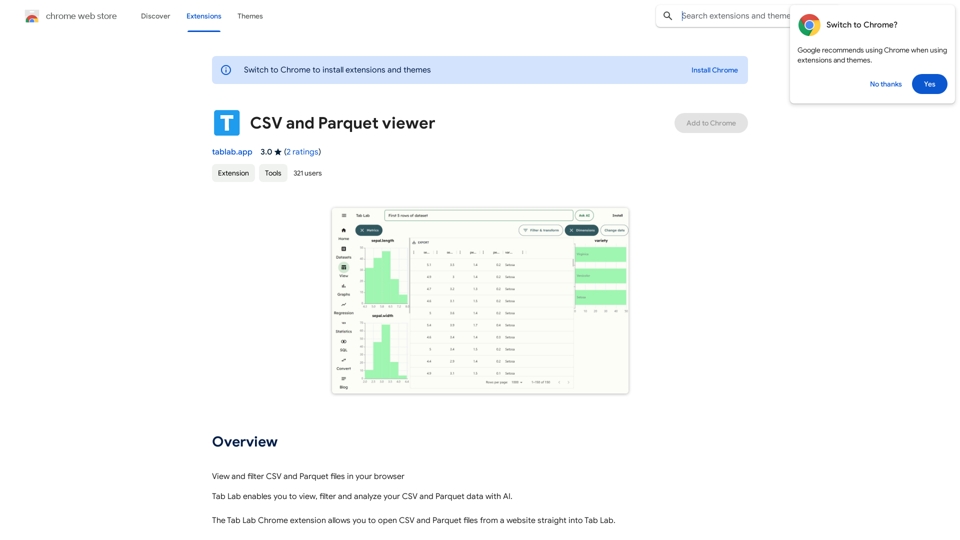
CSV and Parquet Viewer

View and filter CSV and Parquet files in your browser.
Visit Website
CSV and Parquet Viewer
Visit Website

Introduction

Tab Lab is a Chrome extension designed to enhance data analysis capabilities for CSV and Parquet files. It offers AI-powered viewing, filtering, and analysis tools, allowing users to open and examine data directly from websites. This extension simplifies the process of working with large datasets and provides valuable insights through its AI-driven features.

Feature

CSV and Parquet Viewer

Tab Lab provides a user-friendly interface for viewing and filtering CSV and Parquet data. The AI-powered filtering capabilities make it easy to navigate through large datasets and find specific information quickly.

AI-Powered Analysis

The extension leverages artificial intelligence to analyze data, uncovering insights and patterns that might be difficult to detect manually. This feature helps users gain a deeper understanding of their data and make more informed decisions.

Easy Data Import

Tab Lab allows users to import CSV and Parquet files directly from websites into the extension. This seamless integration streamlines the data analysis workflow and saves time by eliminating the need for manual file downloads and uploads.

Multiple File Import

Users can import multiple CSV and Parquet files simultaneously, making it convenient to work with large datasets or compare information from various sources.

Free to Use

Tab Lab is available as a free Chrome extension, with no subscription fees or hidden costs. This accessibility ensures that users can benefit from its powerful features without financial constraints.

FAQ

Is Tab Lab free to use?

Yes, Tab Lab is a completely free Chrome extension. There are no subscription fees or costs associated with using the tool.

Can I import multiple CSV and Parquet files at once?

Yes, Tab Lab supports importing multiple CSV and Parquet files simultaneously, making it convenient to work with large datasets or compare information from various sources.

Does Tab Lab use AI to analyze data?

Yes, Tab Lab utilizes AI technology to analyze data, providing insights and patterns that may not be immediately visible through manual examination. This AI-powered analysis helps users gain deeper insights into their datasets.

Latest Traffic Insights

  • Monthly Visits

    193.90 M

  • Bounce Rate

    56.27%

  • Pages Per Visit

    2.71

  • Time on Site(s)

    115.91

  • Global Rank

    -

  • Country Rank

    -

Recent Visits

Traffic Sources

  • Social Media:
    0.48%
  • Paid Referrals:
    0.55%
  • Email:
    0.15%
  • Referrals:
    12.81%
  • Search Engines:
    16.21%
  • Direct:
    69.81%
More Data

Related Websites

AIDEA
View Detail

AIDEA

AIDEA

Interfacing with AI This document explores the various ways humans interact with artificial intelligence (AI). Types of Interfaces * Text-based Interfaces: These interfaces allow users to communicate with AI systems through written language. * Examples include chatbots, command-line interfaces, and search engines. * Voice-based Interfaces: Users interact with AI using spoken words. * Examples include virtual assistants like Siri, Alexa, and Google Assistant. * Graphical User Interfaces (GUIs): These interfaces use visual elements like icons, buttons, and menus to enable interaction with AI. * Examples include AI-powered image editing software and virtual reality experiences. * Gesture-based Interfaces: Users control AI systems through physical movements. * Examples include motion-controlled gaming and sign language recognition. Challenges of AI Interfacing * Natural Language Understanding (NLU): AI systems struggle to fully understand the nuances of human language. * Contextual Awareness: AI often lacks the ability to understand the broader context of a conversation or interaction. * Personalization: Creating AI interfaces that are tailored to individual user preferences and needs can be complex. * Ethical Considerations: * Bias in AI algorithms can lead to unfair or discriminatory outcomes. * Privacy concerns arise when AI systems collect and process personal data. Future of AI Interfacing * More Natural and Intuitive Interactions: Advancements in NLU and machine learning will lead to AI systems that can understand and respond to human input more naturally. * Multi-modal Interfaces: Future interfaces will likely combine multiple input methods (e.g., text, voice, gesture) for a richer and more immersive experience. * Personalized AI Assistants: AI assistants will become increasingly personalized, anticipating user needs and providing customized support. * Ethical AI Development: * Researchers and developers will continue to work on mitigating bias and ensuring responsible use of AI.

193.90 M
Wispy-1 - Personal AI Agent for Chrome
View Detail

Wispy-1 - Personal AI Agent for Chrome

Wispy-1 - Personal AI Agent for Chrome

Discover, Use, and Share AI Abilities for the Web, right from your Chrome browser.

193.90 M
Octopuses VAX (Virtual Assistant Experience)
View Detail

Octopuses VAX (Virtual Assistant Experience)

Octopuses VAX (Virtual Assistant Experience)

Octopi.health: Revolutionizing healthcare with computer vision, language processing, and Motion Assessment.

193.90 M
Flockjay
View Detail

Flockjay

Flockjay

Chrome extension for the Flockjay Sales Elevation Platform

193.90 M
Quest
View Detail

Quest

Quest

Find information fast.

193.90 M
Pangeanic
View Detail

Pangeanic

Pangeanic

Hyper-automate linguistic services: AI assistants with your data, privacy, automatic translation with automatic post-editing, no hallucinations, human fluency

45.58 K
Sentence Rewriter
View Detail

Sentence Rewriter

Sentence Rewriter

AI sentence and paragraph rewriter. Supports 50+ languages including English, Spanish, French, German, Hindi, Chinese, and more.

193.90 M
Get ChatGPT for Free with Google

You can now access ChatGPT, a powerful language model, for free with Google. Here's how:

Method 1: Google Colab

* Open Google Colab ([colab.research.google.com](http://colab.research.google.com))
* Create a new notebook
* Install the `transformers` library by running `!pip install transformers`
* Import the `transformers` library and load the ChatGPT model using `from transformers import AutoModelForCausalLM, AutoTokenizer; model = AutoModelForCausalLM.from_pretrained('chatgpt'); tokenizer = AutoTokenizer.from_pretrained('chatgpt')`
* Use the model to generate text using `input_text = "Your input here"; inputs = tokenizer.encode_plus(input_text, return_tensors='pt', max_length=1024, padding='max_length', truncation=True); output = model(inputs['input_ids'], attention_mask=inputs['attention_mask']); print(tokenizer.decode(output.logits[0], skip_special_tokens=True))`

Method 2: Google Apps Script

* Open Google Apps Script ([script.google.com](http://script.google.com))
* Create a new project
* Install the `transformers` library by running `npm install transformers`
* Import the `transformers` library and load the ChatGPT model using `const { AutoModelForCausalLM, AutoTokenizer } = require('transformers'); const model = new AutoModelForCausalLM('chatgpt'); const tokenizer = new AutoTokenizer('chatgpt');`
* Use the model to generate text using `const inputText = "Your input here"; const inputs = tokenizer.encodePlus(inputText, { return_tensors: 'pt', max_length: 1024, padding: 'max_length', truncation: true }); const output = model(inputs.inputIds, inputs.attentionMask); console.log(tokenizer.decode(output.logits[0], { skipSpecialTokens: true }));`

Note: These methods require some technical knowledge and may have limitations compared to the original ChatGPT model.
View Detail

Get ChatGPT for Free with Google You can now access ChatGPT, a powerful language model, for free with Google. Here's how: Method 1: Google Colab * Open Google Colab ([colab.research.google.com](http://colab.research.google.com)) * Create a new notebook * Install the `transformers` library by running `!pip install transformers` * Import the `transformers` library and load the ChatGPT model using `from transformers import AutoModelForCausalLM, AutoTokenizer; model = AutoModelForCausalLM.from_pretrained('chatgpt'); tokenizer = AutoTokenizer.from_pretrained('chatgpt')` * Use the model to generate text using `input_text = "Your input here"; inputs = tokenizer.encode_plus(input_text, return_tensors='pt', max_length=1024, padding='max_length', truncation=True); output = model(inputs['input_ids'], attention_mask=inputs['attention_mask']); print(tokenizer.decode(output.logits[0], skip_special_tokens=True))` Method 2: Google Apps Script * Open Google Apps Script ([script.google.com](http://script.google.com)) * Create a new project * Install the `transformers` library by running `npm install transformers` * Import the `transformers` library and load the ChatGPT model using `const { AutoModelForCausalLM, AutoTokenizer } = require('transformers'); const model = new AutoModelForCausalLM('chatgpt'); const tokenizer = new AutoTokenizer('chatgpt');` * Use the model to generate text using `const inputText = "Your input here"; const inputs = tokenizer.encodePlus(inputText, { return_tensors: 'pt', max_length: 1024, padding: 'max_length', truncation: true }); const output = model(inputs.inputIds, inputs.attentionMask); console.log(tokenizer.decode(output.logits[0], { skipSpecialTokens: true }));` Note: These methods require some technical knowledge and may have limitations compared to the original ChatGPT model.

Get ChatGPT for Free with Google You can now access ChatGPT, a powerful language model, for free with Google. Here's how: Method 1: Google Colab * Open Google Colab ([colab.research.google.com](http://colab.research.google.com)) * Create a new notebook * Install the `transformers` library by running `!pip install transformers` * Import the `transformers` library and load the ChatGPT model using `from transformers import AutoModelForCausalLM, AutoTokenizer; model = AutoModelForCausalLM.from_pretrained('chatgpt'); tokenizer = AutoTokenizer.from_pretrained('chatgpt')` * Use the model to generate text using `input_text = "Your input here"; inputs = tokenizer.encode_plus(input_text, return_tensors='pt', max_length=1024, padding='max_length', truncation=True); output = model(inputs['input_ids'], attention_mask=inputs['attention_mask']); print(tokenizer.decode(output.logits[0], skip_special_tokens=True))` Method 2: Google Apps Script * Open Google Apps Script ([script.google.com](http://script.google.com)) * Create a new project * Install the `transformers` library by running `npm install transformers` * Import the `transformers` library and load the ChatGPT model using `const { AutoModelForCausalLM, AutoTokenizer } = require('transformers'); const model = new AutoModelForCausalLM('chatgpt'); const tokenizer = new AutoTokenizer('chatgpt');` * Use the model to generate text using `const inputText = "Your input here"; const inputs = tokenizer.encodePlus(inputText, { return_tensors: 'pt', max_length: 1024, padding: 'max_length', truncation: true }); const output = model(inputs.inputIds, inputs.attentionMask); console.log(tokenizer.decode(output.logits[0], { skipSpecialTokens: true }));` Note: These methods require some technical knowledge and may have limitations compared to the original ChatGPT model.

How to Add ChatGPT to All Google Searches ===================================================== Step 1: Create a Custom Search Engine -------------------------------------- * Go to the [Google Custom Search Engine](https://cse.google.com/) website and sign in with your Google account. * Click on the "New Search Engine" button. * Fill in the required information, such as the name and description of your search engine. * Click on the "Create" button. Step 2: Add ChatGPT to the Search Engine ----------------------------------------- * In the "Setup" tab, click on the "Add" button next to "Sites to search". * Enter the following URL: `https://chat.openai.com/` * Click on the "Add" button. Step 3: Configure the Search Engine -------------------------------------- * In the "Setup" tab, click on the "Edit" button next to "Search engine keywords". * Add the following keywords: `ChatGPT` * Click on the "Save" button. Step 4: Get the Search Engine Code ------------------------------------- * In the "Setup" tab, click on the "Get code" button. * Copy the HTML code provided. Step 5: Add the Search Engine to Your Browser ------------------------------------------------ * Open your browser and go to the "Settings" or "Options" page. * Look for the "Search engine" or "Default search engine" option. * Click on the "Add" or "Manage search engines" button. * Paste the HTML code you copied earlier. * Click on the "Add" or "Save" button. You're Done! =============== Now, whenever you search on Google, ChatGPT will be included in the search results. You can also use the custom search engine URL provided by Google to search directly.

193.90 M