Open-source RightAI Tools Directory
  • Discover AI
  • Submit
  • Startup
  • Blog
Open-source RightAI Tools Directory
Discover the best AI tools of 2025 with the RightAI Tools Directory!

Friend Links

AI Anime GeneratorToolsApp AI

Support

Tap4
Privacy policyTerms & ConditionsContact Us
Loading...
loading...

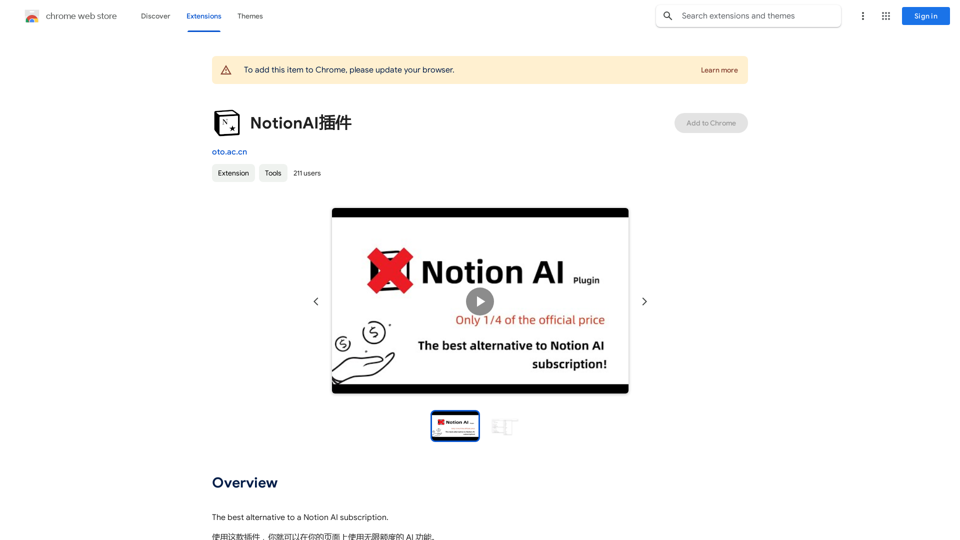
NotionAI Plugin

The best alternative to a Notion AI subscription.
Visit Website
NotionAI Plugin
Visit Website

Introduction

NotionAI is a Chrome extension that enhances Notion pages with unlimited AI functionality. It offers a native AI experience and serves as an affordable alternative to Notion AI subscriptions. Compatible with Mac, Windows, and all Chrome-based browsers, NotionAI empowers users to create unlimited AI-powered content directly within their Notion workspace.

Feature

Unlimited AI Functionality

NotionAI provides users with unrestricted access to AI-powered features on their Notion pages, allowing for unlimited content creation and enhancement.

Native AI Experience

The extension seamlessly integrates with Notion, offering a smooth and intuitive AI experience that feels native to the platform.

Cross-Platform Compatibility

NotionAI supports Mac and Windows operating systems, as well as all Chrome-based browsers, ensuring wide accessibility for users.

Cost-Effective Solution

As a free Chrome extension, NotionAI presents a highly affordable alternative to premium Notion AI subscriptions.

Easy Installation and Use

Users can quickly install the Chrome extension and immediately start leveraging AI capabilities on their Notion pages without complex setup processes.

FAQ

What makes NotionAI different from a Notion AI subscription?

NotionAI is a free Chrome extension that provides unlimited AI functionality on Notion pages, offering a cost-effective alternative to paid Notion AI subscriptions while maintaining a native AI experience.

Is NotionAI compatible with different operating systems and browsers?

Yes, NotionAI supports both Mac and Windows operating systems, and works with all Chrome-based browsers, ensuring broad compatibility for users across various platforms.

How do I get started with NotionAI?

To begin using NotionAI, simply install the Chrome extension. Once installed, you can immediately start creating unlimited AI-powered content on your Notion pages without any additional setup.

Are there any limitations on the AI-generated content with NotionAI?

NotionAI allows for unlimited AI-powered content creation on Notion pages, providing users with extensive capabilities without restrictions typically associated with subscription-based services.

Latest Traffic Insights

  • Monthly Visits

    193.90 M

  • Bounce Rate

    56.27%

  • Pages Per Visit

    2.71

  • Time on Site(s)

    115.91

  • Global Rank

    -

  • Country Rank

    -

Recent Visits

Traffic Sources

  • Social Media:
    0.48%
  • Paid Referrals:
    0.55%
  • Email:
    0.15%
  • Referrals:
    12.81%
  • Search Engines:
    16.21%
  • Direct:
    69.81%
More Data

Related Websites

AI Voice Over for YouTube 

This is a guide to using AI voice over for your YouTube videos. 

Why Use AI Voice Over?

* Cost-Effective: AI voice over is much cheaper than hiring a professional voice actor.
* Time-Saving: You can generate voice over quickly and easily, without needing to schedule recording sessions.
* Variety of Voices: Choose from a wide range of AI voices, including male, female, and even robotic voices.
* Accessibility: Make your videos accessible to viewers who are deaf or hard of hearing by adding captions generated by AI.

How to Use AI Voice Over

1. Choose a Platform: There are many different platforms that offer AI voice over services, such as:
    * Google Cloud Text-to-Speech
    * Amazon Polly
    * Microsoft Azure Text to Speech
    * Murf.ai
    * NaturalReader
2. Write Your Script:  Write a clear and concise script for your video.
3. Upload Your Script:  Upload your script to the chosen platform.
4. Select a Voice: Choose the voice that best suits your video.
5. Adjust Settings:  Adjust settings such as speed, pitch, and volume.
6. Generate Voice Over:  Click the "Generate" button to create your voice over.
7. Download and Edit: Download the generated voice over file and edit it as needed.
8. Add to Your Video:  Add the voice over to your YouTube video.

Tips for Using AI Voice Over

* Use Natural Language:  Write your script as if you were speaking naturally.
* Vary Your Tone:  Use different tones of voice to keep your viewers engaged.
* Add Pauses:  Include pauses in your script to allow viewers to process information.
* Proofread Carefully:  Always proofread your script before generating the voice over.
* Experiment:  Try different voices, settings, and styles to find what works best for you.
View Detail

AI Voice Over for YouTube This is a guide to using AI voice over for your YouTube videos. Why Use AI Voice Over? * Cost-Effective: AI voice over is much cheaper than hiring a professional voice actor. * Time-Saving: You can generate voice over quickly and easily, without needing to schedule recording sessions. * Variety of Voices: Choose from a wide range of AI voices, including male, female, and even robotic voices. * Accessibility: Make your videos accessible to viewers who are deaf or hard of hearing by adding captions generated by AI. How to Use AI Voice Over 1. Choose a Platform: There are many different platforms that offer AI voice over services, such as: * Google Cloud Text-to-Speech * Amazon Polly * Microsoft Azure Text to Speech * Murf.ai * NaturalReader 2. Write Your Script: Write a clear and concise script for your video. 3. Upload Your Script: Upload your script to the chosen platform. 4. Select a Voice: Choose the voice that best suits your video. 5. Adjust Settings: Adjust settings such as speed, pitch, and volume. 6. Generate Voice Over: Click the "Generate" button to create your voice over. 7. Download and Edit: Download the generated voice over file and edit it as needed. 8. Add to Your Video: Add the voice over to your YouTube video. Tips for Using AI Voice Over * Use Natural Language: Write your script as if you were speaking naturally. * Vary Your Tone: Use different tones of voice to keep your viewers engaged. * Add Pauses: Include pauses in your script to allow viewers to process information. * Proofread Carefully: Always proofread your script before generating the voice over. * Experiment: Try different voices, settings, and styles to find what works best for you.

AI Voice Over for YouTube This is a guide to using AI voice over for your YouTube videos. Why Use AI Voice Over? * Cost-Effective: AI voice over is much cheaper than hiring a professional voice actor. * Time-Saving: You can generate voice over quickly and easily, without needing to schedule recording sessions. * Variety of Voices: Choose from a wide range of AI voices, including male, female, and even robotic voices. * Accessibility: Make your videos accessible to viewers who are deaf or hard of hearing by adding captions generated by AI. How to Use AI Voice Over 1. Choose a Platform: There are many different platforms that offer AI voice over services, such as: * Google Cloud Text-to-Speech * Amazon Polly * Microsoft Azure Text to Speech * Murf.ai * NaturalReader 2. Write Your Script: Write a clear and concise script for your video. 3. Upload Your Script: Upload your script to the chosen platform. 4. Select a Voice: Choose the voice that best suits your video. 5. Adjust Settings: Adjust settings such as speed, pitch, and volume. 6. Generate Voice Over: Click the "Generate" button to create your voice over. 7. Download and Edit: Download the generated voice over file and edit it as needed. 8. Add to Your Video: Add the voice over to your YouTube video. Tips for Using AI Voice Over * Use Natural Language: Write your script as if you were speaking naturally. * Vary Your Tone: Use different tones of voice to keep your viewers engaged. * Add Pauses: Include pauses in your script to allow viewers to process information. * Proofread Carefully: Always proofread your script before generating the voice over. * Experiment: Try different voices, settings, and styles to find what works best for you.

Watch foreign language YouTube videos in your own language.

193.90 M
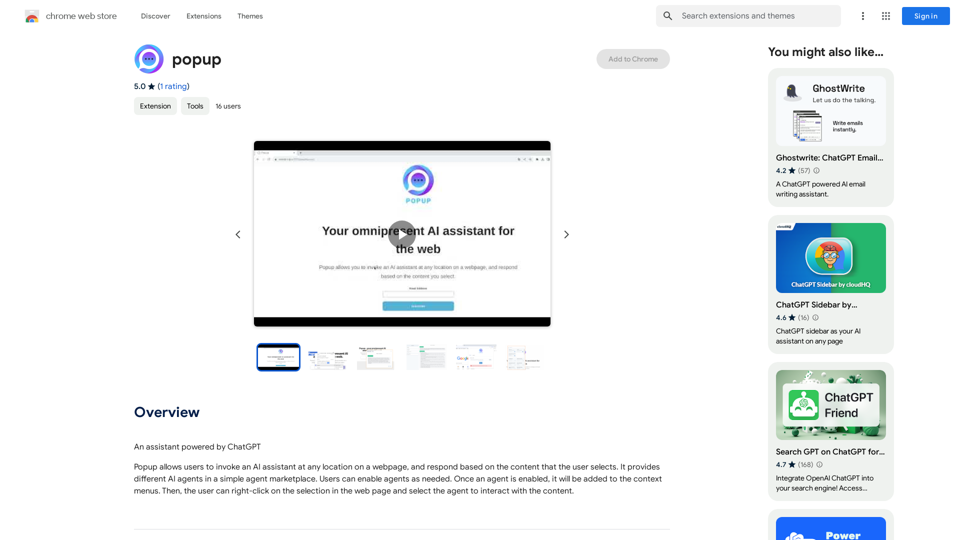
aireply: Your Personalized Email Writing Assistant
View Detail

aireply: Your Personalized Email Writing Assistant

aireply: Your Personalized Email Writing Assistant

AI Email Reply and Writing Assistant

193.90 M
Clueify - 数据驱动设计
View Detail

Clueify - 数据驱动设计

Clueify - 数据驱动设计

Get instant visual analysis of websites to perform conversion rate optimization or competitor analysis.

193.90 M
ChatGPT Context Menu

* Copy: Copies the selected text.
* Paste: Pastes the copied text.
* Delete: Deletes the selected text.
* Edit: Opens a text editor to modify the selected text.
* Generate: Uses ChatGPT to generate new text based on the selected context.
* Summarize: Creates a concise summary of the selected text.
* Translate: Translates the selected text into another language.
* Translate to English: Translates the selected text into English.
* Code: Attempts to identify and format the selected text as code.
* Help: Provides information about the context menu options.
View Detail

ChatGPT Context Menu * Copy: Copies the selected text. * Paste: Pastes the copied text. * Delete: Deletes the selected text. * Edit: Opens a text editor to modify the selected text. * Generate: Uses ChatGPT to generate new text based on the selected context. * Summarize: Creates a concise summary of the selected text. * Translate: Translates the selected text into another language. * Translate to English: Translates the selected text into English. * Code: Attempts to identify and format the selected text as code. * Help: Provides information about the context menu options.

ChatGPT Context Menu * Copy: Copies the selected text. * Paste: Pastes the copied text. * Delete: Deletes the selected text. * Edit: Opens a text editor to modify the selected text. * Generate: Uses ChatGPT to generate new text based on the selected context. * Summarize: Creates a concise summary of the selected text. * Translate: Translates the selected text into another language. * Translate to English: Translates the selected text into English. * Code: Attempts to identify and format the selected text as code. * Help: Provides information about the context menu options.

Please provide the text you would like to send to ChatGPT.

193.90 M
Bilibili Subtitle List
View Detail

Bilibili Subtitle List

Bilibili Subtitle List

Display a list of Bilibili video subtitles, allowing you to click to jump and download subtitles, and supporting translation and summary of subtitles!

193.90 M
SOAI Extensions
View Detail

SOAI Extensions

SOAI Extensions

soai Extension

193.90 M
Overcome Copilot AI Message Limit, Export Chats to JSON File: TopicsGPT

This is a tool to help you work around the message limit in Copilot AI and export your conversations to a JSON file. 

Here's how it works:

* Extend Your Conversations: TopicsGPT allows you to continue your conversations with Copilot AI beyond the usual message limit. 

* Save Your History: Export your entire chat history with Copilot AI as a structured JSON file. This makes it easy to review past interactions, analyze your conversations, or even use the data for other purposes.

Benefits:

* No More Interruptions: Keep your creative flow going without worrying about hitting the message limit.
* Organized Data:  Have a clear and organized record of your conversations with Copilot AI.
* Flexibility: Use the exported JSON data for your own projects or analysis. 


Let me know if you have any questions!
View Detail

Overcome Copilot AI Message Limit, Export Chats to JSON File: TopicsGPT This is a tool to help you work around the message limit in Copilot AI and export your conversations to a JSON file. Here's how it works: * Extend Your Conversations: TopicsGPT allows you to continue your conversations with Copilot AI beyond the usual message limit. * Save Your History: Export your entire chat history with Copilot AI as a structured JSON file. This makes it easy to review past interactions, analyze your conversations, or even use the data for other purposes. Benefits: * No More Interruptions: Keep your creative flow going without worrying about hitting the message limit. * Organized Data: Have a clear and organized record of your conversations with Copilot AI. * Flexibility: Use the exported JSON data for your own projects or analysis. Let me know if you have any questions!

Overcome Copilot AI Message Limit, Export Chats to JSON File: TopicsGPT This is a tool to help you work around the message limit in Copilot AI and export your conversations to a JSON file. Here's how it works: * Extend Your Conversations: TopicsGPT allows you to continue your conversations with Copilot AI beyond the usual message limit. * Save Your History: Export your entire chat history with Copilot AI as a structured JSON file. This makes it easy to review past interactions, analyze your conversations, or even use the data for other purposes. Benefits: * No More Interruptions: Keep your creative flow going without worrying about hitting the message limit. * Organized Data: Have a clear and organized record of your conversations with Copilot AI. * Flexibility: Use the exported JSON data for your own projects or analysis. Let me know if you have any questions!

Bypass Copilot's Message Limit and Move Conversations * Get around the message limit in Microsoft's Copilot: Find ways to exceed the character or message count restrictions within Copilot. * Transfer conversations to new chats: Move existing conversations from one chat space to another. Export AI Chat Histories * Download chat history from any AI platform: Save your conversations with various AI systems as JSON files.

193.90 M
Help me read | GPT Reading Assistant
View Detail

Help me read | GPT Reading Assistant

Help me read | GPT Reading Assistant

Help me read | GPT Reading Assistant, a free Chrome browser extension, summarizes any webpage using ChatGPT, supporting the use of GPT-3.5 or GPT-4 models. ...

193.90 M