Open-source RightAI Tools Directory
  • Discover AI
  • Submit
  • Startup
  • Blog
Open-source RightAI Tools Directory
Discover the best AI tools of 2025 with the RightAI Tools Directory!

Friend Links

AI Anime GeneratorToolsApp AI

Support

Tap4
Privacy policyTerms & ConditionsContact Us
Loading...
loading...

Cosmi | The Best AI Skincare Advisor You will Ever Need

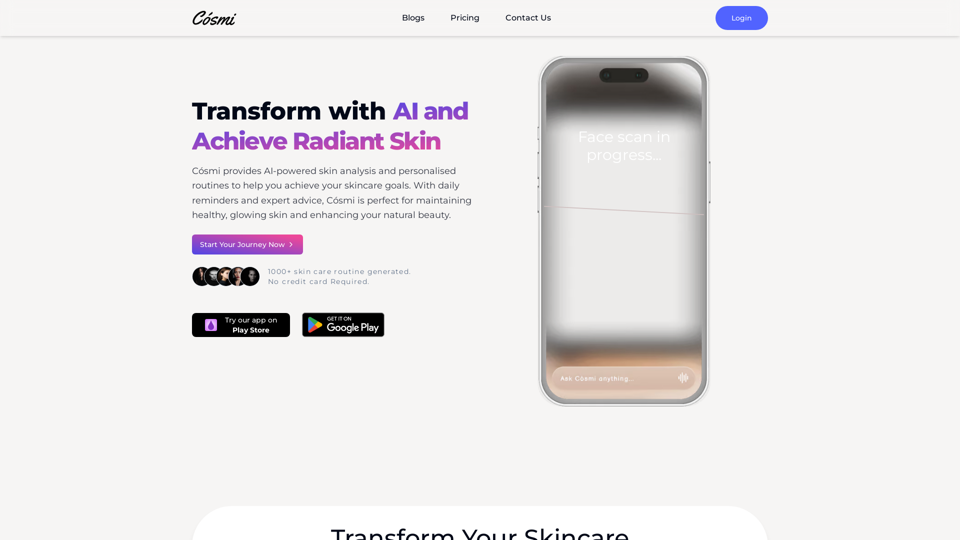
Glow with AI-Powered Skincare Solutions. Cosmi's advanced AI offers tailored, daily reminders and expert product recommendations.
Visit Website
Cosmi | The Best AI Skincare Advisor You will Ever Need
Visit Website

Introduction

Cosmi is an AI-powered skincare advisor that offers personalized routines and expert advice to help users achieve their skincare goals. It utilizes advanced AI technology to analyze skin conditions and provide tailored recommendations. With features like daily reminders and voice call advice, Cosmi aims to simplify skincare routines and enhance natural beauty for users of all skin types.

Feature

AI-powered Skin Analysis

Cosmi employs cutting-edge AI technology to analyze users' skin and generate personalized skincare recommendations.

Customized Skincare Routines

Based on the user's SkinID and current routine, Cosmi suggests products and treatments tailored to individual skincare goals.

Voice Call Advice

Users can access personalized skincare advice and guidance through AI-powered voice call assistance.

Daily Reminders and Notifications

Cosmi sends timely reminders and notifications to help users maintain their skincare routine and provides expert advice when needed.

Flexible Subscription Plans

Cosmi offers three subscription tiers to cater to different user needs:

PlanPriceFeatures
EssentialFreeAI chat for basic advice, daily notifications
Standard$25/3 monthsWeekly AI voice call, custom notifications, basic skin analysis
Premium$50/3 monthsUnlimited AI voice calls, real-time support, advanced skin analysis

FAQ

How does Cosmi work?

Cosmi utilizes AI technology to analyze your skin and provide personalized recommendations for your skincare routine. Users start by taking a face scan, after which Cosmi generates a customized skincare routine and expert advice.

Is Cosmi safe and effective for all skin types?

Cosmi is designed to be safe and effective for all skin types. However, users with concerns are encouraged to contact the support team for further guidance.

How often should I use Cosmi?

While Cosmi can be used as frequently as desired, it is recommended to use it at least once a week to maximize its benefits.

Does Cosmi provide medical advice?

Cosmi is not a medical professional and does not provide medical advice. Users with skin concerns or questions should consult a dermatologist or qualified healthcare professional.

Latest Traffic Insights

  • Monthly Visits

    0

  • Bounce Rate

    0.00%

  • Pages Per Visit

    0.00

  • Time on Site(s)

    0.00

  • Global Rank

    -

  • Country Rank

    -

Recent Visits

Traffic Sources

  • Social Media:
    0.00%
  • Paid Referrals:
    0.00%
  • Email:
    0.00%
  • Referrals:
    0.00%
  • Search Engines:
    0.00%
  • Direct:
    0.00%
More Data

Related Websites

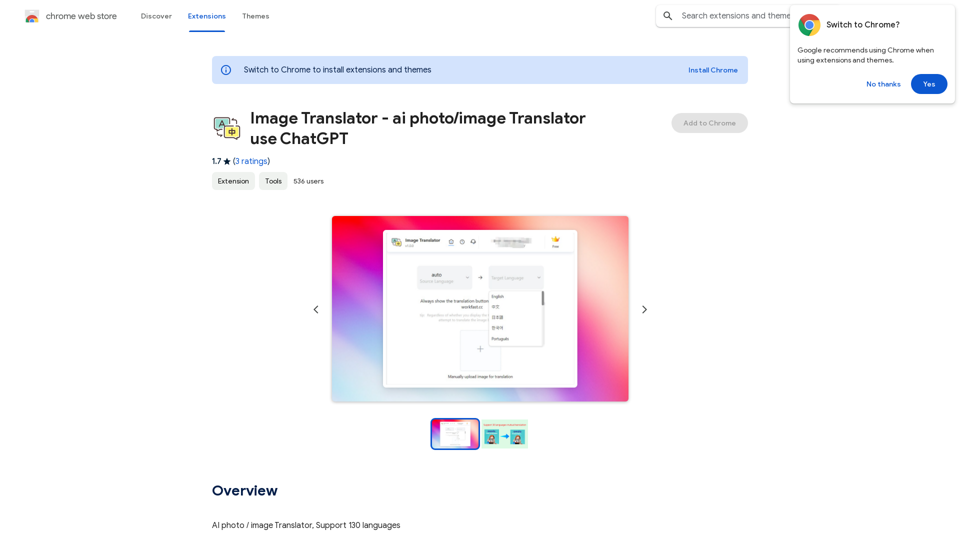
Converting JPG Images to Text

Converting a JPG image to text is a process known as Optical Character Recognition (OCR). This technology enables you to extract text from images, scanned documents, and photos. Here's how to do it:

Method 1: Online OCR Tools

You can use online OCR tools to convert JPG images to text. Here are the steps:

1. Upload your JPG image: Go to an online OCR tool website, such as Online OCR Tools or OCR.space, and upload your JPG image.
2. Select the language: Choose the language of the text in your image.
3. Click on "Convert": The tool will convert the image to text.
4. Download the text: You can download the extracted text as a Word document, PDF, or plain text file.

Method 2: Google Drive

You can also use Google Drive to convert JPG images to text. Here's how:

1. Upload your JPG image: Upload your JPG image to Google Drive.
2. Right-click on the image: Right-click on the uploaded image and select "Open with" > "Google Docs".
3. The image will be converted: Google Docs will automatically convert the image to text.
4. Edit and download: You can edit the extracted text and download it as a Word document or PDF.

Method 3: Adobe Acrobat

If you have Adobe Acrobat installed on your computer, you can use it to convert JPG images to text. Here's how:

1. Open Adobe Acrobat: Open Adobe Acrobat on your computer.
2. Create a new document: Create a new document and click on "Tools" > "Recognize Text".
3. Select the image: Select the JPG image you want to convert.
4. Click on "Recognize": Adobe Acrobat will convert the image to text.
5. Edit and save: You can edit the extracted text and save it as a Word document or PDF.

These are the three methods to convert JPG images to text. Choose the method that works best for you!
View Detail

Converting JPG Images to Text Converting a JPG image to text is a process known as Optical Character Recognition (OCR). This technology enables you to extract text from images, scanned documents, and photos. Here's how to do it: Method 1: Online OCR Tools You can use online OCR tools to convert JPG images to text. Here are the steps: 1. Upload your JPG image: Go to an online OCR tool website, such as Online OCR Tools or OCR.space, and upload your JPG image. 2. Select the language: Choose the language of the text in your image. 3. Click on "Convert": The tool will convert the image to text. 4. Download the text: You can download the extracted text as a Word document, PDF, or plain text file. Method 2: Google Drive You can also use Google Drive to convert JPG images to text. Here's how: 1. Upload your JPG image: Upload your JPG image to Google Drive. 2. Right-click on the image: Right-click on the uploaded image and select "Open with" > "Google Docs". 3. The image will be converted: Google Docs will automatically convert the image to text. 4. Edit and download: You can edit the extracted text and download it as a Word document or PDF. Method 3: Adobe Acrobat If you have Adobe Acrobat installed on your computer, you can use it to convert JPG images to text. Here's how: 1. Open Adobe Acrobat: Open Adobe Acrobat on your computer. 2. Create a new document: Create a new document and click on "Tools" > "Recognize Text". 3. Select the image: Select the JPG image you want to convert. 4. Click on "Recognize": Adobe Acrobat will convert the image to text. 5. Edit and save: You can edit the extracted text and save it as a Word document or PDF. These are the three methods to convert JPG images to text. Choose the method that works best for you!

Converting JPG Images to Text Converting a JPG image to text is a process known as Optical Character Recognition (OCR). This technology enables you to extract text from images, scanned documents, and photos. Here's how to do it: Method 1: Online OCR Tools You can use online OCR tools to convert JPG images to text. Here are the steps: 1. Upload your JPG image: Go to an online OCR tool website, such as Online OCR Tools or OCR.space, and upload your JPG image. 2. Select the language: Choose the language of the text in your image. 3. Click on "Convert": The tool will convert the image to text. 4. Download the text: You can download the extracted text as a Word document, PDF, or plain text file. Method 2: Google Drive You can also use Google Drive to convert JPG images to text. Here's how: 1. Upload your JPG image: Upload your JPG image to Google Drive. 2. Right-click on the image: Right-click on the uploaded image and select "Open with" > "Google Docs". 3. The image will be converted: Google Docs will automatically convert the image to text. 4. Edit and download: You can edit the extracted text and download it as a Word document or PDF. Method 3: Adobe Acrobat If you have Adobe Acrobat installed on your computer, you can use it to convert JPG images to text. Here's how: 1. Open Adobe Acrobat: Open Adobe Acrobat on your computer. 2. Create a new document: Create a new document and click on "Tools" > "Recognize Text". 3. Select the image: Select the JPG image you want to convert. 4. Click on "Recognize": Adobe Acrobat will convert the image to text. 5. Edit and save: You can edit the extracted text and save it as a Word document or PDF. These are the three methods to convert JPG images to text. Choose the method that works best for you!

It is an online tool that uses Optical Character Recognition (OCR) to make it possible to extract text from images in JPG format.

193.90 M
Leexi - Google Meet recording
View Detail

Leexi - Google Meet recording

Leexi - Google Meet recording

Never forget to record your Google Meet video conferences again and find them in the Leexi app in one click.

193.90 M
TurboLearn AI
View Detail

TurboLearn AI

TurboLearn AI

TurboLearn AI quickly makes complete notes, interactive flashcards, and custom quizzes from your lectures. Made to help you learn better and remember more, TurboLearn AI changes to fit your specific learning needs. Make the most of your study time today!

292.80 K
GPT Netherlands Assistant
View Detail

GPT Netherlands Assistant

GPT Netherlands Assistant

A free, ad-free, fast add-on for ChatGPT on the German community page with links to top websites.

193.90 M
Yes or No Tarot
View Detail

Yes or No Tarot

Yes or No Tarot

Yes or No Tarot offers quick answers to your everyday questions. Just ask, draw a card, and get a simple yes, no, or maybe to help guide your choices.

0
doSmartQA Personal Edition
View Detail

doSmartQA Personal Edition

doSmartQA Personal Edition

Smart Probing Assistant

193.90 M
Socrates - Summarize and explain PDFs or DOCXs
View Detail

Socrates - Summarize and explain PDFs or DOCXs

Socrates - Summarize and explain PDFs or DOCXs

Get free AI-powered answers with Socrates. Socrates uses secure, local AI processing to analyze documents. It's ideal for explaining concepts and extracting answers from books, papers, reports, articles, manuals, or contracts.

0
resmate.io: Speed up your job hunt
View Detail

resmate.io: Speed up your job hunt

resmate.io: Speed up your job hunt

Job seekers use resmate.io to organize and optimize their applications with our AI tools.

193.90 M