Open-source RightAI Tools Directory
  • Discover AI
  • Submit
  • Startup
  • Blog
Open-source RightAI Tools Directory
Discover the best AI tools of 2025 with the RightAI Tools Directory!

Friend Links

AI Anime GeneratorToolsApp AI

Support

Tap4
Privacy policyTerms & ConditionsContact Us
Loading...
loading...

Engage AI | Generative AI for LinkedIn Comments and Content

Engage AI empowers LinkedIn power users with Generative AI. Craft meaningful LinkedIn comments and content that allow you to stand out, break the ice, and start conversations even with prospects who are usually unresponsive to calls, messages, and emails.
Visit Website
Engage AI | Generative AI for LinkedIn Comments and Content
Visit Website

Introduction

Engage AI is a powerful generative AI tool designed for LinkedIn users to enhance engagement, content creation, and sales prospecting. It leverages advanced AI technologies like OpenAI and Google Gemini to help B2B business owners and professionals maximize their LinkedIn presence and generate more leads. With over 100,000 business owners in its user base, Engage AI offers a range of features to streamline LinkedIn interactions and boost sales efforts.

Feature

AI-Powered Engagement

  • Assists in creating personalized comments and responses
  • Helps users engage with different voices and tones

Prospect Monitoring

  • Tracks target prospects and clients
  • Filters out noise and irrelevant content

Content Creation

  • Generates high-quality posts and articles
  • Optimizes LinkedIn profiles with keyword-rich content

Sales Acceleration

  • Facilitates faster relationship-building
  • Streamlines sales pipelines

Personalized Outreach

  • Creates tailored connection requests
  • Generates meaningful recommendations

Chrome Extension

  • Free installation on Chrome browser
  • Easy access to Engage AI features

Free Tools

  • Hashtag Analytics & Trends
  • Hashtag Widgets

FAQ

Is Engage AI compatible with platforms other than LinkedIn?

Engage AI is specifically designed for LinkedIn and optimized for B2B interactions on this platform.

How does Engage AI ensure the authenticity of AI-generated content?

While Engage AI assists with content creation, users should review and personalize the output to maintain their unique voice and expertise.

Can Engage AI integrate with other sales and marketing tools?

The website mentions app integrations as a feature, suggesting potential compatibility with other tools.

Is there a limit to how many prospects I can monitor with Engage AI?

The content doesn't specify limits, but this may depend on the user's subscription level.

How does Engage AI handle data privacy and security?

Engage AI provides users with control over their data access levels and duration, emphasizing transparency and user privacy.

Related Websites

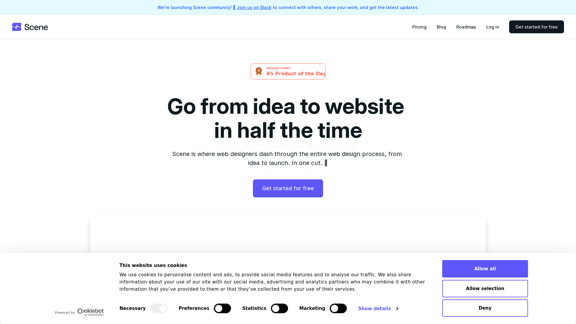
BeforeSunset AI - Home
View Detail

BeforeSunset AI - Home

BeforeSunset AI - Home

Focus on completing your tasks while BeforeSunset AI plans the ideal schedule for you. Daily planning has never been simpler.

76.01 K
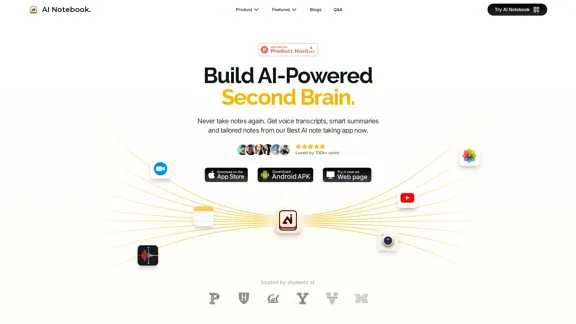
AI-Based Test Automation Tool [2024] - testRigor Software Testing
View Detail

AI-Based Test Automation Tool [2024] - testRigor Software Testing

AI-Based Test Automation Tool [2024] - testRigor Software Testing

Test automation tool - testRigor. Automated software testing for end-to-end test cases using plain English. Looking for software testing tools? Contact us now!

197.24 K
Hostinger - Bring Your Idea to Life Online With a Website
View Detail

Hostinger - Bring Your Idea to Life Online With a Website

Hostinger - Bring Your Idea to Life Online With a Website

Choose Hostinger and create the ideal website. From Shared Hosting and Domains to VPS and Cloud plans. We offer everything you need for online success.

37.72 M
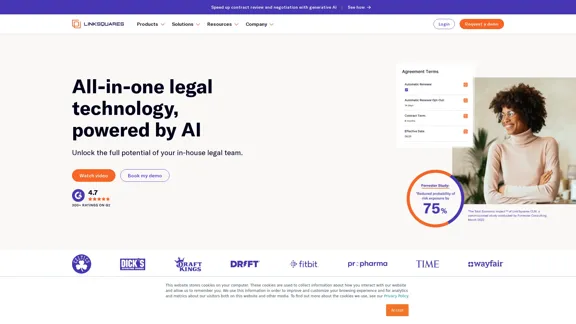
Sprout Social: Social Media Management Solutions
View Detail

Sprout Social: Social Media Management Solutions

Sprout Social: Social Media Management Solutions

Reimagine how social media can boost your business with Sprout Social. Experience our social media management tools firsthand. Begin your free trial today.

1.75 M
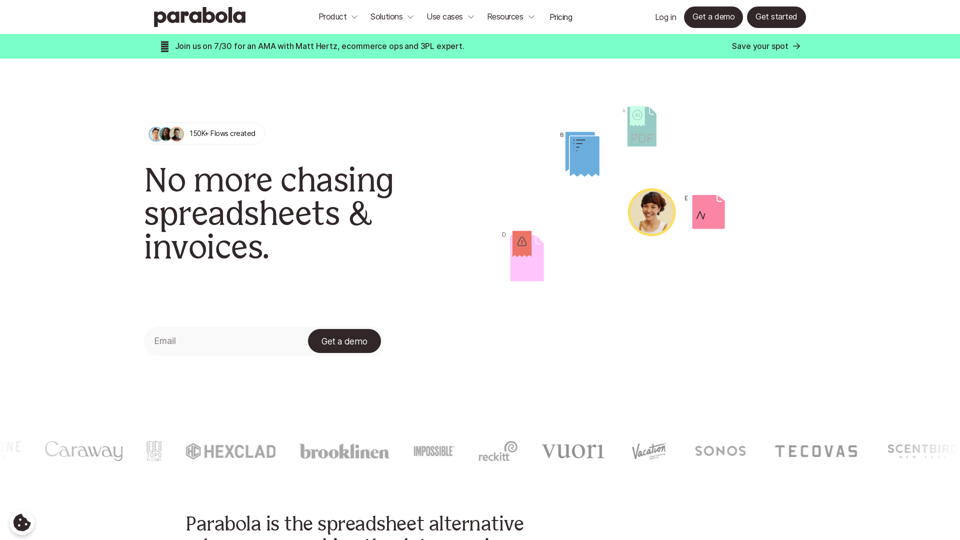
Gigasheet - Big Data Analytics That's Spreadsheet Easy.
View Detail

Gigasheet - Big Data Analytics That's Spreadsheet Easy.

Gigasheet - Big Data Analytics That's Spreadsheet Easy.

Our powerful, no-code platform is designed for big data analysis, enabling anyone to effortlessly explore and analyze vast datasets via a user-friendly, spreadsheet-like interface. Gigasheet supports a wide variety of data sources from CSV, XLSX, and JSON to popular CRMs, data warehouses, and cloud data stores.

127.47 K
Resumeguru.pro
View Detail

Resumeguru.pro

Resumeguru.pro

Resumeguru.pro is an advanced AI-powered resume optimization tool designed to transform and enhance job seekers' resumes. By leveraging cutting-edge artificial intelligence technology, it automates the entire process of creating a highly effective and hirable resume, including editing, formatting, and optimization. This innovative platform aims to help users stand out in the competitive job market by tailoring their resumes to perfection.

0
Copilot for Microsoft 365 – Microsoft Adoption

Copilot for Microsoft 365 is a powerful AI assistant that helps you work smarter and faster across Microsoft 365 apps and services. It combines the power of large language models (LLMs) with your organization's data in the Microsoft Graph and Microsoft 365 apps to turn your words into the most powerful productivity tool on the planet.

Copilot is designed to help you:

• Unleash creativity
• Unlock productivity
• Uplevel skills

Copilot is built on Microsoft's comprehensive approach to security, compliance, and privacy. Copilot in Microsoft 365 apps and services:

• Does not use your data to train the underlying LLM
• Does not replace human ingenuity and judgment
• Is designed to keep humans in the loop

Copilot is currently available in Word, Excel, PowerPoint, Outlook, Teams, and more.

Getting Started with Copilot

To get started with Copilot, follow these steps:

1. Check availability: Ensure your organization has access to Copilot.
2. Learn the basics: Familiarize yourself with Copilot's capabilities and how to use it effectively.
3. Explore use cases: Discover how Copilot can help you in your specific role and tasks.
4. Practice and refine: Use Copilot regularly and refine your prompts for better results.
5. Share and collaborate: Collaborate with colleagues using Copilot and share best practices.

Best Practices for Using Copilot

1. Be specific in your prompts
2. Provide context for better results
3. Review and edit Copilot's output
4. Use Copilot as a starting point, not a final product
5. Experiment with different approaches
6. Stay informed about new features and updates

Copilot in Different Microsoft 365 Apps

• Word: Draft, edit, summarize, and rewrite content
• Excel: Analyze data, create formulas, and generate insights
• PowerPoint: Create presentations, design slides, and generate content
• Outlook: Compose emails, summarize threads, and manage your inbox
• Teams: Summarize meetings, generate action items, and create meeting notes

Responsible AI and Copilot

Microsoft is committed to developing AI systems responsibly. When using Copilot, keep in mind:

• AI-generated content may contain biases or inaccuracies
• Always review and verify Copilot's output
• Use your judgment and expertise alongside Copilot's suggestions
• Be aware of your organization's policies regarding AI use

Conclusion

Copilot for Microsoft 365 is a powerful tool that can significantly enhance your productivity and creativity. By understanding its capabilities, following best practices, and using it responsibly, you can make the most of this AI assistant in your daily work.
View Detail

Copilot for Microsoft 365 – Microsoft Adoption Copilot for Microsoft 365 is a powerful AI assistant that helps you work smarter and faster across Microsoft 365 apps and services. It combines the power of large language models (LLMs) with your organization's data in the Microsoft Graph and Microsoft 365 apps to turn your words into the most powerful productivity tool on the planet. Copilot is designed to help you: • Unleash creativity • Unlock productivity • Uplevel skills Copilot is built on Microsoft's comprehensive approach to security, compliance, and privacy. Copilot in Microsoft 365 apps and services: • Does not use your data to train the underlying LLM • Does not replace human ingenuity and judgment • Is designed to keep humans in the loop Copilot is currently available in Word, Excel, PowerPoint, Outlook, Teams, and more. Getting Started with Copilot To get started with Copilot, follow these steps: 1. Check availability: Ensure your organization has access to Copilot. 2. Learn the basics: Familiarize yourself with Copilot's capabilities and how to use it effectively. 3. Explore use cases: Discover how Copilot can help you in your specific role and tasks. 4. Practice and refine: Use Copilot regularly and refine your prompts for better results. 5. Share and collaborate: Collaborate with colleagues using Copilot and share best practices. Best Practices for Using Copilot 1. Be specific in your prompts 2. Provide context for better results 3. Review and edit Copilot's output 4. Use Copilot as a starting point, not a final product 5. Experiment with different approaches 6. Stay informed about new features and updates Copilot in Different Microsoft 365 Apps • Word: Draft, edit, summarize, and rewrite content • Excel: Analyze data, create formulas, and generate insights • PowerPoint: Create presentations, design slides, and generate content • Outlook: Compose emails, summarize threads, and manage your inbox • Teams: Summarize meetings, generate action items, and create meeting notes Responsible AI and Copilot Microsoft is committed to developing AI systems responsibly. When using Copilot, keep in mind: • AI-generated content may contain biases or inaccuracies • Always review and verify Copilot's output • Use your judgment and expertise alongside Copilot's suggestions • Be aware of your organization's policies regarding AI use Conclusion Copilot for Microsoft 365 is a powerful tool that can significantly enhance your productivity and creativity. By understanding its capabilities, following best practices, and using it responsibly, you can make the most of this AI assistant in your daily work.

Copilot for Microsoft 365 – Microsoft Adoption Copilot for Microsoft 365 is a powerful AI assistant that helps you work smarter and faster across Microsoft 365 apps and services. It combines the power of large language models (LLMs) with your organization's data in the Microsoft Graph and Microsoft 365 apps to turn your words into the most powerful productivity tool on the planet. Copilot is designed to help you: • Unleash creativity • Unlock productivity • Uplevel skills Copilot is built on Microsoft's comprehensive approach to security, compliance, and privacy. Copilot in Microsoft 365 apps and services: • Does not use your data to train the underlying LLM • Does not replace human ingenuity and judgment • Is designed to keep humans in the loop Copilot is currently available in Word, Excel, PowerPoint, Outlook, Teams, and more. Getting Started with Copilot To get started with Copilot, follow these steps: 1. Check availability: Ensure your organization has access to Copilot. 2. Learn the basics: Familiarize yourself with Copilot's capabilities and how to use it effectively. 3. Explore use cases: Discover how Copilot can help you in your specific role and tasks. 4. Practice and refine: Use Copilot regularly and refine your prompts for better results. 5. Share and collaborate: Collaborate with colleagues using Copilot and share best practices. Best Practices for Using Copilot 1. Be specific in your prompts 2. Provide context for better results 3. Review and edit Copilot's output 4. Use Copilot as a starting point, not a final product 5. Experiment with different approaches 6. Stay informed about new features and updates Copilot in Different Microsoft 365 Apps • Word: Draft, edit, summarize, and rewrite content • Excel: Analyze data, create formulas, and generate insights • PowerPoint: Create presentations, design slides, and generate content • Outlook: Compose emails, summarize threads, and manage your inbox • Teams: Summarize meetings, generate action items, and create meeting notes Responsible AI and Copilot Microsoft is committed to developing AI systems responsibly. When using Copilot, keep in mind: • AI-generated content may contain biases or inaccuracies • Always review and verify Copilot's output • Use your judgment and expertise alongside Copilot's suggestions • Be aware of your organization's policies regarding AI use Conclusion Copilot for Microsoft 365 is a powerful tool that can significantly enhance your productivity and creativity. By understanding its capabilities, following best practices, and using it responsibly, you can make the most of this AI assistant in your daily work.

Microsoft Copilot combines the power of large language models (LLMs) with your organization's data to turn your words into one of the most powerful productivity tools on the planet.

608.60 K
terrific.tools - Free Online Tools
View Detail

terrific.tools - Free Online Tools

terrific.tools - Free Online Tools

A modern collection of free, browser-based tools for everyone. Transform images, convert audio, format code, and much more.

52.91 K