Open-source RightAI Tools Directory
  • Discover AI
  • Submit
  • Startup
  • Blog
Open-source RightAI Tools Directory
Discover the best AI tools of 2025 with the RightAI Tools Directory!

Friend Links

AI Anime GeneratorToolsApp AI

Support

Tap4
Privacy policyTerms & ConditionsContact Us
Loading...
loading...

Scottie - AI-Powered Daily News Summaries

Get personalized daily news briefs powered by AI. Transform your news experience with Scottie's intelligent summaries.

Visit Website
Scottie - AI-Powered Daily News Summaries
Visit Website

Introduction

Scottie is an AI-powered tool designed to streamline news consumption by delivering daily curated news briefs. Users can access their subscribed newsletters and receive a personalized digest that saves time and reduces information overload. With Scottie, individuals can read news 30 times faster and stay updated without the hassle of sifting through multiple newsletters.

Feature

  1. AI-Powered Digest

    Scottie utilizes advanced AI technology to analyze and synthesize content from various newsletters, providing users with a concise daily brief.

  2. Time Efficiency

    Users can reduce their daily reading time from an average of 90 minutes to just 3 minutes, significantly enhancing productivity.

  3. Personalized News Delivery

    The service curates news based on user preferences, ensuring that only relevant updates are included in the daily digest.

  4. Easy Setup

    Signing up and connecting to newsletters takes less than 60 seconds, making it accessible for anyone looking to optimize their news consumption.

  5. User Testimonials

    Many users report saving substantial time and staying informed about industry news without feeling overwhelmed.

  6. Launch Special

    The first 500 users can enjoy 6 months of the PRO plan for free, providing an incentive to try the service.

How to Use?

  1. Visit the Scottie website and click on "Get Started" to create an account.
  2. Grant access to your Google account for seamless integration with your newsletters.
  3. Allow Scottie to analyze your subscriptions and generate your daily digest.
  4. Check your email each morning for your personalized news brief.
  5. Customize your newsletter preferences to ensure the most relevant content is included.

FAQ

How does Scottie access my newsletters?

Scottie connects to your Google account through a secure OAuth connection, allowing it to access your subscribed newsletters.

What makes Scottie different from other news aggregators?

Scottie uses AI to analyze and curate content, providing a personalized and efficient news experience that reduces reading time significantly.

How long are the daily digests?

The daily digests are designed to be concise, allowing users to grasp essential updates quickly.

Can I choose which newsletters to include?

Yes, users can customize their preferences and select which newsletters they want Scottie to include in their daily brief.

Is my data secure?

Scottie prioritizes user data security and utilizes secure connections to protect your information.

What happens after the 6-month free period?

Users will have the option to continue with a paid subscription after the free trial ends.

Price

  • Free Plan: $0/month

  • PRO Plan: Pricing details available upon subscription

The price is for reference only, please refer to the latest official data for actual information.

Evaluation

  1. Scottie effectively reduces the time spent on news consumption, making it an excellent tool for busy professionals.
  2. The AI-driven curation ensures users receive relevant updates, enhancing the overall news experience.
  3. However, the reliance on AI may lead to occasional omissions of niche topics that some users might find important.
  4. The initial free offer is appealing, but ongoing subscription costs may deter some users after the trial period.
  5. Overall, Scottie presents a valuable solution for those overwhelmed by newsletters, though it could benefit from more customization options for content selection.

Related Websites

Gong - Revenue Intelligence Platform
View Detail

Gong - Revenue Intelligence Platform

Gong - Revenue Intelligence Platform

Gong captures customer interactions and then delivers insights at scale, enabling teams to make decisions based on data rather than opinions.

1.95 M
Workflow – The simplest way to manage creative work
View Detail

Workflow – The simplest way to manage creative work

Workflow – The simplest way to manage creative work

A minimalist collaboration platform for creative teams. Manage tasks, get AI reviews, and share work, all in one place.

5.88 K
Lark | Productivity Superapp for Communication, Meetings, Documents, and Projects
View Detail

Lark | Productivity Superapp for Communication, Meetings, Documents, and Projects

Lark | Productivity Superapp for Communication, Meetings, Documents, and Projects

Lark is a productivity superapp for teams. Get chat, documents, meetings, workflow automations, and AI for free all in one place.

8.82 M
Copilot for Microsoft 365 – Microsoft Adoption

Copilot for Microsoft 365 is a powerful AI assistant that helps you work smarter and faster across Microsoft 365 apps and services. It combines the power of large language models (LLMs) with your organization's data in the Microsoft Graph and Microsoft 365 apps to turn your words into the most powerful productivity tool on the planet.

Copilot is designed to help you:

β€’ Unleash creativity
β€’ Unlock productivity
β€’ Uplevel skills

Copilot is built on Microsoft's comprehensive approach to security, compliance, and privacy. Copilot in Microsoft 365 apps and services:

β€’ Does not use your data to train the underlying LLM
β€’ Does not replace human ingenuity and judgment
β€’ Is designed to keep humans in the loop

Copilot is currently available in Word, Excel, PowerPoint, Outlook, Teams, and more.

Getting Started with Copilot

To get started with Copilot, follow these steps:

1. Check availability: Ensure your organization has access to Copilot.
2. Learn the basics: Familiarize yourself with Copilot's capabilities and how to use it effectively.
3. Explore use cases: Discover how Copilot can help you in your specific role and tasks.
4. Practice and refine: Use Copilot regularly and refine your prompts for better results.
5. Share and collaborate: Collaborate with colleagues using Copilot and share best practices.

Best Practices for Using Copilot

1. Be specific in your prompts
2. Provide context for better results
3. Review and edit Copilot's output
4. Use Copilot as a starting point, not a final product
5. Experiment with different approaches
6. Stay informed about new features and updates

Copilot in Different Microsoft 365 Apps

β€’ Word: Draft, edit, summarize, and rewrite content
β€’ Excel: Analyze data, create formulas, and generate insights
β€’ PowerPoint: Create presentations, design slides, and generate content
β€’ Outlook: Compose emails, summarize threads, and manage your inbox
β€’ Teams: Summarize meetings, generate action items, and create meeting notes

Responsible AI and Copilot

Microsoft is committed to developing AI systems responsibly. When using Copilot, keep in mind:

β€’ AI-generated content may contain biases or inaccuracies
β€’ Always review and verify Copilot's output
β€’ Use your judgment and expertise alongside Copilot's suggestions
β€’ Be aware of your organization's policies regarding AI use

Conclusion

Copilot for Microsoft 365 is a powerful tool that can significantly enhance your productivity and creativity. By understanding its capabilities, following best practices, and using it responsibly, you can make the most of this AI assistant in your daily work.
View Detail

Copilot for Microsoft 365 – Microsoft Adoption Copilot for Microsoft 365 is a powerful AI assistant that helps you work smarter and faster across Microsoft 365 apps and services. It combines the power of large language models (LLMs) with your organization's data in the Microsoft Graph and Microsoft 365 apps to turn your words into the most powerful productivity tool on the planet. Copilot is designed to help you: β€’ Unleash creativity β€’ Unlock productivity β€’ Uplevel skills Copilot is built on Microsoft's comprehensive approach to security, compliance, and privacy. Copilot in Microsoft 365 apps and services: β€’ Does not use your data to train the underlying LLM β€’ Does not replace human ingenuity and judgment β€’ Is designed to keep humans in the loop Copilot is currently available in Word, Excel, PowerPoint, Outlook, Teams, and more. Getting Started with Copilot To get started with Copilot, follow these steps: 1. Check availability: Ensure your organization has access to Copilot. 2. Learn the basics: Familiarize yourself with Copilot's capabilities and how to use it effectively. 3. Explore use cases: Discover how Copilot can help you in your specific role and tasks. 4. Practice and refine: Use Copilot regularly and refine your prompts for better results. 5. Share and collaborate: Collaborate with colleagues using Copilot and share best practices. Best Practices for Using Copilot 1. Be specific in your prompts 2. Provide context for better results 3. Review and edit Copilot's output 4. Use Copilot as a starting point, not a final product 5. Experiment with different approaches 6. Stay informed about new features and updates Copilot in Different Microsoft 365 Apps β€’ Word: Draft, edit, summarize, and rewrite content β€’ Excel: Analyze data, create formulas, and generate insights β€’ PowerPoint: Create presentations, design slides, and generate content β€’ Outlook: Compose emails, summarize threads, and manage your inbox β€’ Teams: Summarize meetings, generate action items, and create meeting notes Responsible AI and Copilot Microsoft is committed to developing AI systems responsibly. When using Copilot, keep in mind: β€’ AI-generated content may contain biases or inaccuracies β€’ Always review and verify Copilot's output β€’ Use your judgment and expertise alongside Copilot's suggestions β€’ Be aware of your organization's policies regarding AI use Conclusion Copilot for Microsoft 365 is a powerful tool that can significantly enhance your productivity and creativity. By understanding its capabilities, following best practices, and using it responsibly, you can make the most of this AI assistant in your daily work.

Copilot for Microsoft 365 – Microsoft Adoption Copilot for Microsoft 365 is a powerful AI assistant that helps you work smarter and faster across Microsoft 365 apps and services. It combines the power of large language models (LLMs) with your organization's data in the Microsoft Graph and Microsoft 365 apps to turn your words into the most powerful productivity tool on the planet. Copilot is designed to help you: β€’ Unleash creativity β€’ Unlock productivity β€’ Uplevel skills Copilot is built on Microsoft's comprehensive approach to security, compliance, and privacy. Copilot in Microsoft 365 apps and services: β€’ Does not use your data to train the underlying LLM β€’ Does not replace human ingenuity and judgment β€’ Is designed to keep humans in the loop Copilot is currently available in Word, Excel, PowerPoint, Outlook, Teams, and more. Getting Started with Copilot To get started with Copilot, follow these steps: 1. Check availability: Ensure your organization has access to Copilot. 2. Learn the basics: Familiarize yourself with Copilot's capabilities and how to use it effectively. 3. Explore use cases: Discover how Copilot can help you in your specific role and tasks. 4. Practice and refine: Use Copilot regularly and refine your prompts for better results. 5. Share and collaborate: Collaborate with colleagues using Copilot and share best practices. Best Practices for Using Copilot 1. Be specific in your prompts 2. Provide context for better results 3. Review and edit Copilot's output 4. Use Copilot as a starting point, not a final product 5. Experiment with different approaches 6. Stay informed about new features and updates Copilot in Different Microsoft 365 Apps β€’ Word: Draft, edit, summarize, and rewrite content β€’ Excel: Analyze data, create formulas, and generate insights β€’ PowerPoint: Create presentations, design slides, and generate content β€’ Outlook: Compose emails, summarize threads, and manage your inbox β€’ Teams: Summarize meetings, generate action items, and create meeting notes Responsible AI and Copilot Microsoft is committed to developing AI systems responsibly. When using Copilot, keep in mind: β€’ AI-generated content may contain biases or inaccuracies β€’ Always review and verify Copilot's output β€’ Use your judgment and expertise alongside Copilot's suggestions β€’ Be aware of your organization's policies regarding AI use Conclusion Copilot for Microsoft 365 is a powerful tool that can significantly enhance your productivity and creativity. By understanding its capabilities, following best practices, and using it responsibly, you can make the most of this AI assistant in your daily work.

Microsoft Copilot combines the power of large language models (LLMs) with your organization's data to turn your words into one of the most powerful productivity tools on the planet.

608.60 K
The AI Office Suite
View Detail

The AI Office Suite

The AI Office Suite

An office suite for the AI era. It's the best way to integrate AI into your work.

163.98 K
Augurisk: Explore Disaster and Crime risk in the US
View Detail

Augurisk: Explore Disaster and Crime risk in the US

Augurisk: Explore Disaster and Crime risk in the US

Here is the translation: Discover Natural Disaster and Crime risk for cities and counties in your state, including Flood, Hurricanes, Tornadoes, Wildfires, Drought and Earthquakes.

22.03 K
Packpack - Save everything with AI in one click.
View Detail

Packpack - Save everything with AI in one click.

Packpack - Save everything with AI in one click.

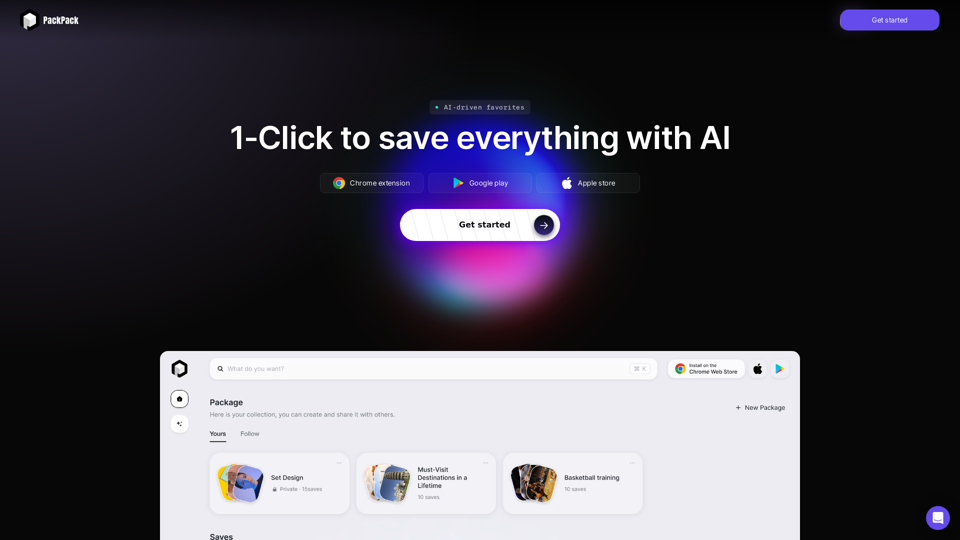
Save any webpage with one click and explore it with AI. Quickly get the main points with AI summaries and find new understandings with AI-powered question and answer.

47.24 K

What is Power Query? - Power Query | Microsoft Learn
View Detail

What is Power Query? - Power Query | Microsoft Learn

What is Power Query? - Power Query | Microsoft Learn

Learn about Power Query and its capabilities for data acquisition and transformation Power Query is a powerful data preparation tool that enables you to: - Extract data from various sources - Transform and clean data efficiently - Combine data from multiple sources Key benefits of Power Query: 1. User-friendly interface for data manipulation 2. Supports a wide range of data sources 3. Automates repetitive data tasks 4. Enhances data quality and consistency 5. Integrates seamlessly with other Microsoft tools Power Query helps streamline your data processes, saving time and improving accuracy in data analysis.

34.93 K