Open-source RightAI Tools Directory
  • Discover AI
  • Submit
  • Startup
  • Blog
Open-source RightAI Tools Directory
Discover the best AI tools of 2025 with the RightAI Tools Directory!

Friend Links

AI Anime GeneratorToolsApp AI

Support

Tap4
Privacy policyTerms & ConditionsContact Us
Loading...
loading...

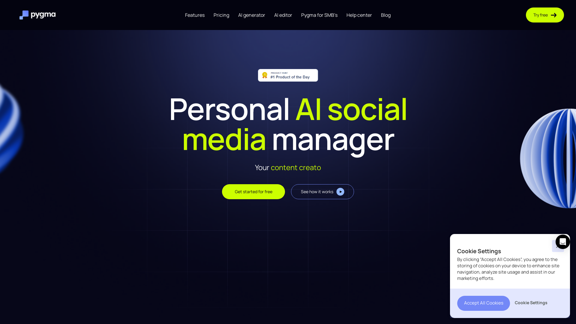
Pygma – Personal AI social media manager

Smart Instagram assistant – create, schedule, engage – all you need to grow on social media
Visit Website
Pygma – Personal AI social media manager
Visit Website

Introduction

Pygma is an AI-powered social media management tool designed to enhance your Instagram presence. It serves as a personal assistant, helping users create, plan, and schedule content effortlessly. With features like AI content generation, smart planning, and personalization, Pygma aims to revolutionize how users manage their Instagram accounts.

Feature

AI Content Generation

AI Avatar Technology

  • Create personalized images featuring you in various settings and outfits
  • Generate photos in any scenery or location
  • Edit existing images with 35+ styles using simple prompts

AI Editor

  • Modify photos quickly with simple instructions
  • No need for complex editing tools

Automated Caption and Hashtag Generator

  • Generate catchy captions with a single click
  • Suggest popular hashtags based on current trends

Smart Content Planning

  • Receive blog post ideas for easy planning
  • View complete content grid
  • Get 7-day content ideas
  • Transform links into blog posts
  • Schedule posts directly to Instagram from the app

Personalization

  • Fine-tuning based on your Instagram data
  • Assesses your writing style, voice, and audience response
  • Duplicates and stores your unique atmosphere for future posts

FAQ

What is Pygma?

Pygma is an innovative AI-powered social media management tool designed specifically for Instagram. It acts as a personal assistant, helping users create, plan, and schedule content effortlessly.

What are the key features of Pygma?

Pygma offers AI content generation (including AI avatar technology and an AI editor), automated caption and hashtag generation, smart content planning, and personalization based on your Instagram data.

How much does Pygma cost?

Pygma offers a 7-day free trial. After the trial period, it costs $7 per week. Users can cancel anytime.

How does Pygma benefit users?

Pygma provides time-saving content creation, improved content quality and consistency, enhanced Instagram growth, an easy-to-use interface, and personalized content tailored to your brand.

Can Pygma schedule posts directly to Instagram?

Yes, Pygma allows users to schedule posts directly to Instagram from the app, streamlining the content publishing process.

Latest Traffic Insights

  • Monthly Visits

    5.70 K

  • Bounce Rate

    33.94%

  • Pages Per Visit

    2.82

  • Time on Site(s)

    44.31

  • Global Rank

    2840470

  • Country Rank

    Nigeria 49611

Recent Visits

Traffic Sources

  • Social Media:
    7.74%
  • Paid Referrals:
    1.15%
  • Email:
    0.34%
  • Referrals:
    12.31%
  • Search Engines:
    41.13%
  • Direct:
    36.91%
More Data

Related Websites

Gong - Revenue Intelligence Platform
View Detail

Gong - Revenue Intelligence Platform

Gong - Revenue Intelligence Platform

Gong captures customer interactions and then delivers insights at scale, enabling teams to make decisions based on data rather than opinions.

1.95 M
Copilot for Microsoft 365 – Microsoft Adoption

Copilot for Microsoft 365 is a powerful AI assistant that helps you work smarter and faster across Microsoft 365 apps and services. It combines the power of large language models (LLMs) with your organization's data in the Microsoft Graph and Microsoft 365 apps to turn your words into the most powerful productivity tool on the planet.

Copilot is designed to help you:

• Unleash creativity
• Unlock productivity
• Uplevel skills

Copilot is built on Microsoft's comprehensive approach to security, compliance, and privacy. Copilot in Microsoft 365 apps and services:

• Does not use your data to train the underlying LLM
• Does not replace human ingenuity and judgment
• Is designed to keep humans in the loop

Copilot is currently available in Word, Excel, PowerPoint, Outlook, Teams, and more.

Getting Started with Copilot

To get started with Copilot, follow these steps:

1. Check availability: Ensure your organization has access to Copilot.
2. Learn the basics: Familiarize yourself with Copilot's capabilities and how to use it effectively.
3. Explore use cases: Discover how Copilot can help you in your specific role and tasks.
4. Practice and refine: Use Copilot regularly and refine your prompts for better results.
5. Share and collaborate: Collaborate with colleagues using Copilot and share best practices.

Best Practices for Using Copilot

1. Be specific in your prompts
2. Provide context for better results
3. Review and edit Copilot's output
4. Use Copilot as a starting point, not a final product
5. Experiment with different approaches
6. Stay informed about new features and updates

Copilot in Different Microsoft 365 Apps

• Word: Draft, edit, summarize, and rewrite content
• Excel: Analyze data, create formulas, and generate insights
• PowerPoint: Create presentations, design slides, and generate content
• Outlook: Compose emails, summarize threads, and manage your inbox
• Teams: Summarize meetings, generate action items, and create meeting notes

Responsible AI and Copilot

Microsoft is committed to developing AI systems responsibly. When using Copilot, keep in mind:

• AI-generated content may contain biases or inaccuracies
• Always review and verify Copilot's output
• Use your judgment and expertise alongside Copilot's suggestions
• Be aware of your organization's policies regarding AI use

Conclusion

Copilot for Microsoft 365 is a powerful tool that can significantly enhance your productivity and creativity. By understanding its capabilities, following best practices, and using it responsibly, you can make the most of this AI assistant in your daily work.
View Detail

Copilot for Microsoft 365 – Microsoft Adoption Copilot for Microsoft 365 is a powerful AI assistant that helps you work smarter and faster across Microsoft 365 apps and services. It combines the power of large language models (LLMs) with your organization's data in the Microsoft Graph and Microsoft 365 apps to turn your words into the most powerful productivity tool on the planet. Copilot is designed to help you: • Unleash creativity • Unlock productivity • Uplevel skills Copilot is built on Microsoft's comprehensive approach to security, compliance, and privacy. Copilot in Microsoft 365 apps and services: • Does not use your data to train the underlying LLM • Does not replace human ingenuity and judgment • Is designed to keep humans in the loop Copilot is currently available in Word, Excel, PowerPoint, Outlook, Teams, and more. Getting Started with Copilot To get started with Copilot, follow these steps: 1. Check availability: Ensure your organization has access to Copilot. 2. Learn the basics: Familiarize yourself with Copilot's capabilities and how to use it effectively. 3. Explore use cases: Discover how Copilot can help you in your specific role and tasks. 4. Practice and refine: Use Copilot regularly and refine your prompts for better results. 5. Share and collaborate: Collaborate with colleagues using Copilot and share best practices. Best Practices for Using Copilot 1. Be specific in your prompts 2. Provide context for better results 3. Review and edit Copilot's output 4. Use Copilot as a starting point, not a final product 5. Experiment with different approaches 6. Stay informed about new features and updates Copilot in Different Microsoft 365 Apps • Word: Draft, edit, summarize, and rewrite content • Excel: Analyze data, create formulas, and generate insights • PowerPoint: Create presentations, design slides, and generate content • Outlook: Compose emails, summarize threads, and manage your inbox • Teams: Summarize meetings, generate action items, and create meeting notes Responsible AI and Copilot Microsoft is committed to developing AI systems responsibly. When using Copilot, keep in mind: • AI-generated content may contain biases or inaccuracies • Always review and verify Copilot's output • Use your judgment and expertise alongside Copilot's suggestions • Be aware of your organization's policies regarding AI use Conclusion Copilot for Microsoft 365 is a powerful tool that can significantly enhance your productivity and creativity. By understanding its capabilities, following best practices, and using it responsibly, you can make the most of this AI assistant in your daily work.

Copilot for Microsoft 365 – Microsoft Adoption Copilot for Microsoft 365 is a powerful AI assistant that helps you work smarter and faster across Microsoft 365 apps and services. It combines the power of large language models (LLMs) with your organization's data in the Microsoft Graph and Microsoft 365 apps to turn your words into the most powerful productivity tool on the planet. Copilot is designed to help you: • Unleash creativity • Unlock productivity • Uplevel skills Copilot is built on Microsoft's comprehensive approach to security, compliance, and privacy. Copilot in Microsoft 365 apps and services: • Does not use your data to train the underlying LLM • Does not replace human ingenuity and judgment • Is designed to keep humans in the loop Copilot is currently available in Word, Excel, PowerPoint, Outlook, Teams, and more. Getting Started with Copilot To get started with Copilot, follow these steps: 1. Check availability: Ensure your organization has access to Copilot. 2. Learn the basics: Familiarize yourself with Copilot's capabilities and how to use it effectively. 3. Explore use cases: Discover how Copilot can help you in your specific role and tasks. 4. Practice and refine: Use Copilot regularly and refine your prompts for better results. 5. Share and collaborate: Collaborate with colleagues using Copilot and share best practices. Best Practices for Using Copilot 1. Be specific in your prompts 2. Provide context for better results 3. Review and edit Copilot's output 4. Use Copilot as a starting point, not a final product 5. Experiment with different approaches 6. Stay informed about new features and updates Copilot in Different Microsoft 365 Apps • Word: Draft, edit, summarize, and rewrite content • Excel: Analyze data, create formulas, and generate insights • PowerPoint: Create presentations, design slides, and generate content • Outlook: Compose emails, summarize threads, and manage your inbox • Teams: Summarize meetings, generate action items, and create meeting notes Responsible AI and Copilot Microsoft is committed to developing AI systems responsibly. When using Copilot, keep in mind: • AI-generated content may contain biases or inaccuracies • Always review and verify Copilot's output • Use your judgment and expertise alongside Copilot's suggestions • Be aware of your organization's policies regarding AI use Conclusion Copilot for Microsoft 365 is a powerful tool that can significantly enhance your productivity and creativity. By understanding its capabilities, following best practices, and using it responsibly, you can make the most of this AI assistant in your daily work.

Microsoft Copilot combines the power of large language models (LLMs) with your organization's data to turn your words into one of the most powerful productivity tools on the planet.

608.60 K
RatingE | Revolutionary Review Management Platform
View Detail

RatingE | Revolutionary Review Management Platform

RatingE | Revolutionary Review Management Platform

Simplify review management with our AI-powered platform. Automate requests, manage feedback, and enhance your business reputation effortlessly.

0
Resumatic - Fastest ChatGPT-Powered Resume Builder
View Detail

Resumatic - Fastest ChatGPT-Powered Resume Builder

Resumatic - Fastest ChatGPT-Powered Resume Builder

Create your ideal resume quickly with Resumatic, the speediest ChatGPT-powered resume builder. Captivate employers with a professionally customized, AI-generated resume that showcases your distinctive skills and accomplishments. Give it a try today!

36.26 K
AI Credit Repair | Use AI To Fix Credit
View Detail

AI Credit Repair | Use AI To Fix Credit

AI Credit Repair | Use AI To Fix Credit

Our technology identifies and assists you in removing accounts that are negatively impacting your credit. We utilize AI to help you achieve an optimal credit score.

1.26 K
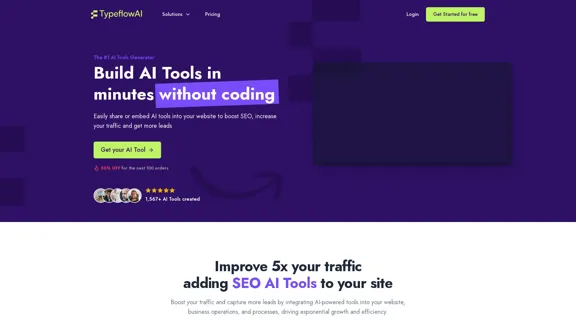
Create AI Tools without coding in minutes | TypeflowAI
View Detail

Create AI Tools without coding in minutes | TypeflowAI

Create AI Tools without coding in minutes | TypeflowAI

TypeflowAI enables users to create AI tools using dynamic forms and advanced prompts. Improve your SEO, boost traffic, and generate more leads by incorporating these tools into your website.

593
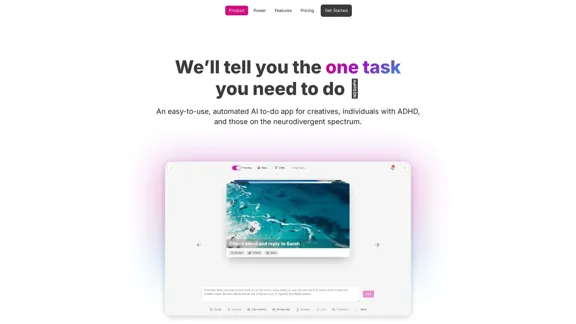
Draft - AI-powered Task List
View Detail

Draft - AI-powered Task List

Draft - AI-powered Task List

AI helps you manage the priority, calendar, and importance of your to-do list.

0
Engage AI | Generative AI for LinkedIn Comments and Content
View Detail

Engage AI | Generative AI for LinkedIn Comments and Content

Engage AI | Generative AI for LinkedIn Comments and Content

Engage AI empowers LinkedIn power users with Generative AI. Craft meaningful LinkedIn comments and content that allow you to stand out, break the ice, and start conversations even with prospects who are usually unresponsive to calls, messages, and emails.

71.94 K