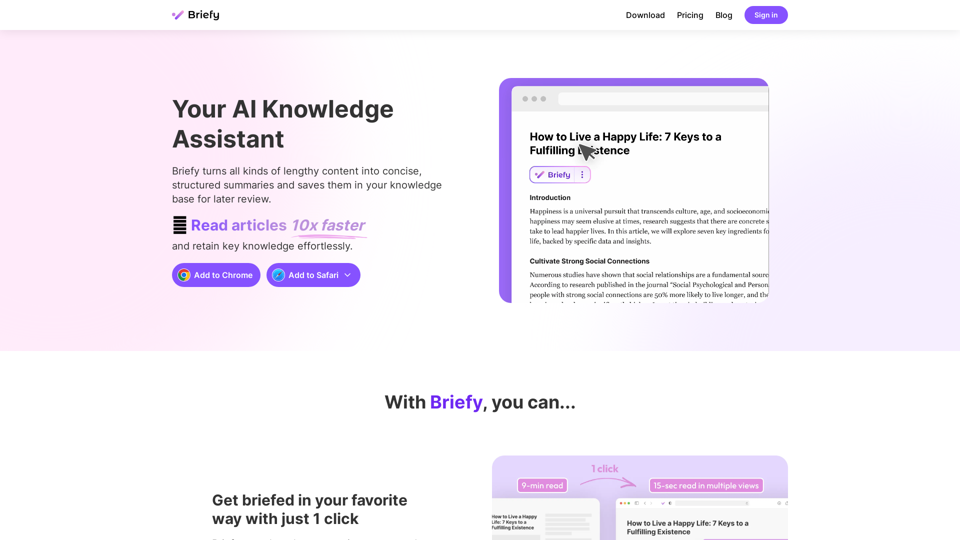
Briefy is an AI-powered knowledge assistant that transforms lengthy content into concise, structured summaries. It serves as a comprehensive tool for efficient reading, information retention, and knowledge management across various platforms and devices. Briefy supports multiple content types, offers various summary formats, and integrates seamlessly with popular browsers.
Briefy - Your AI Knowledge Assistant
Briefy turns all kinds of lengthy content into structured summaries and saves them to your knowledge base for later review.
Introduction
Feature
Rapid Content Summarization
- Transforms long-form content into quick, digestible summaries
- Supports multiple content types (articles, videos, emails, podcasts)
- Offers various summary formats (overview, table, mindmap, timeline)
Browser Integration
- Available as a Chrome and Safari extension
- Allows for seamless summarization without app switching
Knowledge Base Management
- Saves summaries for later review
- Enables searching through saved content using natural language
AI-Powered Q&A
- Answers specific questions about summarized content
- Offers context-aware, detailed responses
Multi-Device and Multi-Language Support
- Accessible on various smart devices (iPhone, iPad, Mac)
- Supports multiple languages for summarization and translation
Specialized Tools
- YouTube Summarizer
- PDF Summarizer
FAQ
Is Briefy free?
Briefy likely offers both free and paid features. Check the pricing page for details.
How does Briefy work?
Briefy uses AI to analyze and summarize content, presenting it in various formats such as overviews, tables, mindmaps, and timelines.
What type of content does Briefy support to summarize?
Briefy supports websites, videos, email threads, podcasts, and more.
Do I need a ChatGPT/OpenAI account?
No information suggests a ChatGPT or OpenAI account is required to use Briefy.
Latest Traffic Insights
Monthly Visits
67.70 K
Bounce Rate
39.39%
Pages Per Visit
1.96
Time on Site(s)
31.68
Global Rank
501414
Country Rank
United States 438129
Recent Visits
Traffic Sources
- Social Media:4.65%
- Paid Referrals:0.85%
- Email:0.97%
- Referrals:9.51%
- Search Engines:43.57%
- Direct:40.37%
Related Websites
OdysseyGPT reads and genuinely understands your documents, allowing you to search, summarize, and extract insights instantly.
0
Copilot for Microsoft 365 – Microsoft Adoption Copilot for Microsoft 365 is a powerful AI assistant that helps you work smarter and faster across Microsoft 365 apps and services. It combines the power of large language models (LLMs) with your organization's data in the Microsoft Graph and Microsoft 365 apps to turn your words into the most powerful productivity tool on the planet. Copilot is designed to help you: • Unleash creativity • Unlock productivity • Uplevel skills Copilot is built on Microsoft's comprehensive approach to security, compliance, and privacy. Copilot in Microsoft 365 apps and services: • Does not use your data to train the underlying LLM • Does not replace human ingenuity and judgment • Is designed to keep humans in the loop Copilot is currently available in Word, Excel, PowerPoint, Outlook, Teams, and more. Getting Started with Copilot To get started with Copilot, follow these steps: 1. Check availability: Ensure your organization has access to Copilot. 2. Learn the basics: Familiarize yourself with Copilot's capabilities and how to use it effectively. 3. Explore use cases: Discover how Copilot can help you in your specific role and tasks. 4. Practice and refine: Use Copilot regularly and refine your prompts for better results. 5. Share and collaborate: Collaborate with colleagues using Copilot and share best practices. Best Practices for Using Copilot 1. Be specific in your prompts 2. Provide context for better results 3. Review and edit Copilot's output 4. Use Copilot as a starting point, not a final product 5. Experiment with different approaches 6. Stay informed about new features and updates Copilot in Different Microsoft 365 Apps • Word: Draft, edit, summarize, and rewrite content • Excel: Analyze data, create formulas, and generate insights • PowerPoint: Create presentations, design slides, and generate content • Outlook: Compose emails, summarize threads, and manage your inbox • Teams: Summarize meetings, generate action items, and create meeting notes Responsible AI and Copilot Microsoft is committed to developing AI systems responsibly. When using Copilot, keep in mind: • AI-generated content may contain biases or inaccuracies • Always review and verify Copilot's output • Use your judgment and expertise alongside Copilot's suggestions • Be aware of your organization's policies regarding AI use Conclusion Copilot for Microsoft 365 is a powerful tool that can significantly enhance your productivity and creativity. By understanding its capabilities, following best practices, and using it responsibly, you can make the most of this AI assistant in your daily work.
Copilot for Microsoft 365 – Microsoft Adoption Copilot for Microsoft 365 is a powerful AI assistant that helps you work smarter and faster across Microsoft 365 apps and services. It combines the power of large language models (LLMs) with your organization's data in the Microsoft Graph and Microsoft 365 apps to turn your words into the most powerful productivity tool on the planet. Copilot is designed to help you: • Unleash creativity • Unlock productivity • Uplevel skills Copilot is built on Microsoft's comprehensive approach to security, compliance, and privacy. Copilot in Microsoft 365 apps and services: • Does not use your data to train the underlying LLM • Does not replace human ingenuity and judgment • Is designed to keep humans in the loop Copilot is currently available in Word, Excel, PowerPoint, Outlook, Teams, and more. Getting Started with Copilot To get started with Copilot, follow these steps: 1. Check availability: Ensure your organization has access to Copilot. 2. Learn the basics: Familiarize yourself with Copilot's capabilities and how to use it effectively. 3. Explore use cases: Discover how Copilot can help you in your specific role and tasks. 4. Practice and refine: Use Copilot regularly and refine your prompts for better results. 5. Share and collaborate: Collaborate with colleagues using Copilot and share best practices. Best Practices for Using Copilot 1. Be specific in your prompts 2. Provide context for better results 3. Review and edit Copilot's output 4. Use Copilot as a starting point, not a final product 5. Experiment with different approaches 6. Stay informed about new features and updates Copilot in Different Microsoft 365 Apps • Word: Draft, edit, summarize, and rewrite content • Excel: Analyze data, create formulas, and generate insights • PowerPoint: Create presentations, design slides, and generate content • Outlook: Compose emails, summarize threads, and manage your inbox • Teams: Summarize meetings, generate action items, and create meeting notes Responsible AI and Copilot Microsoft is committed to developing AI systems responsibly. When using Copilot, keep in mind: • AI-generated content may contain biases or inaccuracies • Always review and verify Copilot's output • Use your judgment and expertise alongside Copilot's suggestions • Be aware of your organization's policies regarding AI use Conclusion Copilot for Microsoft 365 is a powerful tool that can significantly enhance your productivity and creativity. By understanding its capabilities, following best practices, and using it responsibly, you can make the most of this AI assistant in your daily work.Microsoft Copilot combines the power of large language models (LLMs) with your organization's data to turn your words into one of the most powerful productivity tools on the planet.
608.60 K
We built the ultimate ChatPDF app that allows you to chat with any PDF: ask questions, get summaries, find anything you need!
341.40 K
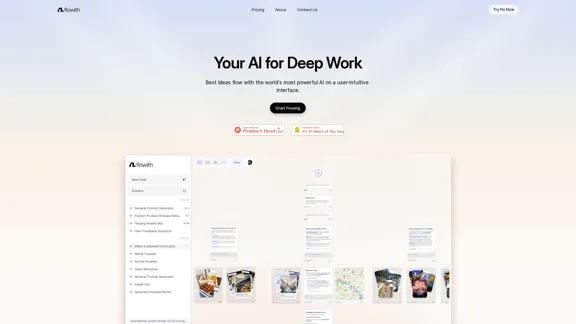
Surpassing traditional chat-based tools, Flowith streamlines tasks on a multi-thread interface powered by a most advanced agent framework. The intuitive canvas and smart framework boost productivity, helping users stay in the flow.
13.71 K

Flot AI: Write, Read, Memorize with AI at your side. – Oncely
Flot AI: Write, Read, Memorize with AI at your side. – OncelyFlot is your all-in-one AI assistant, enhancing your writing, speeding up your reading, and helping you remember information across websites and apps. (Available on Windows and macOS)
645