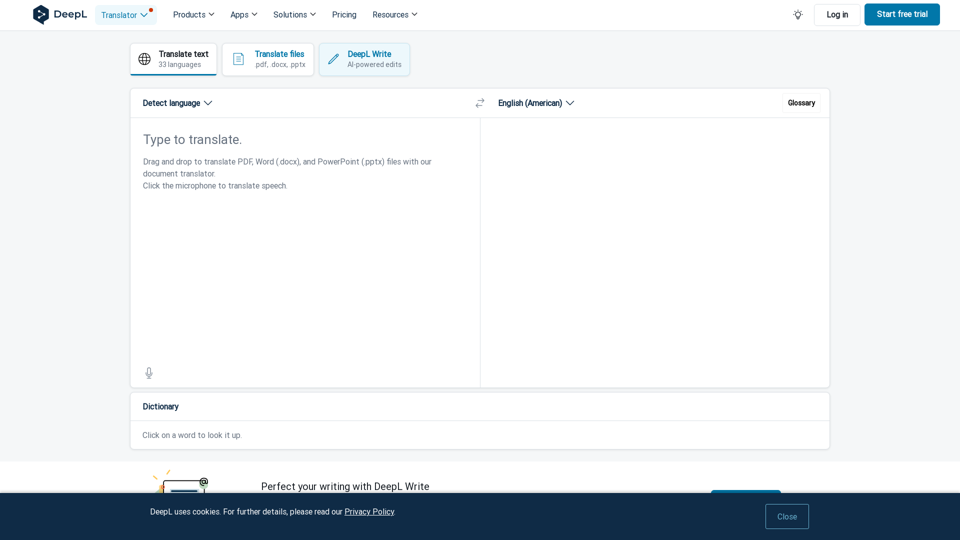
DeepL Translate is a highly accurate online translation tool offering a wide range of language services. It supports text, document, and speech translation across 33 languages. The platform also provides AI-powered writing assistance, customizable glossaries, and integrations with popular productivity tools. DeepL offers both free and premium plans, catering to individual and professional needs.
DeepL Translate: The world's most accurate translator
Instantly translate texts and complete document files. Accurate translations for individuals and teams. Millions of people use DeepL for translation every day.
Introduction
Feature
Multiple Translation Modes
- Text translation for 33 languages
- File translation (.pdf, .docx, .pptx)
- Speech translation capabilities
DeepL Write
- AI-powered writing assistance
- Grammar and punctuation correction
- Sentence rephrasing and tone adjustment
Customizable Glossary Function
- Personalize translations for specific terms
- Ensure consistency in specialized vocabulary
Apps and Integrations
- Desktop app for Windows
- Mobile apps for iOS and Android
- Browser extensions (Chrome, Edge, Firefox)
- Integration with Microsoft Word, Google Workspace, and Microsoft 365
API Access
- Build multilingual experiences into products
- Expand language capabilities of existing applications
Pricing Options
| Plan | Features | Limitations |
|---|---|---|
| Free Version | Basic translation | Up to 1,500 characters |
| Limited document translation | 3 locked documents/month | |
| Basic glossary | 10 glossary entries | |
| DeepL Pro | Unlimited text translation | - |
| Enhanced document translation | - | |
| Maximum data security | - | |
| Additional features | - |
Note: A 30-day free trial of DeepL Pro is available
FAQ
How many languages does DeepL support?
DeepL currently supports 33 languages for translation.
Is DeepL free to use?
DeepL offers a free version with limitations and a Pro version with additional features.
Can I translate documents with DeepL?
Yes, DeepL supports translation of PDF, Word (.docx), and PowerPoint (.pptx) files.
Is there a mobile app for DeepL?
Yes, DeepL offers mobile apps for both iOS and Android devices.
How secure is my data with DeepL?
DeepL emphasizes data security and privacy, especially for Pro users.
Latest Traffic Insights
Monthly Visits
134.30 M
Bounce Rate
61.70%
Pages Per Visit
2.36
Time on Site(s)
167.34
Global Rank
393
Country Rank
Japan 316
Recent Visits
Traffic Sources
- Social Media:0.08%
- Paid Referrals:0.29%
- Email:0.04%
- Referrals:1.47%
- Search Engines:26.79%
- Direct:71.33%
Related Websites
Flot AI: Write, Read, Memorize with AI at your side. – Oncely
Flot AI: Write, Read, Memorize with AI at your side. – OncelyFlot is your all-in-one AI assistant, enhancing your writing, speeding up your reading, and helping you remember information across websites and apps. (Available on Windows and macOS)
645
Our "Tech Tool Decode" consultancy service offers specialized evaluation services for artificial intelligence (AI) tools, apps, services, and everything in between.* If the tool is not AI, don't worry, we'll still evaluate it for you. We provide the human in the loop to test AI tools, products, services, etc. No automation or algorithms here. This
0
Copilot for Microsoft 365 – Microsoft Adoption Copilot for Microsoft 365 is a powerful AI assistant that helps you work smarter and faster across Microsoft 365 apps and services. It combines the power of large language models (LLMs) with your organization's data in the Microsoft Graph and Microsoft 365 apps to turn your words into the most powerful productivity tool on the planet. Copilot is designed to help you: • Unleash creativity • Unlock productivity • Uplevel skills Copilot is built on Microsoft's comprehensive approach to security, compliance, and privacy. Copilot in Microsoft 365 apps and services: • Does not use your data to train the underlying LLM • Does not replace human ingenuity and judgment • Is designed to keep humans in the loop Copilot is currently available in Word, Excel, PowerPoint, Outlook, Teams, and more. Getting Started with Copilot To get started with Copilot, follow these steps: 1. Check availability: Ensure your organization has access to Copilot. 2. Learn the basics: Familiarize yourself with Copilot's capabilities and how to use it effectively. 3. Explore use cases: Discover how Copilot can help you in your specific role and tasks. 4. Practice and refine: Use Copilot regularly and refine your prompts for better results. 5. Share and collaborate: Collaborate with colleagues using Copilot and share best practices. Best Practices for Using Copilot 1. Be specific in your prompts 2. Provide context for better results 3. Review and edit Copilot's output 4. Use Copilot as a starting point, not a final product 5. Experiment with different approaches 6. Stay informed about new features and updates Copilot in Different Microsoft 365 Apps • Word: Draft, edit, summarize, and rewrite content • Excel: Analyze data, create formulas, and generate insights • PowerPoint: Create presentations, design slides, and generate content • Outlook: Compose emails, summarize threads, and manage your inbox • Teams: Summarize meetings, generate action items, and create meeting notes Responsible AI and Copilot Microsoft is committed to developing AI systems responsibly. When using Copilot, keep in mind: • AI-generated content may contain biases or inaccuracies • Always review and verify Copilot's output • Use your judgment and expertise alongside Copilot's suggestions • Be aware of your organization's policies regarding AI use Conclusion Copilot for Microsoft 365 is a powerful tool that can significantly enhance your productivity and creativity. By understanding its capabilities, following best practices, and using it responsibly, you can make the most of this AI assistant in your daily work.
Copilot for Microsoft 365 – Microsoft Adoption Copilot for Microsoft 365 is a powerful AI assistant that helps you work smarter and faster across Microsoft 365 apps and services. It combines the power of large language models (LLMs) with your organization's data in the Microsoft Graph and Microsoft 365 apps to turn your words into the most powerful productivity tool on the planet. Copilot is designed to help you: • Unleash creativity • Unlock productivity • Uplevel skills Copilot is built on Microsoft's comprehensive approach to security, compliance, and privacy. Copilot in Microsoft 365 apps and services: • Does not use your data to train the underlying LLM • Does not replace human ingenuity and judgment • Is designed to keep humans in the loop Copilot is currently available in Word, Excel, PowerPoint, Outlook, Teams, and more. Getting Started with Copilot To get started with Copilot, follow these steps: 1. Check availability: Ensure your organization has access to Copilot. 2. Learn the basics: Familiarize yourself with Copilot's capabilities and how to use it effectively. 3. Explore use cases: Discover how Copilot can help you in your specific role and tasks. 4. Practice and refine: Use Copilot regularly and refine your prompts for better results. 5. Share and collaborate: Collaborate with colleagues using Copilot and share best practices. Best Practices for Using Copilot 1. Be specific in your prompts 2. Provide context for better results 3. Review and edit Copilot's output 4. Use Copilot as a starting point, not a final product 5. Experiment with different approaches 6. Stay informed about new features and updates Copilot in Different Microsoft 365 Apps • Word: Draft, edit, summarize, and rewrite content • Excel: Analyze data, create formulas, and generate insights • PowerPoint: Create presentations, design slides, and generate content • Outlook: Compose emails, summarize threads, and manage your inbox • Teams: Summarize meetings, generate action items, and create meeting notes Responsible AI and Copilot Microsoft is committed to developing AI systems responsibly. When using Copilot, keep in mind: • AI-generated content may contain biases or inaccuracies • Always review and verify Copilot's output • Use your judgment and expertise alongside Copilot's suggestions • Be aware of your organization's policies regarding AI use Conclusion Copilot for Microsoft 365 is a powerful tool that can significantly enhance your productivity and creativity. By understanding its capabilities, following best practices, and using it responsibly, you can make the most of this AI assistant in your daily work.Microsoft Copilot combines the power of large language models (LLMs) with your organization's data to turn your words into one of the most powerful productivity tools on the planet.
608.60 K
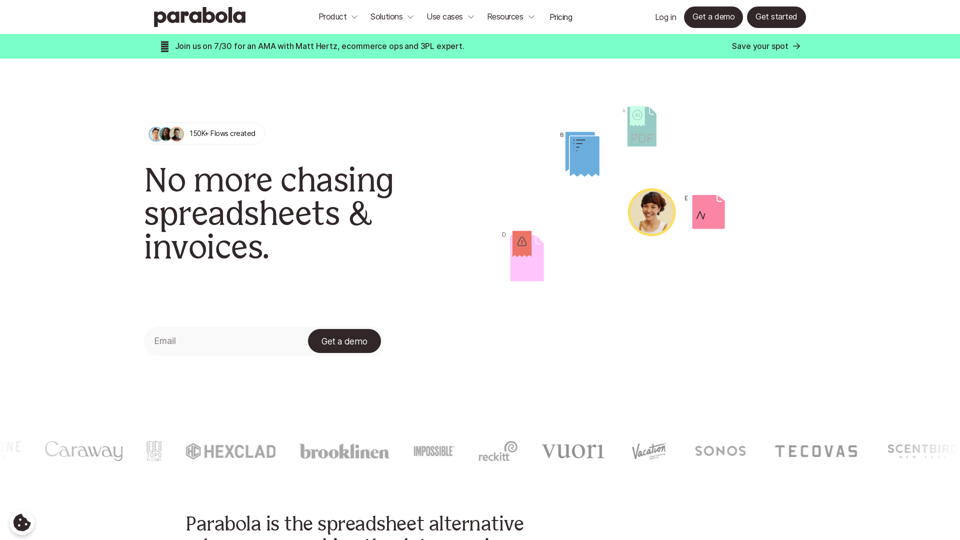
Parabola is the spreadsheet alternative that allows you to integrate data from across your company and create automated workflows.
87.60 K
OdysseyGPT reads and genuinely understands your documents, allowing you to search, summarize, and extract insights instantly.
0
CVBee.ai: AI-Powered Online CV Maker | Resume Builder & CV Optimization
CVBee.ai: AI-Powered Online CV Maker | Resume Builder & CV OptimizationCVBee.ai is an AI-powered online CV maker that helps you create, optimize, and refine professional resumes. Whether you're a job seeker or an experienced professional, CVBee.ai ensures your CV is ATS-friendly and perfectly structured.
0
Leadership Coaching App | Create Free Account Today
Leadership Coaching App | Create Free Account TodayConversational AI leadership tool that is revolutionizing leadership coaching, infinitely scalable and capable of being deployed as a leadership development tool to your entire organization
0