Open-source RightAI Tools Directory
  • Discover AI
  • Submit
  • Startup
  • Blog
Open-source RightAI Tools Directory
Discover the best AI tools of 2025 with the RightAI Tools Directory!

Friend Links

AI Anime GeneratorToolsApp AI

Support

Tap4
Privacy policyTerms & ConditionsContact Us
Loading...
loading...

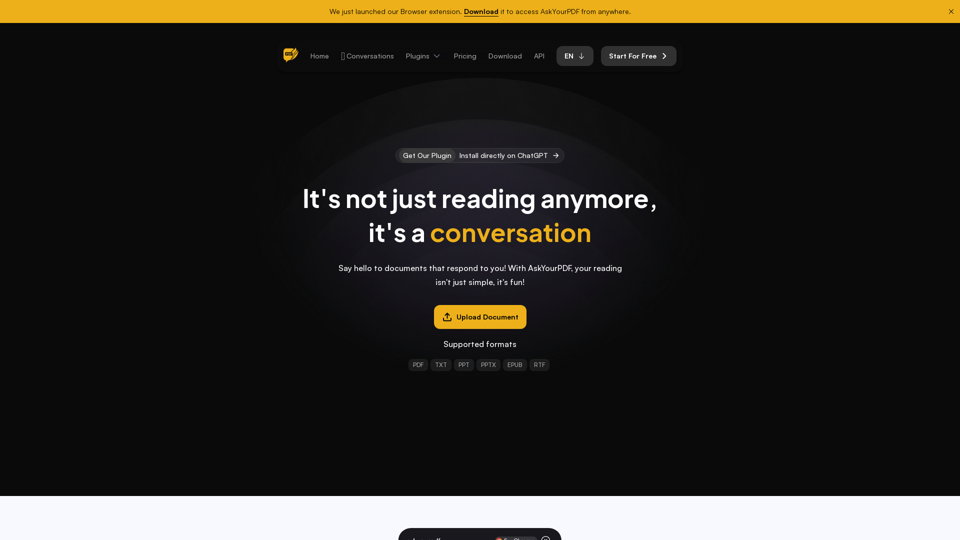
AskYourPDF: The Best PDF AI Chat App

We created AskYourPDF as the ultimate ChatPDF AI App for all your needs. Simply upload your PDF files and interact with our smart chat AI to extract valuable information from your documents.
Visit Website
AskYourPDF: The Best PDF AI Chat App
Visit Website

Introduction

AskYourPDF is an innovative AI-powered chat application that transforms PDF documents into interactive conversational partners. Users can upload PDF files and engage with an intelligent chat AI to extract valuable information, making document interaction more dynamic and efficient.

Feature

Upload and Chat with PDFs

Users can upload PDF documents and engage in interactive conversations with the AI, extracting information directly from the document content.

AI-Powered Chat System

Utilizing ChatGPT technology, AskYourPDF provides accurate information and creates an enjoyable learning environment through intelligent responses.

Conversation Tracking

The platform allows users to track and revisit all their conversations, enhancing the learning experience and information retention.

Smart Navigation

AskYourPDF offers smart navigation features, saving users time when exploring document content.

Multiple Pricing Tiers

The service provides various pricing plans to cater to different user needs:

PlanChatsPages per DocumentQuestions per DayConversations per DayDocuments per Day
Free100/month100 (max 15MB)5031
PremiumUnlimited2500 (max 30MB)12005050
ProUnlimited6000 (max 90MB)UnlimitedUnlimited150
EnterpriseUnlimitedCustomUnlimitedUnlimitedUnlimited

Advanced AI Models

Premium and higher tiers offer access to advanced AI models like GPT-3.5, GPT-4, Claude, and Claude 2 (credits required).

Knowledge Base Feature

Premium users can chat with up to 10 documents simultaneously, while Pro users can interact with 20 documents at once.

Additional Premium Features

  • Summarisation Service
  • Chrome Extension Access
  • OCR Support
  • Priority support and access to new features (Pro and Enterprise)

FAQ

What is AskYourPDF?

AskYourPDF is an AI-powered chat application that transforms PDF documents into interactive conversational partners, allowing users to extract information through engaging dialogue.

How does AskYourPDF work?

The platform uses ChatGPT technology to make documents interactive. Users can upload PDF files, ask questions, and receive accurate answers directly from the document content through an AI-powered chat system.

What features does AskYourPDF offer?

AskYourPDF offers features such as PDF upload and chat, direct answer extraction, conversation tracking, interactive reading experiences, smart navigation, and an AI-powered chat system for playful learning.

What pricing plans are available for AskYourPDF?

AskYourPDF offers four pricing tiers: Free, Premium, Pro, and Enterprise. Each tier provides different levels of access to features such as chat limits, document size restrictions, and advanced AI models.

What advanced features are available in the paid plans?

Paid plans offer features like access to advanced AI models (GPT-3.5, GPT-4, Claude, Claude 2), increased document and question limits, Knowledge Base functionality, Summarisation Service, Chrome Extension access, OCR support, and priority customer support.

Latest Traffic Insights

  • Monthly Visits

    355.38 K

  • Bounce Rate

    42.45%

  • Pages Per Visit

    2.53

  • Time on Site(s)

    76.71

  • Global Rank

    127239

  • Country Rank

    India 32468

Recent Visits

Traffic Sources

  • Social Media:
    1.34%
  • Paid Referrals:
    0.52%
  • Email:
    0.13%
  • Referrals:
    6.90%
  • Search Engines:
    56.96%
  • Direct:
    34.15%
More Data

Related Websites

terrific.tools - Free Online Tools
View Detail

terrific.tools - Free Online Tools

terrific.tools - Free Online Tools

A modern collection of free, browser-based tools for everyone. Transform images, convert audio, format code, and much more.

52.91 K
AI PDF Summarizer - Summarize lengthy PDF documents online.
View Detail

AI PDF Summarizer - Summarize lengthy PDF documents online.

AI PDF Summarizer - Summarize lengthy PDF documents online.

Get concise summaries and ask questions with our PDF analyzer β€” perfect for efficient document review. Summarize PDFs quickly with our AI-powered tool.

5.90 M
AI Note Taking & Transcribe & Summarizer | AI Notebook App
View Detail

AI Note Taking & Transcribe & Summarizer | AI Notebook App

AI Note Taking & Transcribe & Summarizer | AI Notebook App

Generate transcripts and AI summarize for College Students in lectures. Specializing in YouTube Video Summarizer, PDF Summarizer, Article Summarizer. Save key insights and review with study guides, quizzes, and flashcards. Build your AI-powered notes library.

0
Open Multiple URLs
View Detail

Open Multiple URLs

Open Multiple URLs

Multiple URL Opener is a free online tool to open multiple URLs simultaneously.

0
PCSports – Sports for everyone
View Detail

PCSports – Sports for everyone

PCSports – Sports for everyone

0
Copilot for Microsoft 365 – Microsoft Adoption

Copilot for Microsoft 365 is a powerful AI assistant that helps you work smarter and faster across Microsoft 365 apps and services. It combines the power of large language models (LLMs) with your organization's data in the Microsoft Graph and Microsoft 365 apps to turn your words into the most powerful productivity tool on the planet.

Copilot is designed to help you:

β€’ Unleash creativity
β€’ Unlock productivity
β€’ Uplevel skills

Copilot is built on Microsoft's comprehensive approach to security, compliance, and privacy. Copilot in Microsoft 365 apps and services:

β€’ Does not use your data to train the underlying LLM
β€’ Does not replace human ingenuity and judgment
β€’ Is designed to keep humans in the loop

Copilot is currently available in Word, Excel, PowerPoint, Outlook, Teams, and more.

Getting Started with Copilot

To get started with Copilot, follow these steps:

1. Check availability: Ensure your organization has access to Copilot.
2. Learn the basics: Familiarize yourself with Copilot's capabilities and how to use it effectively.
3. Explore use cases: Discover how Copilot can help you in your specific role and tasks.
4. Practice and refine: Use Copilot regularly and refine your prompts for better results.
5. Share and collaborate: Collaborate with colleagues using Copilot and share best practices.

Best Practices for Using Copilot

1. Be specific in your prompts
2. Provide context for better results
3. Review and edit Copilot's output
4. Use Copilot as a starting point, not a final product
5. Experiment with different approaches
6. Stay informed about new features and updates

Copilot in Different Microsoft 365 Apps

β€’ Word: Draft, edit, summarize, and rewrite content
β€’ Excel: Analyze data, create formulas, and generate insights
β€’ PowerPoint: Create presentations, design slides, and generate content
β€’ Outlook: Compose emails, summarize threads, and manage your inbox
β€’ Teams: Summarize meetings, generate action items, and create meeting notes

Responsible AI and Copilot

Microsoft is committed to developing AI systems responsibly. When using Copilot, keep in mind:

β€’ AI-generated content may contain biases or inaccuracies
β€’ Always review and verify Copilot's output
β€’ Use your judgment and expertise alongside Copilot's suggestions
β€’ Be aware of your organization's policies regarding AI use

Conclusion

Copilot for Microsoft 365 is a powerful tool that can significantly enhance your productivity and creativity. By understanding its capabilities, following best practices, and using it responsibly, you can make the most of this AI assistant in your daily work.
View Detail

Copilot for Microsoft 365 – Microsoft Adoption Copilot for Microsoft 365 is a powerful AI assistant that helps you work smarter and faster across Microsoft 365 apps and services. It combines the power of large language models (LLMs) with your organization's data in the Microsoft Graph and Microsoft 365 apps to turn your words into the most powerful productivity tool on the planet. Copilot is designed to help you: β€’ Unleash creativity β€’ Unlock productivity β€’ Uplevel skills Copilot is built on Microsoft's comprehensive approach to security, compliance, and privacy. Copilot in Microsoft 365 apps and services: β€’ Does not use your data to train the underlying LLM β€’ Does not replace human ingenuity and judgment β€’ Is designed to keep humans in the loop Copilot is currently available in Word, Excel, PowerPoint, Outlook, Teams, and more. Getting Started with Copilot To get started with Copilot, follow these steps: 1. Check availability: Ensure your organization has access to Copilot. 2. Learn the basics: Familiarize yourself with Copilot's capabilities and how to use it effectively. 3. Explore use cases: Discover how Copilot can help you in your specific role and tasks. 4. Practice and refine: Use Copilot regularly and refine your prompts for better results. 5. Share and collaborate: Collaborate with colleagues using Copilot and share best practices. Best Practices for Using Copilot 1. Be specific in your prompts 2. Provide context for better results 3. Review and edit Copilot's output 4. Use Copilot as a starting point, not a final product 5. Experiment with different approaches 6. Stay informed about new features and updates Copilot in Different Microsoft 365 Apps β€’ Word: Draft, edit, summarize, and rewrite content β€’ Excel: Analyze data, create formulas, and generate insights β€’ PowerPoint: Create presentations, design slides, and generate content β€’ Outlook: Compose emails, summarize threads, and manage your inbox β€’ Teams: Summarize meetings, generate action items, and create meeting notes Responsible AI and Copilot Microsoft is committed to developing AI systems responsibly. When using Copilot, keep in mind: β€’ AI-generated content may contain biases or inaccuracies β€’ Always review and verify Copilot's output β€’ Use your judgment and expertise alongside Copilot's suggestions β€’ Be aware of your organization's policies regarding AI use Conclusion Copilot for Microsoft 365 is a powerful tool that can significantly enhance your productivity and creativity. By understanding its capabilities, following best practices, and using it responsibly, you can make the most of this AI assistant in your daily work.

Copilot for Microsoft 365 – Microsoft Adoption Copilot for Microsoft 365 is a powerful AI assistant that helps you work smarter and faster across Microsoft 365 apps and services. It combines the power of large language models (LLMs) with your organization's data in the Microsoft Graph and Microsoft 365 apps to turn your words into the most powerful productivity tool on the planet. Copilot is designed to help you: β€’ Unleash creativity β€’ Unlock productivity β€’ Uplevel skills Copilot is built on Microsoft's comprehensive approach to security, compliance, and privacy. Copilot in Microsoft 365 apps and services: β€’ Does not use your data to train the underlying LLM β€’ Does not replace human ingenuity and judgment β€’ Is designed to keep humans in the loop Copilot is currently available in Word, Excel, PowerPoint, Outlook, Teams, and more. Getting Started with Copilot To get started with Copilot, follow these steps: 1. Check availability: Ensure your organization has access to Copilot. 2. Learn the basics: Familiarize yourself with Copilot's capabilities and how to use it effectively. 3. Explore use cases: Discover how Copilot can help you in your specific role and tasks. 4. Practice and refine: Use Copilot regularly and refine your prompts for better results. 5. Share and collaborate: Collaborate with colleagues using Copilot and share best practices. Best Practices for Using Copilot 1. Be specific in your prompts 2. Provide context for better results 3. Review and edit Copilot's output 4. Use Copilot as a starting point, not a final product 5. Experiment with different approaches 6. Stay informed about new features and updates Copilot in Different Microsoft 365 Apps β€’ Word: Draft, edit, summarize, and rewrite content β€’ Excel: Analyze data, create formulas, and generate insights β€’ PowerPoint: Create presentations, design slides, and generate content β€’ Outlook: Compose emails, summarize threads, and manage your inbox β€’ Teams: Summarize meetings, generate action items, and create meeting notes Responsible AI and Copilot Microsoft is committed to developing AI systems responsibly. When using Copilot, keep in mind: β€’ AI-generated content may contain biases or inaccuracies β€’ Always review and verify Copilot's output β€’ Use your judgment and expertise alongside Copilot's suggestions β€’ Be aware of your organization's policies regarding AI use Conclusion Copilot for Microsoft 365 is a powerful tool that can significantly enhance your productivity and creativity. By understanding its capabilities, following best practices, and using it responsibly, you can make the most of this AI assistant in your daily work.

Microsoft Copilot combines the power of large language models (LLMs) with your organization's data to turn your words into one of the most powerful productivity tools on the planet.

608.60 K
EZPZAI | Home
View Detail

EZPZAI | Home

EZPZAI | Home

0
UCG - Chrome Web Store
View Detail

UCG - Chrome Web Store

UCG - Chrome Web Store

ChatGPT without leaving the tab or visible chat!

193.90 M