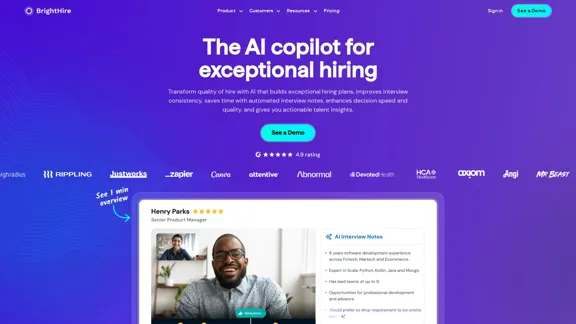
BrightHire is an AI-powered interview intelligence platform that revolutionizes the hiring process. It offers a comprehensive suite of tools designed to enhance interview quality, reduce bias, and increase the efficiency of talent acquisition. By leveraging artificial intelligence, BrightHire streamlines various aspects of the hiring workflow, from interview planning to decision-making and continuous improvement.
Interview Intelligence Platform for Streamlined Hiring | BrightHire
An Interview Intelligence platform that creates recruitment strategies, produces interview summaries and key points, provides candidate insights, and offers additional features.
Introduction
Feature
AI-driven Interview Planning
BrightHire utilizes AI technology to create job descriptions and structured interview plans, ensuring consistency and thoroughness in the hiring process.
Interview Recording and Transcription
The platform offers automatic recording and transcription of interviews, providing a detailed record for review and analysis.
AI-powered Interview Notes and Highlights
BrightHire's AI generates intelligent notes and highlights key moments from interviews, saving time and improving the quality of feedback.
Automated Scorecard Feedback
The system provides automated scorecard feedback, enabling faster and more consistent evaluation of candidates.
Interviewer Training and Coaching
BrightHire supports continuous improvement through scalable interviewer excellence programs, including "best of" clips and AI-powered insights.
Integration Capabilities
Seamlessly connects with existing Applicant Tracking Systems (ATS), video conferencing tools, and collaboration platforms like Slack, Teams, and email.
Bias Reduction
By offering structured interview plans, consistent questioning, and data-driven insights, BrightHire helps reduce bias in the hiring process.
Efficiency Improvements
According to BrightHire's data, the platform can lead to:
- 27% fewer interviews per hire
- 35% increase in pipeline efficiency
- 19% reduction in candidate drop-offs
FAQ
How does BrightHire improve the hiring process?
BrightHire enhances the hiring process by providing structured interviews, AI-powered notes, faster feedback, and data-driven decision-making tools. These features work together to reduce bias and improve the quality of hires.
What integrations does BrightHire offer?
BrightHire integrates with various systems and tools commonly used in the hiring process, including:
- Applicant Tracking Systems (ATS)
- Video conferencing tools
- Collaboration platforms (Slack, Microsoft Teams)
- Email systems
How does BrightHire support interviewer training?
BrightHire offers a scalable approach to interviewer excellence through:
- "Best of" interview clips for learning
- Automated coaching
- AI-powered insights for continuous skill improvement
Is pricing information available for BrightHire?
BrightHire does not provide specific pricing information on their website. Interested parties are encouraged to book a live demo or watch a product tour for more details about the platform and its pricing structure.
Related Websites
Receipt OCR API: Precise Data Extraction Tool | ReceiptUp
Receipt OCR API: Precise Data Extraction Tool | ReceiptUpTransform your receipt management with our advanced OCR API. Experience fast, accurate data extraction for streamlined workflow and improved efficiency.
0
After reaching 78 million views on LinkedIn, Ruben Hassid built EasyGen - his AI to write LinkedIn posts.
63.03 K
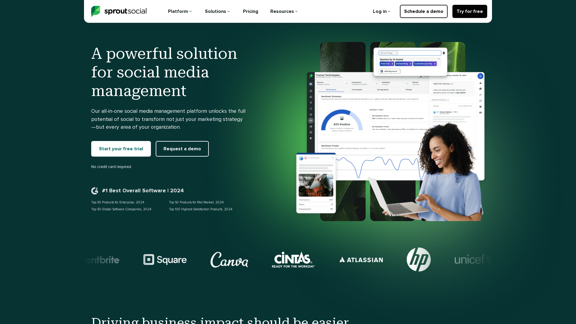
Reimagine how social media can boost your business with Sprout Social. Experience our social media management tools firsthand. Begin your free trial today.
1.75 M
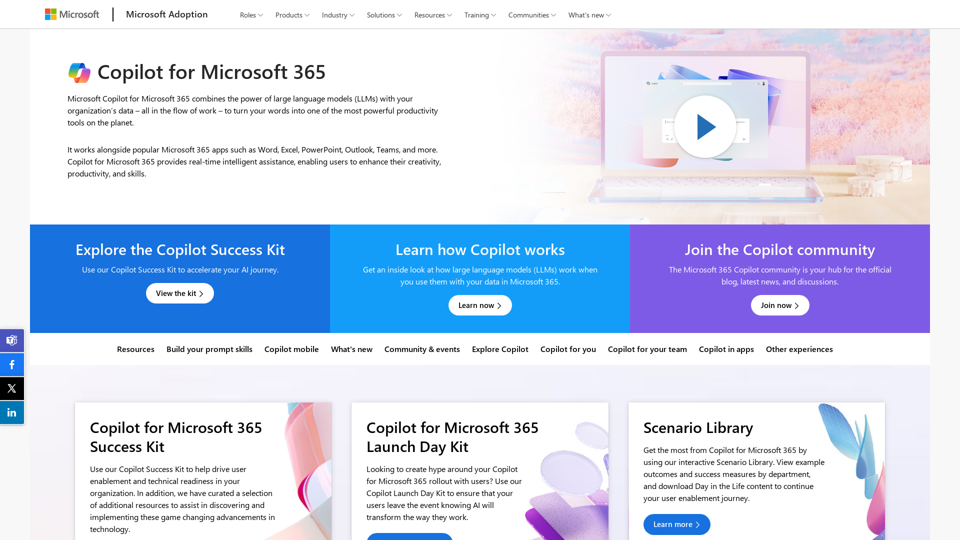
Copilot for Microsoft 365 – Microsoft Adoption Copilot for Microsoft 365 is a powerful AI assistant that helps you work smarter and faster across Microsoft 365 apps and services. It combines the power of large language models (LLMs) with your organization's data in the Microsoft Graph and Microsoft 365 apps to turn your words into the most powerful productivity tool on the planet. Copilot is designed to help you: • Unleash creativity • Unlock productivity • Uplevel skills Copilot is built on Microsoft's comprehensive approach to security, compliance, and privacy. Copilot in Microsoft 365 apps and services: • Does not use your data to train the underlying LLM • Does not replace human ingenuity and judgment • Is designed to keep humans in the loop Copilot is currently available in Word, Excel, PowerPoint, Outlook, Teams, and more. Getting Started with Copilot To get started with Copilot, follow these steps: 1. Check availability: Ensure your organization has access to Copilot. 2. Learn the basics: Familiarize yourself with Copilot's capabilities and how to use it effectively. 3. Explore use cases: Discover how Copilot can help you in your specific role and tasks. 4. Practice and refine: Use Copilot regularly and refine your prompts for better results. 5. Share and collaborate: Collaborate with colleagues using Copilot and share best practices. Best Practices for Using Copilot 1. Be specific in your prompts 2. Provide context for better results 3. Review and edit Copilot's output 4. Use Copilot as a starting point, not a final product 5. Experiment with different approaches 6. Stay informed about new features and updates Copilot in Different Microsoft 365 Apps • Word: Draft, edit, summarize, and rewrite content • Excel: Analyze data, create formulas, and generate insights • PowerPoint: Create presentations, design slides, and generate content • Outlook: Compose emails, summarize threads, and manage your inbox • Teams: Summarize meetings, generate action items, and create meeting notes Responsible AI and Copilot Microsoft is committed to developing AI systems responsibly. When using Copilot, keep in mind: • AI-generated content may contain biases or inaccuracies • Always review and verify Copilot's output • Use your judgment and expertise alongside Copilot's suggestions • Be aware of your organization's policies regarding AI use Conclusion Copilot for Microsoft 365 is a powerful tool that can significantly enhance your productivity and creativity. By understanding its capabilities, following best practices, and using it responsibly, you can make the most of this AI assistant in your daily work.
Copilot for Microsoft 365 – Microsoft Adoption Copilot for Microsoft 365 is a powerful AI assistant that helps you work smarter and faster across Microsoft 365 apps and services. It combines the power of large language models (LLMs) with your organization's data in the Microsoft Graph and Microsoft 365 apps to turn your words into the most powerful productivity tool on the planet. Copilot is designed to help you: • Unleash creativity • Unlock productivity • Uplevel skills Copilot is built on Microsoft's comprehensive approach to security, compliance, and privacy. Copilot in Microsoft 365 apps and services: • Does not use your data to train the underlying LLM • Does not replace human ingenuity and judgment • Is designed to keep humans in the loop Copilot is currently available in Word, Excel, PowerPoint, Outlook, Teams, and more. Getting Started with Copilot To get started with Copilot, follow these steps: 1. Check availability: Ensure your organization has access to Copilot. 2. Learn the basics: Familiarize yourself with Copilot's capabilities and how to use it effectively. 3. Explore use cases: Discover how Copilot can help you in your specific role and tasks. 4. Practice and refine: Use Copilot regularly and refine your prompts for better results. 5. Share and collaborate: Collaborate with colleagues using Copilot and share best practices. Best Practices for Using Copilot 1. Be specific in your prompts 2. Provide context for better results 3. Review and edit Copilot's output 4. Use Copilot as a starting point, not a final product 5. Experiment with different approaches 6. Stay informed about new features and updates Copilot in Different Microsoft 365 Apps • Word: Draft, edit, summarize, and rewrite content • Excel: Analyze data, create formulas, and generate insights • PowerPoint: Create presentations, design slides, and generate content • Outlook: Compose emails, summarize threads, and manage your inbox • Teams: Summarize meetings, generate action items, and create meeting notes Responsible AI and Copilot Microsoft is committed to developing AI systems responsibly. When using Copilot, keep in mind: • AI-generated content may contain biases or inaccuracies • Always review and verify Copilot's output • Use your judgment and expertise alongside Copilot's suggestions • Be aware of your organization's policies regarding AI use Conclusion Copilot for Microsoft 365 is a powerful tool that can significantly enhance your productivity and creativity. By understanding its capabilities, following best practices, and using it responsibly, you can make the most of this AI assistant in your daily work.Microsoft Copilot combines the power of large language models (LLMs) with your organization's data to turn your words into one of the most powerful productivity tools on the planet.
608.60 K
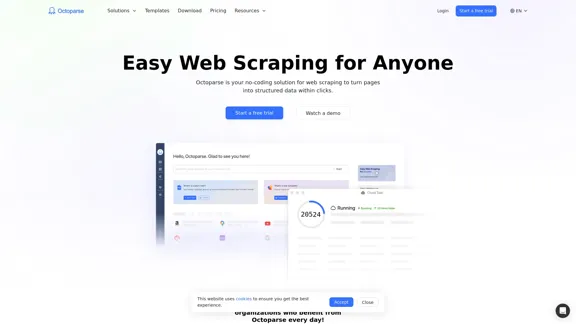
Web scraping simplified. Gather information from any website in minutes using our code-free web crawler. Obtain the essential data to propel your business forward. Begin at no cost today!
309.69 K
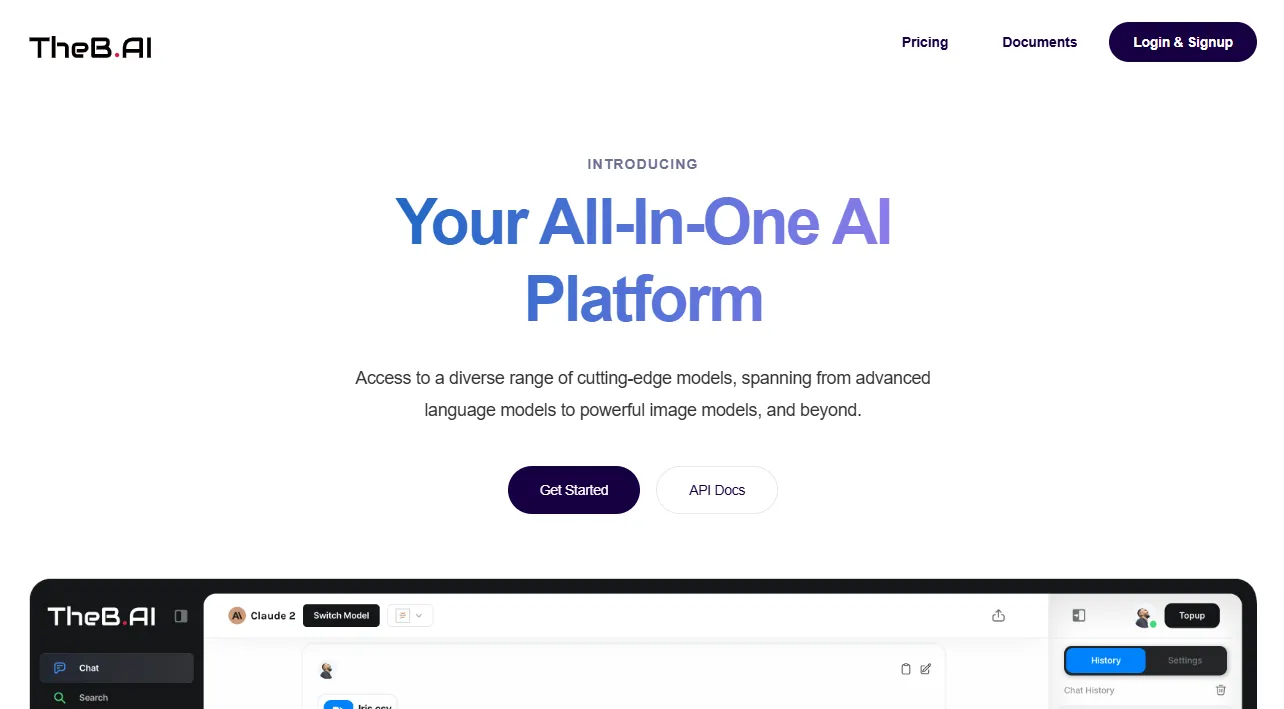
Your All-In-One AI Platform Access to a diverse range of cutting-edge models, spanning from advanced language models to powerful image models, and beyond.
73.63 K
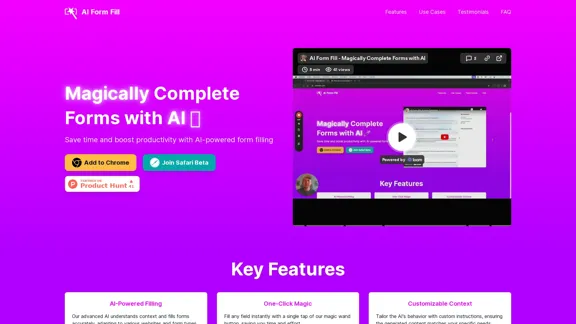
AI Form Fill: The browser extension that uses AI to automatically fill out forms for you. Save time and boost productivity with magical form completion.
2.35 K