Open-source RightAI Tools Directory
  • Discover AI
  • Submit
  • Startup
  • Blog
Open-source RightAI Tools Directory
Discover the best AI tools of 2025 with the RightAI Tools Directory!

Friend Links

AI Anime GeneratorToolsApp AI

Support

Tap4
Privacy policyTerms & ConditionsContact Us
Loading...
loading...

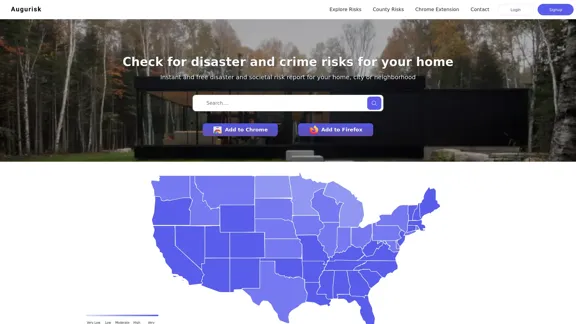
Augurisk: Explore Disaster and Crime risk in the US

Here is the translation: Discover Natural Disaster and Crime risk for cities and counties in your state, including Flood, Hurricanes, Tornadoes, Wildfires, Drought and Earthquakes.
Visit Website
Augurisk: Explore Disaster and Crime risk in the US
Visit Website

Introduction

Augurisk is a web-based platform that provides instant and free disaster and societal risk reports for homes, cities, and neighborhoods across the United States. The tool allows users to explore various risks, including natural disasters and crime, for different locations.

Feature

  1. Risk Assessment

    • Provides risk reports for homes, cities, and neighborhoods
    • Covers various types of risks:
      • Natural disasters (floods, wildfires, etc.)
      • Crime
    • Offers risk levels from Very Low to Very High
  2. Geographic Coverage

    • Covers all 50 US states
    • Includes territories like American Samoa, Guam, Puerto Rico, and the Virgin Islands
  3. Accessibility

    • Web-based platform
    • Chrome and Firefox browser extensions available
  4. User-friendly Interface

    • Interactive map for exploring risks
    • State-by-state risk breakdown
  5. Free Service

    • Instant risk reports available at no cost
  6. Customization

    • Ability to check risks for specific locations

FAQ

What types of risks does Augurisk assess?

Augurisk assesses both natural disaster risks (such as floods and wildfires) and societal risks (primarily crime) for locations across the United States and its territories.

Is Augurisk available as a browser extension?

Yes, Augurisk offers browser extensions for both Chrome and Firefox, making it easy to access risk information while browsing.

How detailed are the risk assessments?

Augurisk provides risk assessments on a scale from Very Low to Very High, offering a quick and easy-to-understand overview of potential risks in a given area.

Can I use Augurisk to check risks for a specific address?

Yes, Augurisk allows users to check disaster and crime risks for specific homes, cities, or neighborhoods.

Is Augurisk available for locations outside the United States?

Based on the information provided, Augurisk appears to focus on the United States and its territories. It does not mention coverage for international locations.

Evaluation

  1. Augurisk offers a valuable service by providing free, instant risk assessments for various locations across the United States. This information can be crucial for homeowners, renters, and businesses making location-based decisions.

  2. The platform's coverage of both natural disasters and crime risks provides a comprehensive view of potential threats in a given area, which is a significant advantage over tools that focus on only one type of risk.

  3. The availability of browser extensions for Chrome and Firefox enhances accessibility, allowing users to easily check risks while browsing real estate listings or researching areas online.

  4. While the risk assessment scale (Very Low to Very High) is easy to understand, more detailed information or numerical scores could provide greater depth for users who need more specific data.

  5. The focus on US locations is beneficial for American users but limits the tool's usefulness for international risk assessment. Expanding to cover more countries could significantly increase Augurisk's global appeal.

  6. The free nature of the service is a major plus, making it accessible to a wide range of users. However, it would be interesting to know if there are premium features or more detailed reports available for a fee.

  7. Overall, Augurisk appears to be a user-friendly and valuable tool for anyone interested in understanding the risks associated with different locations in the United States, though there is potential for further development and expansion of its features and coverage.

Related Websites
Integrity β€” Notes, Canvases, and AI all in one workspace
View Detail

Integrity β€” Notes, Canvases, and AI all in one workspace

Integrity β€” Notes, Canvases, and AI all in one workspace

Stop jumping between Notion, Miro, and ChatGPT. Integrity unifies structure, visual thinking, and AI so you can turn ideas into results faster.

0
AI PDF Summarizer - Summarize lengthy PDF documents online.
View Detail

AI PDF Summarizer - Summarize lengthy PDF documents online.

AI PDF Summarizer - Summarize lengthy PDF documents online.

Get concise summaries and ask questions with our PDF analyzer β€” perfect for efficient document review. Summarize PDFs quickly with our AI-powered tool.

5.90 M
Copilot for Microsoft 365 – Microsoft Adoption

Copilot for Microsoft 365 is a powerful AI assistant that helps you work smarter and faster across Microsoft 365 apps and services. It combines the power of large language models (LLMs) with your organization's data in the Microsoft Graph and Microsoft 365 apps to turn your words into the most powerful productivity tool on the planet.

Copilot is designed to help you:

β€’ Unleash creativity
β€’ Unlock productivity
β€’ Uplevel skills

Copilot is built on Microsoft's comprehensive approach to security, compliance, and privacy. Copilot in Microsoft 365 apps and services:

β€’ Does not use your data to train the underlying LLM
β€’ Does not replace human ingenuity and judgment
β€’ Is designed to keep humans in the loop

Copilot is currently available in Word, Excel, PowerPoint, Outlook, Teams, and more.

Getting Started with Copilot

To get started with Copilot, follow these steps:

1. Check availability: Ensure your organization has access to Copilot.
2. Learn the basics: Familiarize yourself with Copilot's capabilities and how to use it effectively.
3. Explore use cases: Discover how Copilot can help you in your specific role and tasks.
4. Practice and refine: Use Copilot regularly and refine your prompts for better results.
5. Share and collaborate: Collaborate with colleagues using Copilot and share best practices.

Best Practices for Using Copilot

1. Be specific in your prompts
2. Provide context for better results
3. Review and edit Copilot's output
4. Use Copilot as a starting point, not a final product
5. Experiment with different approaches
6. Stay informed about new features and updates

Copilot in Different Microsoft 365 Apps

β€’ Word: Draft, edit, summarize, and rewrite content
β€’ Excel: Analyze data, create formulas, and generate insights
β€’ PowerPoint: Create presentations, design slides, and generate content
β€’ Outlook: Compose emails, summarize threads, and manage your inbox
β€’ Teams: Summarize meetings, generate action items, and create meeting notes

Responsible AI and Copilot

Microsoft is committed to developing AI systems responsibly. When using Copilot, keep in mind:

β€’ AI-generated content may contain biases or inaccuracies
β€’ Always review and verify Copilot's output
β€’ Use your judgment and expertise alongside Copilot's suggestions
β€’ Be aware of your organization's policies regarding AI use

Conclusion

Copilot for Microsoft 365 is a powerful tool that can significantly enhance your productivity and creativity. By understanding its capabilities, following best practices, and using it responsibly, you can make the most of this AI assistant in your daily work.
View Detail

Copilot for Microsoft 365 – Microsoft Adoption Copilot for Microsoft 365 is a powerful AI assistant that helps you work smarter and faster across Microsoft 365 apps and services. It combines the power of large language models (LLMs) with your organization's data in the Microsoft Graph and Microsoft 365 apps to turn your words into the most powerful productivity tool on the planet. Copilot is designed to help you: β€’ Unleash creativity β€’ Unlock productivity β€’ Uplevel skills Copilot is built on Microsoft's comprehensive approach to security, compliance, and privacy. Copilot in Microsoft 365 apps and services: β€’ Does not use your data to train the underlying LLM β€’ Does not replace human ingenuity and judgment β€’ Is designed to keep humans in the loop Copilot is currently available in Word, Excel, PowerPoint, Outlook, Teams, and more. Getting Started with Copilot To get started with Copilot, follow these steps: 1. Check availability: Ensure your organization has access to Copilot. 2. Learn the basics: Familiarize yourself with Copilot's capabilities and how to use it effectively. 3. Explore use cases: Discover how Copilot can help you in your specific role and tasks. 4. Practice and refine: Use Copilot regularly and refine your prompts for better results. 5. Share and collaborate: Collaborate with colleagues using Copilot and share best practices. Best Practices for Using Copilot 1. Be specific in your prompts 2. Provide context for better results 3. Review and edit Copilot's output 4. Use Copilot as a starting point, not a final product 5. Experiment with different approaches 6. Stay informed about new features and updates Copilot in Different Microsoft 365 Apps β€’ Word: Draft, edit, summarize, and rewrite content β€’ Excel: Analyze data, create formulas, and generate insights β€’ PowerPoint: Create presentations, design slides, and generate content β€’ Outlook: Compose emails, summarize threads, and manage your inbox β€’ Teams: Summarize meetings, generate action items, and create meeting notes Responsible AI and Copilot Microsoft is committed to developing AI systems responsibly. When using Copilot, keep in mind: β€’ AI-generated content may contain biases or inaccuracies β€’ Always review and verify Copilot's output β€’ Use your judgment and expertise alongside Copilot's suggestions β€’ Be aware of your organization's policies regarding AI use Conclusion Copilot for Microsoft 365 is a powerful tool that can significantly enhance your productivity and creativity. By understanding its capabilities, following best practices, and using it responsibly, you can make the most of this AI assistant in your daily work.

Copilot for Microsoft 365 – Microsoft Adoption Copilot for Microsoft 365 is a powerful AI assistant that helps you work smarter and faster across Microsoft 365 apps and services. It combines the power of large language models (LLMs) with your organization's data in the Microsoft Graph and Microsoft 365 apps to turn your words into the most powerful productivity tool on the planet. Copilot is designed to help you: β€’ Unleash creativity β€’ Unlock productivity β€’ Uplevel skills Copilot is built on Microsoft's comprehensive approach to security, compliance, and privacy. Copilot in Microsoft 365 apps and services: β€’ Does not use your data to train the underlying LLM β€’ Does not replace human ingenuity and judgment β€’ Is designed to keep humans in the loop Copilot is currently available in Word, Excel, PowerPoint, Outlook, Teams, and more. Getting Started with Copilot To get started with Copilot, follow these steps: 1. Check availability: Ensure your organization has access to Copilot. 2. Learn the basics: Familiarize yourself with Copilot's capabilities and how to use it effectively. 3. Explore use cases: Discover how Copilot can help you in your specific role and tasks. 4. Practice and refine: Use Copilot regularly and refine your prompts for better results. 5. Share and collaborate: Collaborate with colleagues using Copilot and share best practices. Best Practices for Using Copilot 1. Be specific in your prompts 2. Provide context for better results 3. Review and edit Copilot's output 4. Use Copilot as a starting point, not a final product 5. Experiment with different approaches 6. Stay informed about new features and updates Copilot in Different Microsoft 365 Apps β€’ Word: Draft, edit, summarize, and rewrite content β€’ Excel: Analyze data, create formulas, and generate insights β€’ PowerPoint: Create presentations, design slides, and generate content β€’ Outlook: Compose emails, summarize threads, and manage your inbox β€’ Teams: Summarize meetings, generate action items, and create meeting notes Responsible AI and Copilot Microsoft is committed to developing AI systems responsibly. When using Copilot, keep in mind: β€’ AI-generated content may contain biases or inaccuracies β€’ Always review and verify Copilot's output β€’ Use your judgment and expertise alongside Copilot's suggestions β€’ Be aware of your organization's policies regarding AI use Conclusion Copilot for Microsoft 365 is a powerful tool that can significantly enhance your productivity and creativity. By understanding its capabilities, following best practices, and using it responsibly, you can make the most of this AI assistant in your daily work.

Microsoft Copilot combines the power of large language models (LLMs) with your organization's data to turn your words into one of the most powerful productivity tools on the planet.

608.60 K
Automate Your Content Strategy and Lead Generation with Captain
View Detail

Automate Your Content Strategy and Lead Generation with Captain

Automate Your Content Strategy and Lead Generation with Captain

Captain's AI-powered platform automatically creates and optimizes data-driven content that generates awareness, engagement, and leads.

23
Auto Generate Clicker - Chrome Web Store
View Detail

Auto Generate Clicker - Chrome Web Store

Auto Generate Clicker - Chrome Web Store

Automatically clicks the 'Continue Generation' and 'Regenerate' buttons on ChatGPT.

193.90 M
Kudra β€’ AI-Powered Data Extraction in one click - Kudra
View Detail

Kudra β€’ AI-Powered Data Extraction in one click - Kudra

Kudra β€’ AI-Powered Data Extraction in one click - Kudra

Solutions Dedicated Solutions Unlock unparalleled performance and reliability with our dedicated solutions. Finance Financial statements, 10K, reports Human Resources Resume, Employment Contracts Logistics Commercial invoices, Bill of lading Legal Contracts, litigation documents Blog Resources Tutorials Videos and Step-by-step guides White Papers AI document processing resources Affiliate Marketing Invite your community and profit Docs Pricing Login

1.60 K
Machine Translation - Amazon Translate - AWS

Amazon Translate is a neural machine translation service that delivers fast, high-quality, and affordable language translation. Amazon Translate allows you to localize content - such as websites and applications - for international users, and to easily translate large volumes of text efficiently.

How it works

1. Input text
2. Amazon Translate
3. Output text

Use cases

β€’ Multilingual user experience
β€’ Cross-lingual communication
β€’ Content analysis in multiple languages

Benefits

β€’ High-quality translations
β€’ Easy to use
β€’ Cost-effective
β€’ Scalable
β€’ Secure and compliant

Features

β€’ Neural machine translation
β€’ Custom terminology
β€’ Batch translation
β€’ Real-time translation
β€’ Language detection
β€’ Profanity filtering
View Detail

Machine Translation - Amazon Translate - AWS Amazon Translate is a neural machine translation service that delivers fast, high-quality, and affordable language translation. Amazon Translate allows you to localize content - such as websites and applications - for international users, and to easily translate large volumes of text efficiently. How it works 1. Input text 2. Amazon Translate 3. Output text Use cases β€’ Multilingual user experience β€’ Cross-lingual communication β€’ Content analysis in multiple languages Benefits β€’ High-quality translations β€’ Easy to use β€’ Cost-effective β€’ Scalable β€’ Secure and compliant Features β€’ Neural machine translation β€’ Custom terminology β€’ Batch translation β€’ Real-time translation β€’ Language detection β€’ Profanity filtering

Machine Translation - Amazon Translate - AWS Amazon Translate is a neural machine translation service that delivers fast, high-quality, and affordable language translation. Amazon Translate allows you to localize content - such as websites and applications - for international users, and to easily translate large volumes of text efficiently. How it works 1. Input text 2. Amazon Translate 3. Output text Use cases β€’ Multilingual user experience β€’ Cross-lingual communication β€’ Content analysis in multiple languages Benefits β€’ High-quality translations β€’ Easy to use β€’ Cost-effective β€’ Scalable β€’ Secure and compliant Features β€’ Neural machine translation β€’ Custom terminology β€’ Batch translation β€’ Real-time translation β€’ Language detection β€’ Profanity filtering

Amazon Translate, a neural machine translation service, uses deep learning to deliver more accurate and natural translation than traditional algorithms.

60.83 M
AI Flowchart Maker - Flowchart Generator using AI
View Detail

AI Flowchart Maker - Flowchart Generator using AI

AI Flowchart Maker - Flowchart Generator using AI

AI Flowchart Maker helps you create your flowchart quickly and easily with AI; just enter your description and it will automatically generate the flowchart.

0