Open-source RightAI Tools Directory
  • Discover AI
  • Submit
  • Startup
  • Blog
Open-source RightAI Tools Directory
Discover the best AI tools of 2025 with the RightAI Tools Directory!

Friend Links

AI Anime GeneratorToolsApp AI

Support

Tap4
Privacy policyTerms & ConditionsContact Us
Loading...
loading...

Kudra β€’ AI-Powered Data Extraction in one click - Kudra

Solutions Dedicated Solutions Unlock unparalleled performance and reliability with our dedicated solutions. Finance Financial statements, 10K, reports Human Resources Resume, Employment Contracts Logistics Commercial invoices, Bill of lading Legal Contracts, litigation documents Blog Resources Tutorials Videos and Step-by-step guides White Papers AI document processing resources Affiliate Marketing Invite your community and profit Docs Pricing Login
Visit Website
Kudra β€’ AI-Powered Data Extraction in one click - Kudra
Visit Website

Introduction

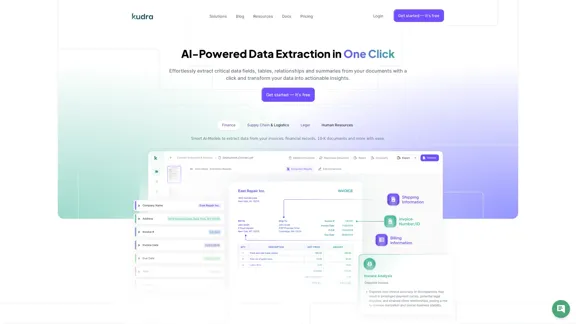
Kudra is an AI-powered data extraction platform that transforms complex documents into actionable insights with a single click. It supports multiple document formats and offers industry-specific solutions for finance, supply chain & logistics, legal, and human resources sectors. Kudra's intelligent data extraction capabilities, coupled with robust security features and flexible pricing plans, make it a powerful tool for businesses looking to streamline their document processing workflows.

Feature

Intelligent Data Extraction

  • Import documents in multiple formats (PDF, Email, CSV, DOCx, JPG)
  • AI-powered processing for converting unstructured data into structured, searchable information
  • Extract entity fields, tables, relationships, and summaries effortlessly

Industry-Specific Solutions

Finance

  • Automate extraction from financial statements and 10-K reports
  • Analyze risk factors and process transactions
  • Provide deep analytical insights

Supply Chain & Logistics

  • Extract data from shipping manifests and bill of lading
  • Decode complex logistics reports
  • Streamline supply chain document processing

Legal

  • Parse complex contracts and extract key clauses
  • Analyze case files efficiently
  • Empower legal professionals with streamlined document handling

Human Resources

  • Simplify talent management by analyzing applicant resumes
  • Automate HR document processing
  • Streamline HR operations

Security Features

  • End-to-end encrypted data
  • Complete control over your data
  • Multi-region data architecture
  • 24/7 monitoring and 99% uptime

Additional Features

  • Support for 20+ languages
  • Collaboration tools
  • Custom model training
  • API integration
  • Workflow builder
  • 50+ pre-built AI models

Pricing Plans

PlanPriceFeatures
StarterFree100 pages uploaded/month, 50+ pre-built extraction templates
Basic$299/month1000 pages uploaded/month, 5 custom model trainings, 5 custom workflows
Growth$599/month5000 pages uploaded/month, 5 custom model trainings, 5 custom workflows, 10 users
EnterpriseCustom pricingScalable document processing, Custom AI model training, Team collaboration, API support, Secure cloud hosting

FAQ

What is Kudra?

Kudra is an AI-powered data extraction platform that transforms complex documents into actionable insights with a single click. It supports multiple document formats and offers industry-specific solutions for various sectors.

How does Kudra work?

Kudra works in three simple steps:

  1. Import your documents
  2. Process documents with AI
  3. Export structured data

What are the benefits of using Kudra?

  • Up to 2x faster document handling
  • 90% reduced error rate
  • Customizable AI models
  • Integration with existing workflows

What types of documents can Kudra process?

Kudra can process multiple document formats, including PDF, Email, CSV, DOCx, and JPG.

Is Kudra secure?

Yes, Kudra offers robust security features, including end-to-end encrypted data, complete control over your data, multi-region data architecture, and 24/7 monitoring with 99% uptime.

Related Websites
OdysseyGPT – Comprehend Your Documents
View Detail

OdysseyGPT – Comprehend Your Documents

OdysseyGPT – Comprehend Your Documents

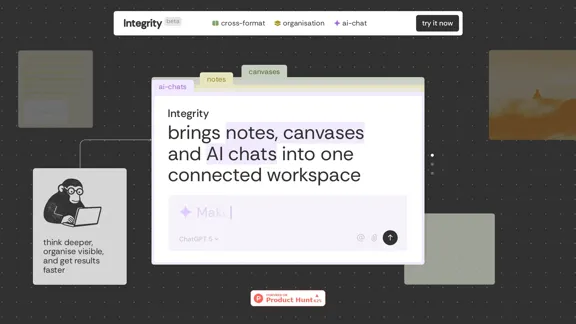
OdysseyGPT reads and genuinely understands your documents, allowing you to search, summarize, and extract insights instantly.

0
Packpack - Save everything with AI in one click.
View Detail

Packpack - Save everything with AI in one click.

Packpack - Save everything with AI in one click.

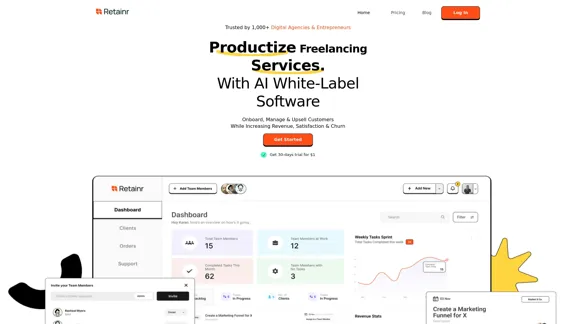
Save any webpage with one click and explore it with AI. Quickly get the main points with AI summaries and find new understandings with AI-powered question and answer.

47.24 K
Copilot for Microsoft 365 – Microsoft Adoption

Copilot for Microsoft 365 is a powerful AI assistant that helps you work smarter and faster across Microsoft 365 apps and services. It combines the power of large language models (LLMs) with your organization's data in the Microsoft Graph and Microsoft 365 apps to turn your words into the most powerful productivity tool on the planet.

Copilot is designed to help you:

β€’ Unleash creativity
β€’ Unlock productivity
β€’ Uplevel skills

Copilot is built on Microsoft's comprehensive approach to security, compliance, and privacy. Copilot in Microsoft 365 apps and services:

β€’ Does not use your data to train the underlying LLM
β€’ Does not replace human ingenuity and judgment
β€’ Is designed to keep humans in the loop

Copilot is currently available in Word, Excel, PowerPoint, Outlook, Teams, and more.

Getting Started with Copilot

To get started with Copilot, follow these steps:

1. Check availability: Ensure your organization has access to Copilot.
2. Learn the basics: Familiarize yourself with Copilot's capabilities and how to use it effectively.
3. Explore use cases: Discover how Copilot can help you in your specific role and tasks.
4. Practice and refine: Use Copilot regularly and refine your prompts for better results.
5. Share and collaborate: Collaborate with colleagues using Copilot and share best practices.

Best Practices for Using Copilot

1. Be specific in your prompts
2. Provide context for better results
3. Review and edit Copilot's output
4. Use Copilot as a starting point, not a final product
5. Experiment with different approaches
6. Stay informed about new features and updates

Copilot in Different Microsoft 365 Apps

β€’ Word: Draft, edit, summarize, and rewrite content
β€’ Excel: Analyze data, create formulas, and generate insights
β€’ PowerPoint: Create presentations, design slides, and generate content
β€’ Outlook: Compose emails, summarize threads, and manage your inbox
β€’ Teams: Summarize meetings, generate action items, and create meeting notes

Responsible AI and Copilot

Microsoft is committed to developing AI systems responsibly. When using Copilot, keep in mind:

β€’ AI-generated content may contain biases or inaccuracies
β€’ Always review and verify Copilot's output
β€’ Use your judgment and expertise alongside Copilot's suggestions
β€’ Be aware of your organization's policies regarding AI use

Conclusion

Copilot for Microsoft 365 is a powerful tool that can significantly enhance your productivity and creativity. By understanding its capabilities, following best practices, and using it responsibly, you can make the most of this AI assistant in your daily work.
View Detail

Copilot for Microsoft 365 – Microsoft Adoption Copilot for Microsoft 365 is a powerful AI assistant that helps you work smarter and faster across Microsoft 365 apps and services. It combines the power of large language models (LLMs) with your organization's data in the Microsoft Graph and Microsoft 365 apps to turn your words into the most powerful productivity tool on the planet. Copilot is designed to help you: β€’ Unleash creativity β€’ Unlock productivity β€’ Uplevel skills Copilot is built on Microsoft's comprehensive approach to security, compliance, and privacy. Copilot in Microsoft 365 apps and services: β€’ Does not use your data to train the underlying LLM β€’ Does not replace human ingenuity and judgment β€’ Is designed to keep humans in the loop Copilot is currently available in Word, Excel, PowerPoint, Outlook, Teams, and more. Getting Started with Copilot To get started with Copilot, follow these steps: 1. Check availability: Ensure your organization has access to Copilot. 2. Learn the basics: Familiarize yourself with Copilot's capabilities and how to use it effectively. 3. Explore use cases: Discover how Copilot can help you in your specific role and tasks. 4. Practice and refine: Use Copilot regularly and refine your prompts for better results. 5. Share and collaborate: Collaborate with colleagues using Copilot and share best practices. Best Practices for Using Copilot 1. Be specific in your prompts 2. Provide context for better results 3. Review and edit Copilot's output 4. Use Copilot as a starting point, not a final product 5. Experiment with different approaches 6. Stay informed about new features and updates Copilot in Different Microsoft 365 Apps β€’ Word: Draft, edit, summarize, and rewrite content β€’ Excel: Analyze data, create formulas, and generate insights β€’ PowerPoint: Create presentations, design slides, and generate content β€’ Outlook: Compose emails, summarize threads, and manage your inbox β€’ Teams: Summarize meetings, generate action items, and create meeting notes Responsible AI and Copilot Microsoft is committed to developing AI systems responsibly. When using Copilot, keep in mind: β€’ AI-generated content may contain biases or inaccuracies β€’ Always review and verify Copilot's output β€’ Use your judgment and expertise alongside Copilot's suggestions β€’ Be aware of your organization's policies regarding AI use Conclusion Copilot for Microsoft 365 is a powerful tool that can significantly enhance your productivity and creativity. By understanding its capabilities, following best practices, and using it responsibly, you can make the most of this AI assistant in your daily work.

Copilot for Microsoft 365 – Microsoft Adoption Copilot for Microsoft 365 is a powerful AI assistant that helps you work smarter and faster across Microsoft 365 apps and services. It combines the power of large language models (LLMs) with your organization's data in the Microsoft Graph and Microsoft 365 apps to turn your words into the most powerful productivity tool on the planet. Copilot is designed to help you: β€’ Unleash creativity β€’ Unlock productivity β€’ Uplevel skills Copilot is built on Microsoft's comprehensive approach to security, compliance, and privacy. Copilot in Microsoft 365 apps and services: β€’ Does not use your data to train the underlying LLM β€’ Does not replace human ingenuity and judgment β€’ Is designed to keep humans in the loop Copilot is currently available in Word, Excel, PowerPoint, Outlook, Teams, and more. Getting Started with Copilot To get started with Copilot, follow these steps: 1. Check availability: Ensure your organization has access to Copilot. 2. Learn the basics: Familiarize yourself with Copilot's capabilities and how to use it effectively. 3. Explore use cases: Discover how Copilot can help you in your specific role and tasks. 4. Practice and refine: Use Copilot regularly and refine your prompts for better results. 5. Share and collaborate: Collaborate with colleagues using Copilot and share best practices. Best Practices for Using Copilot 1. Be specific in your prompts 2. Provide context for better results 3. Review and edit Copilot's output 4. Use Copilot as a starting point, not a final product 5. Experiment with different approaches 6. Stay informed about new features and updates Copilot in Different Microsoft 365 Apps β€’ Word: Draft, edit, summarize, and rewrite content β€’ Excel: Analyze data, create formulas, and generate insights β€’ PowerPoint: Create presentations, design slides, and generate content β€’ Outlook: Compose emails, summarize threads, and manage your inbox β€’ Teams: Summarize meetings, generate action items, and create meeting notes Responsible AI and Copilot Microsoft is committed to developing AI systems responsibly. When using Copilot, keep in mind: β€’ AI-generated content may contain biases or inaccuracies β€’ Always review and verify Copilot's output β€’ Use your judgment and expertise alongside Copilot's suggestions β€’ Be aware of your organization's policies regarding AI use Conclusion Copilot for Microsoft 365 is a powerful tool that can significantly enhance your productivity and creativity. By understanding its capabilities, following best practices, and using it responsibly, you can make the most of this AI assistant in your daily work.

Microsoft Copilot combines the power of large language models (LLMs) with your organization's data to turn your words into one of the most powerful productivity tools on the planet.

608.60 K
Drive Business Performance With Planning Software | Anaplan
View Detail

Drive Business Performance With Planning Software | Anaplan

Drive Business Performance With Planning Software | Anaplan

See, plan, and lead financial, supply chain, and sales strategies that drive business performance using the Anaplan connected planning platform.

1.03 M
Converse - AI Reading Assistant for web articles, PDFs, and videos
View Detail

Converse - AI Reading Assistant for web articles, PDFs, and videos

Converse - AI Reading Assistant for web articles, PDFs, and videos

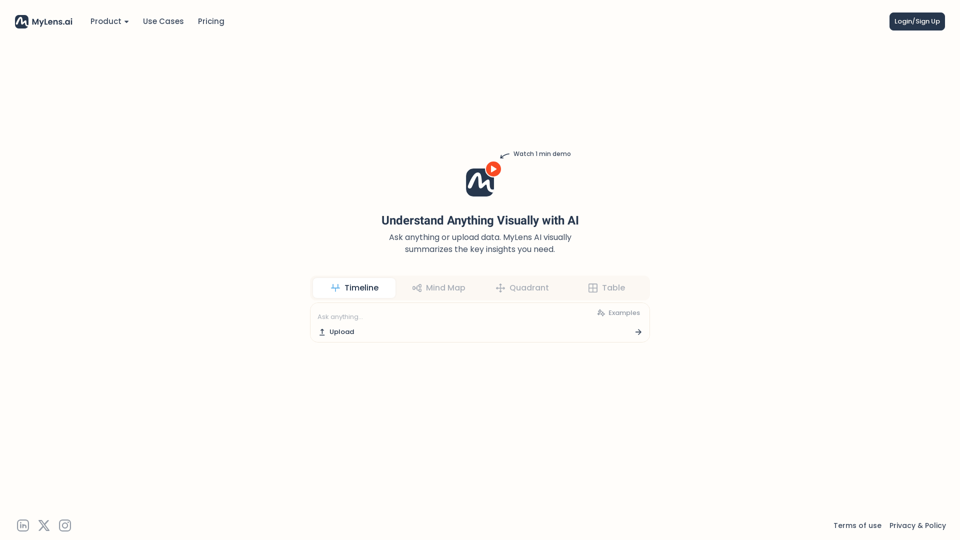
Save, summarize, and chat with web articles, PDF documents, and YouTube videos. Enhance your reading experience with customized summaries, TLDRs, Key Takeaways, intuitive document chat, and social sharing on Converse.

2.41 K
One-Click SEO Links - Chrome Web Store
View Detail

One-Click SEO Links - Chrome Web Store

One-Click SEO Links - Chrome Web Store

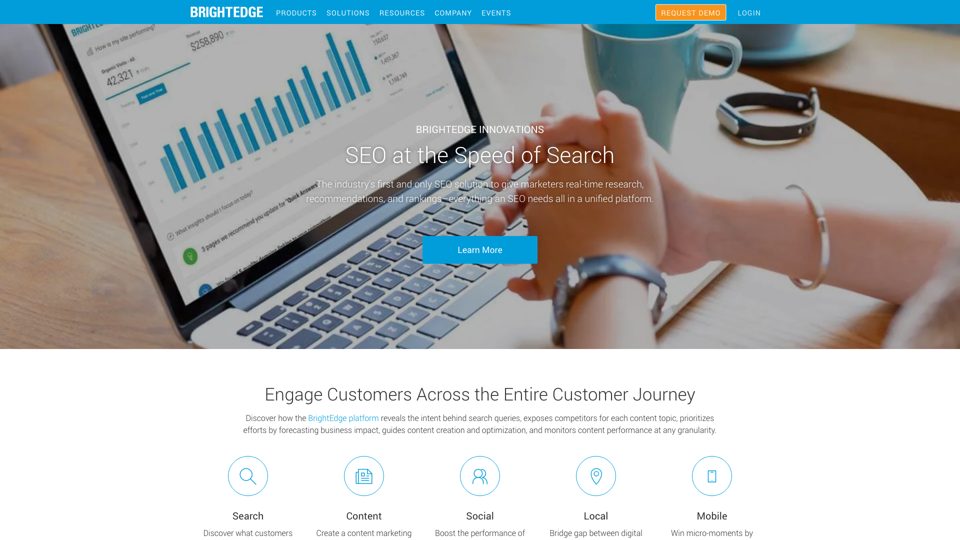
# User Guide for One-Click SEO Links Chrome Extension ## Overview One-Click SEO Links is a Chrome extension designed for web developers and SEO professionals. It allows users to quickly generate and copy various SEO-related links for the current webpage with just one click. ## Features - Generate and copy Google Cache link - Generate and copy Google Index link - Generate and copy Wayback Machine link - Generate and copy PageSpeed Insights link - Generate and copy Mobile-Friendly Test link - Generate and copy Rich Results Test link ## Installation 1. Open the Chrome Web Store 2. Search for "One-Click SEO Links" 3. Click "Add to Chrome" 4. Confirm the installation when prompted ## How to Use 1. Navigate to the webpage you want to analyze 2. Click on the One-Click SEO Links extension icon in your Chrome toolbar 3. Select the desired link type from the dropdown menu 4. The link will be automatically copied to your clipboard 5. Paste the link into your desired location (e.g., browser address bar, document, etc.) ## Troubleshooting If you encounter any issues: - Ensure you have the latest version of the extension installed - Try refreshing the webpage - Restart your Chrome browser - If problems persist, please contact our support team ## Privacy Policy We do not collect or store any personal data. The extension only accesses the current tab's URL to generate the SEO links. ## Feedback and Support For feedback, suggestions, or support, please email us at [email protected] or visit our website www.oneclickseolinks.com. Thank you for using One-Click SEO Links!

193.90 M
Rock AI
View Detail

Rock AI

Rock AI

Run and fine-tune open source models, and deploy custom models at scale, all with just one line of code

630
Blog | ShowHNToday
View Detail

Blog | ShowHNToday

Blog | ShowHNToday

New blog posts, recommendations, tutorials

3.26 K