Open-source RightAI Tools Directory
  • Discover AI
  • Submit
  • Startup
  • Blog
Open-source RightAI Tools Directory
Discover the best AI tools of 2025 with the RightAI Tools Directory!

Friend Links

AI Anime GeneratorToolsApp AI

Support

Tap4
Privacy policyTerms & ConditionsContact Us
Loading...
loading...

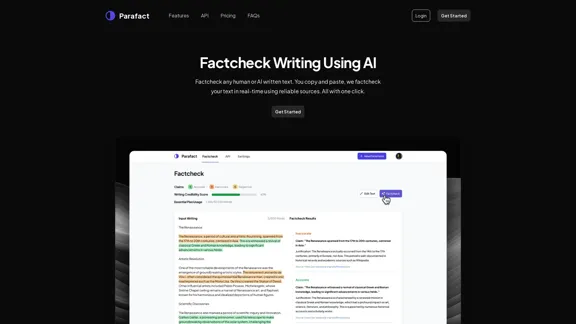
Parafact - Verify Any Text with AI

Fact-check any human or AI-written text. You copy and paste, we fact-check your text in real-time using reliable sources. All with one click.
Visit Website
Parafact - Verify Any Text with AI
Visit Website

Introduction

Parafact is an AI-driven tool designed to fact-check any written content, whether created by humans or AI. Users can easily copy and paste their text, and Parafact will provide real-time verification using reliable sources. This tool is beneficial for professionals and students alike, ensuring accuracy in various types of writing.

Feature

  1. Instant Factchecking

    Users can copy and paste their writing, and Parafact will fact-check it in seconds, providing quick results.

  2. Citations and Sources

    Each fact-checked claim comes with a citation, making it easy to track the sources of information.

  3. Versatile Usage

    Suitable for different types of writing, including research papers, articles, blog posts, and social media content.

  4. Advanced AI Models

    Utilizes state-of-the-art AI technology to ensure high accuracy in fact-checking.

  5. Developer API

    Offers a developer-friendly API for integrating fact-checking functionality into other applications.

  6. Fully Automated

    Saves time by automating the fact-checking process, reducing the need for manual verification.

How to Use?

  1. Copy the text you want to fact-check.
  2. Go to the Parafact website and log in to your account.
  3. Paste your text into the designated area for fact-checking.
  4. Click the "Factcheck" button to initiate the process.
  5. Review the results, including citations and accuracy labels for each claim.

FAQ

What is Parafact?

Parafact is an AI-powered tool that verifies the accuracy of written content by checking it against reliable sources.

How does Parafact work?

Users input their text, and Parafact analyzes it using advanced AI models to identify inaccuracies and provide citations for each claim.

What languages do you support?

Parafact supports multiple languages, making it accessible to a diverse user base.

How accurate is your fact-checking?

Parafact leverages advanced AI technology to ensure high accuracy in its fact-checking processes.

Can Parafact be integrated into other tools or platforms?

Yes, Parafact offers a developer API that allows for easy integration into other applications.

What kind of content can I fact-check with Parafact?

Users can fact-check various types of content, including articles, research papers, and social media posts.

Price

PlanPriceFeatures
Essential$20 / mo30,000 Words, Unlimited Daily Uses, Max 500 Words per Factcheck, Source Citations
Pro$49 / mo60,000 Words, Unlimited Daily Uses, Max 750 Words per Factcheck, Source Citations, Developer API Access, Early Access to Beta Features
EnterpriseCustomUnlimited Words, Unlimited Daily Uses, Max 1000 Words per Factcheck, Source Citations, Developer API Access, Early Access to Beta Features, Priority Support, Custom Solutions
The price is for reference only, please refer to the latest official data for actual information.

Evaluation

  1. Parafact excels in providing quick and reliable fact-checking, making it a valuable tool for professionals who require accuracy in their work.

  2. The user-friendly interface and instant results enhance the overall experience, allowing users to save time on verification.

  3. However, the pricing structure may be a consideration for individual users or small teams, as the costs can add up depending on usage.

  4. While the tool is effective, it may still require users to have a basic understanding of the content being fact-checked to interpret the results accurately.

  5. Overall, Parafact is a strong solution for those needing efficient fact-checking, but continuous improvements in pricing and user education could enhance its accessibility and usability.

Related Websites
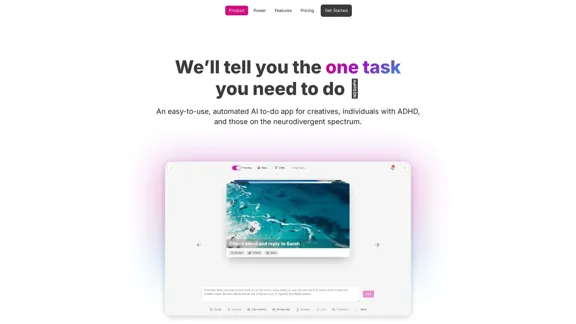
Converse - AI Reading Assistant for web articles, PDFs, and videos
View Detail

Converse - AI Reading Assistant for web articles, PDFs, and videos

Converse - AI Reading Assistant for web articles, PDFs, and videos

Save, summarize, and chat with web articles, PDF documents, and YouTube videos. Enhance your reading experience with customized summaries, TLDRs, Key Takeaways, intuitive document chat, and social sharing on Converse.

2.41 K
Copilot for Microsoft 365 – Microsoft Adoption

Copilot for Microsoft 365 is a powerful AI assistant that helps you work smarter and faster across Microsoft 365 apps and services. It combines the power of large language models (LLMs) with your organization's data in the Microsoft Graph and Microsoft 365 apps to turn your words into the most powerful productivity tool on the planet.

Copilot is designed to help you:

β€’ Unleash creativity
β€’ Unlock productivity
β€’ Uplevel skills

Copilot is built on Microsoft's comprehensive approach to security, compliance, and privacy. Copilot in Microsoft 365 apps and services:

β€’ Does not use your data to train the underlying LLM
β€’ Does not replace human ingenuity and judgment
β€’ Is designed to keep humans in the loop

Copilot is currently available in Word, Excel, PowerPoint, Outlook, Teams, and more.

Getting Started with Copilot

To get started with Copilot, follow these steps:

1. Check availability: Ensure your organization has access to Copilot.
2. Learn the basics: Familiarize yourself with Copilot's capabilities and how to use it effectively.
3. Explore use cases: Discover how Copilot can help you in your specific role and tasks.
4. Practice and refine: Use Copilot regularly and refine your prompts for better results.
5. Share and collaborate: Collaborate with colleagues using Copilot and share best practices.

Best Practices for Using Copilot

1. Be specific in your prompts
2. Provide context for better results
3. Review and edit Copilot's output
4. Use Copilot as a starting point, not a final product
5. Experiment with different approaches
6. Stay informed about new features and updates

Copilot in Different Microsoft 365 Apps

β€’ Word: Draft, edit, summarize, and rewrite content
β€’ Excel: Analyze data, create formulas, and generate insights
β€’ PowerPoint: Create presentations, design slides, and generate content
β€’ Outlook: Compose emails, summarize threads, and manage your inbox
β€’ Teams: Summarize meetings, generate action items, and create meeting notes

Responsible AI and Copilot

Microsoft is committed to developing AI systems responsibly. When using Copilot, keep in mind:

β€’ AI-generated content may contain biases or inaccuracies
β€’ Always review and verify Copilot's output
β€’ Use your judgment and expertise alongside Copilot's suggestions
β€’ Be aware of your organization's policies regarding AI use

Conclusion

Copilot for Microsoft 365 is a powerful tool that can significantly enhance your productivity and creativity. By understanding its capabilities, following best practices, and using it responsibly, you can make the most of this AI assistant in your daily work.
View Detail

Copilot for Microsoft 365 – Microsoft Adoption Copilot for Microsoft 365 is a powerful AI assistant that helps you work smarter and faster across Microsoft 365 apps and services. It combines the power of large language models (LLMs) with your organization's data in the Microsoft Graph and Microsoft 365 apps to turn your words into the most powerful productivity tool on the planet. Copilot is designed to help you: β€’ Unleash creativity β€’ Unlock productivity β€’ Uplevel skills Copilot is built on Microsoft's comprehensive approach to security, compliance, and privacy. Copilot in Microsoft 365 apps and services: β€’ Does not use your data to train the underlying LLM β€’ Does not replace human ingenuity and judgment β€’ Is designed to keep humans in the loop Copilot is currently available in Word, Excel, PowerPoint, Outlook, Teams, and more. Getting Started with Copilot To get started with Copilot, follow these steps: 1. Check availability: Ensure your organization has access to Copilot. 2. Learn the basics: Familiarize yourself with Copilot's capabilities and how to use it effectively. 3. Explore use cases: Discover how Copilot can help you in your specific role and tasks. 4. Practice and refine: Use Copilot regularly and refine your prompts for better results. 5. Share and collaborate: Collaborate with colleagues using Copilot and share best practices. Best Practices for Using Copilot 1. Be specific in your prompts 2. Provide context for better results 3. Review and edit Copilot's output 4. Use Copilot as a starting point, not a final product 5. Experiment with different approaches 6. Stay informed about new features and updates Copilot in Different Microsoft 365 Apps β€’ Word: Draft, edit, summarize, and rewrite content β€’ Excel: Analyze data, create formulas, and generate insights β€’ PowerPoint: Create presentations, design slides, and generate content β€’ Outlook: Compose emails, summarize threads, and manage your inbox β€’ Teams: Summarize meetings, generate action items, and create meeting notes Responsible AI and Copilot Microsoft is committed to developing AI systems responsibly. When using Copilot, keep in mind: β€’ AI-generated content may contain biases or inaccuracies β€’ Always review and verify Copilot's output β€’ Use your judgment and expertise alongside Copilot's suggestions β€’ Be aware of your organization's policies regarding AI use Conclusion Copilot for Microsoft 365 is a powerful tool that can significantly enhance your productivity and creativity. By understanding its capabilities, following best practices, and using it responsibly, you can make the most of this AI assistant in your daily work.

Copilot for Microsoft 365 – Microsoft Adoption Copilot for Microsoft 365 is a powerful AI assistant that helps you work smarter and faster across Microsoft 365 apps and services. It combines the power of large language models (LLMs) with your organization's data in the Microsoft Graph and Microsoft 365 apps to turn your words into the most powerful productivity tool on the planet. Copilot is designed to help you: β€’ Unleash creativity β€’ Unlock productivity β€’ Uplevel skills Copilot is built on Microsoft's comprehensive approach to security, compliance, and privacy. Copilot in Microsoft 365 apps and services: β€’ Does not use your data to train the underlying LLM β€’ Does not replace human ingenuity and judgment β€’ Is designed to keep humans in the loop Copilot is currently available in Word, Excel, PowerPoint, Outlook, Teams, and more. Getting Started with Copilot To get started with Copilot, follow these steps: 1. Check availability: Ensure your organization has access to Copilot. 2. Learn the basics: Familiarize yourself with Copilot's capabilities and how to use it effectively. 3. Explore use cases: Discover how Copilot can help you in your specific role and tasks. 4. Practice and refine: Use Copilot regularly and refine your prompts for better results. 5. Share and collaborate: Collaborate with colleagues using Copilot and share best practices. Best Practices for Using Copilot 1. Be specific in your prompts 2. Provide context for better results 3. Review and edit Copilot's output 4. Use Copilot as a starting point, not a final product 5. Experiment with different approaches 6. Stay informed about new features and updates Copilot in Different Microsoft 365 Apps β€’ Word: Draft, edit, summarize, and rewrite content β€’ Excel: Analyze data, create formulas, and generate insights β€’ PowerPoint: Create presentations, design slides, and generate content β€’ Outlook: Compose emails, summarize threads, and manage your inbox β€’ Teams: Summarize meetings, generate action items, and create meeting notes Responsible AI and Copilot Microsoft is committed to developing AI systems responsibly. When using Copilot, keep in mind: β€’ AI-generated content may contain biases or inaccuracies β€’ Always review and verify Copilot's output β€’ Use your judgment and expertise alongside Copilot's suggestions β€’ Be aware of your organization's policies regarding AI use Conclusion Copilot for Microsoft 365 is a powerful tool that can significantly enhance your productivity and creativity. By understanding its capabilities, following best practices, and using it responsibly, you can make the most of this AI assistant in your daily work.

Microsoft Copilot combines the power of large language models (LLMs) with your organization's data to turn your words into one of the most powerful productivity tools on the planet.

608.60 K
UCG - Chrome Web Store
View Detail

UCG - Chrome Web Store

UCG - Chrome Web Store

ChatGPT without leaving the tab or visible chat!

193.90 M
AI Book Creator
View Detail

AI Book Creator

AI Book Creator

Write with AI!

3.11 K
Elixir Observability
View Detail

Elixir Observability

Elixir Observability

Elixir is an AI Ops & QA platform designed for multimodal, audio-first experiences.

725
AI Form Fill - Magically Complete Forms with AI
View Detail

AI Form Fill - Magically Complete Forms with AI

AI Form Fill - Magically Complete Forms with AI

AI Form Fill: The browser extension that uses AI to automatically fill out forms for you. Save time and boost productivity with magical form completion.

2.35 K
Scottie - AI-Powered Daily News Summaries
View Detail

Scottie - AI-Powered Daily News Summaries

Scottie - AI-Powered Daily News Summaries

Get personalized daily news briefs powered by AI. Transform your news experience with Scottie's intelligent summaries.

0
Reclaim – AI Calendar for Work and Life
View Detail

Reclaim – AI Calendar for Work and Life

Reclaim – AI Calendar for Work and Life

Reclaim is an AI-powered app that creates 40% more time for teams by automatically scheduling tasks, habits, meetings, and breaks β€” available for free on Google Calendar and Outlook Calendar.

1.06 M