Open-source RightAI Tools Directory
  • Discover AI
  • Submit
  • Startup
  • Blog
Open-source RightAI Tools Directory
Discover the best AI tools of 2025 with the RightAI Tools Directory!

Friend Links

AI Anime GeneratorToolsApp AI

Support

Tap4
Privacy policyTerms & ConditionsContact Us
Loading...
loading...

Tana

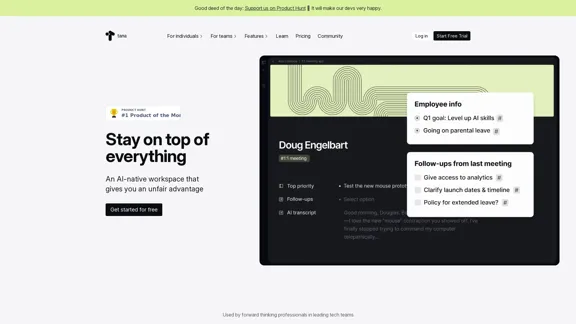
Stay on top of everything—without the busywork. An AI-native workspace that gives you an unfair advantage.
Visit Website
Tana
Visit Website

Introduction

Tana is an AI-native workspace designed to enhance productivity for individuals and teams. It allows users to transform notes into actionable items such as tasks, projects, and documents. With features like custom feeds, voice memos, and AI-driven insights, Tana aims to streamline workflows and improve efficiency in various professional settings.

Feature

  1. Supertags

    Instantly convert notes into tasks, projects, webpages, and more, providing flexibility in how information is organized and utilized.

  2. Custom Feeds

    Stay updated on agenda items, goals, and delegated tasks without the need for extensive searching, ensuring that important information is always at your fingertips.

  3. Voice Memos

    Transform voice recordings into articles, ideas, and reflections, making it easier to capture thoughts and insights on the go.

  4. AI Meeting Agent

    Offers live transcription and processing of meetings, enhancing the ability to capture and utilize information discussed in real-time.

  5. Knowledge Graph

    Provides a visual representation of connections between notes, enhancing understanding and retention of information.

  6. Flexible Workflows

    Adapts to various professional needs, whether for project management, UX design, or personal productivity, making it suitable for a wide range of users.

How to Use?

  1. Start by signing up for a free trial on the Tana website.
  2. Explore the features by creating a new project or note.
  3. Utilize Supertags to categorize and organize your notes effectively.
  4. Experiment with voice memos to capture ideas during meetings or brainstorming sessions.
  5. Regularly check custom feeds to stay updated on your tasks and goals.

FAQ

What is Tana?

Tana is an AI-powered workspace that helps users manage notes, tasks, and projects more efficiently. It is designed for both individuals and teams, providing tools to enhance productivity.

How does Tana work?

Tana utilizes AI to transform notes into actionable items and insights. Users can create custom feeds, use voice memos, and leverage the knowledge graph to organize and access information seamlessly.

Can Tana be used for team collaboration?

Yes, Tana is designed for both individual and team use, making it suitable for collaborative projects and shared workflows.

What makes Tana different from other productivity tools?

Tana combines the functionalities of note-taking, task management, and AI insights in a single platform, offering a unique approach to productivity that goes beyond traditional tools.

How can I get started with Tana?

To get started, visit the Tana website, sign up for a free trial, and explore the various features available to enhance your productivity.

Price

  • Free Plan: $0/month

  • Basic Plan: $9.99/month

  • Standard Plan: $19.99/month

  • Professional Plan: $49.99/month

The price is for reference only, please refer to the latest official data for actual information.

Evaluation

  1. Tana effectively integrates AI to enhance productivity, making it a valuable tool for both individuals and teams.
  2. The ability to convert notes into actionable tasks and insights is a significant advantage, streamlining workflows.
  3. However, the learning curve may be steep for new users unfamiliar with AI-driven tools, requiring time to fully leverage its capabilities.
  4. While Tana offers a comprehensive set of features, some users may find the interface overwhelming initially, suggesting a need for improved onboarding resources.
  5. Overall, Tana presents a promising solution for productivity, but continuous updates and user feedback will be essential for further refinement and user satisfaction.

Latest Traffic Insights

  • Monthly Visits

    239.22 K

  • Bounce Rate

    36.37%

  • Pages Per Visit

    4.39

  • Time on Site(s)

    273.17

  • Global Rank

    149397

  • Country Rank

    United States 107076

Recent Visits

Traffic Sources

  • Social Media:
    3.49%
  • Paid Referrals:
    0.64%
  • Email:
    0.09%
  • Referrals:
    7.39%
  • Search Engines:
    36.80%
  • Direct:
    51.56%
More Data

Related Websites

Tell a story
View Detail

Tell a story

Tell a story

the first voice-to-AI content solution

627
Machine Translation - Amazon Translate - AWS

Amazon Translate is a neural machine translation service that delivers fast, high-quality, and affordable language translation. Amazon Translate allows you to localize content - such as websites and applications - for international users, and to easily translate large volumes of text efficiently.

How it works

1. Input text
2. Amazon Translate
3. Output text

Use cases

• Multilingual user experience
• Cross-lingual communication
• Content analysis in multiple languages

Benefits

• High-quality translations
• Easy to use
• Cost-effective
• Scalable
• Secure and compliant

Features

• Neural machine translation
• Custom terminology
• Batch translation
• Real-time translation
• Language detection
• Profanity filtering
View Detail

Machine Translation - Amazon Translate - AWS Amazon Translate is a neural machine translation service that delivers fast, high-quality, and affordable language translation. Amazon Translate allows you to localize content - such as websites and applications - for international users, and to easily translate large volumes of text efficiently. How it works 1. Input text 2. Amazon Translate 3. Output text Use cases • Multilingual user experience • Cross-lingual communication • Content analysis in multiple languages Benefits • High-quality translations • Easy to use • Cost-effective • Scalable • Secure and compliant Features • Neural machine translation • Custom terminology • Batch translation • Real-time translation • Language detection • Profanity filtering

Machine Translation - Amazon Translate - AWS Amazon Translate is a neural machine translation service that delivers fast, high-quality, and affordable language translation. Amazon Translate allows you to localize content - such as websites and applications - for international users, and to easily translate large volumes of text efficiently. How it works 1. Input text 2. Amazon Translate 3. Output text Use cases • Multilingual user experience • Cross-lingual communication • Content analysis in multiple languages Benefits • High-quality translations • Easy to use • Cost-effective • Scalable • Secure and compliant Features • Neural machine translation • Custom terminology • Batch translation • Real-time translation • Language detection • Profanity filtering

Amazon Translate, a neural machine translation service, uses deep learning to deliver more accurate and natural translation than traditional algorithms.

60.83 M
Resumeguru.pro
View Detail

Resumeguru.pro

Resumeguru.pro

Resumeguru.pro is an advanced AI-powered resume optimization tool designed to transform and enhance job seekers' resumes. By leveraging cutting-edge artificial intelligence technology, it automates the entire process of creating a highly effective and hirable resume, including editing, formatting, and optimization. This innovative platform aims to help users stand out in the competitive job market by tailoring their resumes to perfection.

0
Your AI Meeting Assistant in Multiple Languages
View Detail

Your AI Meeting Assistant in Multiple Languages

Your AI Meeting Assistant in Multiple Languages

JotMe transcribes and translates your meetings, generating meeting notes, documents, emails, task tickets, and more, all based on the context that is important to you.

129.69 K
End email overwhelm with AI
View Detail

End email overwhelm with AI

End email overwhelm with AI

Forage is an invisible AI that filters incoming emails, highlights priority messages, and organizes the rest into a brief daily summary—directly within Gmail.

8.39 K
Copilot for Microsoft 365 – Microsoft Adoption

Copilot for Microsoft 365 is a powerful AI assistant that helps you work smarter and faster across Microsoft 365 apps and services. It combines the power of large language models (LLMs) with your organization's data in the Microsoft Graph and Microsoft 365 apps to turn your words into the most powerful productivity tool on the planet.

Copilot is designed to help you:

• Unleash creativity
• Unlock productivity
• Uplevel skills

Copilot is built on Microsoft's comprehensive approach to security, compliance, and privacy. Copilot in Microsoft 365 apps and services:

• Does not use your data to train the underlying LLM
• Does not replace human ingenuity and judgment
• Is designed to keep humans in the loop

Copilot is currently available in Word, Excel, PowerPoint, Outlook, Teams, and more.

Getting Started with Copilot

To get started with Copilot, follow these steps:

1. Check availability: Ensure your organization has access to Copilot.
2. Learn the basics: Familiarize yourself with Copilot's capabilities and how to use it effectively.
3. Explore use cases: Discover how Copilot can help you in your specific role and tasks.
4. Practice and refine: Use Copilot regularly and refine your prompts for better results.
5. Share and collaborate: Collaborate with colleagues using Copilot and share best practices.

Best Practices for Using Copilot

1. Be specific in your prompts
2. Provide context for better results
3. Review and edit Copilot's output
4. Use Copilot as a starting point, not a final product
5. Experiment with different approaches
6. Stay informed about new features and updates

Copilot in Different Microsoft 365 Apps

• Word: Draft, edit, summarize, and rewrite content
• Excel: Analyze data, create formulas, and generate insights
• PowerPoint: Create presentations, design slides, and generate content
• Outlook: Compose emails, summarize threads, and manage your inbox
• Teams: Summarize meetings, generate action items, and create meeting notes

Responsible AI and Copilot

Microsoft is committed to developing AI systems responsibly. When using Copilot, keep in mind:

• AI-generated content may contain biases or inaccuracies
• Always review and verify Copilot's output
• Use your judgment and expertise alongside Copilot's suggestions
• Be aware of your organization's policies regarding AI use

Conclusion

Copilot for Microsoft 365 is a powerful tool that can significantly enhance your productivity and creativity. By understanding its capabilities, following best practices, and using it responsibly, you can make the most of this AI assistant in your daily work.
View Detail

Copilot for Microsoft 365 – Microsoft Adoption Copilot for Microsoft 365 is a powerful AI assistant that helps you work smarter and faster across Microsoft 365 apps and services. It combines the power of large language models (LLMs) with your organization's data in the Microsoft Graph and Microsoft 365 apps to turn your words into the most powerful productivity tool on the planet. Copilot is designed to help you: • Unleash creativity • Unlock productivity • Uplevel skills Copilot is built on Microsoft's comprehensive approach to security, compliance, and privacy. Copilot in Microsoft 365 apps and services: • Does not use your data to train the underlying LLM • Does not replace human ingenuity and judgment • Is designed to keep humans in the loop Copilot is currently available in Word, Excel, PowerPoint, Outlook, Teams, and more. Getting Started with Copilot To get started with Copilot, follow these steps: 1. Check availability: Ensure your organization has access to Copilot. 2. Learn the basics: Familiarize yourself with Copilot's capabilities and how to use it effectively. 3. Explore use cases: Discover how Copilot can help you in your specific role and tasks. 4. Practice and refine: Use Copilot regularly and refine your prompts for better results. 5. Share and collaborate: Collaborate with colleagues using Copilot and share best practices. Best Practices for Using Copilot 1. Be specific in your prompts 2. Provide context for better results 3. Review and edit Copilot's output 4. Use Copilot as a starting point, not a final product 5. Experiment with different approaches 6. Stay informed about new features and updates Copilot in Different Microsoft 365 Apps • Word: Draft, edit, summarize, and rewrite content • Excel: Analyze data, create formulas, and generate insights • PowerPoint: Create presentations, design slides, and generate content • Outlook: Compose emails, summarize threads, and manage your inbox • Teams: Summarize meetings, generate action items, and create meeting notes Responsible AI and Copilot Microsoft is committed to developing AI systems responsibly. When using Copilot, keep in mind: • AI-generated content may contain biases or inaccuracies • Always review and verify Copilot's output • Use your judgment and expertise alongside Copilot's suggestions • Be aware of your organization's policies regarding AI use Conclusion Copilot for Microsoft 365 is a powerful tool that can significantly enhance your productivity and creativity. By understanding its capabilities, following best practices, and using it responsibly, you can make the most of this AI assistant in your daily work.

Copilot for Microsoft 365 – Microsoft Adoption Copilot for Microsoft 365 is a powerful AI assistant that helps you work smarter and faster across Microsoft 365 apps and services. It combines the power of large language models (LLMs) with your organization's data in the Microsoft Graph and Microsoft 365 apps to turn your words into the most powerful productivity tool on the planet. Copilot is designed to help you: • Unleash creativity • Unlock productivity • Uplevel skills Copilot is built on Microsoft's comprehensive approach to security, compliance, and privacy. Copilot in Microsoft 365 apps and services: • Does not use your data to train the underlying LLM • Does not replace human ingenuity and judgment • Is designed to keep humans in the loop Copilot is currently available in Word, Excel, PowerPoint, Outlook, Teams, and more. Getting Started with Copilot To get started with Copilot, follow these steps: 1. Check availability: Ensure your organization has access to Copilot. 2. Learn the basics: Familiarize yourself with Copilot's capabilities and how to use it effectively. 3. Explore use cases: Discover how Copilot can help you in your specific role and tasks. 4. Practice and refine: Use Copilot regularly and refine your prompts for better results. 5. Share and collaborate: Collaborate with colleagues using Copilot and share best practices. Best Practices for Using Copilot 1. Be specific in your prompts 2. Provide context for better results 3. Review and edit Copilot's output 4. Use Copilot as a starting point, not a final product 5. Experiment with different approaches 6. Stay informed about new features and updates Copilot in Different Microsoft 365 Apps • Word: Draft, edit, summarize, and rewrite content • Excel: Analyze data, create formulas, and generate insights • PowerPoint: Create presentations, design slides, and generate content • Outlook: Compose emails, summarize threads, and manage your inbox • Teams: Summarize meetings, generate action items, and create meeting notes Responsible AI and Copilot Microsoft is committed to developing AI systems responsibly. When using Copilot, keep in mind: • AI-generated content may contain biases or inaccuracies • Always review and verify Copilot's output • Use your judgment and expertise alongside Copilot's suggestions • Be aware of your organization's policies regarding AI use Conclusion Copilot for Microsoft 365 is a powerful tool that can significantly enhance your productivity and creativity. By understanding its capabilities, following best practices, and using it responsibly, you can make the most of this AI assistant in your daily work.

Microsoft Copilot combines the power of large language models (LLMs) with your organization's data to turn your words into one of the most powerful productivity tools on the planet.

608.60 K
Online Spreadsheet Software | Create Spreadsheets for Free - Zoho Sheet
View Detail

Online Spreadsheet Software | Create Spreadsheets for Free - Zoho Sheet

Online Spreadsheet Software | Create Spreadsheets for Free - Zoho Sheet

Create and collaborate on spreadsheets online with your team in real-time, from anywhere. Available on mobile devices too! Import your Excel spreadsheet files and get started now.

67.14 M
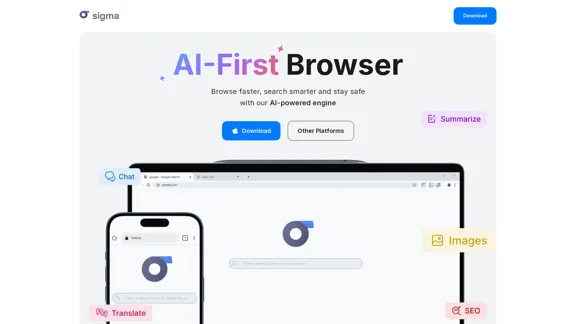
Sigma AI Browser
View Detail

Sigma AI Browser

Sigma AI Browser

60.85 K