Open-source RightAI Tools Directory
  • Discover AI
  • Submit
  • Startup
  • Blog
Open-source RightAI Tools Directory
Discover the best AI tools of 2025 with the RightAI Tools Directory!

Friend Links

AI Anime GeneratorToolsApp AI

Support

Tap4
Privacy policyTerms & ConditionsContact Us
Loading...
loading...

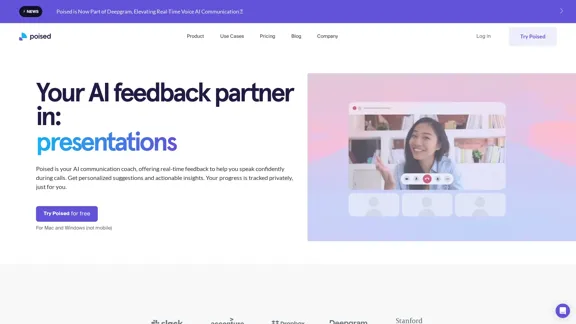
Poised: AI-Powered Communication Coach

Speak with confidence and clarity and improve your communication skills in real-time.
Visit Website
Poised: AI-Powered Communication Coach
Visit Website

Introduction

Poised is an AI-powered communication coach designed to enhance professionals' speaking skills during online meetings and presentations. It provides real-time feedback and personalized suggestions to improve communication effectiveness across various platforms like Zoom, Google Meet, Slack, and Microsoft Teams. Poised analyzes speech and video during meetings, offering instant, non-disruptive feedback and personalized improvement suggestions while tracking progress over time.

Feature

Real-time Feedback and Analysis

Poised analyzes speech and video during meetings, providing instant, non-disruptive feedback on various aspects of communication, including clarity, confidence, and speaking time.

Live Speaker Notes

Users can access live speaker notes during meetings to stay on track and maintain focus.

Auto-generated Meeting Summaries

Poised automatically generates meeting summaries and lists of action items, facilitating easier follow-ups and improving productivity.

Actionable Insights

The tool offers comprehensive analysis and actionable insights on various aspects of communication, such as speaking time, clarity, confidence, energy levels, empathy, persuasiveness, and pace of speech.

Progress Tracking

Users can track their progress over time, comparing their performance against others in their professional field and focusing on areas for improvement.

Integration with Communication Tools

Poised integrates with over 800 communication tools, making it versatile and compatible with various professional setups.

Privacy and Security

The tool is designed to be private and secure, ensuring that only the user knows they're using it during meetings.

Cross-platform Compatibility

Poised works with popular platforms like Zoom, Google Meet, Slack, and Microsoft Teams, making it suitable for various professional environments.

FAQ

How does Poised work?

Poised analyzes speech and video during meetings, provides instant, non-disruptive feedback, offers personalized suggestions for improvement, tracks progress over time, and generates post-meeting summaries and action items.

Is Poised visible to other meeting participants?

No, other meeting participants will not know you are using Poised. The tool does not interact with your video conferencing software, ensuring privacy during use.

What types of insights does Poised provide?

Poised offers insights on various aspects of communication, including:

  • Speaking time
  • Clarity (filler words)
  • Confidence (hedging words)
  • Energy levels
  • Empathy
  • Persuasiveness
  • Pace of speech

Is Poised available for mobile devices?

No, Poised is currently available only for Mac and Windows computers.

How does Poised handle user data and privacy?

Poised is committed to protecting user privacy and does not sell personal information. For more details, users are encouraged to refer to their privacy policy.

Related Websites

PodExtra AI—Unleash the power of podcast
View Detail

PodExtra AI—Unleash the power of podcast

PodExtra AI—Unleash the power of podcast

PodExtra is an innovative AI-powered podcast tool that provides transcripts, summaries, mind maps, outlines, highlights, and takeaways for your favorite podcasts. It allows you to quickly browse through the content, saving time and improving efficiency.

1.70 K
AskYourPDF: The Best PDF AI Chat App
View Detail

AskYourPDF: The Best PDF AI Chat App

AskYourPDF: The Best PDF AI Chat App

We created AskYourPDF as the ultimate ChatPDF AI App for all your needs. Simply upload your PDF files and interact with our smart chat AI to extract valuable information from your documents.

355.38 K
Free Online Tool to Extract Domains
View Detail

Free Online Tool to Extract Domains

Free Online Tool to Extract Domains

Free online Domain Extractor tool to easily extract domain names from text or URLs. Extract domains quickly and efficiently.

0
qsourcer.com - Talent Acquisition with AI, Boolean and X-ray Search.
View Detail

qsourcer.com - Talent Acquisition with AI, Boolean and X-ray Search.

qsourcer.com - Talent Acquisition with AI, Boolean and X-ray Search.

Discover top-tier professionals on LinkedIn, GitHub, and StackOverflow using qSourcer's AI-powered Boolean search recruitment software.

1.38 K
BlacktoothAI - All-in-One AI Assistant
View Detail

BlacktoothAI - All-in-One AI Assistant

BlacktoothAI - All-in-One AI Assistant

Blacktooth is a powerful AI platform for generating text, images, and more. Access ChatGPT, Claude, Gemini, Stable Diffusion, Flux PRO, ElevenLabs, and more.

191
BidPacer - AI Bidder for Freelance Projects.
View Detail

BidPacer - AI Bidder for Freelance Projects.

BidPacer - AI Bidder for Freelance Projects.

0
Copilot for Microsoft 365 – Microsoft Adoption

Copilot for Microsoft 365 is a powerful AI assistant that helps you work smarter and faster across Microsoft 365 apps and services. It combines the power of large language models (LLMs) with your organization's data in the Microsoft Graph and Microsoft 365 apps to turn your words into the most powerful productivity tool on the planet.

Copilot is designed to help you:

• Unleash creativity
• Unlock productivity
• Uplevel skills

Copilot is built on Microsoft's comprehensive approach to security, compliance, and privacy. Copilot in Microsoft 365 apps and services:

• Does not use your data to train the underlying LLM
• Does not replace human ingenuity and judgment
• Is designed to keep humans in the loop

Copilot is currently available in Word, Excel, PowerPoint, Outlook, Teams, and more.

Getting Started with Copilot

To get started with Copilot, follow these steps:

1. Check availability: Ensure your organization has access to Copilot.
2. Learn the basics: Familiarize yourself with Copilot's capabilities and how to use it effectively.
3. Explore use cases: Discover how Copilot can help you in your specific role and tasks.
4. Practice and refine: Use Copilot regularly and refine your prompts for better results.
5. Share and collaborate: Collaborate with colleagues using Copilot and share best practices.

Best Practices for Using Copilot

1. Be specific in your prompts
2. Provide context for better results
3. Review and edit Copilot's output
4. Use Copilot as a starting point, not a final product
5. Experiment with different approaches
6. Stay informed about new features and updates

Copilot in Different Microsoft 365 Apps

• Word: Draft, edit, summarize, and rewrite content
• Excel: Analyze data, create formulas, and generate insights
• PowerPoint: Create presentations, design slides, and generate content
• Outlook: Compose emails, summarize threads, and manage your inbox
• Teams: Summarize meetings, generate action items, and create meeting notes

Responsible AI and Copilot

Microsoft is committed to developing AI systems responsibly. When using Copilot, keep in mind:

• AI-generated content may contain biases or inaccuracies
• Always review and verify Copilot's output
• Use your judgment and expertise alongside Copilot's suggestions
• Be aware of your organization's policies regarding AI use

Conclusion

Copilot for Microsoft 365 is a powerful tool that can significantly enhance your productivity and creativity. By understanding its capabilities, following best practices, and using it responsibly, you can make the most of this AI assistant in your daily work.
View Detail

Copilot for Microsoft 365 – Microsoft Adoption Copilot for Microsoft 365 is a powerful AI assistant that helps you work smarter and faster across Microsoft 365 apps and services. It combines the power of large language models (LLMs) with your organization's data in the Microsoft Graph and Microsoft 365 apps to turn your words into the most powerful productivity tool on the planet. Copilot is designed to help you: • Unleash creativity • Unlock productivity • Uplevel skills Copilot is built on Microsoft's comprehensive approach to security, compliance, and privacy. Copilot in Microsoft 365 apps and services: • Does not use your data to train the underlying LLM • Does not replace human ingenuity and judgment • Is designed to keep humans in the loop Copilot is currently available in Word, Excel, PowerPoint, Outlook, Teams, and more. Getting Started with Copilot To get started with Copilot, follow these steps: 1. Check availability: Ensure your organization has access to Copilot. 2. Learn the basics: Familiarize yourself with Copilot's capabilities and how to use it effectively. 3. Explore use cases: Discover how Copilot can help you in your specific role and tasks. 4. Practice and refine: Use Copilot regularly and refine your prompts for better results. 5. Share and collaborate: Collaborate with colleagues using Copilot and share best practices. Best Practices for Using Copilot 1. Be specific in your prompts 2. Provide context for better results 3. Review and edit Copilot's output 4. Use Copilot as a starting point, not a final product 5. Experiment with different approaches 6. Stay informed about new features and updates Copilot in Different Microsoft 365 Apps • Word: Draft, edit, summarize, and rewrite content • Excel: Analyze data, create formulas, and generate insights • PowerPoint: Create presentations, design slides, and generate content • Outlook: Compose emails, summarize threads, and manage your inbox • Teams: Summarize meetings, generate action items, and create meeting notes Responsible AI and Copilot Microsoft is committed to developing AI systems responsibly. When using Copilot, keep in mind: • AI-generated content may contain biases or inaccuracies • Always review and verify Copilot's output • Use your judgment and expertise alongside Copilot's suggestions • Be aware of your organization's policies regarding AI use Conclusion Copilot for Microsoft 365 is a powerful tool that can significantly enhance your productivity and creativity. By understanding its capabilities, following best practices, and using it responsibly, you can make the most of this AI assistant in your daily work.

Copilot for Microsoft 365 – Microsoft Adoption Copilot for Microsoft 365 is a powerful AI assistant that helps you work smarter and faster across Microsoft 365 apps and services. It combines the power of large language models (LLMs) with your organization's data in the Microsoft Graph and Microsoft 365 apps to turn your words into the most powerful productivity tool on the planet. Copilot is designed to help you: • Unleash creativity • Unlock productivity • Uplevel skills Copilot is built on Microsoft's comprehensive approach to security, compliance, and privacy. Copilot in Microsoft 365 apps and services: • Does not use your data to train the underlying LLM • Does not replace human ingenuity and judgment • Is designed to keep humans in the loop Copilot is currently available in Word, Excel, PowerPoint, Outlook, Teams, and more. Getting Started with Copilot To get started with Copilot, follow these steps: 1. Check availability: Ensure your organization has access to Copilot. 2. Learn the basics: Familiarize yourself with Copilot's capabilities and how to use it effectively. 3. Explore use cases: Discover how Copilot can help you in your specific role and tasks. 4. Practice and refine: Use Copilot regularly and refine your prompts for better results. 5. Share and collaborate: Collaborate with colleagues using Copilot and share best practices. Best Practices for Using Copilot 1. Be specific in your prompts 2. Provide context for better results 3. Review and edit Copilot's output 4. Use Copilot as a starting point, not a final product 5. Experiment with different approaches 6. Stay informed about new features and updates Copilot in Different Microsoft 365 Apps • Word: Draft, edit, summarize, and rewrite content • Excel: Analyze data, create formulas, and generate insights • PowerPoint: Create presentations, design slides, and generate content • Outlook: Compose emails, summarize threads, and manage your inbox • Teams: Summarize meetings, generate action items, and create meeting notes Responsible AI and Copilot Microsoft is committed to developing AI systems responsibly. When using Copilot, keep in mind: • AI-generated content may contain biases or inaccuracies • Always review and verify Copilot's output • Use your judgment and expertise alongside Copilot's suggestions • Be aware of your organization's policies regarding AI use Conclusion Copilot for Microsoft 365 is a powerful tool that can significantly enhance your productivity and creativity. By understanding its capabilities, following best practices, and using it responsibly, you can make the most of this AI assistant in your daily work.

Microsoft Copilot combines the power of large language models (LLMs) with your organization's data to turn your words into one of the most powerful productivity tools on the planet.

608.60 K
Rock AI
View Detail

Rock AI

Rock AI

Run and fine-tune open source models, and deploy custom models at scale, all with just one line of code

630