Open-source RightAI Tools Directory
  • Discover AI
  • Submit
  • Startup
  • Blog
Open-source RightAI Tools Directory
Discover the best AI tools of 2025 with the RightAI Tools Directory!

Friend Links

AI Anime GeneratorToolsApp AI

Support

Tap4
Privacy policyTerms & ConditionsContact Us
Loading...
loading...

Snapdeck

Build a winning deck in a snap. Create professional presentations effortlessly with AI-powered slide generation.

Visit Website
Snapdeck
Visit Website

Introduction

Snapdeck is a versatile tool designed to assist users in creating presentations effortlessly. It offers features for web research, web scraping, and importing data from Notion, making it suitable for various purposes. Users can easily fill out their presentation details and generate content that meets their specific needs.

Feature

  1. Purpose-Driven Generation

    Snapdeck allows users to specify the purpose of their presentation, whether it's for web research, web scraping, or importing data from Notion. This targeted approach enhances the relevance of the generated content.

  2. Web Research Capabilities

    Users can conduct web research directly within Snapdeck, streamlining the process of gathering information and insights for their presentations.

  3. Web Scraping Functionality

    The tool includes web scraping features, enabling users to extract data from websites efficiently. This is particularly useful for collecting information from multiple sources.

  4. Notion Integration

    Snapdeck supports importing data from Notion, allowing users to leverage their existing notes and documents in their presentations seamlessly.

  5. User-Friendly Interface

    The platform is designed with user experience in mind, making it easy for anyone to navigate and utilize its features effectively.

How to Use?

  1. Sign in to your Snapdeck account to access all features.
  2. Choose the purpose of your presentation to tailor the content generation.
  3. Utilize the web research feature to gather relevant information.
  4. Explore the web scraping tool to collect data from various websites.
  5. Import your notes from Notion to enhance your presentation with existing content.

FAQ

What is Snapdeck?

Snapdeck is a presentation tool that helps users create presentations by generating content based on specific purposes, such as web research or data import from Notion.

How does Snapdeck work?

Users can specify their presentation's purpose, and Snapdeck will assist in generating relevant content, conducting web research, and scraping data as needed.

Can I use Snapdeck for web scraping?

Yes, Snapdeck includes web scraping functionality to help users extract data from websites efficiently.

Is there integration with Notion?

Yes, Snapdeck allows users to import data from Notion, making it easy to incorporate existing notes into presentations.

How do I get started with Snapdeck?

To get started, simply sign in to your Snapdeck account and select the purpose of your presentation to begin utilizing its features.

Price

  • Free plan: $0/month
  • Basic plan: $9.99/month
  • Standard plan: $19.99/month
  • Professional plan: $49.99/month
The price is for reference only, please refer to the latest official data for actual information.

Evaluation

  1. Snapdeck effectively streamlines the presentation creation process by integrating web research and scraping capabilities, making it a valuable tool for users needing to gather and present information.

  2. The integration with Notion enhances its usability for users who already utilize that platform for note-taking and organization.

  3. However, the effectiveness of Snapdeck may depend on the user's familiarity with web scraping and research techniques, which could present a learning curve for some.

  4. Overall, Snapdeck is a powerful tool for creating presentations, but users may benefit from additional tutorials or support to maximize its features and capabilities.

Related Websites
Gamma
View Detail

Gamma

Gamma

Made with Gamma. A new medium for presenting ideas, powered by AI.

28.16 M
The AI Spreadsheet Everyone Has Been Anticipating
View Detail

The AI Spreadsheet Everyone Has Been Anticipating

The AI Spreadsheet Everyone Has Been Anticipating

Ever feel like you spend more time managing spreadsheets than actually using them to get things done? Bricks AI spreadsheet does the work for you. No more formulas. No more hours of data cleanup β€” just answers. And best of all, it's free to use.

705.85 K
Augurisk: Explore Disaster and Crime risk in the US
View Detail

Augurisk: Explore Disaster and Crime risk in the US

Augurisk: Explore Disaster and Crime risk in the US

Here is the translation: Discover Natural Disaster and Crime risk for cities and counties in your state, including Flood, Hurricanes, Tornadoes, Wildfires, Drought and Earthquakes.

22.03 K
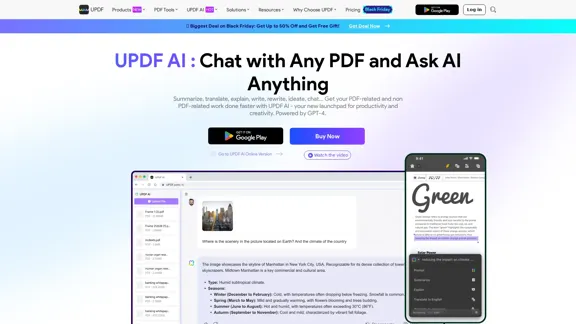
UPDF AI: The GPT-4 Powered AI for PDF Questions and More
View Detail

UPDF AI: The GPT-4 Powered AI for PDF Questions and More

UPDF AI: The GPT-4 Powered AI for PDF Questions and More

UPDF AI with GPT-4 integrated to enhance productivity by summarizing, translating, explaining, rewriting, etc., for PDFs or anything!

1.61 M
Create a Stack on Splice: AI-Powered Songwriting Inspiration | Splice
View Detail

Create a Stack on Splice: AI-Powered Songwriting Inspiration | Splice

Create a Stack on Splice: AI-Powered Songwriting Inspiration | Splice

Choose a style. Splice AI will present you with millions of unique musical combinations never heard before, showcasing sounds created by the industry's leading producers.

3.79 M
Lark | Productivity Superapp for Communication, Meetings, Documents, and Projects
View Detail

Lark | Productivity Superapp for Communication, Meetings, Documents, and Projects

Lark | Productivity Superapp for Communication, Meetings, Documents, and Projects

Lark is a productivity superapp for teams. Get chat, documents, meetings, workflow automations, and AI for free all in one place.

8.82 M
Copilot for Microsoft 365 – Microsoft Adoption

Copilot for Microsoft 365 is a powerful AI assistant that helps you work smarter and faster across Microsoft 365 apps and services. It combines the power of large language models (LLMs) with your organization's data in the Microsoft Graph and Microsoft 365 apps to turn your words into the most powerful productivity tool on the planet.

Copilot is designed to help you:

β€’ Unleash creativity
β€’ Unlock productivity
β€’ Uplevel skills

Copilot is built on Microsoft's comprehensive approach to security, compliance, and privacy. Copilot in Microsoft 365 apps and services:

β€’ Does not use your data to train the underlying LLM
β€’ Does not replace human ingenuity and judgment
β€’ Is designed to keep humans in the loop

Copilot is currently available in Word, Excel, PowerPoint, Outlook, Teams, and more.

Getting Started with Copilot

To get started with Copilot, follow these steps:

1. Check availability: Ensure your organization has access to Copilot.
2. Learn the basics: Familiarize yourself with Copilot's capabilities and how to use it effectively.
3. Explore use cases: Discover how Copilot can help you in your specific role and tasks.
4. Practice and refine: Use Copilot regularly and refine your prompts for better results.
5. Share and collaborate: Collaborate with colleagues using Copilot and share best practices.

Best Practices for Using Copilot

1. Be specific in your prompts
2. Provide context for better results
3. Review and edit Copilot's output
4. Use Copilot as a starting point, not a final product
5. Experiment with different approaches
6. Stay informed about new features and updates

Copilot in Different Microsoft 365 Apps

β€’ Word: Draft, edit, summarize, and rewrite content
β€’ Excel: Analyze data, create formulas, and generate insights
β€’ PowerPoint: Create presentations, design slides, and generate content
β€’ Outlook: Compose emails, summarize threads, and manage your inbox
β€’ Teams: Summarize meetings, generate action items, and create meeting notes

Responsible AI and Copilot

Microsoft is committed to developing AI systems responsibly. When using Copilot, keep in mind:

β€’ AI-generated content may contain biases or inaccuracies
β€’ Always review and verify Copilot's output
β€’ Use your judgment and expertise alongside Copilot's suggestions
β€’ Be aware of your organization's policies regarding AI use

Conclusion

Copilot for Microsoft 365 is a powerful tool that can significantly enhance your productivity and creativity. By understanding its capabilities, following best practices, and using it responsibly, you can make the most of this AI assistant in your daily work.
View Detail

Copilot for Microsoft 365 – Microsoft Adoption Copilot for Microsoft 365 is a powerful AI assistant that helps you work smarter and faster across Microsoft 365 apps and services. It combines the power of large language models (LLMs) with your organization's data in the Microsoft Graph and Microsoft 365 apps to turn your words into the most powerful productivity tool on the planet. Copilot is designed to help you: β€’ Unleash creativity β€’ Unlock productivity β€’ Uplevel skills Copilot is built on Microsoft's comprehensive approach to security, compliance, and privacy. Copilot in Microsoft 365 apps and services: β€’ Does not use your data to train the underlying LLM β€’ Does not replace human ingenuity and judgment β€’ Is designed to keep humans in the loop Copilot is currently available in Word, Excel, PowerPoint, Outlook, Teams, and more. Getting Started with Copilot To get started with Copilot, follow these steps: 1. Check availability: Ensure your organization has access to Copilot. 2. Learn the basics: Familiarize yourself with Copilot's capabilities and how to use it effectively. 3. Explore use cases: Discover how Copilot can help you in your specific role and tasks. 4. Practice and refine: Use Copilot regularly and refine your prompts for better results. 5. Share and collaborate: Collaborate with colleagues using Copilot and share best practices. Best Practices for Using Copilot 1. Be specific in your prompts 2. Provide context for better results 3. Review and edit Copilot's output 4. Use Copilot as a starting point, not a final product 5. Experiment with different approaches 6. Stay informed about new features and updates Copilot in Different Microsoft 365 Apps β€’ Word: Draft, edit, summarize, and rewrite content β€’ Excel: Analyze data, create formulas, and generate insights β€’ PowerPoint: Create presentations, design slides, and generate content β€’ Outlook: Compose emails, summarize threads, and manage your inbox β€’ Teams: Summarize meetings, generate action items, and create meeting notes Responsible AI and Copilot Microsoft is committed to developing AI systems responsibly. When using Copilot, keep in mind: β€’ AI-generated content may contain biases or inaccuracies β€’ Always review and verify Copilot's output β€’ Use your judgment and expertise alongside Copilot's suggestions β€’ Be aware of your organization's policies regarding AI use Conclusion Copilot for Microsoft 365 is a powerful tool that can significantly enhance your productivity and creativity. By understanding its capabilities, following best practices, and using it responsibly, you can make the most of this AI assistant in your daily work.

Copilot for Microsoft 365 – Microsoft Adoption Copilot for Microsoft 365 is a powerful AI assistant that helps you work smarter and faster across Microsoft 365 apps and services. It combines the power of large language models (LLMs) with your organization's data in the Microsoft Graph and Microsoft 365 apps to turn your words into the most powerful productivity tool on the planet. Copilot is designed to help you: β€’ Unleash creativity β€’ Unlock productivity β€’ Uplevel skills Copilot is built on Microsoft's comprehensive approach to security, compliance, and privacy. Copilot in Microsoft 365 apps and services: β€’ Does not use your data to train the underlying LLM β€’ Does not replace human ingenuity and judgment β€’ Is designed to keep humans in the loop Copilot is currently available in Word, Excel, PowerPoint, Outlook, Teams, and more. Getting Started with Copilot To get started with Copilot, follow these steps: 1. Check availability: Ensure your organization has access to Copilot. 2. Learn the basics: Familiarize yourself with Copilot's capabilities and how to use it effectively. 3. Explore use cases: Discover how Copilot can help you in your specific role and tasks. 4. Practice and refine: Use Copilot regularly and refine your prompts for better results. 5. Share and collaborate: Collaborate with colleagues using Copilot and share best practices. Best Practices for Using Copilot 1. Be specific in your prompts 2. Provide context for better results 3. Review and edit Copilot's output 4. Use Copilot as a starting point, not a final product 5. Experiment with different approaches 6. Stay informed about new features and updates Copilot in Different Microsoft 365 Apps β€’ Word: Draft, edit, summarize, and rewrite content β€’ Excel: Analyze data, create formulas, and generate insights β€’ PowerPoint: Create presentations, design slides, and generate content β€’ Outlook: Compose emails, summarize threads, and manage your inbox β€’ Teams: Summarize meetings, generate action items, and create meeting notes Responsible AI and Copilot Microsoft is committed to developing AI systems responsibly. When using Copilot, keep in mind: β€’ AI-generated content may contain biases or inaccuracies β€’ Always review and verify Copilot's output β€’ Use your judgment and expertise alongside Copilot's suggestions β€’ Be aware of your organization's policies regarding AI use Conclusion Copilot for Microsoft 365 is a powerful tool that can significantly enhance your productivity and creativity. By understanding its capabilities, following best practices, and using it responsibly, you can make the most of this AI assistant in your daily work.

Microsoft Copilot combines the power of large language models (LLMs) with your organization's data to turn your words into one of the most powerful productivity tools on the planet.

608.60 K
Flot AI: Write, Read, Memorize with AI at your side.
 – Oncely
View Detail

Flot AI: Write, Read, Memorize with AI at your side. – Oncely

Flot AI: Write, Read, Memorize with AI at your side. – Oncely

Flot is your all-in-one AI assistant, enhancing your writing, speeding up your reading, and helping you remember information across websites and apps. (Available on Windows and macOS)

645