Open-source RightAI Tools Directory
  • Discover AI
  • Submit
  • Startup
  • Blog
Open-source RightAI Tools Directory
Discover the best AI tools of 2025 with the RightAI Tools Directory!

Friend Links

AI Anime GeneratorToolsApp AI

Support

Tap4
Privacy policyTerms & ConditionsContact Us
Loading...
loading...

Open Multiple URLs

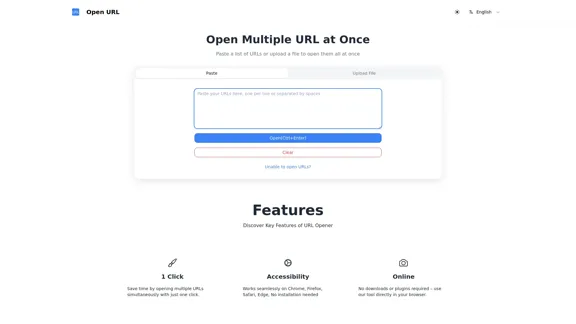
Multiple URL Opener is a free online tool to open multiple URLs simultaneously.
Visit Website
Open Multiple URLs
Visit Website

Introduction

Open Multiple URL is a web-based tool that allows users to open multiple URLs simultaneously with ease. It supports various browsers and requires no installation, making it accessible for anyone looking to streamline their browsing experience. Users can paste a list of URLs or upload a file to open them all at once, ensuring efficiency and convenience.

Feature

  1. One-Click Functionality

    Save time by opening multiple URLs at once with just a single click.

  2. Browser Compatibility

    Works seamlessly on popular browsers including Chrome, Firefox, Safari, and Edge without the need for installation.

  3. Web-Based Application

    No downloads or plugins are required; the tool operates directly in your browser.

  4. Bulk URL Opening

    Users can paste multiple URLs or upload a file to open them in bulk, enhancing productivity.

  5. Mobile Device Support

    The tool is designed to function on both desktop and mobile devices, allowing users to open URLs on the go.

  6. Privacy and Security

    The tool operates locally on the browser, ensuring that no data is saved or stored, thus protecting user privacy.

  7. Unlimited Usage

    There are no limits on how many times users can utilize the tool, making it a flexible option for frequent use.

How to Use?

  1. Paste your list of URLs into the provided text area.
  2. Click the "Open" button to launch all the URLs at once.
  3. For bulk opening, consider uploading a text file containing your URLs.

FAQ

What browsers can use this Multiple URL opener tool?

The tool is compatible with most internet browsers, including Chrome, Firefox, Safari, Microsoft Edge, and Internet Explorer.

Is the data safe when using the Multiple URL opener?

Yes, your data is completely safe as the tool works locally on your browser, meaning no URLs are saved or stored.

How many URLs can I open at once?

The number of URLs you can open at once depends on your computer's performance, with most systems handling 10-15 links smoothly.

Can I use the Multiple URL opener tool on mobile devices?

Yes, it is designed to work on both desktop and mobile devices.

Do I need to install anything to use the Multiple URL opener?

No installation is required; it is a web-based application.

Is the Multiple URL opener tool free to use?

Yes, it is completely free with no hidden fees or subscriptions.

Can I upload a file to bulk open URLs?

Yes, the tool supports uploading or dragging a file to bulk open URLs.

Price

The Multiple URL opener tool is completely free to use, with no hidden fees or subscriptions.

The price is for reference only, please refer to the latest official data for actual information.

Evaluation

  1. The tool effectively simplifies the process of opening multiple URLs, saving users time and effort.
  2. It is user-friendly and accessible across various devices and browsers, enhancing its usability.
  3. However, the lack of a feature to save URLs for future use may be a limitation for some users.
  4. Overall, it serves its purpose well, but adding features like URL saving or bookmarking could improve its functionality.

Latest Traffic Insights

  • Monthly Visits

    0

  • Bounce Rate

    0.00%

  • Pages Per Visit

    0.00

  • Time on Site(s)

    0.00

  • Global Rank

    -

  • Country Rank

    -

Recent Visits

Traffic Sources

  • Social Media:
    0.00%
  • Paid Referrals:
    0.00%
  • Email:
    0.00%
  • Referrals:
    0.00%
  • Search Engines:
    0.00%
  • Direct:
    0.00%
More Data

Related Websites

Where ideas transform into websites
View Detail

Where ideas transform into websites

Where ideas transform into websites

Scene is where web designers race through the complete web design process, from concept to launch. In a single take. 🎬

5.81 K
AI-Based Test Automation Tool [2024] - testRigor Software Testing
View Detail

AI-Based Test Automation Tool [2024] - testRigor Software Testing

AI-Based Test Automation Tool [2024] - testRigor Software Testing

Test automation tool - testRigor. Automated software testing for end-to-end test cases using plain English. Looking for software testing tools? Contact us now!

197.24 K
Create Incredible Content with Just a Few Clicks.
View Detail

Create Incredible Content with Just a Few Clicks.

Create Incredible Content with Just a Few Clicks.

Turn Recordings into Limitless Content Transcripts, AI Writing, Viral Clips, Image Generation, Chatbots, and more. Start Free Trial Watch Demo 51,594 hours of content already […]

38.94 K
Cove
View Detail

Cove

Cove

Visual workspace for thinking with AI

21.16 K
BeforeSunset AI - Home
View Detail

BeforeSunset AI - Home

BeforeSunset AI - Home

Focus on completing your tasks while BeforeSunset AI plans the ideal schedule for you. Daily planning has never been simpler.

76.01 K
Free Online Tool to Extract Domains
View Detail

Free Online Tool to Extract Domains

Free Online Tool to Extract Domains

Free online Domain Extractor tool to easily extract domain names from text or URLs. Extract domains quickly and efficiently.

0
AI for Email Security & Sustainability | mxHERO Inc.
View Detail

AI for Email Security & Sustainability | mxHERO Inc.

AI for Email Security & Sustainability | mxHERO Inc.

mxHERO AI combines the power of LLM AI with your email in a single dashboard. It offers robust email security, governance, and environmental sustainability features.

20.76 K
Copilot for Microsoft 365 – Microsoft Adoption

Copilot for Microsoft 365 is a powerful AI assistant that helps you work smarter and faster across Microsoft 365 apps and services. It combines the power of large language models (LLMs) with your organization's data in the Microsoft Graph and Microsoft 365 apps to turn your words into the most powerful productivity tool on the planet.

Copilot is designed to help you:

• Unleash creativity
• Unlock productivity
• Uplevel skills

Copilot is built on Microsoft's comprehensive approach to security, compliance, and privacy. Copilot in Microsoft 365 apps and services:

• Does not use your data to train the underlying LLM
• Does not replace human ingenuity and judgment
• Is designed to keep humans in the loop

Copilot is currently available in Word, Excel, PowerPoint, Outlook, Teams, and more.

Getting Started with Copilot

To get started with Copilot, follow these steps:

1. Check availability: Ensure your organization has access to Copilot.
2. Learn the basics: Familiarize yourself with Copilot's capabilities and how to use it effectively.
3. Explore use cases: Discover how Copilot can help you in your specific role and tasks.
4. Practice and refine: Use Copilot regularly and refine your prompts for better results.
5. Share and collaborate: Collaborate with colleagues using Copilot and share best practices.

Best Practices for Using Copilot

1. Be specific in your prompts
2. Provide context for better results
3. Review and edit Copilot's output
4. Use Copilot as a starting point, not a final product
5. Experiment with different approaches
6. Stay informed about new features and updates

Copilot in Different Microsoft 365 Apps

• Word: Draft, edit, summarize, and rewrite content
• Excel: Analyze data, create formulas, and generate insights
• PowerPoint: Create presentations, design slides, and generate content
• Outlook: Compose emails, summarize threads, and manage your inbox
• Teams: Summarize meetings, generate action items, and create meeting notes

Responsible AI and Copilot

Microsoft is committed to developing AI systems responsibly. When using Copilot, keep in mind:

• AI-generated content may contain biases or inaccuracies
• Always review and verify Copilot's output
• Use your judgment and expertise alongside Copilot's suggestions
• Be aware of your organization's policies regarding AI use

Conclusion

Copilot for Microsoft 365 is a powerful tool that can significantly enhance your productivity and creativity. By understanding its capabilities, following best practices, and using it responsibly, you can make the most of this AI assistant in your daily work.
View Detail

Copilot for Microsoft 365 – Microsoft Adoption Copilot for Microsoft 365 is a powerful AI assistant that helps you work smarter and faster across Microsoft 365 apps and services. It combines the power of large language models (LLMs) with your organization's data in the Microsoft Graph and Microsoft 365 apps to turn your words into the most powerful productivity tool on the planet. Copilot is designed to help you: • Unleash creativity • Unlock productivity • Uplevel skills Copilot is built on Microsoft's comprehensive approach to security, compliance, and privacy. Copilot in Microsoft 365 apps and services: • Does not use your data to train the underlying LLM • Does not replace human ingenuity and judgment • Is designed to keep humans in the loop Copilot is currently available in Word, Excel, PowerPoint, Outlook, Teams, and more. Getting Started with Copilot To get started with Copilot, follow these steps: 1. Check availability: Ensure your organization has access to Copilot. 2. Learn the basics: Familiarize yourself with Copilot's capabilities and how to use it effectively. 3. Explore use cases: Discover how Copilot can help you in your specific role and tasks. 4. Practice and refine: Use Copilot regularly and refine your prompts for better results. 5. Share and collaborate: Collaborate with colleagues using Copilot and share best practices. Best Practices for Using Copilot 1. Be specific in your prompts 2. Provide context for better results 3. Review and edit Copilot's output 4. Use Copilot as a starting point, not a final product 5. Experiment with different approaches 6. Stay informed about new features and updates Copilot in Different Microsoft 365 Apps • Word: Draft, edit, summarize, and rewrite content • Excel: Analyze data, create formulas, and generate insights • PowerPoint: Create presentations, design slides, and generate content • Outlook: Compose emails, summarize threads, and manage your inbox • Teams: Summarize meetings, generate action items, and create meeting notes Responsible AI and Copilot Microsoft is committed to developing AI systems responsibly. When using Copilot, keep in mind: • AI-generated content may contain biases or inaccuracies • Always review and verify Copilot's output • Use your judgment and expertise alongside Copilot's suggestions • Be aware of your organization's policies regarding AI use Conclusion Copilot for Microsoft 365 is a powerful tool that can significantly enhance your productivity and creativity. By understanding its capabilities, following best practices, and using it responsibly, you can make the most of this AI assistant in your daily work.

Copilot for Microsoft 365 – Microsoft Adoption Copilot for Microsoft 365 is a powerful AI assistant that helps you work smarter and faster across Microsoft 365 apps and services. It combines the power of large language models (LLMs) with your organization's data in the Microsoft Graph and Microsoft 365 apps to turn your words into the most powerful productivity tool on the planet. Copilot is designed to help you: • Unleash creativity • Unlock productivity • Uplevel skills Copilot is built on Microsoft's comprehensive approach to security, compliance, and privacy. Copilot in Microsoft 365 apps and services: • Does not use your data to train the underlying LLM • Does not replace human ingenuity and judgment • Is designed to keep humans in the loop Copilot is currently available in Word, Excel, PowerPoint, Outlook, Teams, and more. Getting Started with Copilot To get started with Copilot, follow these steps: 1. Check availability: Ensure your organization has access to Copilot. 2. Learn the basics: Familiarize yourself with Copilot's capabilities and how to use it effectively. 3. Explore use cases: Discover how Copilot can help you in your specific role and tasks. 4. Practice and refine: Use Copilot regularly and refine your prompts for better results. 5. Share and collaborate: Collaborate with colleagues using Copilot and share best practices. Best Practices for Using Copilot 1. Be specific in your prompts 2. Provide context for better results 3. Review and edit Copilot's output 4. Use Copilot as a starting point, not a final product 5. Experiment with different approaches 6. Stay informed about new features and updates Copilot in Different Microsoft 365 Apps • Word: Draft, edit, summarize, and rewrite content • Excel: Analyze data, create formulas, and generate insights • PowerPoint: Create presentations, design slides, and generate content • Outlook: Compose emails, summarize threads, and manage your inbox • Teams: Summarize meetings, generate action items, and create meeting notes Responsible AI and Copilot Microsoft is committed to developing AI systems responsibly. When using Copilot, keep in mind: • AI-generated content may contain biases or inaccuracies • Always review and verify Copilot's output • Use your judgment and expertise alongside Copilot's suggestions • Be aware of your organization's policies regarding AI use Conclusion Copilot for Microsoft 365 is a powerful tool that can significantly enhance your productivity and creativity. By understanding its capabilities, following best practices, and using it responsibly, you can make the most of this AI assistant in your daily work.

Microsoft Copilot combines the power of large language models (LLMs) with your organization's data to turn your words into one of the most powerful productivity tools on the planet.

608.60 K