Zoho Sheet is a versatile online spreadsheet software that offers free creation, editing, and collaboration features. As part of the Zoho Office Suite, it provides a comprehensive set of tools for data management, analysis, and teamwork. Zoho Sheet stands out with its AI-powered features, cross-platform accessibility, and seamless integration capabilities.
Online Spreadsheet Software | Create Spreadsheets for Free - Zoho Sheet
Create and collaborate on spreadsheets online with your team in real-time, from anywhere. Available on mobile devices too! Import your Excel spreadsheet files and get started now.
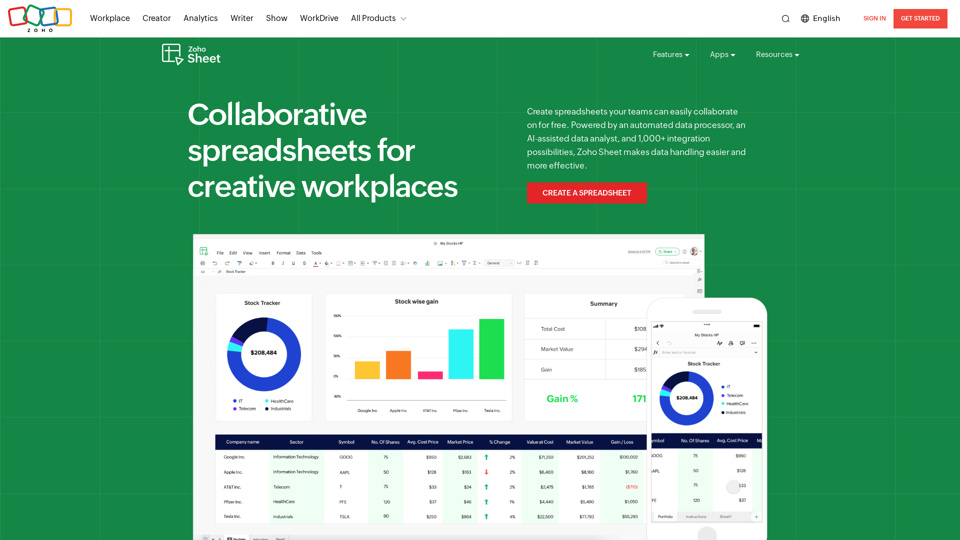
Introduction
Feature
Collaboration Tools
- Real-time editing and reviewing
- Commenting and discussion features
- Version control and restoration
Cross-Platform Accessibility
- Available on web browsers
- Mobile apps for iOS and Android
- Chromebook compatibility
Data Analysis and Visualization
- Nearly 40 different chart types
- Dynamic pivot table builder
- AI-powered data analysis assistant (Zia)
Integration and Automation
- Integration with other Zoho applications
- Connectivity with thousands of cloud-based software
- Custom functions and workflow automation
Data Management
- Automated data cleaning tools
- Data connections for gathering contextual data
- Excel compatibility for seamless file imports
AI-Powered Features
- Zia: AI assistant for chart suggestions and data queries
- Generative AI for sample data, formulas, and VBA macro codes
Customization and Control
- Cell locking and access control
- Interactive elements like drop-down menus and checkboxes
- Conditional formatting options
FAQ
Is Zoho Sheet compatible with Microsoft Excel?
Yes, Zoho Sheet offers excellent compatibility with Excel files, allowing users to import and work on Excel spreadsheets without losing formatting.
Can I use Zoho Sheet on my mobile device?
Absolutely. Zoho Sheet provides mobile apps for both iOS and Android platforms, enabling users to create and edit spreadsheets on the go.
Does Zoho Sheet offer AI-powered features?
Yes, Zoho Sheet includes an AI assistant called Zia, which can provide data insights, suggest charts, and even generate sample data and formulas.
Can I collaborate with others in real-time using Zoho Sheet?
Yes, Zoho Sheet allows real-time collaboration, enabling multiple users to work on the same spreadsheet simultaneously, with features like commenting and version control.
Is there a limit to the number of spreadsheets I can create with the free version?
The provided content doesn't specify a limit for the free version. For detailed information on usage limits, it's best to check Zoho's official pricing page or contact their support team.
Related Websites
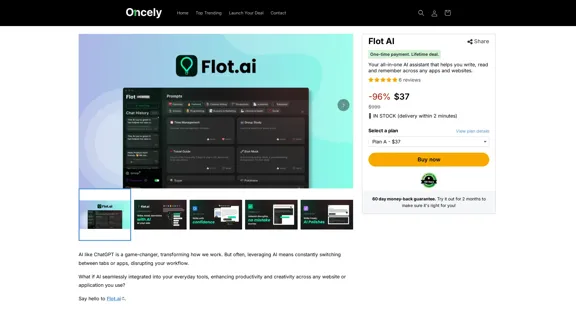
Flot AI: Write, Read, Memorize with AI at your side. – Oncely
Flot AI: Write, Read, Memorize with AI at your side. – OncelyFlot is your all-in-one AI assistant, enhancing your writing, speeding up your reading, and helping you remember information across websites and apps. (Available on Windows and macOS)
645
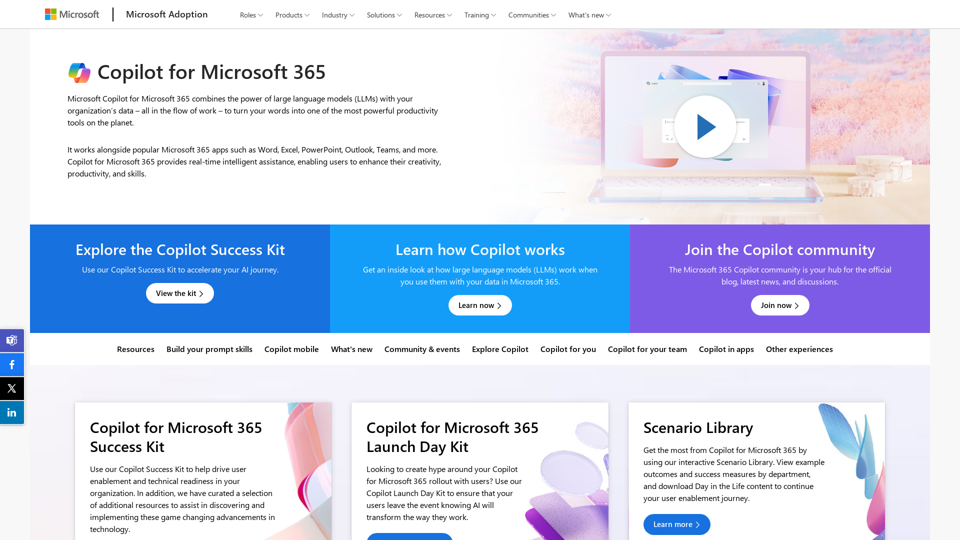
Copilot for Microsoft 365 – Microsoft Adoption Copilot for Microsoft 365 is a powerful AI assistant that helps you work smarter and faster across Microsoft 365 apps and services. It combines the power of large language models (LLMs) with your organization's data in the Microsoft Graph and Microsoft 365 apps to turn your words into the most powerful productivity tool on the planet. Copilot is designed to help you: • Unleash creativity • Unlock productivity • Uplevel skills Copilot is built on Microsoft's comprehensive approach to security, compliance, and privacy. Copilot in Microsoft 365 apps and services: • Does not use your data to train the underlying LLM • Does not replace human ingenuity and judgment • Is designed to keep humans in the loop Copilot is currently available in Word, Excel, PowerPoint, Outlook, Teams, and more. Getting Started with Copilot To get started with Copilot, follow these steps: 1. Check availability: Ensure your organization has access to Copilot. 2. Learn the basics: Familiarize yourself with Copilot's capabilities and how to use it effectively. 3. Explore use cases: Discover how Copilot can help you in your specific role and tasks. 4. Practice and refine: Use Copilot regularly and refine your prompts for better results. 5. Share and collaborate: Collaborate with colleagues using Copilot and share best practices. Best Practices for Using Copilot 1. Be specific in your prompts 2. Provide context for better results 3. Review and edit Copilot's output 4. Use Copilot as a starting point, not a final product 5. Experiment with different approaches 6. Stay informed about new features and updates Copilot in Different Microsoft 365 Apps • Word: Draft, edit, summarize, and rewrite content • Excel: Analyze data, create formulas, and generate insights • PowerPoint: Create presentations, design slides, and generate content • Outlook: Compose emails, summarize threads, and manage your inbox • Teams: Summarize meetings, generate action items, and create meeting notes Responsible AI and Copilot Microsoft is committed to developing AI systems responsibly. When using Copilot, keep in mind: • AI-generated content may contain biases or inaccuracies • Always review and verify Copilot's output • Use your judgment and expertise alongside Copilot's suggestions • Be aware of your organization's policies regarding AI use Conclusion Copilot for Microsoft 365 is a powerful tool that can significantly enhance your productivity and creativity. By understanding its capabilities, following best practices, and using it responsibly, you can make the most of this AI assistant in your daily work.
Copilot for Microsoft 365 – Microsoft Adoption Copilot for Microsoft 365 is a powerful AI assistant that helps you work smarter and faster across Microsoft 365 apps and services. It combines the power of large language models (LLMs) with your organization's data in the Microsoft Graph and Microsoft 365 apps to turn your words into the most powerful productivity tool on the planet. Copilot is designed to help you: • Unleash creativity • Unlock productivity • Uplevel skills Copilot is built on Microsoft's comprehensive approach to security, compliance, and privacy. Copilot in Microsoft 365 apps and services: • Does not use your data to train the underlying LLM • Does not replace human ingenuity and judgment • Is designed to keep humans in the loop Copilot is currently available in Word, Excel, PowerPoint, Outlook, Teams, and more. Getting Started with Copilot To get started with Copilot, follow these steps: 1. Check availability: Ensure your organization has access to Copilot. 2. Learn the basics: Familiarize yourself with Copilot's capabilities and how to use it effectively. 3. Explore use cases: Discover how Copilot can help you in your specific role and tasks. 4. Practice and refine: Use Copilot regularly and refine your prompts for better results. 5. Share and collaborate: Collaborate with colleagues using Copilot and share best practices. Best Practices for Using Copilot 1. Be specific in your prompts 2. Provide context for better results 3. Review and edit Copilot's output 4. Use Copilot as a starting point, not a final product 5. Experiment with different approaches 6. Stay informed about new features and updates Copilot in Different Microsoft 365 Apps • Word: Draft, edit, summarize, and rewrite content • Excel: Analyze data, create formulas, and generate insights • PowerPoint: Create presentations, design slides, and generate content • Outlook: Compose emails, summarize threads, and manage your inbox • Teams: Summarize meetings, generate action items, and create meeting notes Responsible AI and Copilot Microsoft is committed to developing AI systems responsibly. When using Copilot, keep in mind: • AI-generated content may contain biases or inaccuracies • Always review and verify Copilot's output • Use your judgment and expertise alongside Copilot's suggestions • Be aware of your organization's policies regarding AI use Conclusion Copilot for Microsoft 365 is a powerful tool that can significantly enhance your productivity and creativity. By understanding its capabilities, following best practices, and using it responsibly, you can make the most of this AI assistant in your daily work.Microsoft Copilot combines the power of large language models (LLMs) with your organization's data to turn your words into one of the most powerful productivity tools on the planet.
608.60 K
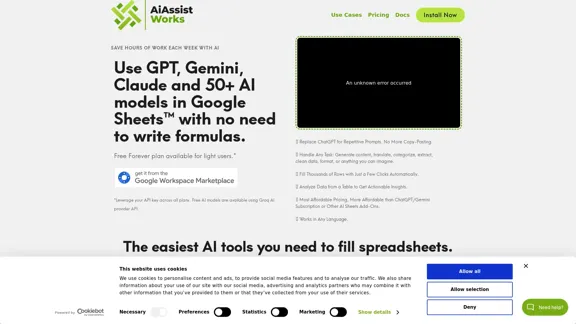
AiAssistWorks - AI for Google Sheets™ - GPT- Claude - Gemini - Llama, Mistral, OpenRouter, Groq.
AiAssistWorks - AI for Google Sheets™ - GPT- Claude - Gemini - Llama, Mistral, OpenRouter, Groq.4.99 K
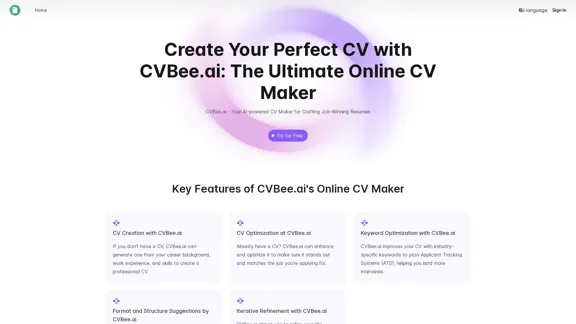
CVBee.ai: AI-Powered Online CV Maker | Resume Builder & CV Optimization
CVBee.ai: AI-Powered Online CV Maker | Resume Builder & CV OptimizationCVBee.ai is an AI-powered online CV maker that helps you create, optimize, and refine professional resumes. Whether you're a job seeker or an experienced professional, CVBee.ai ensures your CV is ATS-friendly and perfectly structured.
0

Lookie is the Global standard YouTube AI. Boost your learning with Lookie, the ultimate YouTube summarizer! Instantly transform long videos into concise, easy-to-digest summaries. Make YouTube your personal knowledge space with Lookie's AI-driven insights, available in 200 languages.
0
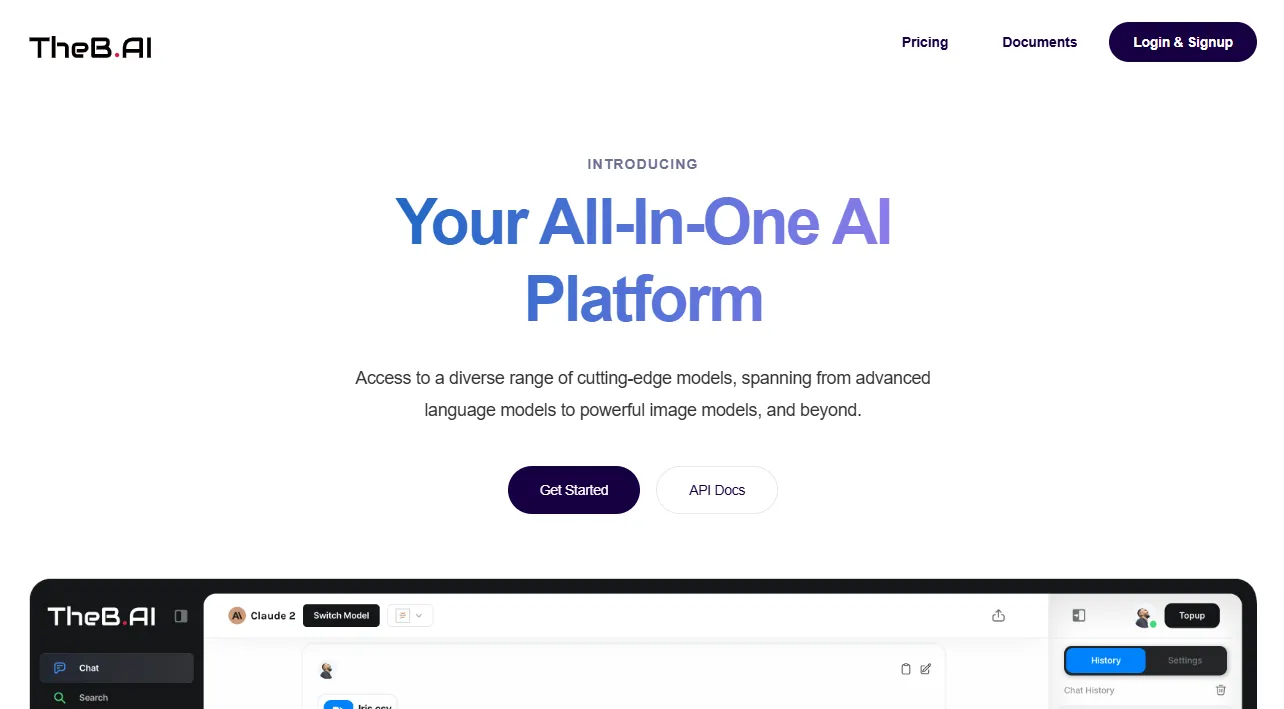
Your All-In-One AI Platform Access to a diverse range of cutting-edge models, spanning from advanced language models to powerful image models, and beyond.
73.63 K
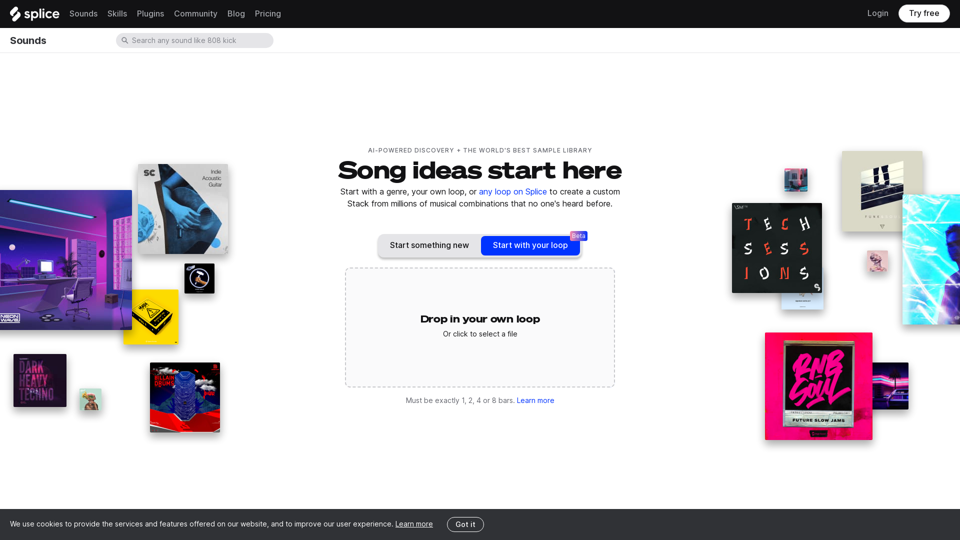
Create a Stack on Splice: AI-Powered Songwriting Inspiration | Splice
Create a Stack on Splice: AI-Powered Songwriting Inspiration | SpliceChoose a style. Splice AI will present you with millions of unique musical combinations never heard before, showcasing sounds created by the industry's leading producers.
3.79 M