Open-source RightAI Tools Directory
  • Discover AI
  • Submit
  • Startup
  • Blog
Open-source RightAI Tools Directory
Discover the best AI tools of 2025 with the RightAI Tools Directory!

Friend Links

AI Anime GeneratorToolsApp AI

Support

Tap4
Privacy policyTerms & ConditionsContact Us
Loading...
loading...

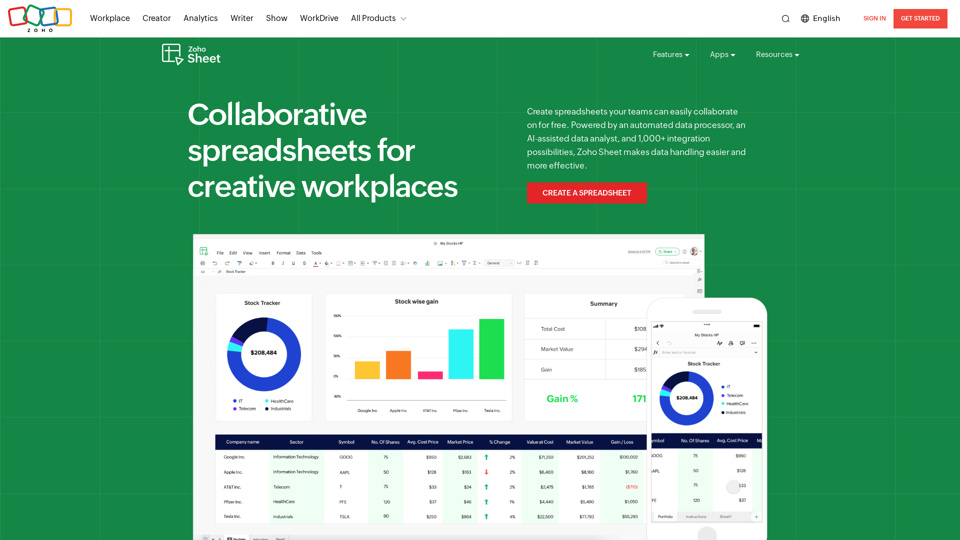
Online Spreadsheet Software | Create Spreadsheets for Free - Zoho Sheet

Create and collaborate on spreadsheets online with your team in real-time, from anywhere. Available on mobile devices too! Import your Excel spreadsheet files and get started now.
Visit Website
Online Spreadsheet Software | Create Spreadsheets for Free - Zoho Sheet
Visit Website

Introduction

Zoho Sheet is a versatile online spreadsheet software that offers free creation, editing, and collaboration features. As part of the Zoho Office Suite, it provides a comprehensive set of tools for data management, analysis, and teamwork. Zoho Sheet stands out with its AI-powered features, cross-platform accessibility, and seamless integration capabilities.

Feature

Collaboration Tools

  • Real-time editing and reviewing
  • Commenting and discussion features
  • Version control and restoration

Cross-Platform Accessibility

  • Available on web browsers
  • Mobile apps for iOS and Android
  • Chromebook compatibility

Data Analysis and Visualization

  • Nearly 40 different chart types
  • Dynamic pivot table builder
  • AI-powered data analysis assistant (Zia)

Integration and Automation

  • Integration with other Zoho applications
  • Connectivity with thousands of cloud-based software
  • Custom functions and workflow automation

Data Management

  • Automated data cleaning tools
  • Data connections for gathering contextual data
  • Excel compatibility for seamless file imports

AI-Powered Features

  • Zia: AI assistant for chart suggestions and data queries
  • Generative AI for sample data, formulas, and VBA macro codes

Customization and Control

  • Cell locking and access control
  • Interactive elements like drop-down menus and checkboxes
  • Conditional formatting options

FAQ

Is Zoho Sheet compatible with Microsoft Excel?

Yes, Zoho Sheet offers excellent compatibility with Excel files, allowing users to import and work on Excel spreadsheets without losing formatting.

Can I use Zoho Sheet on my mobile device?

Absolutely. Zoho Sheet provides mobile apps for both iOS and Android platforms, enabling users to create and edit spreadsheets on the go.

Does Zoho Sheet offer AI-powered features?

Yes, Zoho Sheet includes an AI assistant called Zia, which can provide data insights, suggest charts, and even generate sample data and formulas.

Can I collaborate with others in real-time using Zoho Sheet?

Yes, Zoho Sheet allows real-time collaboration, enabling multiple users to work on the same spreadsheet simultaneously, with features like commenting and version control.

Is there a limit to the number of spreadsheets I can create with the free version?

The provided content doesn't specify a limit for the free version. For detailed information on usage limits, it's best to check Zoho's official pricing page or contact their support team.

Related Websites
One-Click SEO Links - Chrome Web Store
View Detail

One-Click SEO Links - Chrome Web Store

One-Click SEO Links - Chrome Web Store

# User Guide for One-Click SEO Links Chrome Extension ## Overview One-Click SEO Links is a Chrome extension designed for web developers and SEO professionals. It allows users to quickly generate and copy various SEO-related links for the current webpage with just one click. ## Features - Generate and copy Google Cache link - Generate and copy Google Index link - Generate and copy Wayback Machine link - Generate and copy PageSpeed Insights link - Generate and copy Mobile-Friendly Test link - Generate and copy Rich Results Test link ## Installation 1. Open the Chrome Web Store 2. Search for "One-Click SEO Links" 3. Click "Add to Chrome" 4. Confirm the installation when prompted ## How to Use 1. Navigate to the webpage you want to analyze 2. Click on the One-Click SEO Links extension icon in your Chrome toolbar 3. Select the desired link type from the dropdown menu 4. The link will be automatically copied to your clipboard 5. Paste the link into your desired location (e.g., browser address bar, document, etc.) ## Troubleshooting If you encounter any issues: - Ensure you have the latest version of the extension installed - Try refreshing the webpage - Restart your Chrome browser - If problems persist, please contact our support team ## Privacy Policy We do not collect or store any personal data. The extension only accesses the current tab's URL to generate the SEO links. ## Feedback and Support For feedback, suggestions, or support, please email us at [email protected] or visit our website www.oneclickseolinks.com. Thank you for using One-Click SEO Links!

193.90 M
Yes or No | Tool for Making Decisions & Generating Random Answers
View Detail

Yes or No | Tool for Making Decisions & Generating Random Answers

Yes or No | Tool for Making Decisions & Generating Random Answers

Make difficult decisions easier with YesOrNo.run - the yes or no decision maker. Use our simple online decision maker to get instant answers to your questions.

0
Artificial intelligence-powered software platform for aneurysms, pulmonary embolisms, and strokes
View Detail

Artificial intelligence-powered software platform for aneurysms, pulmonary embolisms, and strokes

Artificial intelligence-powered software platform for aneurysms, pulmonary embolisms, and strokes

RapidAI empowers neurovascular and vascular clinical teams to push the limits of care, decreasing treatment time and enhancing patient outcomes.

20.57 K
ChatPRD | An AI Copilot for Product Work
View Detail

ChatPRD | An AI Copilot for Product Work

ChatPRD | An AI Copilot for Product Work

An on-demand Chief Product Officer who creates and enhances your Product Requirements Documents (PRDs), while mentoring you to become a top-tier Product Manager.

162.60 K
Gamma
View Detail

Gamma

Gamma

Made with Gamma. A new medium for presenting ideas, powered by AI.

28.16 M
Globe Explorer
View Detail

Globe Explorer

Globe Explorer

Explorer is an AI-powered discovery and learning engine that delivers intelligent and relevant search results. Give it a try now!

80.85 K
Copilot for Microsoft 365 – Microsoft Adoption

Copilot for Microsoft 365 is a powerful AI assistant that helps you work smarter and faster across Microsoft 365 apps and services. It combines the power of large language models (LLMs) with your organization's data in the Microsoft Graph and Microsoft 365 apps to turn your words into the most powerful productivity tool on the planet.

Copilot is designed to help you:

• Unleash creativity
• Unlock productivity
• Uplevel skills

Copilot is built on Microsoft's comprehensive approach to security, compliance, and privacy. Copilot in Microsoft 365 apps and services:

• Does not use your data to train the underlying LLM
• Does not replace human ingenuity and judgment
• Is designed to keep humans in the loop

Copilot is currently available in Word, Excel, PowerPoint, Outlook, Teams, and more.

Getting Started with Copilot

To get started with Copilot, follow these steps:

1. Check availability: Ensure your organization has access to Copilot.
2. Learn the basics: Familiarize yourself with Copilot's capabilities and how to use it effectively.
3. Explore use cases: Discover how Copilot can help you in your specific role and tasks.
4. Practice and refine: Use Copilot regularly and refine your prompts for better results.
5. Share and collaborate: Collaborate with colleagues using Copilot and share best practices.

Best Practices for Using Copilot

1. Be specific in your prompts
2. Provide context for better results
3. Review and edit Copilot's output
4. Use Copilot as a starting point, not a final product
5. Experiment with different approaches
6. Stay informed about new features and updates

Copilot in Different Microsoft 365 Apps

• Word: Draft, edit, summarize, and rewrite content
• Excel: Analyze data, create formulas, and generate insights
• PowerPoint: Create presentations, design slides, and generate content
• Outlook: Compose emails, summarize threads, and manage your inbox
• Teams: Summarize meetings, generate action items, and create meeting notes

Responsible AI and Copilot

Microsoft is committed to developing AI systems responsibly. When using Copilot, keep in mind:

• AI-generated content may contain biases or inaccuracies
• Always review and verify Copilot's output
• Use your judgment and expertise alongside Copilot's suggestions
• Be aware of your organization's policies regarding AI use

Conclusion

Copilot for Microsoft 365 is a powerful tool that can significantly enhance your productivity and creativity. By understanding its capabilities, following best practices, and using it responsibly, you can make the most of this AI assistant in your daily work.
View Detail

Copilot for Microsoft 365 – Microsoft Adoption Copilot for Microsoft 365 is a powerful AI assistant that helps you work smarter and faster across Microsoft 365 apps and services. It combines the power of large language models (LLMs) with your organization's data in the Microsoft Graph and Microsoft 365 apps to turn your words into the most powerful productivity tool on the planet. Copilot is designed to help you: • Unleash creativity • Unlock productivity • Uplevel skills Copilot is built on Microsoft's comprehensive approach to security, compliance, and privacy. Copilot in Microsoft 365 apps and services: • Does not use your data to train the underlying LLM • Does not replace human ingenuity and judgment • Is designed to keep humans in the loop Copilot is currently available in Word, Excel, PowerPoint, Outlook, Teams, and more. Getting Started with Copilot To get started with Copilot, follow these steps: 1. Check availability: Ensure your organization has access to Copilot. 2. Learn the basics: Familiarize yourself with Copilot's capabilities and how to use it effectively. 3. Explore use cases: Discover how Copilot can help you in your specific role and tasks. 4. Practice and refine: Use Copilot regularly and refine your prompts for better results. 5. Share and collaborate: Collaborate with colleagues using Copilot and share best practices. Best Practices for Using Copilot 1. Be specific in your prompts 2. Provide context for better results 3. Review and edit Copilot's output 4. Use Copilot as a starting point, not a final product 5. Experiment with different approaches 6. Stay informed about new features and updates Copilot in Different Microsoft 365 Apps • Word: Draft, edit, summarize, and rewrite content • Excel: Analyze data, create formulas, and generate insights • PowerPoint: Create presentations, design slides, and generate content • Outlook: Compose emails, summarize threads, and manage your inbox • Teams: Summarize meetings, generate action items, and create meeting notes Responsible AI and Copilot Microsoft is committed to developing AI systems responsibly. When using Copilot, keep in mind: • AI-generated content may contain biases or inaccuracies • Always review and verify Copilot's output • Use your judgment and expertise alongside Copilot's suggestions • Be aware of your organization's policies regarding AI use Conclusion Copilot for Microsoft 365 is a powerful tool that can significantly enhance your productivity and creativity. By understanding its capabilities, following best practices, and using it responsibly, you can make the most of this AI assistant in your daily work.

Copilot for Microsoft 365 – Microsoft Adoption Copilot for Microsoft 365 is a powerful AI assistant that helps you work smarter and faster across Microsoft 365 apps and services. It combines the power of large language models (LLMs) with your organization's data in the Microsoft Graph and Microsoft 365 apps to turn your words into the most powerful productivity tool on the planet. Copilot is designed to help you: • Unleash creativity • Unlock productivity • Uplevel skills Copilot is built on Microsoft's comprehensive approach to security, compliance, and privacy. Copilot in Microsoft 365 apps and services: • Does not use your data to train the underlying LLM • Does not replace human ingenuity and judgment • Is designed to keep humans in the loop Copilot is currently available in Word, Excel, PowerPoint, Outlook, Teams, and more. Getting Started with Copilot To get started with Copilot, follow these steps: 1. Check availability: Ensure your organization has access to Copilot. 2. Learn the basics: Familiarize yourself with Copilot's capabilities and how to use it effectively. 3. Explore use cases: Discover how Copilot can help you in your specific role and tasks. 4. Practice and refine: Use Copilot regularly and refine your prompts for better results. 5. Share and collaborate: Collaborate with colleagues using Copilot and share best practices. Best Practices for Using Copilot 1. Be specific in your prompts 2. Provide context for better results 3. Review and edit Copilot's output 4. Use Copilot as a starting point, not a final product 5. Experiment with different approaches 6. Stay informed about new features and updates Copilot in Different Microsoft 365 Apps • Word: Draft, edit, summarize, and rewrite content • Excel: Analyze data, create formulas, and generate insights • PowerPoint: Create presentations, design slides, and generate content • Outlook: Compose emails, summarize threads, and manage your inbox • Teams: Summarize meetings, generate action items, and create meeting notes Responsible AI and Copilot Microsoft is committed to developing AI systems responsibly. When using Copilot, keep in mind: • AI-generated content may contain biases or inaccuracies • Always review and verify Copilot's output • Use your judgment and expertise alongside Copilot's suggestions • Be aware of your organization's policies regarding AI use Conclusion Copilot for Microsoft 365 is a powerful tool that can significantly enhance your productivity and creativity. By understanding its capabilities, following best practices, and using it responsibly, you can make the most of this AI assistant in your daily work.

Microsoft Copilot combines the power of large language models (LLMs) with your organization's data to turn your words into one of the most powerful productivity tools on the planet.

608.60 K
RehearseNow - AI Scene Partners
View Detail

RehearseNow - AI Scene Partners

RehearseNow - AI Scene Partners

Rehearse with responsive, natural-sounding AI characters anytime, anywhere. Perfect for actors, voice actors, and anyone practicing scripts.

1.91 K