Open-source RightAI Tools Directory
  • Discover AI
  • Submit
  • Startup
  • Blog
Open-source RightAI Tools Directory
Discover the best AI tools of 2025 with the RightAI Tools Directory!

Friend Links

AI Anime GeneratorToolsApp AI

Support

Tap4
Privacy policyTerms & ConditionsContact Us
Loading...
loading...

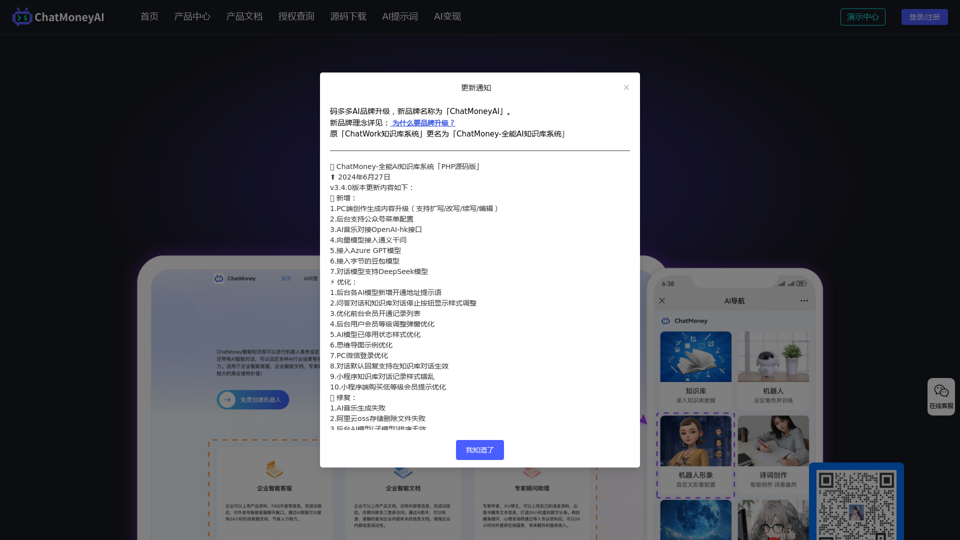
ChatMoney, ChatMoney AI, AI Monetization, CodeMood, CodeMood AI, AI Chat, AI Knowledge Base, AI Painting, ChatMoney was born for AI monetization.

Here is the translation in English, keeping the original format: ChatMoney, ChatMoneyAI, CodeMore AI, CodeMore, AI Source Code, ChatAI, ChatWork, Intelligent Chat System, Knowledge Base System, Painting System, Stable Diffusion, Midjourney, AI Chat, AI Knowledge Base, AI Painting, AI System.
Visit Website
ChatMoney, ChatMoney AI, AI Monetization, CodeMood, CodeMood AI, AI Chat, AI Knowledge Base, AI Painting, ChatMoney was born for AI monetization.
Visit Website

Introduction

ChatMoney is an AI-driven platform offering a wide range of AI technologies for various business needs. It provides access to chatbots, image understanding, and text-to-image generation capabilities. The platform aims to enhance business operations, improve customer engagement, and increase efficiency through the power of AI.

Feature

AI Chatbot Integration

ChatMoney offers AI chatbots that can be seamlessly integrated into websites, apps, or social media platforms. These chatbots provide 24/7 customer support, answer FAQs, and make personalized recommendations.

Advanced Image Understanding

The platform's image understanding technology enables users to analyze and comprehend images, facilitating object identification, pattern recognition, and image generation.

Text-to-Image Generation

ChatMoney's text-to-image generation feature allows users to create high-quality images from text descriptions, ideal for producing visual content such as product images and social media posts.

User-Friendly Interface

Even those without extensive technical knowledge can easily use ChatMoney. The platform offers a simple sign-up process and guided integration of AI technologies into existing systems.

Flexible Pricing Plans

ChatMoney provides a range of pricing plans to accommodate different business needs, from basic to advanced options, ensuring optimal AI investment for various users.

FAQ

How long does it take to develop an AI system with ChatMoney?

The development time varies based on project size and complexity, but most work can typically be completed within 5 working days.

Which scenarios can ChatMoney's AI system be integrated into?

ChatMoney's AI system can be integrated into most mainstream software, including enterprise WeChat, DingTalk, and various other platforms.

What is the training time for ChatMoney's AI models?

The training time depends on the amount and quality of provided training data. Generally, training can be completed within a few days to a few weeks.

Latest Traffic Insights

  • Monthly Visits

    0

  • Bounce Rate

    0.00%

  • Pages Per Visit

    0.00

  • Time on Site(s)

    0.00

  • Global Rank

    -

  • Country Rank

    -

Recent Visits

Traffic Sources

  • Social Media:
    0.00%
  • Paid Referrals:
    0.00%
  • Email:
    0.00%
  • Referrals:
    0.00%
  • Search Engines:
    0.00%
  • Direct:
    0.00%
More Data

Related Websites

Convert Bilibili subtitle JSON to SRT format.
View Detail

Convert Bilibili subtitle JSON to SRT format.

Convert Bilibili subtitle JSON to SRT format.

Bilibili JSON Subtitle File to SRT File Converter

193.90 M
Red Panda AI | A New Future of AI Image Generation
View Detail

Red Panda AI | A New Future of AI Image Generation

Red Panda AI | A New Future of AI Image Generation

Transform your designs with our professional AI red panda image generator. Create stunning artwork with perfect text placement, vector support, and consistent style. Start creating for free.

688
PS2 Filter AI - PS2 Video Game Style Generator
View Detail

PS2 Filter AI - PS2 Video Game Style Generator

PS2 Filter AI - PS2 Video Game Style Generator

Discover the magic of AI with our PS2 filter and instantly transform your photos into classic PS2 video game characters. Experience this retro style with a modern twist—just upload your photo and see the transformation in one click! Try it for free at ps2filterai.net.

0
Batch Save ChatGPT to Notion

This is a guide on how to save multiple ChatGPT responses to Notion in a batch. 

Tools You'll Need:

* ChatGPT: An AI chatbot that can generate text.
* Notion: A note-taking and project management tool.
* Python: A programming language.
* Requests Library: A Python library for making HTTP requests.

Steps:

1. Get Your Notion API Token:
   - Go to your Notion workspace settings.
   - Navigate to the "Integrations" tab.
   - Click "Create new integration" and choose "API Token".
   - Copy your API token.

2. Install Python Libraries:
   - Open your terminal or command prompt.
   - Type `pip install requests` and press Enter.

3. Write Python Script:
   - Create a new Python file (e.g., `save_chatgpt_to_notion.py`).
   - Paste the following code into the file, replacing `YOUR_NOTION_API_TOKEN` with your actual token:

```python
import requests

def save_chatgpt_response_to_notion(response, page_id, token):
  """Saves a ChatGPT response to a Notion page."""
  url = f"https://api.notion.com/v1/pages/{page_id}/children"
  headers = {"Authorization": f"Bearer {token}"}
  data = {
    "parent": {
      "page_id": page_id
    },
    "properties": {
      "title": {
        "title": [
          {
            "text": {
              "content": "ChatGPT Response"
            }
          }
        ]
      },
      "content": {
        "rich_text": [
          {
            "text": {
              "content": response
            }
          }
        ]
      }
    }
  }
  response = requests.post(url, headers=headers, json=data)
  print(response.status_code)

Example usage
page_id = "YOUR_NOTION_PAGE_ID"
token = "YOUR_NOTION_API_TOKEN"

Get ChatGPT responses (replace with your actual ChatGPT interaction)
chatgpt_responses = [
  "This is the first ChatGPT response.",
  "This is the second ChatGPT response.",
  "This is the third ChatGPT response."
]

Save each response to Notion
for response in chatgpt_responses:
  save_chatgpt_response_to_notion(response, page_id, token)
```

4. Run the Script:
   - In your terminal, navigate to the directory where you saved the Python file.
   - Type `python save_chatgpt_to_notion.py` and press Enter.

5. Check Notion:
   - Open your Notion workspace and go to the page specified by `page_id`.
   - You should see your ChatGPT responses saved as separate blocks.
View Detail

Batch Save ChatGPT to Notion This is a guide on how to save multiple ChatGPT responses to Notion in a batch. Tools You'll Need: * ChatGPT: An AI chatbot that can generate text. * Notion: A note-taking and project management tool. * Python: A programming language. * Requests Library: A Python library for making HTTP requests. Steps: 1. Get Your Notion API Token: - Go to your Notion workspace settings. - Navigate to the "Integrations" tab. - Click "Create new integration" and choose "API Token". - Copy your API token. 2. Install Python Libraries: - Open your terminal or command prompt. - Type `pip install requests` and press Enter. 3. Write Python Script: - Create a new Python file (e.g., `save_chatgpt_to_notion.py`). - Paste the following code into the file, replacing `YOUR_NOTION_API_TOKEN` with your actual token: ```python import requests def save_chatgpt_response_to_notion(response, page_id, token): """Saves a ChatGPT response to a Notion page.""" url = f"https://api.notion.com/v1/pages/{page_id}/children" headers = {"Authorization": f"Bearer {token}"} data = { "parent": { "page_id": page_id }, "properties": { "title": { "title": [ { "text": { "content": "ChatGPT Response" } } ] }, "content": { "rich_text": [ { "text": { "content": response } } ] } } } response = requests.post(url, headers=headers, json=data) print(response.status_code) Example usage page_id = "YOUR_NOTION_PAGE_ID" token = "YOUR_NOTION_API_TOKEN" Get ChatGPT responses (replace with your actual ChatGPT interaction) chatgpt_responses = [ "This is the first ChatGPT response.", "This is the second ChatGPT response.", "This is the third ChatGPT response." ] Save each response to Notion for response in chatgpt_responses: save_chatgpt_response_to_notion(response, page_id, token) ``` 4. Run the Script: - In your terminal, navigate to the directory where you saved the Python file. - Type `python save_chatgpt_to_notion.py` and press Enter. 5. Check Notion: - Open your Notion workspace and go to the page specified by `page_id`. - You should see your ChatGPT responses saved as separate blocks.

Batch Save ChatGPT to Notion This is a guide on how to save multiple ChatGPT responses to Notion in a batch. Tools You'll Need: * ChatGPT: An AI chatbot that can generate text. * Notion: A note-taking and project management tool. * Python: A programming language. * Requests Library: A Python library for making HTTP requests. Steps: 1. Get Your Notion API Token: - Go to your Notion workspace settings. - Navigate to the "Integrations" tab. - Click "Create new integration" and choose "API Token". - Copy your API token. 2. Install Python Libraries: - Open your terminal or command prompt. - Type `pip install requests` and press Enter. 3. Write Python Script: - Create a new Python file (e.g., `save_chatgpt_to_notion.py`). - Paste the following code into the file, replacing `YOUR_NOTION_API_TOKEN` with your actual token: ```python import requests def save_chatgpt_response_to_notion(response, page_id, token): """Saves a ChatGPT response to a Notion page.""" url = f"https://api.notion.com/v1/pages/{page_id}/children" headers = {"Authorization": f"Bearer {token}"} data = { "parent": { "page_id": page_id }, "properties": { "title": { "title": [ { "text": { "content": "ChatGPT Response" } } ] }, "content": { "rich_text": [ { "text": { "content": response } } ] } } } response = requests.post(url, headers=headers, json=data) print(response.status_code) Example usage page_id = "YOUR_NOTION_PAGE_ID" token = "YOUR_NOTION_API_TOKEN" Get ChatGPT responses (replace with your actual ChatGPT interaction) chatgpt_responses = [ "This is the first ChatGPT response.", "This is the second ChatGPT response.", "This is the third ChatGPT response." ] Save each response to Notion for response in chatgpt_responses: save_chatgpt_response_to_notion(response, page_id, token) ``` 4. Run the Script: - In your terminal, navigate to the directory where you saved the Python file. - Type `python save_chatgpt_to_notion.py` and press Enter. 5. Check Notion: - Open your Notion workspace and go to the page specified by `page_id`. - You should see your ChatGPT responses saved as separate blocks.

Save ChatGPT Conversations to Notion with One Click Export your ChatGPT conversations directly to Notion with a single click.

193.90 M
Journey ArtPrompt with Midjourney

This guide will walk you through creating stunning artwork using Midjourney, a powerful AI art generator. 

1. Accessing Midjourney

* You'll need a Discord account to use Midjourney. 
* Join the official Midjourney server: [https://discord.gg/midjourney](https://discord.gg/midjourney)

2. Understanding the Basics

* `/imagine` Command: This is the core command for generating images.
* Prompt:  A text description of the artwork you want to create. Be specific and descriptive!
* Parameters: Options that control aspects like image size, aspect ratio, and style.

3. Crafting Your Journey Prompt

Think about the story you want to tell with your artwork.  

* Setting: Where does your journey take place? (e.g., a mystical forest, a futuristic city, a desolate wasteland)
* Characters: Who is on this journey? (e.g., a lone traveler, a group of adventurers, mythical creatures)
* Mood: What feeling do you want to evoke? (e.g., adventurous, mysterious, hopeful, melancholic)
* Style: What artistic style appeals to you? (e.g., photorealistic, painterly, abstract)

4. Putting it Together

Combine these elements into a clear and concise prompt. 

Example:

`/imagine A lone traveler journeys through a mystical forest at sunset, bathed in golden light. The path ahead is shrouded in mist, hinting at unknown wonders. Style: painterly, ethereal`

5. Experiment and Refine

* Midjourney is all about experimentation! Try different prompts, parameters, and styles.
* Use the "upscale" command to enlarge your favorite images and reveal more detail.
* Don't be afraid to iterate and refine your prompts based on the results.
View Detail

Journey ArtPrompt with Midjourney This guide will walk you through creating stunning artwork using Midjourney, a powerful AI art generator. 1. Accessing Midjourney * You'll need a Discord account to use Midjourney. * Join the official Midjourney server: [https://discord.gg/midjourney](https://discord.gg/midjourney) 2. Understanding the Basics * `/imagine` Command: This is the core command for generating images. * Prompt: A text description of the artwork you want to create. Be specific and descriptive! * Parameters: Options that control aspects like image size, aspect ratio, and style. 3. Crafting Your Journey Prompt Think about the story you want to tell with your artwork. * Setting: Where does your journey take place? (e.g., a mystical forest, a futuristic city, a desolate wasteland) * Characters: Who is on this journey? (e.g., a lone traveler, a group of adventurers, mythical creatures) * Mood: What feeling do you want to evoke? (e.g., adventurous, mysterious, hopeful, melancholic) * Style: What artistic style appeals to you? (e.g., photorealistic, painterly, abstract) 4. Putting it Together Combine these elements into a clear and concise prompt. Example: `/imagine A lone traveler journeys through a mystical forest at sunset, bathed in golden light. The path ahead is shrouded in mist, hinting at unknown wonders. Style: painterly, ethereal` 5. Experiment and Refine * Midjourney is all about experimentation! Try different prompts, parameters, and styles. * Use the "upscale" command to enlarge your favorite images and reveal more detail. * Don't be afraid to iterate and refine your prompts based on the results.

Journey ArtPrompt with Midjourney This guide will walk you through creating stunning artwork using Midjourney, a powerful AI art generator. 1. Accessing Midjourney * You'll need a Discord account to use Midjourney. * Join the official Midjourney server: [https://discord.gg/midjourney](https://discord.gg/midjourney) 2. Understanding the Basics * `/imagine` Command: This is the core command for generating images. * Prompt: A text description of the artwork you want to create. Be specific and descriptive! * Parameters: Options that control aspects like image size, aspect ratio, and style. 3. Crafting Your Journey Prompt Think about the story you want to tell with your artwork. * Setting: Where does your journey take place? (e.g., a mystical forest, a futuristic city, a desolate wasteland) * Characters: Who is on this journey? (e.g., a lone traveler, a group of adventurers, mythical creatures) * Mood: What feeling do you want to evoke? (e.g., adventurous, mysterious, hopeful, melancholic) * Style: What artistic style appeals to you? (e.g., photorealistic, painterly, abstract) 4. Putting it Together Combine these elements into a clear and concise prompt. Example: `/imagine A lone traveler journeys through a mystical forest at sunset, bathed in golden light. The path ahead is shrouded in mist, hinting at unknown wonders. Style: painterly, ethereal` 5. Experiment and Refine * Midjourney is all about experimentation! Try different prompts, parameters, and styles. * Use the "upscale" command to enlarge your favorite images and reveal more detail. * Don't be afraid to iterate and refine your prompts based on the results.

New backgrounds with Midjourney on new tabs

193.90 M
Unblur Image

Unblur image refers to the process of removing blur or haze from an image to make it sharper and clearer. This technique is often used to enhance the quality of images that have been affected by camera shake, motion blur, or other factors that cause blur.
View Detail

Unblur Image Unblur image refers to the process of removing blur or haze from an image to make it sharper and clearer. This technique is often used to enhance the quality of images that have been affected by camera shake, motion blur, or other factors that cause blur.

Unblur Image Unblur image refers to the process of removing blur or haze from an image to make it sharper and clearer. This technique is often used to enhance the quality of images that have been affected by camera shake, motion blur, or other factors that cause blur.

Automatically unblur images in one click with our AI photo blur remover.

193.90 M
It's not possible to directly "save" ChatGPT or DALL·E-3 into Notion. 

ChatGPT and DALL·E-3 are powerful AI models developed by OpenAI. They are not physical files that can be downloaded and stored. 

Think of them like online services you access through an internet connection. You can interact with them, get outputs from them, and even use their outputs in Notion, but you can't "save" the models themselves. 


Let me know if you'd like to explore ways to integrate ChatGPT or DALL·E-3 outputs into your Notion workspace!
View Detail

It's not possible to directly "save" ChatGPT or DALL·E-3 into Notion. ChatGPT and DALL·E-3 are powerful AI models developed by OpenAI. They are not physical files that can be downloaded and stored. Think of them like online services you access through an internet connection. You can interact with them, get outputs from them, and even use their outputs in Notion, but you can't "save" the models themselves. Let me know if you'd like to explore ways to integrate ChatGPT or DALL·E-3 outputs into your Notion workspace!

It's not possible to directly "save" ChatGPT or DALL·E-3 into Notion. ChatGPT and DALL·E-3 are powerful AI models developed by OpenAI. They are not physical files that can be downloaded and stored. Think of them like online services you access through an internet connection. You can interact with them, get outputs from them, and even use their outputs in Notion, but you can't "save" the models themselves. Let me know if you'd like to explore ways to integrate ChatGPT or DALL·E-3 outputs into your Notion workspace!

Save ChatGPT conversations to Notion with one click. Export ChatGPT conversations.

193.90 M
Video Editor 2024 and Other Cool Programs from Movavi – Download for Free
View Detail

Video Editor 2024 and Other Cool Programs from Movavi – Download for Free

Video Editor 2024 and Other Cool Programs from Movavi – Download for Free

Movavi offers fast and easy-to-use photo and video editing software that is safe and trusted worldwide. Try it all out for free!

3.27 M