Open-source RightAI Tools Directory
  • Discover AI
  • Submit
  • Startup
  • Blog
Open-source RightAI Tools Directory
Discover the best AI tools of 2025 with the RightAI Tools Directory!

Friend Links

AI Anime GeneratorToolsApp AI

Support

Tap4
Privacy policyTerms & ConditionsContact Us
Loading...
loading...

AI Video Editor - Text to Video By Viggle

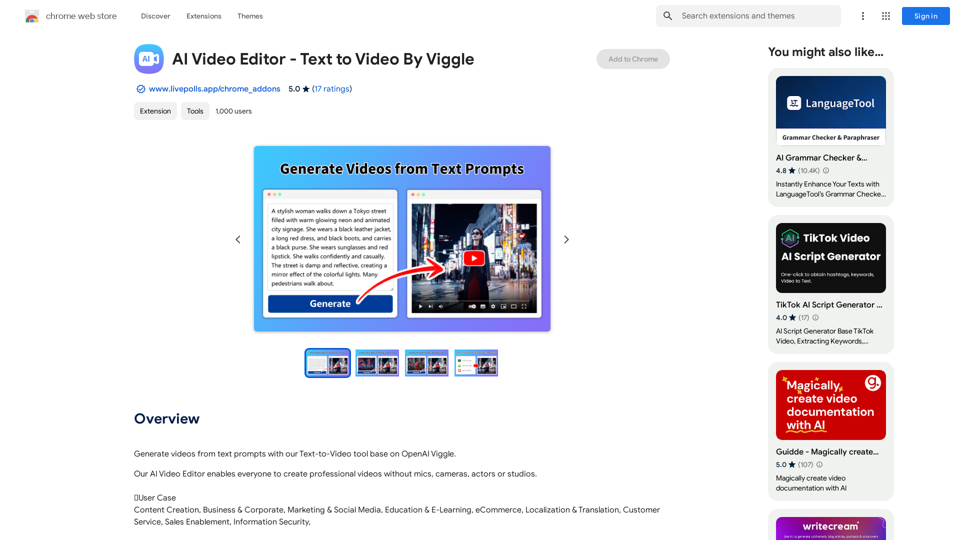
Generate videos from text prompts with our Text-to-Video tool based on OpenAI Viggle.
Visit Website
AI Video Editor - Text to Video By Viggle
Visit Website

Introduction

AI Video Editor - Text to Video is an innovative platform that leverages OpenAI Viggle to transform text prompts into professional-quality videos. This tool democratizes video creation, allowing users to produce stunning content without the need for traditional equipment or personnel. It caters to various needs, from converting blog posts to creating product videos, making it a versatile solution for content creators, marketers, and businesses.

Feature

Idea to Video

Transform your creative concepts into visually appealing videos complete with AI-generated voices, bringing your ideas to life effortlessly.

Blog to Video

Convert written blog articles into engaging video content, expanding your reach and enhancing audience engagement across different media formats.

PPT to Video

Quickly transform static PowerPoint presentations into dynamic video content, adding a new dimension to your presentations and making them more shareable.

Tweet to Video

Turn concise Twitter posts into captivating video content, amplifying your social media presence and message impact.

Avatar Video Creation

Generate impressive avatar videos with just one click, personalizing your content and adding a unique touch to your video productions.

Product to Video

Convert Amazon and Airbnb product listings into compelling video content, enhancing product visibility and appeal to potential customers.

Customization Options

Tailor your videos by selecting from a variety of styles, colors, and fonts to match your brand or personal preferences.

User-Friendly Prompt Writing

The platform provides guidance on crafting effective AI prompts, encouraging creativity while emphasizing simplicity and detailed descriptions.

Flexible Pricing

Offers both a free version with basic features and paid subscriptions for extended access, catering to different user needs and budgets.

FAQ

How do I use the AI Video Editor - Text to Video platform?

Enter your text prompt, select the desired features, and the platform will automatically generate a professional-looking video for you.

Can I customize the video output?

Yes, you can customize your videos by choosing from a range of styles, colors, and fonts to match your preferences or brand identity.

Is my data safe with the platform?

The platform prioritizes data security and complies with privacy laws. Your information is not shared with anyone, including the add-on owner, ensuring confidentiality.

What types of videos can I create with this tool?

You can create various types of videos, including idea presentations, blog content videos, PowerPoint presentation videos, tweet visualizations, avatar videos, and product showcase videos.

Do I need any video editing experience to use this platform?

No prior video editing experience is necessary. The AI-driven platform is designed to be user-friendly, allowing anyone to create professional-looking videos from text inputs.

Latest Traffic Insights

  • Monthly Visits

    193.90 M

  • Bounce Rate

    56.27%

  • Pages Per Visit

    2.71

  • Time on Site(s)

    115.91

  • Global Rank

    -

  • Country Rank

    -

Recent Visits

Traffic Sources

  • Social Media:
    0.48%
  • Paid Referrals:
    0.55%
  • Email:
    0.15%
  • Referrals:
    12.81%
  • Search Engines:
    16.21%
  • Direct:
    69.81%
More Data

Related Websites

Bing AI Image Generator
View Detail

Bing AI Image Generator

Bing AI Image Generator

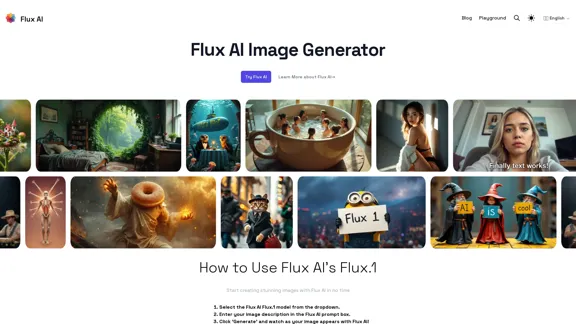
Bing AI Image Generator: See your ideas come to life with AI. Tell the AI what you want to see, and it will create the image in your browser right away.

193.90 M
Stock Photos, Vectors and Royalty Free Images from 123RF
View Detail

Stock Photos, Vectors and Royalty Free Images from 123RF

Stock Photos, Vectors and Royalty Free Images from 123RF

Search and download from millions of HD stock photos, royalty-free images, clipart, vectors, and illustrations

9.66 M
Free Online AI Tool for Face Swapping
View Detail

Free Online AI Tool for Face Swapping

Free Online AI Tool for Face Swapping

100% Free AI Face Swap Online Tool No Limits, No signups. No watermarks. Swap faces in videos, photos, and GIFs.

84.55 K
Free QR Code AI Art Generator (2024) • Scanner, Link in Bio, Smart Link, Analytics, Workspace, Monkey, Tiger
View Detail

Free QR Code AI Art Generator (2024) • Scanner, Link in Bio, Smart Link, Analytics, Workspace, Monkey, Tiger

Free QR Code AI Art Generator (2024) • Scanner, Link in Bio, Smart Link, Analytics, Workspace, Monkey, Tiger

Create an artistic QR Code for free, featuring images, logos, colors, and shapes. Select from templates that link to your website, email, WiFi, URL, phone, UPI, PIX, or Rick Roll. Use tools like Canva, Adobe, or Google to design. Compatible with Android and iOS devices. A top alternative to QR Monkey, Tiger, Chimp, and Unitag.

194.49 K
The "Local Art" on the App Store
View Detail

The "Local Art" on the App Store

The "Local Art" on the App Store

Experience the power of local AI art generation with our innovative iOS app. By utilizing your local computer's GPU through API proxy, you can create stunning AI-generated artwork without relying on cloud services, ensuring faster processing speeds and greater control over your creative vision.

124.77 M
MagicAI - Free AI Image, AI Video, AI Tools, Anime Art
View Detail

MagicAI - Free AI Image, AI Video, AI Tools, Anime Art

MagicAI - Free AI Image, AI Video, AI Tools, Anime Art

Magic AI is a free online AI image generator. Use it to create AI art, AI videos, posters, and more. It's easy to create anime art with our AI.

1.64 K
PS2 Filter AI - Convert Photo to PS2 Video Game Style Online With AI, Free Trial
View Detail

PS2 Filter AI - Convert Photo to PS2 Video Game Style Online With AI, Free Trial

PS2 Filter AI - Convert Photo to PS2 Video Game Style Online With AI, Free Trial

PS2 Filter AI transforms your photos into iconic PlayStation 2 style graphics. 🎮

7
Batch Save ChatGPT to Notion

This is a guide on how to save multiple ChatGPT responses to Notion in a batch. 

Tools You'll Need:

* ChatGPT: An AI chatbot that can generate text.
* Notion: A note-taking and project management tool.
* Python: A programming language.
* Requests Library: A Python library for making HTTP requests.

Steps:

1. Get Your Notion API Token:
   - Go to your Notion workspace settings.
   - Navigate to the "Integrations" tab.
   - Click "Create new integration" and choose "API Token".
   - Copy your API token.

2. Install Python Libraries:
   - Open your terminal or command prompt.
   - Type `pip install requests` and press Enter.

3. Write Python Script:
   - Create a new Python file (e.g., `save_chatgpt_to_notion.py`).
   - Paste the following code into the file, replacing `YOUR_NOTION_API_TOKEN` with your actual token:

```python
import requests

def save_chatgpt_response_to_notion(response, page_id, token):
  """Saves a ChatGPT response to a Notion page."""
  url = f"https://api.notion.com/v1/pages/{page_id}/children"
  headers = {"Authorization": f"Bearer {token}"}
  data = {
    "parent": {
      "page_id": page_id
    },
    "properties": {
      "title": {
        "title": [
          {
            "text": {
              "content": "ChatGPT Response"
            }
          }
        ]
      },
      "content": {
        "rich_text": [
          {
            "text": {
              "content": response
            }
          }
        ]
      }
    }
  }
  response = requests.post(url, headers=headers, json=data)
  print(response.status_code)

Example usage
page_id = "YOUR_NOTION_PAGE_ID"
token = "YOUR_NOTION_API_TOKEN"

Get ChatGPT responses (replace with your actual ChatGPT interaction)
chatgpt_responses = [
  "This is the first ChatGPT response.",
  "This is the second ChatGPT response.",
  "This is the third ChatGPT response."
]

Save each response to Notion
for response in chatgpt_responses:
  save_chatgpt_response_to_notion(response, page_id, token)
```

4. Run the Script:
   - In your terminal, navigate to the directory where you saved the Python file.
   - Type `python save_chatgpt_to_notion.py` and press Enter.

5. Check Notion:
   - Open your Notion workspace and go to the page specified by `page_id`.
   - You should see your ChatGPT responses saved as separate blocks.
View Detail

Batch Save ChatGPT to Notion This is a guide on how to save multiple ChatGPT responses to Notion in a batch. Tools You'll Need: * ChatGPT: An AI chatbot that can generate text. * Notion: A note-taking and project management tool. * Python: A programming language. * Requests Library: A Python library for making HTTP requests. Steps: 1. Get Your Notion API Token: - Go to your Notion workspace settings. - Navigate to the "Integrations" tab. - Click "Create new integration" and choose "API Token". - Copy your API token. 2. Install Python Libraries: - Open your terminal or command prompt. - Type `pip install requests` and press Enter. 3. Write Python Script: - Create a new Python file (e.g., `save_chatgpt_to_notion.py`). - Paste the following code into the file, replacing `YOUR_NOTION_API_TOKEN` with your actual token: ```python import requests def save_chatgpt_response_to_notion(response, page_id, token): """Saves a ChatGPT response to a Notion page.""" url = f"https://api.notion.com/v1/pages/{page_id}/children" headers = {"Authorization": f"Bearer {token}"} data = { "parent": { "page_id": page_id }, "properties": { "title": { "title": [ { "text": { "content": "ChatGPT Response" } } ] }, "content": { "rich_text": [ { "text": { "content": response } } ] } } } response = requests.post(url, headers=headers, json=data) print(response.status_code) Example usage page_id = "YOUR_NOTION_PAGE_ID" token = "YOUR_NOTION_API_TOKEN" Get ChatGPT responses (replace with your actual ChatGPT interaction) chatgpt_responses = [ "This is the first ChatGPT response.", "This is the second ChatGPT response.", "This is the third ChatGPT response." ] Save each response to Notion for response in chatgpt_responses: save_chatgpt_response_to_notion(response, page_id, token) ``` 4. Run the Script: - In your terminal, navigate to the directory where you saved the Python file. - Type `python save_chatgpt_to_notion.py` and press Enter. 5. Check Notion: - Open your Notion workspace and go to the page specified by `page_id`. - You should see your ChatGPT responses saved as separate blocks.

Batch Save ChatGPT to Notion This is a guide on how to save multiple ChatGPT responses to Notion in a batch. Tools You'll Need: * ChatGPT: An AI chatbot that can generate text. * Notion: A note-taking and project management tool. * Python: A programming language. * Requests Library: A Python library for making HTTP requests. Steps: 1. Get Your Notion API Token: - Go to your Notion workspace settings. - Navigate to the "Integrations" tab. - Click "Create new integration" and choose "API Token". - Copy your API token. 2. Install Python Libraries: - Open your terminal or command prompt. - Type `pip install requests` and press Enter. 3. Write Python Script: - Create a new Python file (e.g., `save_chatgpt_to_notion.py`). - Paste the following code into the file, replacing `YOUR_NOTION_API_TOKEN` with your actual token: ```python import requests def save_chatgpt_response_to_notion(response, page_id, token): """Saves a ChatGPT response to a Notion page.""" url = f"https://api.notion.com/v1/pages/{page_id}/children" headers = {"Authorization": f"Bearer {token}"} data = { "parent": { "page_id": page_id }, "properties": { "title": { "title": [ { "text": { "content": "ChatGPT Response" } } ] }, "content": { "rich_text": [ { "text": { "content": response } } ] } } } response = requests.post(url, headers=headers, json=data) print(response.status_code) Example usage page_id = "YOUR_NOTION_PAGE_ID" token = "YOUR_NOTION_API_TOKEN" Get ChatGPT responses (replace with your actual ChatGPT interaction) chatgpt_responses = [ "This is the first ChatGPT response.", "This is the second ChatGPT response.", "This is the third ChatGPT response." ] Save each response to Notion for response in chatgpt_responses: save_chatgpt_response_to_notion(response, page_id, token) ``` 4. Run the Script: - In your terminal, navigate to the directory where you saved the Python file. - Type `python save_chatgpt_to_notion.py` and press Enter. 5. Check Notion: - Open your Notion workspace and go to the page specified by `page_id`. - You should see your ChatGPT responses saved as separate blocks.

Save ChatGPT Conversations to Notion with One Click Export your ChatGPT conversations directly to Notion with a single click.

193.90 M