Open-source RightAI Tools Directory
  • Discover AI
  • Submit
  • Startup
  • Blog
Open-source RightAI Tools Directory
Discover the best AI tools of 2025 with the RightAI Tools Directory!

Friend Links

AI Anime GeneratorToolsApp AI

Support

Tap4
Privacy policyTerms & ConditionsContact Us
Loading...
loading...

Coachpilot

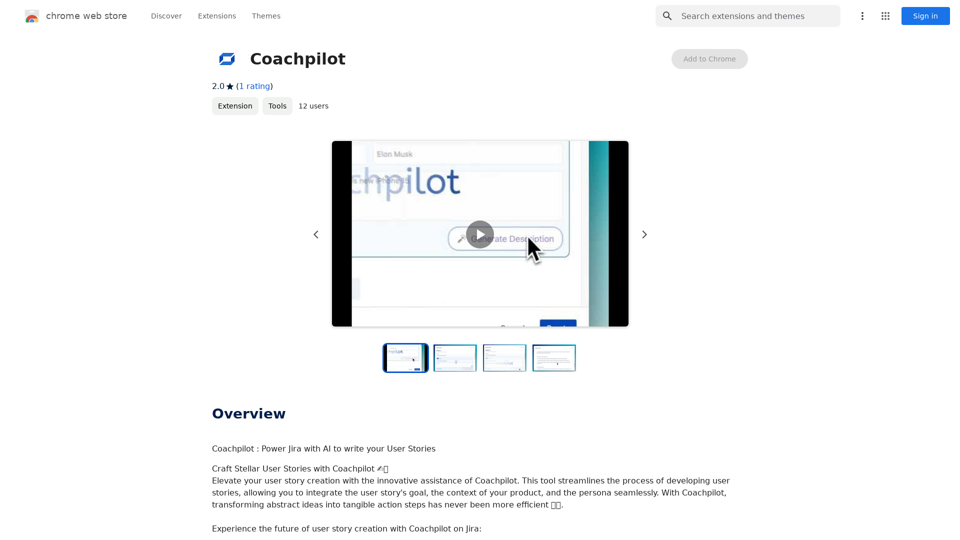
Coachpilot: Use AI to Write User Stories in Jira Coachpilot helps you write better user stories in Jira using the power of artificial intelligence.
Visit Website
Coachpilot
Visit Website

Introduction

Coachpilot is an innovative AI-powered tool designed to streamline the creation of user stories for Jira. It utilizes intelligent forms and AI-driven assistance to help users define goals, context, and personas, generating comprehensive and precise user stories with a single click. This tool aims to enhance productivity and improve the quality of user stories in project management workflows.

Feature

Intelligent Forms

Coachpilot's smart forms guide users in defining the goal, context, and persona of their user stories. These forms are designed to capture essential information, enabling the AI to craft tailored and accurate user stories.

Instant User Story Generation

With just one click on the "Generate" button, Coachpilot's AI synthesizes a user story based on the provided inputs. This feature significantly reduces the time spent on story creation.

Jira Embedded Integration

Seamlessly integrate Coachpilot into Jira, allowing users to create, edit, and refine user stories without leaving their project management environment. This integration enhances workflow efficiency.

Guided User Story Craft

The AI-powered prompts assist users throughout the story creation process, ensuring clarity and precision. This feature acts as a story assistant, guiding users even if they're unsure how to start.

Flexible Formats (Coming Soon)

Coachpilot will adapt to various story formats, including epics, tasks, and specific user stories. The AI adjusts its output based on the provided context, catering to diverse project requirements.

FAQ

How does Coachpilot work?

Coachpilot uses intelligent forms and AI-driven assistance to help you define goals, context, and personas. It then generates comprehensive and precise user stories with just one click, streamlining the entire process.

What are the main benefits of using Coachpilot?

The key benefits include:

  • Time-saving through instant user story generation
  • Improved productivity with Jira integration
  • Enhanced quality of user stories through AI-guided creation
  • Flexibility in story formats (coming soon)

Is Coachpilot easy to use?

Yes, Coachpilot is designed for ease of use. The process involves:

  1. Defining goal, context, and persona using intelligent forms
  2. Inputting parameters and clicking "Generate"
  3. Reviewing and refining the generated user story
  4. Integrating with Jira for seamless collaboration

What pricing options does Coachpilot offer?

Coachpilot offers an affordable subscription model, though specific pricing details are not provided in the given information. It's recommended to check their official website or contact their sales team for current pricing options.

Latest Traffic Insights

  • Monthly Visits

    193.90 M

  • Bounce Rate

    56.27%

  • Pages Per Visit

    2.71

  • Time on Site(s)

    115.91

  • Global Rank

    -

  • Country Rank

    -

Recent Visits

Traffic Sources

  • Social Media:
    0.48%
  • Paid Referrals:
    0.55%
  • Email:
    0.15%
  • Referrals:
    12.81%
  • Search Engines:
    16.21%
  • Direct:
    69.81%
More Data

Related Websites

Faster GPT
View Detail

Faster GPT

Faster GPT

Excellent GPT assistant with useful extensions and powerful prompts. Use ChatGPT, Claude, Bard, Bing on any website.

193.90 M
WhatToTextAi
===============

WhatToTextAi is an AI-powered texting assistant that helps you come up with the perfect response to any situation.
View Detail

WhatToTextAi =============== WhatToTextAi is an AI-powered texting assistant that helps you come up with the perfect response to any situation.

WhatToTextAi =============== WhatToTextAi is an AI-powered texting assistant that helps you come up with the perfect response to any situation.

Overcome texting anxiety with WhatToText AI. Get personalized, human-like replies for any situation in seconds. Improve your English texting skills and build deeper connections. Perfect for non-native speakers and anyone looking to enhance their messaging game.

0
AIScraper

This is a Python library for scraping data from websites that use the Amazon Interactive Search (AIS) API. 

Features:

* Easy to use: Simply provide a search query and the library will return a list of product results.
* Flexible: You can customize your scraping by specifying filters, such as price range, brand, and category.
* Efficient: The library uses asynchronous requests to speed up the scraping process.
* Reliable: The library is designed to handle rate limits and other website restrictions.

Installation:

```bash
pip install aiscraper
```

Usage:

```python
from aiscraper import AIScraper

Create an instance of the AIScraper class
scraper = AIScraper()

Perform a search for "laptops"
results = scraper.search("laptops")

Print the product titles
for result in results:
    print(result["title"])
```

Documentation:

https://github.com/aiscraper/aiscraper
View Detail

AIScraper This is a Python library for scraping data from websites that use the Amazon Interactive Search (AIS) API. Features: * Easy to use: Simply provide a search query and the library will return a list of product results. * Flexible: You can customize your scraping by specifying filters, such as price range, brand, and category. * Efficient: The library uses asynchronous requests to speed up the scraping process. * Reliable: The library is designed to handle rate limits and other website restrictions. Installation: ```bash pip install aiscraper ``` Usage: ```python from aiscraper import AIScraper Create an instance of the AIScraper class scraper = AIScraper() Perform a search for "laptops" results = scraper.search("laptops") Print the product titles for result in results: print(result["title"]) ``` Documentation: https://github.com/aiscraper/aiscraper

AIScraper This is a Python library for scraping data from websites that use the Amazon Interactive Search (AIS) API. Features: * Easy to use: Simply provide a search query and the library will return a list of product results. * Flexible: You can customize your scraping by specifying filters, such as price range, brand, and category. * Efficient: The library uses asynchronous requests to speed up the scraping process. * Reliable: The library is designed to handle rate limits and other website restrictions. Installation: ```bash pip install aiscraper ``` Usage: ```python from aiscraper import AIScraper Create an instance of the AIScraper class scraper = AIScraper() Perform a search for "laptops" results = scraper.search("laptops") Print the product titles for result in results: print(result["title"]) ``` Documentation: https://github.com/aiscraper/aiscraper

Web scraper, powered by AI! Collect structured data from web pages in just a few clicks! What's new 🔹Simplified data collection…

193.90 M
Adot AI: ChatGPT-powered Web3 Search Engine
View Detail

Adot AI: ChatGPT-powered Web3 Search Engine

Adot AI: ChatGPT-powered Web3 Search Engine

Explore the Web3 space with Adot AI, the AI search tool tailored by keywords.

193.90 M
GPTx
View Detail

GPTx

GPTx

ChatGPT-powered Chrome Extension, Enhances Browsing and Productivity.

193.90 M
Invisibility 

The ability to become unseen.
View Detail

Invisibility The ability to become unseen.

Invisibility The ability to become unseen.

Your Invisible AI - Invisibility is The ChatGPT Replacement for Mac

0
AI video generator - TikTok Instagram Youtube
View Detail

AI video generator - TikTok Instagram Youtube

AI video generator - TikTok Instagram Youtube

AI video generator

0
Converting JPG Images to Text

Converting a JPG image to text is a process known as Optical Character Recognition (OCR). This technology enables you to extract text from images, scanned documents, and photos. Here's how to do it:

Method 1: Online OCR Tools

You can use online OCR tools to convert JPG images to text. Here are the steps:

1. Upload your JPG image: Go to an online OCR tool website, such as Online OCR Tools or OCR.space, and upload your JPG image.
2. Select the language: Choose the language of the text in your image.
3. Click on "Convert": The tool will convert the image to text.
4. Download the text: You can download the extracted text as a Word document, PDF, or plain text file.

Method 2: Google Drive

You can also use Google Drive to convert JPG images to text. Here's how:

1. Upload your JPG image: Upload your JPG image to Google Drive.
2. Right-click on the image: Right-click on the uploaded image and select "Open with" > "Google Docs".
3. The image will be converted: Google Docs will automatically convert the image to text.
4. Edit and download: You can edit the extracted text and download it as a Word document or PDF.

Method 3: Adobe Acrobat

If you have Adobe Acrobat installed on your computer, you can use it to convert JPG images to text. Here's how:

1. Open Adobe Acrobat: Open Adobe Acrobat on your computer.
2. Create a new document: Create a new document and click on "Tools" > "Recognize Text".
3. Select the image: Select the JPG image you want to convert.
4. Click on "Recognize": Adobe Acrobat will convert the image to text.
5. Edit and save: You can edit the extracted text and save it as a Word document or PDF.

These are the three methods to convert JPG images to text. Choose the method that works best for you!
View Detail

Converting JPG Images to Text Converting a JPG image to text is a process known as Optical Character Recognition (OCR). This technology enables you to extract text from images, scanned documents, and photos. Here's how to do it: Method 1: Online OCR Tools You can use online OCR tools to convert JPG images to text. Here are the steps: 1. Upload your JPG image: Go to an online OCR tool website, such as Online OCR Tools or OCR.space, and upload your JPG image. 2. Select the language: Choose the language of the text in your image. 3. Click on "Convert": The tool will convert the image to text. 4. Download the text: You can download the extracted text as a Word document, PDF, or plain text file. Method 2: Google Drive You can also use Google Drive to convert JPG images to text. Here's how: 1. Upload your JPG image: Upload your JPG image to Google Drive. 2. Right-click on the image: Right-click on the uploaded image and select "Open with" > "Google Docs". 3. The image will be converted: Google Docs will automatically convert the image to text. 4. Edit and download: You can edit the extracted text and download it as a Word document or PDF. Method 3: Adobe Acrobat If you have Adobe Acrobat installed on your computer, you can use it to convert JPG images to text. Here's how: 1. Open Adobe Acrobat: Open Adobe Acrobat on your computer. 2. Create a new document: Create a new document and click on "Tools" > "Recognize Text". 3. Select the image: Select the JPG image you want to convert. 4. Click on "Recognize": Adobe Acrobat will convert the image to text. 5. Edit and save: You can edit the extracted text and save it as a Word document or PDF. These are the three methods to convert JPG images to text. Choose the method that works best for you!

Converting JPG Images to Text Converting a JPG image to text is a process known as Optical Character Recognition (OCR). This technology enables you to extract text from images, scanned documents, and photos. Here's how to do it: Method 1: Online OCR Tools You can use online OCR tools to convert JPG images to text. Here are the steps: 1. Upload your JPG image: Go to an online OCR tool website, such as Online OCR Tools or OCR.space, and upload your JPG image. 2. Select the language: Choose the language of the text in your image. 3. Click on "Convert": The tool will convert the image to text. 4. Download the text: You can download the extracted text as a Word document, PDF, or plain text file. Method 2: Google Drive You can also use Google Drive to convert JPG images to text. Here's how: 1. Upload your JPG image: Upload your JPG image to Google Drive. 2. Right-click on the image: Right-click on the uploaded image and select "Open with" > "Google Docs". 3. The image will be converted: Google Docs will automatically convert the image to text. 4. Edit and download: You can edit the extracted text and download it as a Word document or PDF. Method 3: Adobe Acrobat If you have Adobe Acrobat installed on your computer, you can use it to convert JPG images to text. Here's how: 1. Open Adobe Acrobat: Open Adobe Acrobat on your computer. 2. Create a new document: Create a new document and click on "Tools" > "Recognize Text". 3. Select the image: Select the JPG image you want to convert. 4. Click on "Recognize": Adobe Acrobat will convert the image to text. 5. Edit and save: You can edit the extracted text and save it as a Word document or PDF. These are the three methods to convert JPG images to text. Choose the method that works best for you!

It is an online tool that uses Optical Character Recognition (OCR) to make it possible to extract text from images in JPG format.

193.90 M