Open-source RightAI Tools Directory
  • Discover AI
  • Submit
  • Startup
  • Blog
Open-source RightAI Tools Directory
Discover the best AI tools of 2025 with the RightAI Tools Directory!

Friend Links

AI Anime GeneratorToolsApp AI

Support

Tap4
Privacy policyTerms & ConditionsContact Us
Loading...
loading...

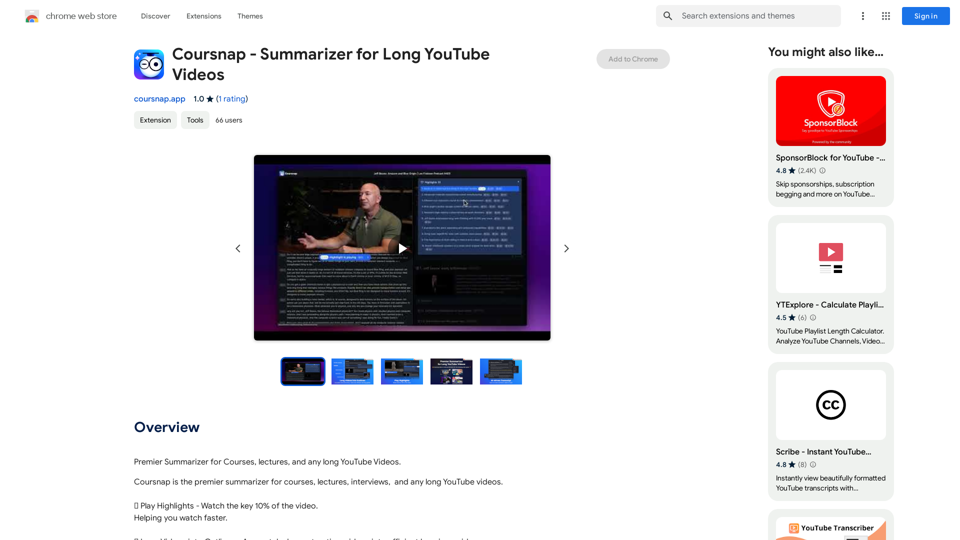
Coursnap - Summarizer for Long YouTube Videos

Premier Summarizer for Courses, Lectures, and Long YouTube Videos.
Visit Website
Coursnap - Summarizer for Long YouTube Videos
Visit Website

Introduction

Coursnap is a powerful Chrome extension designed to enhance your YouTube learning experience. It offers innovative features to summarize long videos, allowing users to watch and learn more efficiently. By providing highlights, outlines, and AI-driven transcripts, Coursnap transforms lengthy content into digestible, time-saving formats.

Feature

🔥 Play Highlights

  • Watch key 10% of video content
  • Skip unnecessary parts
  • Save valuable time

🎬 Long Videos into Outlines

  • Accurately deconstruct videos
  • Create efficient learning guides
  • Accelerate learning process

📝 AI-driven Transcript

  • Generate accurate and fluent transcripts
  • Improve readability and comprehension
  • Enhance overall learning experience

🎁 Free Daily Summary

  • Receive summaries of favorite videos
  • Stay updated on learning progress
  • Reinforce knowledge retention

🔧 Easy Integration

  • Seamless integration with Chrome browser
  • Simple installation process
  • User-friendly interface

💰 Free Pricing Model

  • No subscription fees
  • No hidden costs
  • Unlimited usage

FAQ

Can I use Coursnap for free?

Yes, Coursnap is a completely free extension with no subscription fees or hidden costs. You can use it as much as you want without any limitations.

How do I use Coursnap?

Using Coursnap is simple:

  1. Install the extension on your Chrome browser
  2. Navigate to a long YouTube video
  3. Use Coursnap's features to summarize, create outlines, or generate transcripts

Is my data safe with Coursnap?

Yes, Coursnap prioritizes user data security. The extension handles your information securely and in accordance with its privacy policy, ensuring your data remains protected while using the service.

What types of videos work best with Coursnap?

Coursnap is particularly useful for:

  • Long lectures
  • Educational courses
  • Interviews
  • Any lengthy YouTube content you want to learn from more efficiently

Latest Traffic Insights

  • Monthly Visits

    193.90 M

  • Bounce Rate

    56.27%

  • Pages Per Visit

    2.71

  • Time on Site(s)

    115.91

  • Global Rank

    -

  • Country Rank

    -

Recent Visits

Traffic Sources

  • Social Media:
    0.48%
  • Paid Referrals:
    0.55%
  • Email:
    0.15%
  • Referrals:
    12.81%
  • Search Engines:
    16.21%
  • Direct:
    69.81%
More Data

Related Websites

YouTube Chat
View Detail

YouTube Chat

YouTube Chat

Talk to a chatbot, ask questions, and get the exact information you need from YouTube videos, all without leaving YouTube!

193.90 M
LearnHouse - The modern Open source learning platform for everyone.
View Detail

LearnHouse - The modern Open source learning platform for everyone.

LearnHouse - The modern Open source learning platform for everyone.

LearnHouse is an open source platform that makes it easy for anyone to provide world-class educational content and it offers a variety of content types : Dynamic Pages, Videos, Documents & more.

12
Meet the Meeting
View Detail

Meet the Meeting

Meet the Meeting

Identifying People Expressions in Google Meets Calls This is a complex task with several challenges: * Technical Limitations: Google Meets doesn't currently offer an API to directly access facial expressions of participants. * Privacy Concerns: Analyzing facial expressions raises significant privacy issues. Users should have control over whether their expressions are being tracked and used. * Accuracy: Even with access to facial data, accurately interpreting expressions can be difficult due to variations in lighting, angles, and individual differences. Possible Approaches (with limitations): * User-Submitted Data: Participants could manually indicate their emotions during the call, which could be collected and analyzed. This relies on user honesty and may not capture subtle expressions. * Third-Party Tools: Some external tools might analyze video feeds and attempt to detect expressions. However, their accuracy and privacy practices should be carefully evaluated. * Future Developments: Google or other companies might develop features that allow for more ethical and accurate expression analysis in the future. It's important to remember that facial expressions are just one aspect of communication, and relying solely on them can be misleading.

193.90 M
Free Transcription Tool | Deepgram
View Detail

Free Transcription Tool | Deepgram

Free Transcription Tool | Deepgram

Easily convert your conversations, audio files, or YouTube videos into text for free with our advanced transcription tool.

835.16 K
Token Counter for ChatGPT 

This tool helps you count the number of tokens in your text input.

How to Use:

1. Paste your text into the input box.
2. Click the "Count Tokens" button.
3. The number of tokens will be displayed below the input box.

What is a Token?

A token is the basic unit of text that ChatGPT processes. 

It can be a word, part of a word, or a punctuation mark.


Example:

Input Text: Hello, world!

Token Count: 4
View Detail

Token Counter for ChatGPT This tool helps you count the number of tokens in your text input. How to Use: 1. Paste your text into the input box. 2. Click the "Count Tokens" button. 3. The number of tokens will be displayed below the input box. What is a Token? A token is the basic unit of text that ChatGPT processes. It can be a word, part of a word, or a punctuation mark. Example: Input Text: Hello, world! Token Count: 4

Token Counter for ChatGPT This tool helps you count the number of tokens in your text input. How to Use: 1. Paste your text into the input box. 2. Click the "Count Tokens" button. 3. The number of tokens will be displayed below the input box. What is a Token? A token is the basic unit of text that ChatGPT processes. It can be a word, part of a word, or a punctuation mark. Example: Input Text: Hello, world! Token Count: 4

110

193.90 M
AIChatOne: AI ChatGPT Copilot, Web Summary, Twitter Writer, ChatHub, ChatBot
View Detail

AIChatOne: AI ChatGPT Copilot, Web Summary, Twitter Writer, ChatHub, ChatBot

AIChatOne: AI ChatGPT Copilot, Web Summary, Twitter Writer, ChatHub, ChatBot

Your AI Copilot powered by ChatGPT. Answers complex questions. Writes emails. Reads articles. Searches smartly. Usable everywhere.

193.90 M
Kartiv: Automated Visual Content for eCommerce & Marketing Agencies
View Detail

Kartiv: Automated Visual Content for eCommerce & Marketing Agencies

Kartiv: Automated Visual Content for eCommerce & Marketing Agencies

Elevate your brand with Kartiv's AI-powered design solutions. Perfect for eCommerce businesses and marketing agencies.

440
Open ChatGPT in a New Tab

You can open ChatGPT in a new tab by following these steps:

#Method 1: Using the Browser's Context Menu

1. Right-click on the ChatGPT link or button.
2. Select "Open in new tab" or "Open link in new tab" from the context menu.

#Method 2: Using the Keyboard Shortcut

1. Press `Ctrl + Click` (Windows/Linux) or `Cmd + Click` (Mac) on the ChatGPT link or button.

#Method 3: Using the Browser's Toolbar

1. Click on the ChatGPT link or button while holding down the `Ctrl` key (Windows/Linux) or `Cmd` key (Mac).
2. Release the key after the new tab is opened.

By following these methods, you can easily open ChatGPT in a new tab and start chatting without leaving your current page.
View Detail

Open ChatGPT in a New Tab You can open ChatGPT in a new tab by following these steps: #Method 1: Using the Browser's Context Menu 1. Right-click on the ChatGPT link or button. 2. Select "Open in new tab" or "Open link in new tab" from the context menu. #Method 2: Using the Keyboard Shortcut 1. Press `Ctrl + Click` (Windows/Linux) or `Cmd + Click` (Mac) on the ChatGPT link or button. #Method 3: Using the Browser's Toolbar 1. Click on the ChatGPT link or button while holding down the `Ctrl` key (Windows/Linux) or `Cmd` key (Mac). 2. Release the key after the new tab is opened. By following these methods, you can easily open ChatGPT in a new tab and start chatting without leaving your current page.

Open ChatGPT in a New Tab You can open ChatGPT in a new tab by following these steps: #Method 1: Using the Browser's Context Menu 1. Right-click on the ChatGPT link or button. 2. Select "Open in new tab" or "Open link in new tab" from the context menu. #Method 2: Using the Keyboard Shortcut 1. Press `Ctrl + Click` (Windows/Linux) or `Cmd + Click` (Mac) on the ChatGPT link or button. #Method 3: Using the Browser's Toolbar 1. Click on the ChatGPT link or button while holding down the `Ctrl` key (Windows/Linux) or `Cmd` key (Mac). 2. Release the key after the new tab is opened. By following these methods, you can easily open ChatGPT in a new tab and start chatting without leaving your current page.

New Tab with Quick ChatGPT Access

193.90 M