Open-source RightAI Tools Directory
  • Discover AI
  • Submit
  • Startup
  • Blog
Open-source RightAI Tools Directory
Discover the best AI tools of 2025 with the RightAI Tools Directory!

Friend Links

AI Anime GeneratorToolsApp AI

Support

Tap4
Privacy policyTerms & ConditionsContact Us
Loading...
loading...

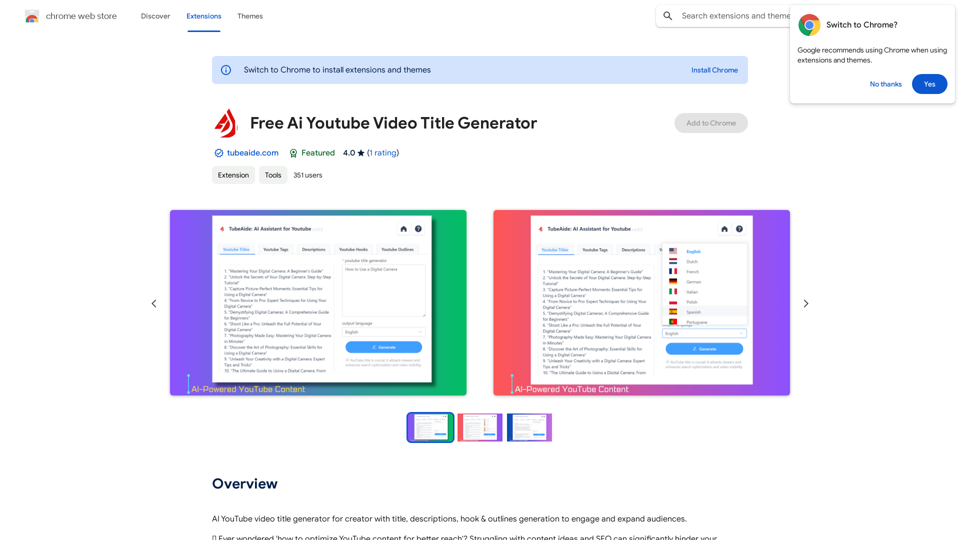
Free AI YouTube Video Title Generator

AI YouTube Video Title Generator for Creators: Generate Titles, Descriptions, Hooks, and Outlines to Engage and Expand Your Audience.
Visit Website
Free AI YouTube Video Title Generator
Visit Website

Introduction

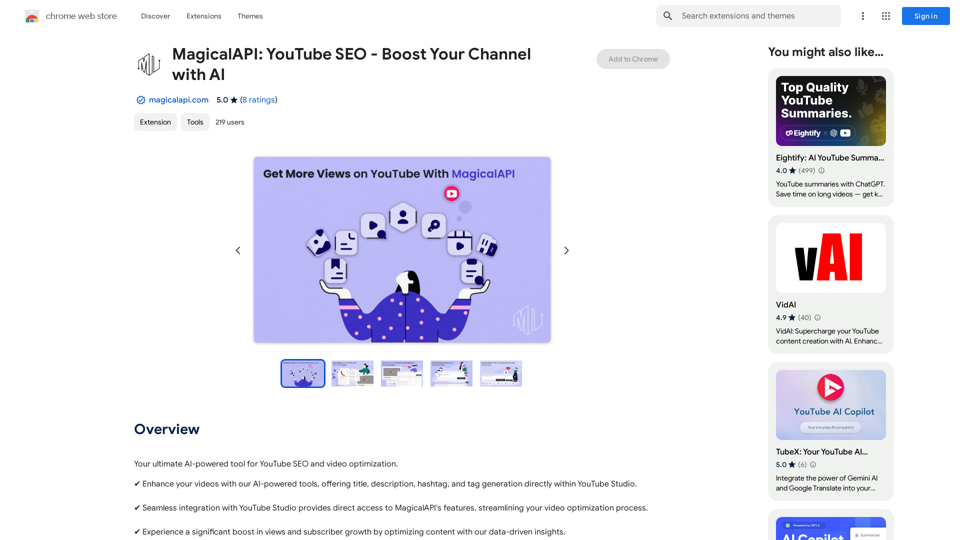
TubeAide is a free AI-powered YouTube video optimization tool designed to help content creators enhance their reach and engagement. It offers a range of features including title generation, tag suggestions, description creation, hook writing, and outline development. By leveraging advanced AI algorithms, TubeAide streamlines the content creation process and helps YouTubers produce more discoverable and engaging videos.

Feature

AI-Driven Content Generation

TubeAide employs sophisticated algorithms to generate tailored titles, tags, and descriptions for YouTube content, ensuring optimal relevance and appeal.

Multilingual Support

The tool operates in 25 different languages, enabling creators to reach a global audience and expand their international presence.

SEO Optimization

TubeAide seamlessly incorporates long-tail keywords into content suggestions, improving video discoverability and search engine rankings.

Efficient Tag Generation

Quickly generate and apply relevant tags to enhance video SEO and improve content categorization.

Engaging Descriptions and Hooks

Create attention-grabbing descriptions and compelling hooks using AI-generated suggestions to increase viewer interest and retention.

User-Friendly Interface

TubeAide features an intuitive dashboard for quick and easy content generation, streamlining the optimization process.

Privacy-Focused Approach

The tool prioritizes user privacy, processing only content related to the user's YouTube channel and adhering to strict data protection standards.

FAQ

How does TubeAide improve YouTube content SEO?

TubeAide incorporates trending keywords and SEO best practices into content suggestions, increasing the likelihood of video discovery and improving overall search engine rankings.

Is TubeAide compatible with non-English content?

Yes, TubeAide supports content generation in 25 languages, catering to a diverse range of creators worldwide and enabling global reach.

How does TubeAide's AI-powered content suggestion work?

TubeAide utilizes cutting-edge AI algorithms to analyze trends and generate content suggestions that resonate with target audiences, ensuring relevance and engagement.

How does TubeAide ensure data security?

TubeAide adheres to stringent data protection standards and uses channel data solely for enhancing content strategy, prioritizing user privacy and security.

Latest Traffic Insights

  • Monthly Visits

    193.90 M

  • Bounce Rate

    56.27%

  • Pages Per Visit

    2.71

  • Time on Site(s)

    115.91

  • Global Rank

    -

  • Country Rank

    -

Recent Visits

Traffic Sources

  • Social Media:
    0.48%
  • Paid Referrals:
    0.55%
  • Email:
    0.15%
  • Referrals:
    12.81%
  • Search Engines:
    16.21%
  • Direct:
    69.81%
More Data

Related Websites

GPT Search Navigator
View Detail

GPT Search Navigator

GPT Search Navigator

Get instant, relevant answers to all your Google searches!

193.90 M
Scribus
View Detail

Scribus

Scribus

Smarter writing companion for an essay

0
Converting JPG Images to Text

Converting a JPG image to text is a process known as Optical Character Recognition (OCR). This technology enables you to extract text from images, scanned documents, and photos. Here's how to do it:

Method 1: Online OCR Tools

You can use online OCR tools to convert JPG images to text. Here are the steps:

1. Upload your JPG image: Go to an online OCR tool website, such as Online OCR Tools or OCR.space, and upload your JPG image.
2. Select the language: Choose the language of the text in your image.
3. Click on "Convert": The tool will convert the image to text.
4. Download the text: You can download the extracted text as a Word document, PDF, or plain text file.

Method 2: Google Drive

You can also use Google Drive to convert JPG images to text. Here's how:

1. Upload your JPG image: Upload your JPG image to Google Drive.
2. Right-click on the image: Right-click on the uploaded image and select "Open with" > "Google Docs".
3. The image will be converted: Google Docs will automatically convert the image to text.
4. Edit and download: You can edit the extracted text and download it as a Word document or PDF.

Method 3: Adobe Acrobat

If you have Adobe Acrobat installed on your computer, you can use it to convert JPG images to text. Here's how:

1. Open Adobe Acrobat: Open Adobe Acrobat on your computer.
2. Create a new document: Create a new document and click on "Tools" > "Recognize Text".
3. Select the image: Select the JPG image you want to convert.
4. Click on "Recognize": Adobe Acrobat will convert the image to text.
5. Edit and save: You can edit the extracted text and save it as a Word document or PDF.

These are the three methods to convert JPG images to text. Choose the method that works best for you!
View Detail

Converting JPG Images to Text Converting a JPG image to text is a process known as Optical Character Recognition (OCR). This technology enables you to extract text from images, scanned documents, and photos. Here's how to do it: Method 1: Online OCR Tools You can use online OCR tools to convert JPG images to text. Here are the steps: 1. Upload your JPG image: Go to an online OCR tool website, such as Online OCR Tools or OCR.space, and upload your JPG image. 2. Select the language: Choose the language of the text in your image. 3. Click on "Convert": The tool will convert the image to text. 4. Download the text: You can download the extracted text as a Word document, PDF, or plain text file. Method 2: Google Drive You can also use Google Drive to convert JPG images to text. Here's how: 1. Upload your JPG image: Upload your JPG image to Google Drive. 2. Right-click on the image: Right-click on the uploaded image and select "Open with" > "Google Docs". 3. The image will be converted: Google Docs will automatically convert the image to text. 4. Edit and download: You can edit the extracted text and download it as a Word document or PDF. Method 3: Adobe Acrobat If you have Adobe Acrobat installed on your computer, you can use it to convert JPG images to text. Here's how: 1. Open Adobe Acrobat: Open Adobe Acrobat on your computer. 2. Create a new document: Create a new document and click on "Tools" > "Recognize Text". 3. Select the image: Select the JPG image you want to convert. 4. Click on "Recognize": Adobe Acrobat will convert the image to text. 5. Edit and save: You can edit the extracted text and save it as a Word document or PDF. These are the three methods to convert JPG images to text. Choose the method that works best for you!

Converting JPG Images to Text Converting a JPG image to text is a process known as Optical Character Recognition (OCR). This technology enables you to extract text from images, scanned documents, and photos. Here's how to do it: Method 1: Online OCR Tools You can use online OCR tools to convert JPG images to text. Here are the steps: 1. Upload your JPG image: Go to an online OCR tool website, such as Online OCR Tools or OCR.space, and upload your JPG image. 2. Select the language: Choose the language of the text in your image. 3. Click on "Convert": The tool will convert the image to text. 4. Download the text: You can download the extracted text as a Word document, PDF, or plain text file. Method 2: Google Drive You can also use Google Drive to convert JPG images to text. Here's how: 1. Upload your JPG image: Upload your JPG image to Google Drive. 2. Right-click on the image: Right-click on the uploaded image and select "Open with" > "Google Docs". 3. The image will be converted: Google Docs will automatically convert the image to text. 4. Edit and download: You can edit the extracted text and download it as a Word document or PDF. Method 3: Adobe Acrobat If you have Adobe Acrobat installed on your computer, you can use it to convert JPG images to text. Here's how: 1. Open Adobe Acrobat: Open Adobe Acrobat on your computer. 2. Create a new document: Create a new document and click on "Tools" > "Recognize Text". 3. Select the image: Select the JPG image you want to convert. 4. Click on "Recognize": Adobe Acrobat will convert the image to text. 5. Edit and save: You can edit the extracted text and save it as a Word document or PDF. These are the three methods to convert JPG images to text. Choose the method that works best for you!

It is an online tool that uses Optical Character Recognition (OCR) to make it possible to extract text from images in JPG format.

193.90 M
AutoNotes | AI Progress Notes, Assessments & More!
View Detail

AutoNotes | AI Progress Notes, Assessments & More!

AutoNotes | AI Progress Notes, Assessments & More!

AutoNotes is the top AI Progress Notes tool for Mental Health, Speech, and Occupational Therapy. Try AutoNotes for Free Now!

82.19 K
Door Insight AI Assistant
View Detail

Door Insight AI Assistant

Door Insight AI Assistant

Analyze rental properties in real time with your personal AI Property Analyst.

193.90 M
nbnm8
View Detail

nbnm8

nbnm8

Checks if nbn is available at your address, so you don't have to.

193.90 M
FisherAI - Your Best Summary Copilot, Supporting ChatGPT & Gemini
View Detail

FisherAI - Your Best Summary Copilot, Supporting ChatGPT & Gemini

FisherAI - Your Best Summary Copilot, Supporting ChatGPT & Gemini

Your Best AI Summary Assistant

193.90 M
Re:GPT β€” AI-Powered Email Assistant
View Detail

Re:GPT β€” AI-Powered Email Assistant

Re:GPT β€” AI-Powered Email Assistant

OpenAI ChatGPT integration for Gmail & Outlook β€” Automatically fill in email replies and harness the power of GPT to compose high-quality emails at a faster pace.

193.90 M