Open-source RightAI Tools Directory
  • Discover AI
  • Submit
  • Startup
  • Blog
Open-source RightAI Tools Directory
Discover the best AI tools of 2025 with the RightAI Tools Directory!

Friend Links

AI Anime GeneratorToolsApp AI

Support

Tap4
Privacy policyTerms & ConditionsContact Us
Loading...
loading...

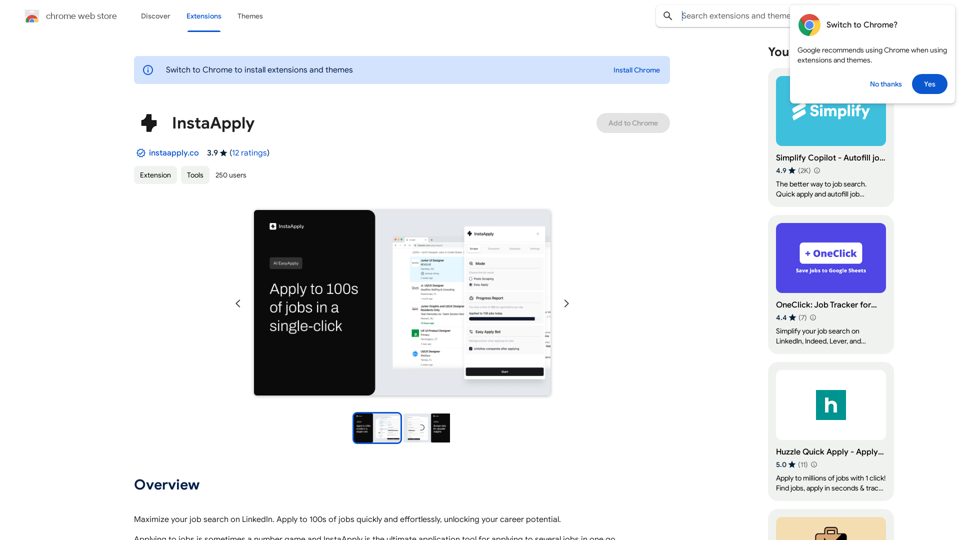
InstaApply

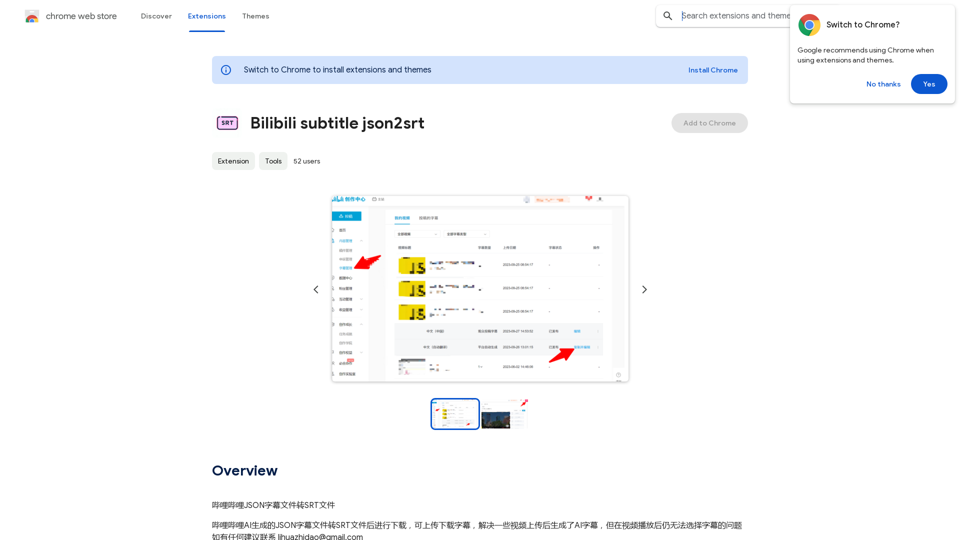
Maximize your job search on LinkedIn. Apply to hundreds of jobs quickly and easily, unlocking your career potential.
Visit Website
InstaApply
Visit Website

Introduction

InstaApply is an AI-powered job search extension designed to streamline the job application process on LinkedIn. It helps users apply to multiple jobs quickly and effortlessly, maximizing their career potential. The extension utilizes advanced AI technology to scrape job posts, filter opportunities, and even fill out applications on behalf of the user.

Feature

AI-Backed Job Scraping

InstaApply's AI-powered bot scrapes job posts from LinkedIn, filtering through hundreds of listings to find the most relevant opportunities. Users can specify their preferences for contract, full-time, or internship roles, and the AI will tailor its search accordingly.

Easy Apply with AI

The extension features a revamped "Easy Apply" function that uses AI to accurately complete job applications. By analyzing the user's work and education history, it fills out forms with relevant information, saving time and effort.

Post Scraping for Job Leads

InstaApply's bot, powered by ChatGPT, scans through the posts section on LinkedIn to uncover additional job leads. This feature provides users with a competitive advantage by identifying opportunities that may not be listed in traditional job postings.

Customizable Search Parameters

Users can instruct the AI-powered bot on specific job criteria, ensuring that the search results align with their career goals and preferences.

Multiple Application Submission

The extension allows users to run an intelligent bot that goes through job listings and submits applications on their behalf, streamlining the entire process.

Tiered Licensing Options

InstaApply offers two license tiers to cater to different user needs:

License TypeJob Applications/DayPosts Scraped/Day
Basic150150
Pro400400

FAQ

Is InstaApply free to use?

InstaApply offers a free trial for users to test its effectiveness. However, to use the extension, you need to sign up and provide your OpenAI key.

Can I use InstaApply on multiple devices?

Yes, as a browser extension, InstaApply can be used on multiple devices, providing flexibility for your job search.

How do I get started with InstaApply?

To begin using InstaApply, simply download and install the extension in your browser, then follow the prompts to set up your account and preferences.

Latest Traffic Insights

  • Monthly Visits

    193.90 M

  • Bounce Rate

    56.27%

  • Pages Per Visit

    2.71

  • Time on Site(s)

    115.91

  • Global Rank

    -

  • Country Rank

    -

Recent Visits

Traffic Sources

  • Social Media:
    0.48%
  • Paid Referrals:
    0.55%
  • Email:
    0.15%
  • Referrals:
    12.81%
  • Search Engines:
    16.21%
  • Direct:
    69.81%
More Data

Related Websites

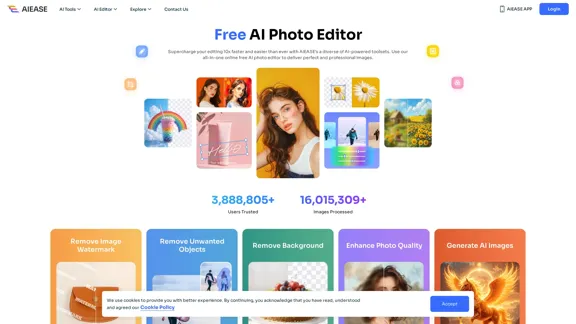
Remove Shadow | AI Image Transformation Tool
View Detail

Remove Shadow | AI Image Transformation Tool

Remove Shadow | AI Image Transformation Tool

Transform your images with AI-powered technology. Remove shadows, backgrounds, and unwanted objects to create professional-quality photos in seconds.

0
Dreamina: Free AI Image Generator - Create Art and Images from Text
View Detail

Dreamina: Free AI Image Generator - Create Art and Images from Text

Dreamina: Free AI Image Generator - Create Art and Images from Text

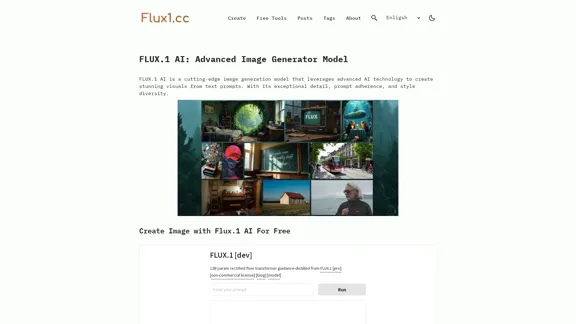
Create stunning art, images, and more with prompts. Turn your images into captivating animations. Dreamina is an AI platform designed to simplify your creation.

5.53 M
ilikeimg - AI-Powered Image Tools | Free Online Photo Editor
View Detail

ilikeimg - AI-Powered Image Tools | Free Online Photo Editor

ilikeimg - AI-Powered Image Tools | Free Online Photo Editor

Free online tools to convert, crop, compress, resize, and enhance your images. No registration required for basic features.

0
Midjourney API - Automate Midjourney AI Image Generation 

This document outlines how to use the Midjourney API to automate the generation of AI images. 

What is the Midjourney API?

The Midjourney API allows developers to programmatically interact with the powerful Midjourney AI model. This means you can generate images, control various parameters, and integrate Midjourney into your own applications and workflows.

Why Use the Midjourney API?

* Automation: Automate the creation of images for various purposes, such as marketing materials, website content, or research projects.
* Customization: Fine-tune image generation by controlling parameters like aspect ratio, style, and seed values.
* Integration: Seamlessly integrate Midjourney's capabilities into your existing tools and platforms.

Getting Started

1. Sign Up for a Midjourney Account: You'll need a Midjourney account to access the API.

2. Obtain an API Key: Once you have an account, you can generate an API key from your account settings.

3. Choose a Programming Language: The Midjourney API supports various programming languages, including Python, JavaScript, and Go.

4. Install the API Client: Install the appropriate API client library for your chosen language.

5. Start Generating Images: Use the API client to send image generation requests to the Midjourney server.

Example (Python):

```python
import midjourney

Replace with your actual API key
api_key = "YOUR_API_KEY"

Create a Midjourney client
client = midjourney.Client(api_key=api_key)

Generate an image
response = client.create_image(prompt="A cat wearing a hat", num_images=1)

Print the image URL
print(response.images[0].url)
```

Documentation and Resources

For detailed information about the Midjourney API, including available endpoints, parameters, and examples, please refer to the official documentation: [https://docs.midjourney.com/](https://docs.midjourney.com/)
View Detail

Midjourney API - Automate Midjourney AI Image Generation This document outlines how to use the Midjourney API to automate the generation of AI images. What is the Midjourney API? The Midjourney API allows developers to programmatically interact with the powerful Midjourney AI model. This means you can generate images, control various parameters, and integrate Midjourney into your own applications and workflows. Why Use the Midjourney API? * Automation: Automate the creation of images for various purposes, such as marketing materials, website content, or research projects. * Customization: Fine-tune image generation by controlling parameters like aspect ratio, style, and seed values. * Integration: Seamlessly integrate Midjourney's capabilities into your existing tools and platforms. Getting Started 1. Sign Up for a Midjourney Account: You'll need a Midjourney account to access the API. 2. Obtain an API Key: Once you have an account, you can generate an API key from your account settings. 3. Choose a Programming Language: The Midjourney API supports various programming languages, including Python, JavaScript, and Go. 4. Install the API Client: Install the appropriate API client library for your chosen language. 5. Start Generating Images: Use the API client to send image generation requests to the Midjourney server. Example (Python): ```python import midjourney Replace with your actual API key api_key = "YOUR_API_KEY" Create a Midjourney client client = midjourney.Client(api_key=api_key) Generate an image response = client.create_image(prompt="A cat wearing a hat", num_images=1) Print the image URL print(response.images[0].url) ``` Documentation and Resources For detailed information about the Midjourney API, including available endpoints, parameters, and examples, please refer to the official documentation: [https://docs.midjourney.com/](https://docs.midjourney.com/)

Midjourney API - Automate Midjourney AI Image Generation This document outlines how to use the Midjourney API to automate the generation of AI images. What is the Midjourney API? The Midjourney API allows developers to programmatically interact with the powerful Midjourney AI model. This means you can generate images, control various parameters, and integrate Midjourney into your own applications and workflows. Why Use the Midjourney API? * Automation: Automate the creation of images for various purposes, such as marketing materials, website content, or research projects. * Customization: Fine-tune image generation by controlling parameters like aspect ratio, style, and seed values. * Integration: Seamlessly integrate Midjourney's capabilities into your existing tools and platforms. Getting Started 1. Sign Up for a Midjourney Account: You'll need a Midjourney account to access the API. 2. Obtain an API Key: Once you have an account, you can generate an API key from your account settings. 3. Choose a Programming Language: The Midjourney API supports various programming languages, including Python, JavaScript, and Go. 4. Install the API Client: Install the appropriate API client library for your chosen language. 5. Start Generating Images: Use the API client to send image generation requests to the Midjourney server. Example (Python): ```python import midjourney Replace with your actual API key api_key = "YOUR_API_KEY" Create a Midjourney client client = midjourney.Client(api_key=api_key) Generate an image response = client.create_image(prompt="A cat wearing a hat", num_images=1) Print the image URL print(response.images[0].url) ``` Documentation and Resources For detailed information about the Midjourney API, including available endpoints, parameters, and examples, please refer to the official documentation: [https://docs.midjourney.com/](https://docs.midjourney.com/)

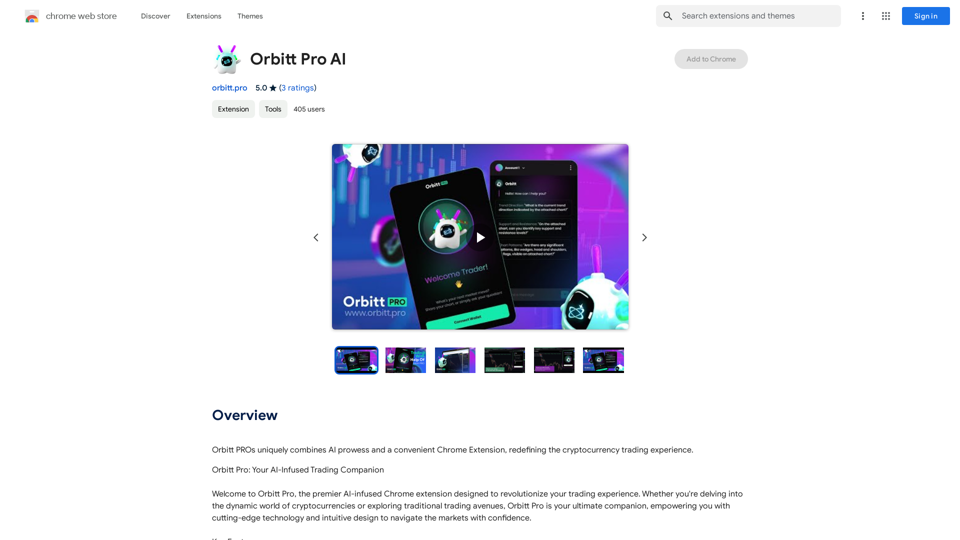
Easily integrate Midjourney AI into your apps using the Midjourney API. Start creating AI images automatically today!

0
FLUX Fill: Advanced AI Solution for Image Inpainting and Outpainting
View Detail

FLUX Fill: Advanced AI Solution for Image Inpainting and Outpainting

FLUX Fill: Advanced AI Solution for Image Inpainting and Outpainting

FLUX Fill provides professional-quality AI image inpainting and outpainting. Change your images with smooth edits and natural extensions.

664
ScreenRedact on the Mac App Store

#Description
ScreenRedact is a powerful and easy-to-use screenshot editing tool that allows you to quickly and easily remove sensitive information from your screenshots. With its intuitive interface and advanced features, ScreenRedact is the perfect solution for anyone who needs to share screenshots online or with others.

#Features
* Easy to use: ScreenRedact's intuitive interface makes it easy to get started, even if you're not tech-savvy.
* Advanced editing tools: ScreenRedact offers a range of advanced editing tools, including blur, pixelate, and redact, to help you remove sensitive information from your screenshots.
* Customizable: ScreenRedact allows you to customize the appearance of your redactions, including the color, opacity, and style.
* Support for multiple file formats: ScreenRedact supports a range of file formats, including JPEG, PNG, and TIFF.
* Share easily: ScreenRedact makes it easy to share your edited screenshots with others, either by saving them to your computer or sharing them directly to social media or email.

#What's New
* Improved performance: ScreenRedact is now faster and more efficient, making it easier to edit your screenshots.
* New editing tools: ScreenRedact now includes new editing tools, including a magic wand and a lasso tool, to make it even easier to remove sensitive information from your screenshots.
* Enhanced customization options: ScreenRedact now offers even more customization options, including the ability to change the color and opacity of your redactions.

#Ratings and Reviews
* 4.5/5 stars: ScreenRedact has an average rating of 4.5 out of 5 stars on the Mac App Store.
* "Easy to use and effective": One reviewer praised ScreenRedact's ease of use and effectiveness, saying "I was able to quickly and easily remove sensitive information from my screenshots."
* "A must-have for anyone who shares screenshots online": Another reviewer called ScreenRedact "a must-have for anyone who shares screenshots online," citing its ease of use and advanced features.
View Detail

ScreenRedact on the Mac App Store #Description ScreenRedact is a powerful and easy-to-use screenshot editing tool that allows you to quickly and easily remove sensitive information from your screenshots. With its intuitive interface and advanced features, ScreenRedact is the perfect solution for anyone who needs to share screenshots online or with others. #Features * Easy to use: ScreenRedact's intuitive interface makes it easy to get started, even if you're not tech-savvy. * Advanced editing tools: ScreenRedact offers a range of advanced editing tools, including blur, pixelate, and redact, to help you remove sensitive information from your screenshots. * Customizable: ScreenRedact allows you to customize the appearance of your redactions, including the color, opacity, and style. * Support for multiple file formats: ScreenRedact supports a range of file formats, including JPEG, PNG, and TIFF. * Share easily: ScreenRedact makes it easy to share your edited screenshots with others, either by saving them to your computer or sharing them directly to social media or email. #What's New * Improved performance: ScreenRedact is now faster and more efficient, making it easier to edit your screenshots. * New editing tools: ScreenRedact now includes new editing tools, including a magic wand and a lasso tool, to make it even easier to remove sensitive information from your screenshots. * Enhanced customization options: ScreenRedact now offers even more customization options, including the ability to change the color and opacity of your redactions. #Ratings and Reviews * 4.5/5 stars: ScreenRedact has an average rating of 4.5 out of 5 stars on the Mac App Store. * "Easy to use and effective": One reviewer praised ScreenRedact's ease of use and effectiveness, saying "I was able to quickly and easily remove sensitive information from my screenshots." * "A must-have for anyone who shares screenshots online": Another reviewer called ScreenRedact "a must-have for anyone who shares screenshots online," citing its ease of use and advanced features.

ScreenRedact on the Mac App Store #Description ScreenRedact is a powerful and easy-to-use screenshot editing tool that allows you to quickly and easily remove sensitive information from your screenshots. With its intuitive interface and advanced features, ScreenRedact is the perfect solution for anyone who needs to share screenshots online or with others. #Features * Easy to use: ScreenRedact's intuitive interface makes it easy to get started, even if you're not tech-savvy. * Advanced editing tools: ScreenRedact offers a range of advanced editing tools, including blur, pixelate, and redact, to help you remove sensitive information from your screenshots. * Customizable: ScreenRedact allows you to customize the appearance of your redactions, including the color, opacity, and style. * Support for multiple file formats: ScreenRedact supports a range of file formats, including JPEG, PNG, and TIFF. * Share easily: ScreenRedact makes it easy to share your edited screenshots with others, either by saving them to your computer or sharing them directly to social media or email. #What's New * Improved performance: ScreenRedact is now faster and more efficient, making it easier to edit your screenshots. * New editing tools: ScreenRedact now includes new editing tools, including a magic wand and a lasso tool, to make it even easier to remove sensitive information from your screenshots. * Enhanced customization options: ScreenRedact now offers even more customization options, including the ability to change the color and opacity of your redactions. #Ratings and Reviews * 4.5/5 stars: ScreenRedact has an average rating of 4.5 out of 5 stars on the Mac App Store. * "Easy to use and effective": One reviewer praised ScreenRedact's ease of use and effectiveness, saying "I was able to quickly and easily remove sensitive information from my screenshots." * "A must-have for anyone who shares screenshots online": Another reviewer called ScreenRedact "a must-have for anyone who shares screenshots online," citing its ease of use and advanced features.

ScreenRedact allows you to remove sensitive text from an image by utilizing Apple's on-device machine learning model, which identifies text within an image and enables you to redact it with ease.

124.77 M
LivePortrait AI: Create Amazing AI Portrait Animation in Minutes
View Detail

LivePortrait AI: Create Amazing AI Portrait Animation in Minutes

LivePortrait AI: Create Amazing AI Portrait Animation in Minutes

LivePortrait AI uses advanced technology to create stunning AI portrait animation. Upload your photo and watch it come to life with realistic movements and expressions.

0
LightFlash PDF - A Free Online PDF Editor, Supporting 20+ Functions Including AI Document Dialogue, Conversion, Annotation, and More PDF Toolkits
View Detail

LightFlash PDF - A Free Online PDF Editor, Supporting 20+ Functions Including AI Document Dialogue, Conversion, Annotation, and More PDF Toolkits

LightFlash PDF - A Free Online PDF Editor, Supporting 20+ Functions Including AI Document Dialogue, Conversion, Annotation, and More PDF Toolkits

轻闪PDF provides online free file conversion, splitting, merging, and editing services for PDF files, as well as PDF-related solutions.

193.90 M