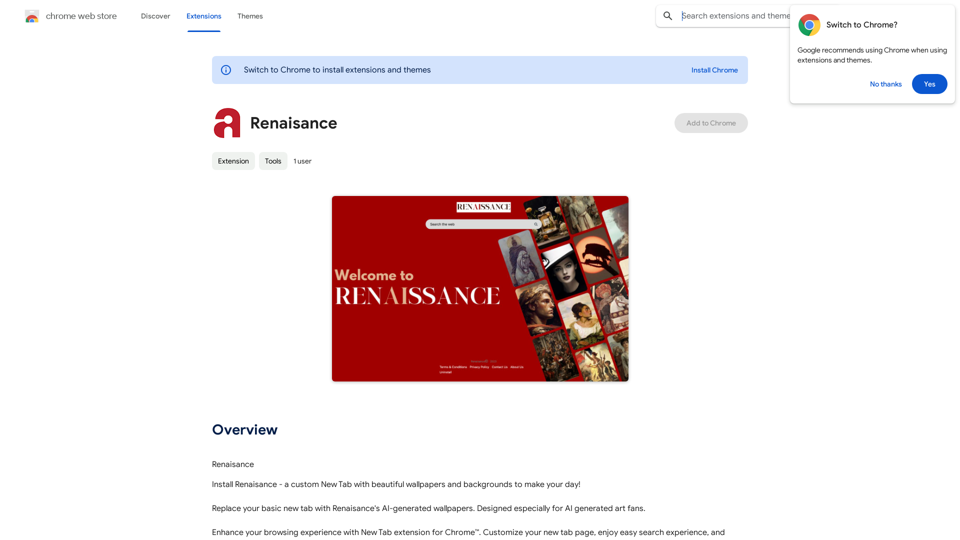
Renaisance is a custom Chrome extension that transforms your New Tab experience. It offers AI-generated wallpapers, a customizable search interface powered by Microsoft Bing, and additional features like time, date, and weather information. This free extension aims to enhance your browsing experience by combining aesthetics with functionality.
Renaissance
Renaissance
Introduction
Feature
AI-Generated Wallpapers
Renaisance provides a diverse collection of beautiful and unique wallpapers created using artificial intelligence technology, offering a fresh visual experience every time you open a new tab.
Customizable Search Experience
Users can tailor their search interface to their preferences, leveraging the power of Microsoft Bing to access a wide array of search results efficiently.
Easy Access to Microsoft Bing
The extension integrates seamlessly with Microsoft Bing, providing quick and convenient access to its search capabilities directly from your new tab.
Time, Date, and Weather Information
Renaisance displays current time, date, and weather information based on your geo-location. This feature can be easily toggled on or off through the 'Settings' menu.
Free to Use
The basic version of Renaisance is available at no cost, allowing users to enjoy its core features without any charges.
Premium Version Available
For users seeking additional features or an ad-free experience, a premium subscription option is available.
FAQ
How do I install Renaisance?
To install Renaisance:
- Click the "Add to Chrome" button
- Follow the installation prompts
- Once installed, customize your New Tab experience by selecting AI-generated wallpapers and configuring your search preferences
Can I disable the time, date, and weather information?
Yes, you can easily turn off the time, date, and weather information using the 'Settings' menu in Renaisance.
Is there a cost associated with using Renaisance?
Renaisance offers a free version with core features. A premium subscription is available for users who want additional features or to remove advertisements.
What should I do if I encounter issues with Renaisance?
If you experience any problems while using Renaisance, you can reach out to the developer for support. Contact information should be available in the extension details or on the official website.
Related Websites
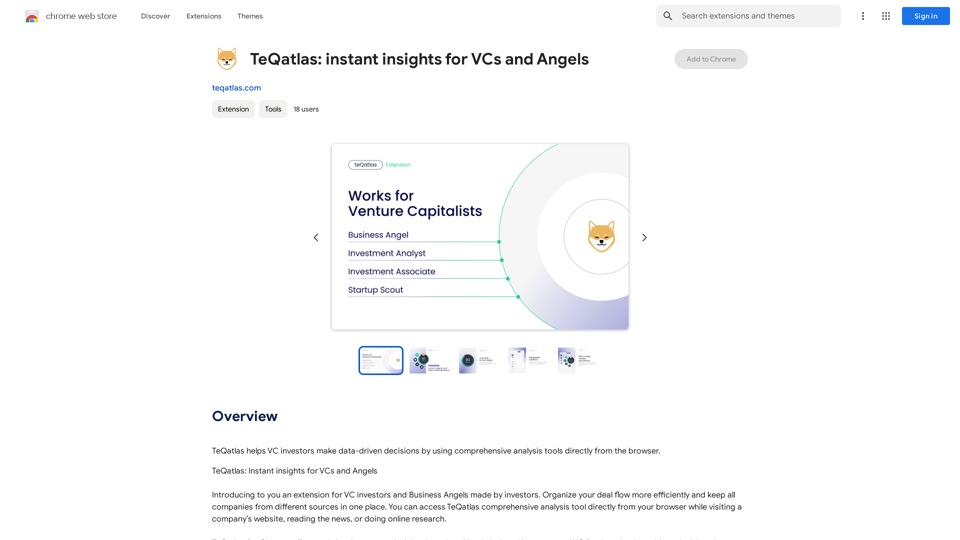
TeQatlas helps venture capital investors make decisions based on data by using complete analysis tools right in your web browser.
193.90 M

aireply: Your Personalized Email Writing Assistant
aireply: Your Personalized Email Writing AssistantAI Email Reply and Writing Assistant
193.90 M
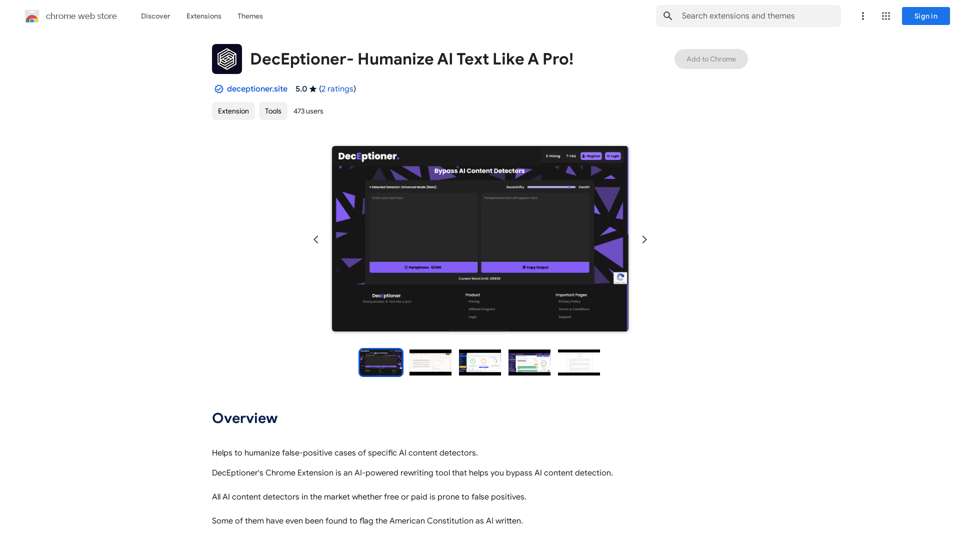
Helps to make false-positive cases of specific AI content detectors seem less like mistakes.
193.90 M
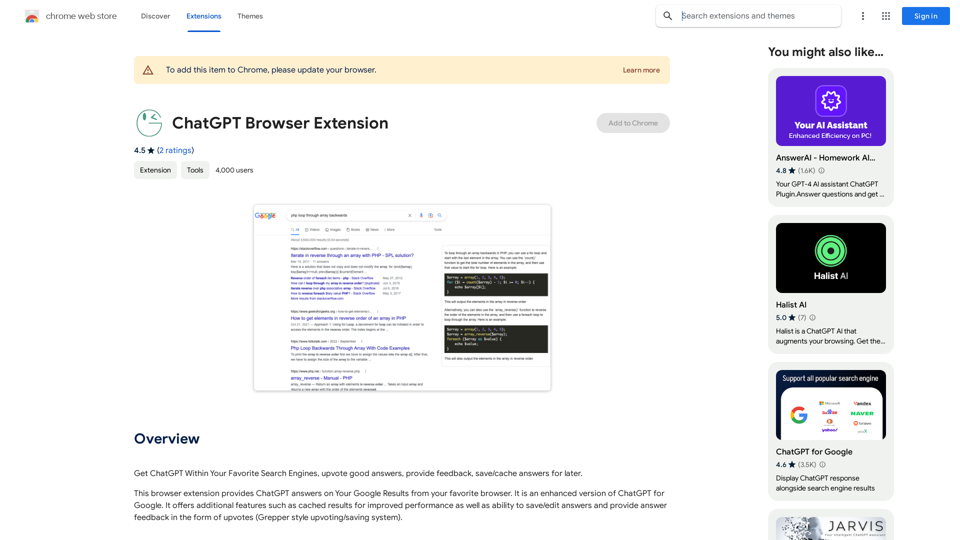
Use ChatGPT directly in your preferred search engines. Rate helpful answers, give feedback, and save or store answers for later use.
193.90 M
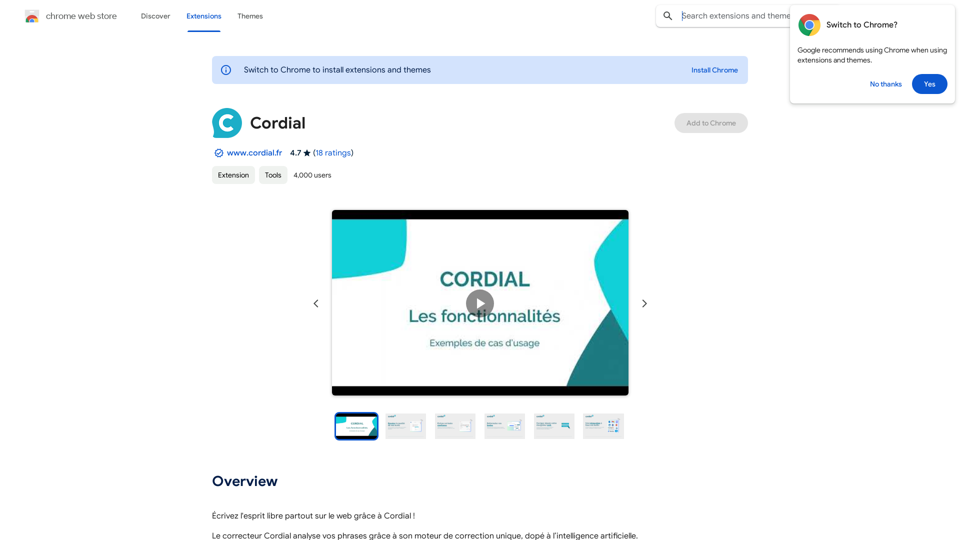
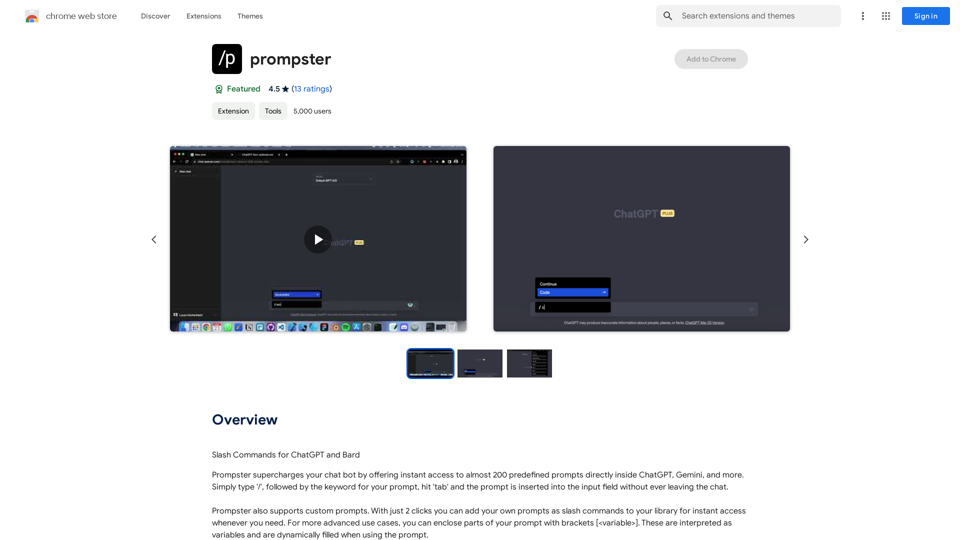
What is a Prompster? A Prompster is a person who assists a speaker, actor, or presenter by providing them with lines or cues, usually in a subtle and discreet manner, during a performance, presentation, or speech.
What is a Prompster? A Prompster is a person who assists a speaker, actor, or presenter by providing them with lines or cues, usually in a subtle and discreet manner, during a performance, presentation, or speech.Slash Commands for ChatGPT and Bard ===================================== Introduction Slash commands are a convenient way to interact with ChatGPT and Bard, allowing you to perform various tasks and actions within the chat interface. This guide provides an overview of the available slash commands for both ChatGPT and Bard. ChatGPT Slash Commands #General Commands * `/help`: Displays a list of available slash commands and their descriptions. * `/reset`: Resets the conversation, clearing all previous messages and context. #Conversation Management * `/start`: Starts a new conversation, allowing you to begin a fresh topic or task. * `/stop`: Ends the current conversation, stopping any ongoing tasks or topics. #Language and Tone * `/lang <language_code>`: Sets the language for the conversation (e.g., `/lang en` for English). * `/tone <tone>`: Adjusts the tone of the responses (e.g., `/tone formal` for formal tone). #Task Management * `/task <task_name>`: Creates a new task or topic for the conversation (e.g., `/task math problem`). * `/done`: Marks the current task as completed. #Information and Resources * `/define <word>`: Provides the definition of a word or phrase. * `/wiki <topic>`: Displays information about a topic from Wikipedia. Bard Slash Commands #General Commands * `/help`: Displays a list of available slash commands and their descriptions. * `/reset`: Resets the conversation, clearing all previous messages and context. #Conversation Management * `/start`: Starts a new conversation, allowing you to begin a fresh topic or task. * `/stop`: Ends the current conversation, stopping any ongoing tasks or topics. #Language and Tone * `/lang <language_code>`: Sets the language for the conversation (e.g., `/lang en` for English). * `/tone <tone>`: Adjusts the tone of the responses (e.g., `/tone formal` for formal tone). #Task Management * `/task <task_name>`: Creates a new task or topic for the conversation (e.g., `/task math problem`). * `/done`: Marks the current task as completed. #Information and Resources * `/define <word>`: Provides the definition of a word or phrase. * `/wiki <topic>`: Displays information about a topic from Wikipedia. * `/news <topic>`: Displays news articles related to a specific topic. Conclusion Slash commands provide a convenient way to interact with ChatGPT and Bard, allowing you to manage conversations, adjust language and tone, and access various resources. By mastering these commands, you can optimize your experience and get the most out of your interactions with these AI models.
193.90 M
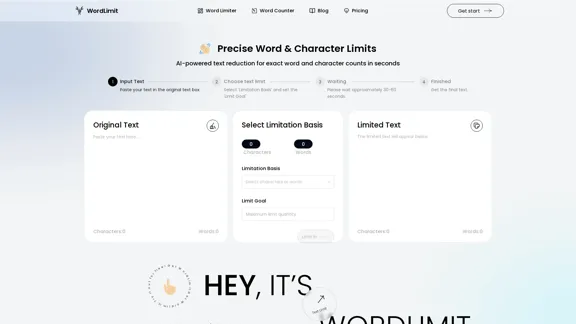
AI Text Shortener | Precise Text Adjuster | WordLimiter
AI Text Shortener | Precise Text Adjuster | WordLimiterWordLimit helps you to shorten your text precisely without losing key information and your unique writing style. Feel free to use it because it will never make your Human-Written content become AI-Written!
834