Open-source RightAI Tools Directory
  • Discover AI
  • Submit
  • Startup
  • Blog
Open-source RightAI Tools Directory
Discover the best AI tools of 2025 with the RightAI Tools Directory!

Friend Links

AI Anime GeneratorToolsApp AI

Support

Tap4
Privacy policyTerms & ConditionsContact Us
Loading...
loading...

Home | Dispute Panda | AI-Powered Credit Repair

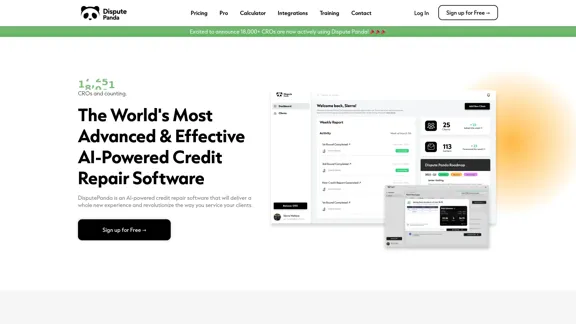
DisputePanda is an AI-powered Credit Repair Software that delivers a completely new experience and revolutionizes the way you serve clients.
Visit Website
Home | Dispute Panda | AI-Powered Credit Repair
Visit Website

Introduction

Dispute Panda is an AI-powered credit repair software designed to revolutionize the way credit repair organizations (CROs) service their clients. With over 18,000 active users, it offers an efficient and effective solution for credit repair professionals.

Feature

  1. AI-Powered Letter Generation

    • Utilizes machine learning and artificial intelligence
    • Creates impeccable factual and Metro2 letters
    • Generates unique letters for each client, avoiding template usage
  2. Efficiency Optimization

    • Processes clients up to 70% faster
    • Allows processing entire client reports and mailing letters from one platform
  3. User-Friendly Interface

    • Streamlines credit repair operations
    • Enables quick processing with just a few clicks
  4. Flexible Pricing Plans

    • Free sign-up option available
    • Monthly and yearly subscription plans
    • 14-day trial for $1
  5. Integration and Training

    • Offers integrations with other tools
    • Provides training resources for users
  6. Community and Support

    • Active community for users
    • Documentation available for reference

How to Use?

  1. Take advantage of the 14-day trial for $1 to explore all features before committing to a plan.

  2. Utilize the AI-powered letter generation to create unique, effective dispute letters for each client.

  3. Explore the integration options to streamline your workflow with other tools you may be using.

  4. Make use of the training resources provided to maximize the software's potential.

  5. Join the Dispute Panda community to connect with other users and share experiences.

FAQ

What makes Dispute Panda different from other credit repair software?

Dispute Panda uses AI and machine learning to generate unique, effective dispute letters for each client, avoiding template letters. This approach, combined with its efficiency-optimized platform, sets it apart from traditional credit repair software.

Is Dispute Panda suitable for new credit repair businesses?

Yes, Dispute Panda offers plans suitable for those just starting their credit repair business journey, as well as more comprehensive options for established operations looking to streamline their processes.

Can I try Dispute Panda before committing to a subscription?

Yes, Dispute Panda offers a 14-day trial for just $1, allowing you to explore its features before deciding on a subscription plan.

Does Dispute Panda offer any training or support?

Yes, Dispute Panda provides training resources, documentation, and an active community for users to learn and share experiences.

Price

  • Free sign-up option available
  • Monthly Plan: $197/month (after 14-day trial for $1)
  • Yearly Plan: $1,970/year (billed annually, 45% off + 2 months free)
The price is for reference only, please refer to the latest official data for actual information.

Evaluation

  1. Dispute Panda's AI-powered approach to credit repair is innovative and potentially game-changing for the industry. The ability to generate unique, tailored letters for each client could significantly improve dispute success rates.

  2. The efficiency gains promised (up to 70% faster processing) could be a major selling point for credit repair organizations looking to scale their operations.

  3. The pricing structure, while not the cheapest option on the market, seems reasonable given the advanced features offered. The free sign-up option and trial period are positive aspects that allow users to test the platform before committing.

  4. The focus on community and training resources suggests a commitment to user success, which is commendable.

  5. However, as with any AI-powered tool, there may be concerns about the quality and compliance of automatically generated letters. Users should carefully review outputs to ensure they meet all legal and ethical standards.

  6. While the platform seems comprehensive, it would be beneficial to see more details about specific features and how they compare to traditional credit repair methods.

Latest Traffic Insights

  • Monthly Visits

    8.49 K

  • Bounce Rate

    53.99%

  • Pages Per Visit

    2.11

  • Time on Site(s)

    98.73

  • Global Rank

    2301010

  • Country Rank

    United States 572467

Recent Visits

Traffic Sources

  • Social Media:
    3.51%
  • Paid Referrals:
    1.34%
  • Email:
    0.11%
  • Referrals:
    5.15%
  • Search Engines:
    28.50%
  • Direct:
    61.39%
More Data

Related Websites

qsourcer.com - Talent Acquisition with AI, Boolean and X-ray Search.
View Detail

qsourcer.com - Talent Acquisition with AI, Boolean and X-ray Search.

qsourcer.com - Talent Acquisition with AI, Boolean and X-ray Search.

Discover top-tier professionals on LinkedIn, GitHub, and StackOverflow using qSourcer's AI-powered Boolean search recruitment software.

1.38 K
BrightEdge - Enterprise SEO Platform | Content Marketing Solution
View Detail

BrightEdge - Enterprise SEO Platform | Content Marketing Solution

BrightEdge - Enterprise SEO Platform | Content Marketing Solution

BrightEdge is the premier SEO solution and content performance marketing platform, assisting over 1,700 clients in increasing their organic traffic. Headquartered in San Mateo, CA, BrightEdge has offices in New York, Seattle, Chicago, Cleveland, Tokyo, Sydney, and London. Get in touch with us for an SEO demonstration today.

167.78 K
MyLens
View Detail

MyLens

MyLens

Discover the intersections of history with our AI-powered timelines. Dive deep into the narratives of the past and see where two unique histories meet. Create, explore, and connect stories seamlessly.

193.06 K
Translation tool for professionals | SYSTRAN
View Detail

Translation tool for professionals | SYSTRAN

Translation tool for professionals | SYSTRAN

Translate texts, documents and much more in over 55 languages with SYSTRAN's fully secure professional translation solutions. API & CAT Tool integration

314.63 K
Packpack - Save everything with AI in one click.
View Detail

Packpack - Save everything with AI in one click.

Packpack - Save everything with AI in one click.

Save any webpage with one click and explore it with AI. Quickly get the main points with AI summaries and find new understandings with AI-powered question and answer.

47.24 K
AI Note Taking & Transcribe & Summarizer | AI Notebook App
View Detail

AI Note Taking & Transcribe & Summarizer | AI Notebook App

AI Note Taking & Transcribe & Summarizer | AI Notebook App

Generate transcripts and AI summarize for College Students in lectures. Specializing in YouTube Video Summarizer, PDF Summarizer, Article Summarizer. Save key insights and review with study guides, quizzes, and flashcards. Build your AI-powered notes library.

0
SharpAPI - Automate with AI-powered API, AI automation for: E-Commerce, Marketing, Content Management, HR Tech, Travel -
View Detail

SharpAPI - Automate with AI-powered API, AI automation for: E-Commerce, Marketing, Content Management, HR Tech, Travel -

SharpAPI - Automate with AI-powered API, AI automation for: E-Commerce, Marketing, Content Management, HR Tech, Travel -

Leverage AI API to streamline workflow in E-Commerce, Marketing, Content Management, HR Tech, Travel, and more.

2.92 K
Copilot for Microsoft 365 – Microsoft Adoption

Copilot for Microsoft 365 is a powerful AI assistant that helps you work smarter and faster across Microsoft 365 apps and services. It combines the power of large language models (LLMs) with your organization's data in the Microsoft Graph and Microsoft 365 apps to turn your words into the most powerful productivity tool on the planet.

Copilot is designed to help you:

• Unleash creativity
• Unlock productivity
• Uplevel skills

Copilot is built on Microsoft's comprehensive approach to security, compliance, and privacy. Copilot in Microsoft 365 apps and services:

• Does not use your data to train the underlying LLM
• Does not replace human ingenuity and judgment
• Is designed to keep humans in the loop

Copilot is currently available in Word, Excel, PowerPoint, Outlook, Teams, and more.

Getting Started with Copilot

To get started with Copilot, follow these steps:

1. Check availability: Ensure your organization has access to Copilot.
2. Learn the basics: Familiarize yourself with Copilot's capabilities and how to use it effectively.
3. Explore use cases: Discover how Copilot can help you in your specific role and tasks.
4. Practice and refine: Use Copilot regularly and refine your prompts for better results.
5. Share and collaborate: Collaborate with colleagues using Copilot and share best practices.

Best Practices for Using Copilot

1. Be specific in your prompts
2. Provide context for better results
3. Review and edit Copilot's output
4. Use Copilot as a starting point, not a final product
5. Experiment with different approaches
6. Stay informed about new features and updates

Copilot in Different Microsoft 365 Apps

• Word: Draft, edit, summarize, and rewrite content
• Excel: Analyze data, create formulas, and generate insights
• PowerPoint: Create presentations, design slides, and generate content
• Outlook: Compose emails, summarize threads, and manage your inbox
• Teams: Summarize meetings, generate action items, and create meeting notes

Responsible AI and Copilot

Microsoft is committed to developing AI systems responsibly. When using Copilot, keep in mind:

• AI-generated content may contain biases or inaccuracies
• Always review and verify Copilot's output
• Use your judgment and expertise alongside Copilot's suggestions
• Be aware of your organization's policies regarding AI use

Conclusion

Copilot for Microsoft 365 is a powerful tool that can significantly enhance your productivity and creativity. By understanding its capabilities, following best practices, and using it responsibly, you can make the most of this AI assistant in your daily work.
View Detail

Copilot for Microsoft 365 – Microsoft Adoption Copilot for Microsoft 365 is a powerful AI assistant that helps you work smarter and faster across Microsoft 365 apps and services. It combines the power of large language models (LLMs) with your organization's data in the Microsoft Graph and Microsoft 365 apps to turn your words into the most powerful productivity tool on the planet. Copilot is designed to help you: • Unleash creativity • Unlock productivity • Uplevel skills Copilot is built on Microsoft's comprehensive approach to security, compliance, and privacy. Copilot in Microsoft 365 apps and services: • Does not use your data to train the underlying LLM • Does not replace human ingenuity and judgment • Is designed to keep humans in the loop Copilot is currently available in Word, Excel, PowerPoint, Outlook, Teams, and more. Getting Started with Copilot To get started with Copilot, follow these steps: 1. Check availability: Ensure your organization has access to Copilot. 2. Learn the basics: Familiarize yourself with Copilot's capabilities and how to use it effectively. 3. Explore use cases: Discover how Copilot can help you in your specific role and tasks. 4. Practice and refine: Use Copilot regularly and refine your prompts for better results. 5. Share and collaborate: Collaborate with colleagues using Copilot and share best practices. Best Practices for Using Copilot 1. Be specific in your prompts 2. Provide context for better results 3. Review and edit Copilot's output 4. Use Copilot as a starting point, not a final product 5. Experiment with different approaches 6. Stay informed about new features and updates Copilot in Different Microsoft 365 Apps • Word: Draft, edit, summarize, and rewrite content • Excel: Analyze data, create formulas, and generate insights • PowerPoint: Create presentations, design slides, and generate content • Outlook: Compose emails, summarize threads, and manage your inbox • Teams: Summarize meetings, generate action items, and create meeting notes Responsible AI and Copilot Microsoft is committed to developing AI systems responsibly. When using Copilot, keep in mind: • AI-generated content may contain biases or inaccuracies • Always review and verify Copilot's output • Use your judgment and expertise alongside Copilot's suggestions • Be aware of your organization's policies regarding AI use Conclusion Copilot for Microsoft 365 is a powerful tool that can significantly enhance your productivity and creativity. By understanding its capabilities, following best practices, and using it responsibly, you can make the most of this AI assistant in your daily work.

Copilot for Microsoft 365 – Microsoft Adoption Copilot for Microsoft 365 is a powerful AI assistant that helps you work smarter and faster across Microsoft 365 apps and services. It combines the power of large language models (LLMs) with your organization's data in the Microsoft Graph and Microsoft 365 apps to turn your words into the most powerful productivity tool on the planet. Copilot is designed to help you: • Unleash creativity • Unlock productivity • Uplevel skills Copilot is built on Microsoft's comprehensive approach to security, compliance, and privacy. Copilot in Microsoft 365 apps and services: • Does not use your data to train the underlying LLM • Does not replace human ingenuity and judgment • Is designed to keep humans in the loop Copilot is currently available in Word, Excel, PowerPoint, Outlook, Teams, and more. Getting Started with Copilot To get started with Copilot, follow these steps: 1. Check availability: Ensure your organization has access to Copilot. 2. Learn the basics: Familiarize yourself with Copilot's capabilities and how to use it effectively. 3. Explore use cases: Discover how Copilot can help you in your specific role and tasks. 4. Practice and refine: Use Copilot regularly and refine your prompts for better results. 5. Share and collaborate: Collaborate with colleagues using Copilot and share best practices. Best Practices for Using Copilot 1. Be specific in your prompts 2. Provide context for better results 3. Review and edit Copilot's output 4. Use Copilot as a starting point, not a final product 5. Experiment with different approaches 6. Stay informed about new features and updates Copilot in Different Microsoft 365 Apps • Word: Draft, edit, summarize, and rewrite content • Excel: Analyze data, create formulas, and generate insights • PowerPoint: Create presentations, design slides, and generate content • Outlook: Compose emails, summarize threads, and manage your inbox • Teams: Summarize meetings, generate action items, and create meeting notes Responsible AI and Copilot Microsoft is committed to developing AI systems responsibly. When using Copilot, keep in mind: • AI-generated content may contain biases or inaccuracies • Always review and verify Copilot's output • Use your judgment and expertise alongside Copilot's suggestions • Be aware of your organization's policies regarding AI use Conclusion Copilot for Microsoft 365 is a powerful tool that can significantly enhance your productivity and creativity. By understanding its capabilities, following best practices, and using it responsibly, you can make the most of this AI assistant in your daily work.

Microsoft Copilot combines the power of large language models (LLMs) with your organization's data to turn your words into one of the most powerful productivity tools on the planet.

608.60 K