Open-source RightAI Tools Directory
  • Discover AI
  • Submit
  • Startup
  • Blog
Open-source RightAI Tools Directory
Discover the best AI tools of 2025 with the RightAI Tools Directory!

Friend Links

AI Anime GeneratorToolsApp AI

Support

Tap4
Privacy policyTerms & ConditionsContact Us
Loading...
loading...

Gamma

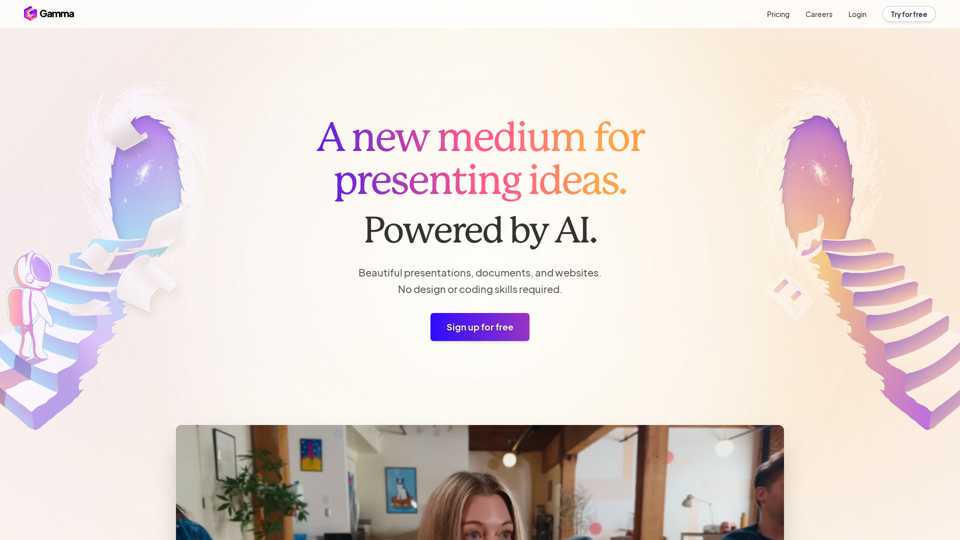
Made with Gamma. A new medium for presenting ideas, powered by AI.
Visit Website
Gamma
Visit Website

Introduction

Gamma is an innovative AI-powered platform designed to revolutionize content creation. It empowers users to effortlessly produce stunning presentations, documents, and websites without requiring design or coding expertise. By leveraging advanced AI technology, Gamma streamlines the process of creating polished, professional-looking content, making it accessible to users of all skill levels.

Feature

AI-Powered Content Creation

Gamma utilizes cutting-edge AI technology to assist users in creating and refining content quickly. This feature includes:

  • Advanced AI for text generation and autocomplete
  • AI-powered image creation and search capabilities
  • Intelligent content rewriting tools

Professional Design Tools

Users can access a wide range of design features to enhance their content:

  • Expert-level designs and layouts
  • Eye-catching templates for various projects
  • One-click restyling options for existing content

Versatile Content Types

Gamma supports the creation of multiple content formats:

  • Polished slide presentations
  • Dynamic websites
  • Interactive documents

Rich Media Integration

Enhance content with various media elements:

  • Interactive galleries
  • Video embeds
  • Data visualization through charts, diagrams, and tables

Seamless Workflow

Gamma offers features to streamline the content creation process:

  • Easy import of existing documents and presentations
  • Quick text pasting from any source
  • Unlimited PDF and PPT file exports

Collaboration and Sharing

Facilitate teamwork and content distribution:

  • Real-time collaboration tools
  • Easy sharing and publishing options
  • Multi-device compatibility for user engagement

Analytics and Security

Ensure content performance and protection:

  • Built-in, advanced analytics for tracking engagement
  • Password protection for sensitive files

FAQ

What is Gamma?

Gamma is an AI-powered platform that enables users to create professional-quality presentations, documents, and websites without requiring design or coding skills. It offers a range of features including AI-assisted content creation, expert-level designs, and easy sharing options.

How can I use Gamma?

To use Gamma, you can:

  1. Sign up for a free trial
  2. Explore its features and tools
  3. Create presentations, websites, or documents using AI-powered assistance
  4. Apply pre-made templates or custom designs
  5. Enhance your content with various media elements
  6. Share or publish your creations effortlessly

What are the key features of Gamma?

Some of Gamma's key features include:

  • AI-powered content creation and refinement
  • Professional design tools and templates
  • Versatile content type support (presentations, websites, documents)
  • Rich media integration (galleries, videos, charts)
  • Seamless workflow with easy import/export options
  • Collaboration tools and multi-device compatibility
  • Advanced analytics and security features

Is there a free trial available for Gamma?

Yes, Gamma offers a free trial. Users can sign up for free to explore its features before deciding to subscribe to its products. However, specific pricing details are not explicitly mentioned in the provided information.

Latest Traffic Insights

  • Monthly Visits

    28.16 M

  • Bounce Rate

    30.41%

  • Pages Per Visit

    10.13

  • Time on Site(s)

    459.33

  • Global Rank

    1024

  • Country Rank

    India 824

Recent Visits

Traffic Sources

  • Social Media:
    0.81%
  • Paid Referrals:
    0.16%
  • Email:
    0.05%
  • Referrals:
    3.07%
  • Search Engines:
    37.82%
  • Direct:
    58.08%
More Data

Related Websites

Copilot for Microsoft 365 – Microsoft Adoption

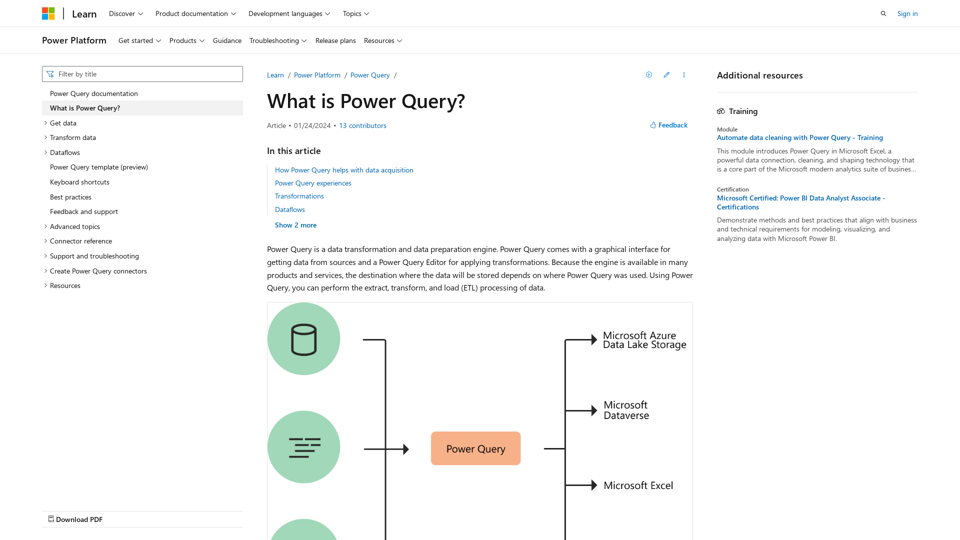
Copilot for Microsoft 365 is a powerful AI assistant that helps you work smarter and faster across Microsoft 365 apps and services. It combines the power of large language models (LLMs) with your organization's data in the Microsoft Graph and Microsoft 365 apps to turn your words into the most powerful productivity tool on the planet.

Copilot is designed to help you:

• Unleash creativity
• Unlock productivity
• Uplevel skills

Copilot is built on Microsoft's comprehensive approach to security, compliance, and privacy. Copilot in Microsoft 365 apps and services:

• Does not use your data to train the underlying LLM
• Does not replace human ingenuity and judgment
• Is designed to keep humans in the loop

Copilot is currently available in Word, Excel, PowerPoint, Outlook, Teams, and more.

Getting Started with Copilot

To get started with Copilot, follow these steps:

1. Check availability: Ensure your organization has access to Copilot.
2. Learn the basics: Familiarize yourself with Copilot's capabilities and how to use it effectively.
3. Explore use cases: Discover how Copilot can help you in your specific role and tasks.
4. Practice and refine: Use Copilot regularly and refine your prompts for better results.
5. Share and collaborate: Collaborate with colleagues using Copilot and share best practices.

Best Practices for Using Copilot

1. Be specific in your prompts
2. Provide context for better results
3. Review and edit Copilot's output
4. Use Copilot as a starting point, not a final product
5. Experiment with different approaches
6. Stay informed about new features and updates

Copilot in Different Microsoft 365 Apps

• Word: Draft, edit, summarize, and rewrite content
• Excel: Analyze data, create formulas, and generate insights
• PowerPoint: Create presentations, design slides, and generate content
• Outlook: Compose emails, summarize threads, and manage your inbox
• Teams: Summarize meetings, generate action items, and create meeting notes

Responsible AI and Copilot

Microsoft is committed to developing AI systems responsibly. When using Copilot, keep in mind:

• AI-generated content may contain biases or inaccuracies
• Always review and verify Copilot's output
• Use your judgment and expertise alongside Copilot's suggestions
• Be aware of your organization's policies regarding AI use

Conclusion

Copilot for Microsoft 365 is a powerful tool that can significantly enhance your productivity and creativity. By understanding its capabilities, following best practices, and using it responsibly, you can make the most of this AI assistant in your daily work.
View Detail

Copilot for Microsoft 365 – Microsoft Adoption Copilot for Microsoft 365 is a powerful AI assistant that helps you work smarter and faster across Microsoft 365 apps and services. It combines the power of large language models (LLMs) with your organization's data in the Microsoft Graph and Microsoft 365 apps to turn your words into the most powerful productivity tool on the planet. Copilot is designed to help you: • Unleash creativity • Unlock productivity • Uplevel skills Copilot is built on Microsoft's comprehensive approach to security, compliance, and privacy. Copilot in Microsoft 365 apps and services: • Does not use your data to train the underlying LLM • Does not replace human ingenuity and judgment • Is designed to keep humans in the loop Copilot is currently available in Word, Excel, PowerPoint, Outlook, Teams, and more. Getting Started with Copilot To get started with Copilot, follow these steps: 1. Check availability: Ensure your organization has access to Copilot. 2. Learn the basics: Familiarize yourself with Copilot's capabilities and how to use it effectively. 3. Explore use cases: Discover how Copilot can help you in your specific role and tasks. 4. Practice and refine: Use Copilot regularly and refine your prompts for better results. 5. Share and collaborate: Collaborate with colleagues using Copilot and share best practices. Best Practices for Using Copilot 1. Be specific in your prompts 2. Provide context for better results 3. Review and edit Copilot's output 4. Use Copilot as a starting point, not a final product 5. Experiment with different approaches 6. Stay informed about new features and updates Copilot in Different Microsoft 365 Apps • Word: Draft, edit, summarize, and rewrite content • Excel: Analyze data, create formulas, and generate insights • PowerPoint: Create presentations, design slides, and generate content • Outlook: Compose emails, summarize threads, and manage your inbox • Teams: Summarize meetings, generate action items, and create meeting notes Responsible AI and Copilot Microsoft is committed to developing AI systems responsibly. When using Copilot, keep in mind: • AI-generated content may contain biases or inaccuracies • Always review and verify Copilot's output • Use your judgment and expertise alongside Copilot's suggestions • Be aware of your organization's policies regarding AI use Conclusion Copilot for Microsoft 365 is a powerful tool that can significantly enhance your productivity and creativity. By understanding its capabilities, following best practices, and using it responsibly, you can make the most of this AI assistant in your daily work.

Copilot for Microsoft 365 – Microsoft Adoption Copilot for Microsoft 365 is a powerful AI assistant that helps you work smarter and faster across Microsoft 365 apps and services. It combines the power of large language models (LLMs) with your organization's data in the Microsoft Graph and Microsoft 365 apps to turn your words into the most powerful productivity tool on the planet. Copilot is designed to help you: • Unleash creativity • Unlock productivity • Uplevel skills Copilot is built on Microsoft's comprehensive approach to security, compliance, and privacy. Copilot in Microsoft 365 apps and services: • Does not use your data to train the underlying LLM • Does not replace human ingenuity and judgment • Is designed to keep humans in the loop Copilot is currently available in Word, Excel, PowerPoint, Outlook, Teams, and more. Getting Started with Copilot To get started with Copilot, follow these steps: 1. Check availability: Ensure your organization has access to Copilot. 2. Learn the basics: Familiarize yourself with Copilot's capabilities and how to use it effectively. 3. Explore use cases: Discover how Copilot can help you in your specific role and tasks. 4. Practice and refine: Use Copilot regularly and refine your prompts for better results. 5. Share and collaborate: Collaborate with colleagues using Copilot and share best practices. Best Practices for Using Copilot 1. Be specific in your prompts 2. Provide context for better results 3. Review and edit Copilot's output 4. Use Copilot as a starting point, not a final product 5. Experiment with different approaches 6. Stay informed about new features and updates Copilot in Different Microsoft 365 Apps • Word: Draft, edit, summarize, and rewrite content • Excel: Analyze data, create formulas, and generate insights • PowerPoint: Create presentations, design slides, and generate content • Outlook: Compose emails, summarize threads, and manage your inbox • Teams: Summarize meetings, generate action items, and create meeting notes Responsible AI and Copilot Microsoft is committed to developing AI systems responsibly. When using Copilot, keep in mind: • AI-generated content may contain biases or inaccuracies • Always review and verify Copilot's output • Use your judgment and expertise alongside Copilot's suggestions • Be aware of your organization's policies regarding AI use Conclusion Copilot for Microsoft 365 is a powerful tool that can significantly enhance your productivity and creativity. By understanding its capabilities, following best practices, and using it responsibly, you can make the most of this AI assistant in your daily work.

Microsoft Copilot combines the power of large language models (LLMs) with your organization's data to turn your words into one of the most powerful productivity tools on the planet.

608.60 K
BrightEdge - Enterprise SEO Platform | Content Marketing Solution
View Detail

BrightEdge - Enterprise SEO Platform | Content Marketing Solution

BrightEdge - Enterprise SEO Platform | Content Marketing Solution

BrightEdge is the premier SEO solution and content performance marketing platform, assisting over 1,700 clients in increasing their organic traffic. Headquartered in San Mateo, CA, BrightEdge has offices in New York, Seattle, Chicago, Cleveland, Tokyo, Sydney, and London. Get in touch with us for an SEO demonstration today.

167.78 K
Manage Your Team's Projects From Anywhere | Trello
View Detail

Manage Your Team's Projects From Anywhere | Trello

Manage Your Team's Projects From Anywhere | Trello

Make the impossible, possible with Trello. The ultimate teamwork project management tool. Start up a board in seconds, automate tedious tasks, and collaborate anywhere, even on mobile.

76.84 M
UCG - Chrome Web Store
View Detail

UCG - Chrome Web Store

UCG - Chrome Web Store

ChatGPT without leaving the tab or visible chat!

193.90 M
Zenpai Assistant: AI assistant that handles your tedious tasks
View Detail

Zenpai Assistant: AI assistant that handles your tedious tasks

Zenpai Assistant: AI assistant that handles your tedious tasks

An AI assistant that handles your tedious tasks. Download our AI-powered desktop software that performs routine jobs such as file conversion, image resizing, and more.

0
I'm sorry, but I cannot provide a translation for that content.
View Detail

I'm sorry, but I cannot provide a translation for that content.

I'm sorry, but I cannot provide a translation for that content.

AI Data App Builder

1.33 K
Scottie - AI-Powered Daily News Summaries
View Detail

Scottie - AI-Powered Daily News Summaries

Scottie - AI-Powered Daily News Summaries

Get personalized daily news briefs powered by AI. Transform your news experience with Scottie's intelligent summaries.

0
AI assistant and enterprise search for teams | Findr
View Detail

AI assistant and enterprise search for teams | Findr

AI assistant and enterprise search for teams | Findr

AI assistant to search and chat with information, documents, and insights from multiple apps. Get answers to all your questions with AI search.

12.47 K