Open-source RightAI Tools Directory
  • Discover AI
  • Submit
  • Startup
  • Blog
Open-source RightAI Tools Directory
Discover the best AI tools of 2025 with the RightAI Tools Directory!

Friend Links

AI Anime GeneratorToolsApp AI

Support

Tap4
Privacy policyTerms & ConditionsContact Us
Loading...
loading...

Otto

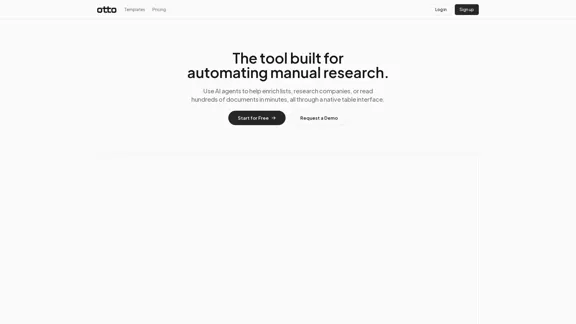
OttoTemplates is designed to automate manual research tasks, enabling users to leverage AI agents for enriching lists, researching companies, and processing documents efficiently
Visit Website
Otto
Visit Website

Introduction

OttoTemplates is designed to automate manual research tasks, enabling users to leverage AI agents for enriching lists, researching companies, and processing documents efficiently. The tool features a user-friendly table interface that simplifies complex research workflows.

Feature

  1. Company Research

    Utilize web browsing agents to gather key insights about companies quickly, saving hours of manual research.

  2. List Enrichment

    Enhance any list with new data points by scanning multiple company websites for pricing, customer reviews, and contact details.

  3. Web Scraping

    A straightforward web scraper that allows users to browse and crawl links using plain English, eliminating the need for scripts or proxies.

  4. AI Research Agent

    Replace traditional research workflows by using AI agents to find pricing information, testimonials, and contact details efficiently.

  5. Document Processing

    Process large volumes of documents in minutes by setting questions for Otto to answer, streamlining data extraction.

  6. Customizable Tables

    Build and configure tables tailored to specific needs, with each column acting as an AI agent to automate data collection.

How to Use?

  1. Start from a template or an existing list to build your table.
  2. Define your columns by specifying prompts for each AI agent.
  3. Input initial data and let Otto autofill the remaining information.
  4. Explore the demo options to understand the tool's capabilities better.

FAQ

What is OttoTemplates?

OttoTemplates is an AI-powered tool designed to automate manual research tasks, helping users gather insights, enrich lists, and process documents efficiently.

How does OttoTemplates work?

Users can create tables, configure columns with specific prompts, and let Otto automate the research process by filling in data from various sources.

Can I use OttoTemplates for my business?

Yes, OttoTemplates is suitable for various industries, including real estate, recruiting, and finance, making it a versatile tool for business research.

Is there a mobile app available?

Yes, OttoTemplates has a mobile app that allows users to access its features on the go.

What are the pricing tiers for OttoTemplates?

OttoTemplates offers several pricing tiers, including Free, Basic, Pro, Enterprise, and Custom options.

Price

Pricing TierMonthly Cost
Free$0
Basic$9.99
Pro$19.99
EnterpriseCustom
The price is for reference only, please refer to the latest official data for actual information.

Evaluation

  1. OttoTemplates effectively automates research tasks, significantly reducing the time required for data collection and analysis.
  2. The user-friendly interface and customizable tables enhance usability, making it accessible for users with varying technical skills.
  3. However, there may be a steep learning curve for new users, particularly in understanding how to configure prompts effectively.
  4. While the free tier offers impressive features, businesses may find the need to upgrade for more advanced functionalities.
  5. Overall, OttoTemplates is a powerful tool for automating research, but ongoing support and tutorials could further enhance user experience.

Related Websites
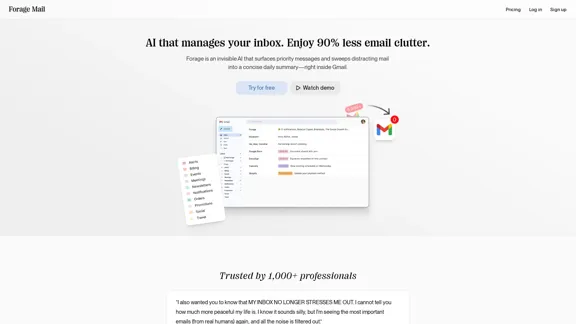
HeroUI Chat
View Detail

HeroUI Chat

HeroUI Chat

Generate beautiful apps regardless of your design experience; AI turns your ideas into reality.

58.75 K
BidPacer - AI Bidder for Freelance Projects.
View Detail

BidPacer - AI Bidder for Freelance Projects.

BidPacer - AI Bidder for Freelance Projects.

0
Clean Inbox for Gmail™ | A Gmail addon with GPT powered filters to avoid unwanted email, spam and marketing email
View Detail

Clean Inbox for Gmail™ | A Gmail addon with GPT powered filters to avoid unwanted email, spam and marketing email

Clean Inbox for Gmail™ | A Gmail addon with GPT powered filters to avoid unwanted email, spam and marketing email

Clean Inbox for Gmail™ | A Gmail addon with GPT powered filters to avoid unwanted email, spam and marketing email.

2.73 K
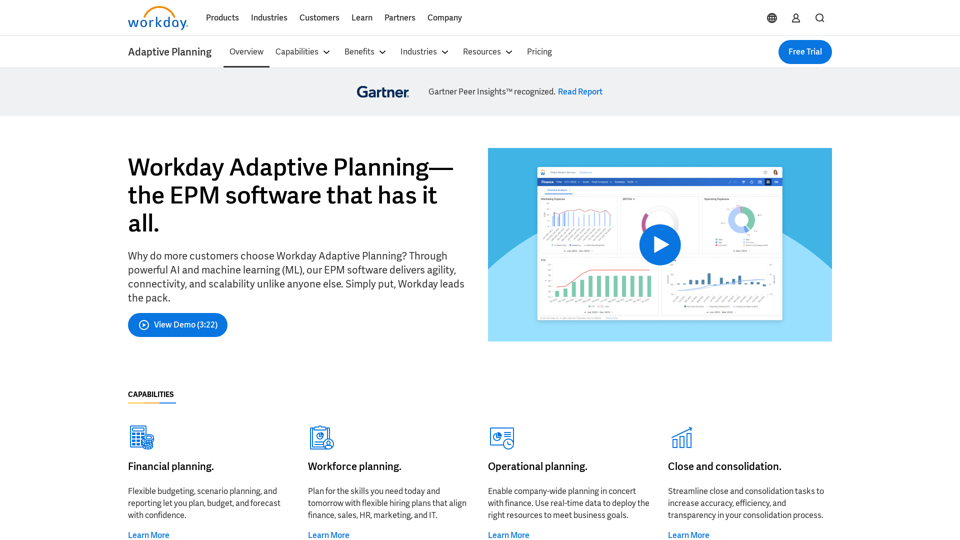
Adaptive Planning EPM Software | Workday US
View Detail

Adaptive Planning EPM Software | Workday US

Adaptive Planning EPM Software | Workday US

Drive enterprise-wide business planning with Workday Adaptive Planning Cloud. Our EPM platform helps organizations plan smarter, report faster, and analyze better.

511.80 K
RehearseNow - AI Scene Partners
View Detail

RehearseNow - AI Scene Partners

RehearseNow - AI Scene Partners

Rehearse with responsive, natural-sounding AI characters anytime, anywhere. Perfect for actors, voice actors, and anyone practicing scripts.

1.91 K
Otto
View Detail

Otto

Otto

OttoTemplates is designed to automate manual research tasks, enabling users to leverage AI agents for enriching lists, researching companies, and processing documents efficiently

10.30 K
Filo - AI Email Client & To-Do
View Detail

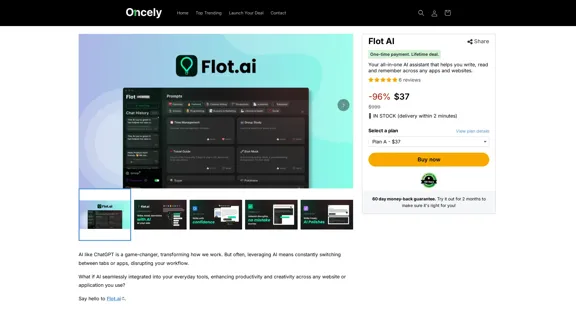
Filo - AI Email Client & To-Do

Filo - AI Email Client & To-Do

Turn overwhelming emails into clear summaries, quick replies, and AI-generated to-dos in one second.

6.31 K
Copilot for Microsoft 365 – Microsoft Adoption

Copilot for Microsoft 365 is a powerful AI assistant that helps you work smarter and faster across Microsoft 365 apps and services. It combines the power of large language models (LLMs) with your organization's data in the Microsoft Graph and Microsoft 365 apps to turn your words into the most powerful productivity tool on the planet.

Copilot is designed to help you:

• Unleash creativity
• Unlock productivity
• Uplevel skills

Copilot is built on Microsoft's comprehensive approach to security, compliance, and privacy. Copilot in Microsoft 365 apps and services:

• Does not use your data to train the underlying LLM
• Does not replace human ingenuity and judgment
• Is designed to keep humans in the loop

Copilot is currently available in Word, Excel, PowerPoint, Outlook, Teams, and more.

Getting Started with Copilot

To get started with Copilot, follow these steps:

1. Check availability: Ensure your organization has access to Copilot.
2. Learn the basics: Familiarize yourself with Copilot's capabilities and how to use it effectively.
3. Explore use cases: Discover how Copilot can help you in your specific role and tasks.
4. Practice and refine: Use Copilot regularly and refine your prompts for better results.
5. Share and collaborate: Collaborate with colleagues using Copilot and share best practices.

Best Practices for Using Copilot

1. Be specific in your prompts
2. Provide context for better results
3. Review and edit Copilot's output
4. Use Copilot as a starting point, not a final product
5. Experiment with different approaches
6. Stay informed about new features and updates

Copilot in Different Microsoft 365 Apps

• Word: Draft, edit, summarize, and rewrite content
• Excel: Analyze data, create formulas, and generate insights
• PowerPoint: Create presentations, design slides, and generate content
• Outlook: Compose emails, summarize threads, and manage your inbox
• Teams: Summarize meetings, generate action items, and create meeting notes

Responsible AI and Copilot

Microsoft is committed to developing AI systems responsibly. When using Copilot, keep in mind:

• AI-generated content may contain biases or inaccuracies
• Always review and verify Copilot's output
• Use your judgment and expertise alongside Copilot's suggestions
• Be aware of your organization's policies regarding AI use

Conclusion

Copilot for Microsoft 365 is a powerful tool that can significantly enhance your productivity and creativity. By understanding its capabilities, following best practices, and using it responsibly, you can make the most of this AI assistant in your daily work.
View Detail

Copilot for Microsoft 365 – Microsoft Adoption Copilot for Microsoft 365 is a powerful AI assistant that helps you work smarter and faster across Microsoft 365 apps and services. It combines the power of large language models (LLMs) with your organization's data in the Microsoft Graph and Microsoft 365 apps to turn your words into the most powerful productivity tool on the planet. Copilot is designed to help you: • Unleash creativity • Unlock productivity • Uplevel skills Copilot is built on Microsoft's comprehensive approach to security, compliance, and privacy. Copilot in Microsoft 365 apps and services: • Does not use your data to train the underlying LLM • Does not replace human ingenuity and judgment • Is designed to keep humans in the loop Copilot is currently available in Word, Excel, PowerPoint, Outlook, Teams, and more. Getting Started with Copilot To get started with Copilot, follow these steps: 1. Check availability: Ensure your organization has access to Copilot. 2. Learn the basics: Familiarize yourself with Copilot's capabilities and how to use it effectively. 3. Explore use cases: Discover how Copilot can help you in your specific role and tasks. 4. Practice and refine: Use Copilot regularly and refine your prompts for better results. 5. Share and collaborate: Collaborate with colleagues using Copilot and share best practices. Best Practices for Using Copilot 1. Be specific in your prompts 2. Provide context for better results 3. Review and edit Copilot's output 4. Use Copilot as a starting point, not a final product 5. Experiment with different approaches 6. Stay informed about new features and updates Copilot in Different Microsoft 365 Apps • Word: Draft, edit, summarize, and rewrite content • Excel: Analyze data, create formulas, and generate insights • PowerPoint: Create presentations, design slides, and generate content • Outlook: Compose emails, summarize threads, and manage your inbox • Teams: Summarize meetings, generate action items, and create meeting notes Responsible AI and Copilot Microsoft is committed to developing AI systems responsibly. When using Copilot, keep in mind: • AI-generated content may contain biases or inaccuracies • Always review and verify Copilot's output • Use your judgment and expertise alongside Copilot's suggestions • Be aware of your organization's policies regarding AI use Conclusion Copilot for Microsoft 365 is a powerful tool that can significantly enhance your productivity and creativity. By understanding its capabilities, following best practices, and using it responsibly, you can make the most of this AI assistant in your daily work.

Copilot for Microsoft 365 – Microsoft Adoption Copilot for Microsoft 365 is a powerful AI assistant that helps you work smarter and faster across Microsoft 365 apps and services. It combines the power of large language models (LLMs) with your organization's data in the Microsoft Graph and Microsoft 365 apps to turn your words into the most powerful productivity tool on the planet. Copilot is designed to help you: • Unleash creativity • Unlock productivity • Uplevel skills Copilot is built on Microsoft's comprehensive approach to security, compliance, and privacy. Copilot in Microsoft 365 apps and services: • Does not use your data to train the underlying LLM • Does not replace human ingenuity and judgment • Is designed to keep humans in the loop Copilot is currently available in Word, Excel, PowerPoint, Outlook, Teams, and more. Getting Started with Copilot To get started with Copilot, follow these steps: 1. Check availability: Ensure your organization has access to Copilot. 2. Learn the basics: Familiarize yourself with Copilot's capabilities and how to use it effectively. 3. Explore use cases: Discover how Copilot can help you in your specific role and tasks. 4. Practice and refine: Use Copilot regularly and refine your prompts for better results. 5. Share and collaborate: Collaborate with colleagues using Copilot and share best practices. Best Practices for Using Copilot 1. Be specific in your prompts 2. Provide context for better results 3. Review and edit Copilot's output 4. Use Copilot as a starting point, not a final product 5. Experiment with different approaches 6. Stay informed about new features and updates Copilot in Different Microsoft 365 Apps • Word: Draft, edit, summarize, and rewrite content • Excel: Analyze data, create formulas, and generate insights • PowerPoint: Create presentations, design slides, and generate content • Outlook: Compose emails, summarize threads, and manage your inbox • Teams: Summarize meetings, generate action items, and create meeting notes Responsible AI and Copilot Microsoft is committed to developing AI systems responsibly. When using Copilot, keep in mind: • AI-generated content may contain biases or inaccuracies • Always review and verify Copilot's output • Use your judgment and expertise alongside Copilot's suggestions • Be aware of your organization's policies regarding AI use Conclusion Copilot for Microsoft 365 is a powerful tool that can significantly enhance your productivity and creativity. By understanding its capabilities, following best practices, and using it responsibly, you can make the most of this AI assistant in your daily work.

Microsoft Copilot combines the power of large language models (LLMs) with your organization's data to turn your words into one of the most powerful productivity tools on the planet.

608.60 K