Open-source RightAI Tools Directory
  • Discover AI
  • Submit
  • Startup
  • Blog
Open-source RightAI Tools Directory
Discover the best AI tools of 2025 with the RightAI Tools Directory!

Friend Links

AI Anime GeneratorToolsApp AI

Support

Tap4
Privacy policyTerms & ConditionsContact Us
Loading...
loading...

PCSports – Sports for everyone

Visit Website
PCSports – Sports for everyone
Visit Website

Introduction

PocketCoach is an AI-powered online learning platform designed for athletes worldwide who aspire to improve their performance in their chosen sport. The platform utilizes advanced AI and computer vision technology to provide gamified drills, real-time feedback, and comprehensive analytics, helping athletes break through plateaus and achieve faster results.

Feature

  1. AI-Powered Training

    • Utilizes cutting-edge AI and computer vision technology
    • Provides personalized feedback and real-time analysis
    • Adapts to user's skill level for optimal learning experience
  2. Gamified Drills

    • Transforms practice sessions into engaging, game-like experiences
    • Motivates athletes to improve their skills through interactive challenges
  3. Comprehensive Analytics

    • Tracks development, strengths, and areas for improvement
    • Converts practice sessions into insightful statistics
  4. Playi Computer Vision App

    • Uses smartphone camera for drill analysis
    • Offers real-time feedback on technique
    • Gamifies practice sessions for enhanced engagement
  5. Accessibility

    • Learn from experienced coaches worldwide
    • Practice at your own convenience and location
  6. Structured Programs

    • Professionally designed to maximize potential
    • Pushes athletes to achieve their full capabilities
  7. Affordability

    • Costs less than 1% of traditional international coaching
    • Provides world-class coaching and support at a fraction of the price

How to Use?

  1. Download the PocketCoach app from the Play Store or App Store.
  2. Set up your profile and select your sport of interest.
  3. Choose a training program that matches your skill level and goals.
  4. Use your smartphone camera to record your practice sessions.
  5. Follow the gamified drills and receive real-time feedback on your technique.
  6. Regularly review your performance analytics to track your progress.
  7. Adjust your training based on the insights provided by the app.

FAQ

What is PocketCoach?

PocketCoach is an AI-powered online learning platform for athletes that uses computer vision technology to provide personalized training, real-time feedback, and comprehensive analytics.

How does PocketCoach work?

The platform uses your smartphone's camera to analyze your movements during practice sessions. It then provides real-time feedback, gamifies drills, and offers personalized insights to help improve your performance.

Is PocketCoach suitable for beginners?

Yes, PocketCoach adapts to your skill level, making it suitable for beginners and experienced athletes alike.

How does PocketCoach compare to traditional coaching?

PocketCoach offers world-class coaching at a fraction of the cost of traditional international coaching, making it more accessible and affordable for athletes worldwide.

Evaluation

  1. PocketCoach's innovative use of AI and computer vision technology in sports training is impressive, offering a unique and accessible approach to athletic improvement.

  2. The gamification of drills and real-time feedback features are particularly noteworthy, as they can significantly enhance user engagement and motivation.

  3. The platform's affordability compared to traditional coaching is a major advantage, potentially democratizing access to high-quality sports training.

  4. However, the effectiveness of the AI-powered feedback compared to in-person coaching remains to be seen, especially for complex sports techniques that may require hands-on correction.

  5. The reliance on smartphone cameras for motion capture might limit the accuracy of analysis for certain sports or movements, potentially affecting the quality of feedback.

  6. While the platform offers structured programs, it's unclear how personalized these programs are to individual athletes' needs and goals.

  7. Overall, PocketCoach presents an innovative solution in sports training, but its long-term effectiveness and ability to cater to diverse sports and skill levels will be crucial for its success.

Latest Traffic Insights

  • Monthly Visits

    0

  • Bounce Rate

    0.00%

  • Pages Per Visit

    0.00

  • Time on Site(s)

    0.00

  • Global Rank

    13955549

  • Country Rank

    -

Recent Visits

Traffic Sources

  • Social Media:
    0.00%
  • Paid Referrals:
    0.00%
  • Email:
    0.00%
  • Referrals:
    0.00%
  • Search Engines:
    0.00%
  • Direct:
    0.00%
More Data

Related Websites

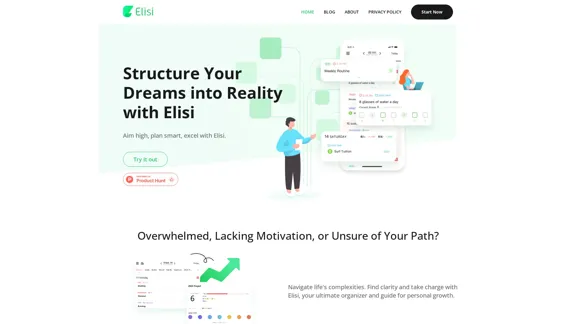
Digital All-in-One Planner for Productivity & Time Management | Elisi
View Detail

Digital All-in-One Planner for Productivity & Time Management | Elisi

Digital All-in-One Planner for Productivity & Time Management | Elisi

Elisi is a user-friendly, cross-device All-in-one Planner to help you improve personal productivity and manage your time effectively. Features include pre-templated modules in a bullet journal along with task planning, habit tracking, project management and note taking. Try Elisi on your iPhone or Android device today!

8.90 K
Copilot for Microsoft 365 – Microsoft Adoption

Copilot for Microsoft 365 is a powerful AI assistant that helps you work smarter and faster across Microsoft 365 apps and services. It combines the power of large language models (LLMs) with your organization's data in the Microsoft Graph and Microsoft 365 apps to turn your words into the most powerful productivity tool on the planet.

Copilot is designed to help you:

β€’ Unleash creativity
β€’ Unlock productivity
β€’ Uplevel skills

Copilot is built on Microsoft's comprehensive approach to security, compliance, and privacy. Copilot in Microsoft 365 apps and services:

β€’ Does not use your data to train the underlying LLM
β€’ Does not replace human ingenuity and judgment
β€’ Is designed to keep humans in the loop

Copilot is currently available in Word, Excel, PowerPoint, Outlook, Teams, and more.

Getting Started with Copilot

To get started with Copilot, follow these steps:

1. Check availability: Ensure your organization has access to Copilot.
2. Learn the basics: Familiarize yourself with Copilot's capabilities and how to use it effectively.
3. Explore use cases: Discover how Copilot can help you in your specific role and tasks.
4. Practice and refine: Use Copilot regularly and refine your prompts for better results.
5. Share and collaborate: Collaborate with colleagues using Copilot and share best practices.

Best Practices for Using Copilot

1. Be specific in your prompts
2. Provide context for better results
3. Review and edit Copilot's output
4. Use Copilot as a starting point, not a final product
5. Experiment with different approaches
6. Stay informed about new features and updates

Copilot in Different Microsoft 365 Apps

β€’ Word: Draft, edit, summarize, and rewrite content
β€’ Excel: Analyze data, create formulas, and generate insights
β€’ PowerPoint: Create presentations, design slides, and generate content
β€’ Outlook: Compose emails, summarize threads, and manage your inbox
β€’ Teams: Summarize meetings, generate action items, and create meeting notes

Responsible AI and Copilot

Microsoft is committed to developing AI systems responsibly. When using Copilot, keep in mind:

β€’ AI-generated content may contain biases or inaccuracies
β€’ Always review and verify Copilot's output
β€’ Use your judgment and expertise alongside Copilot's suggestions
β€’ Be aware of your organization's policies regarding AI use

Conclusion

Copilot for Microsoft 365 is a powerful tool that can significantly enhance your productivity and creativity. By understanding its capabilities, following best practices, and using it responsibly, you can make the most of this AI assistant in your daily work.
View Detail

Copilot for Microsoft 365 – Microsoft Adoption Copilot for Microsoft 365 is a powerful AI assistant that helps you work smarter and faster across Microsoft 365 apps and services. It combines the power of large language models (LLMs) with your organization's data in the Microsoft Graph and Microsoft 365 apps to turn your words into the most powerful productivity tool on the planet. Copilot is designed to help you: β€’ Unleash creativity β€’ Unlock productivity β€’ Uplevel skills Copilot is built on Microsoft's comprehensive approach to security, compliance, and privacy. Copilot in Microsoft 365 apps and services: β€’ Does not use your data to train the underlying LLM β€’ Does not replace human ingenuity and judgment β€’ Is designed to keep humans in the loop Copilot is currently available in Word, Excel, PowerPoint, Outlook, Teams, and more. Getting Started with Copilot To get started with Copilot, follow these steps: 1. Check availability: Ensure your organization has access to Copilot. 2. Learn the basics: Familiarize yourself with Copilot's capabilities and how to use it effectively. 3. Explore use cases: Discover how Copilot can help you in your specific role and tasks. 4. Practice and refine: Use Copilot regularly and refine your prompts for better results. 5. Share and collaborate: Collaborate with colleagues using Copilot and share best practices. Best Practices for Using Copilot 1. Be specific in your prompts 2. Provide context for better results 3. Review and edit Copilot's output 4. Use Copilot as a starting point, not a final product 5. Experiment with different approaches 6. Stay informed about new features and updates Copilot in Different Microsoft 365 Apps β€’ Word: Draft, edit, summarize, and rewrite content β€’ Excel: Analyze data, create formulas, and generate insights β€’ PowerPoint: Create presentations, design slides, and generate content β€’ Outlook: Compose emails, summarize threads, and manage your inbox β€’ Teams: Summarize meetings, generate action items, and create meeting notes Responsible AI and Copilot Microsoft is committed to developing AI systems responsibly. When using Copilot, keep in mind: β€’ AI-generated content may contain biases or inaccuracies β€’ Always review and verify Copilot's output β€’ Use your judgment and expertise alongside Copilot's suggestions β€’ Be aware of your organization's policies regarding AI use Conclusion Copilot for Microsoft 365 is a powerful tool that can significantly enhance your productivity and creativity. By understanding its capabilities, following best practices, and using it responsibly, you can make the most of this AI assistant in your daily work.

Copilot for Microsoft 365 – Microsoft Adoption Copilot for Microsoft 365 is a powerful AI assistant that helps you work smarter and faster across Microsoft 365 apps and services. It combines the power of large language models (LLMs) with your organization's data in the Microsoft Graph and Microsoft 365 apps to turn your words into the most powerful productivity tool on the planet. Copilot is designed to help you: β€’ Unleash creativity β€’ Unlock productivity β€’ Uplevel skills Copilot is built on Microsoft's comprehensive approach to security, compliance, and privacy. Copilot in Microsoft 365 apps and services: β€’ Does not use your data to train the underlying LLM β€’ Does not replace human ingenuity and judgment β€’ Is designed to keep humans in the loop Copilot is currently available in Word, Excel, PowerPoint, Outlook, Teams, and more. Getting Started with Copilot To get started with Copilot, follow these steps: 1. Check availability: Ensure your organization has access to Copilot. 2. Learn the basics: Familiarize yourself with Copilot's capabilities and how to use it effectively. 3. Explore use cases: Discover how Copilot can help you in your specific role and tasks. 4. Practice and refine: Use Copilot regularly and refine your prompts for better results. 5. Share and collaborate: Collaborate with colleagues using Copilot and share best practices. Best Practices for Using Copilot 1. Be specific in your prompts 2. Provide context for better results 3. Review and edit Copilot's output 4. Use Copilot as a starting point, not a final product 5. Experiment with different approaches 6. Stay informed about new features and updates Copilot in Different Microsoft 365 Apps β€’ Word: Draft, edit, summarize, and rewrite content β€’ Excel: Analyze data, create formulas, and generate insights β€’ PowerPoint: Create presentations, design slides, and generate content β€’ Outlook: Compose emails, summarize threads, and manage your inbox β€’ Teams: Summarize meetings, generate action items, and create meeting notes Responsible AI and Copilot Microsoft is committed to developing AI systems responsibly. When using Copilot, keep in mind: β€’ AI-generated content may contain biases or inaccuracies β€’ Always review and verify Copilot's output β€’ Use your judgment and expertise alongside Copilot's suggestions β€’ Be aware of your organization's policies regarding AI use Conclusion Copilot for Microsoft 365 is a powerful tool that can significantly enhance your productivity and creativity. By understanding its capabilities, following best practices, and using it responsibly, you can make the most of this AI assistant in your daily work.

Microsoft Copilot combines the power of large language models (LLMs) with your organization's data to turn your words into one of the most powerful productivity tools on the planet.

608.60 K
Workflow – The simplest way to manage creative work
View Detail

Workflow – The simplest way to manage creative work

Workflow – The simplest way to manage creative work

A minimalist collaboration platform for creative teams. Manage tasks, get AI reviews, and share work, all in one place.

5.88 K
QuickMagic
View Detail

QuickMagic

QuickMagic

Product Introduction: Quick Magic Mocap is an innovative AI-powered mocap tool that rivals the quality of optical mocap systems. There's no need for specialized cameras or to be in a specific studio. Simply import your video and quickly receive high-quality motion data. Quick Magic Mocap is widely used in fields such as film, games, and virtual reality, helping users to create high-quality animations more quickly and accurately.

114.94 K
OdysseyGPT – Comprehend Your Documents
View Detail

OdysseyGPT – Comprehend Your Documents

OdysseyGPT – Comprehend Your Documents

OdysseyGPT reads and genuinely understands your documents, allowing you to search, summarize, and extract insights instantly.

0
Finden - Echtzeit-Einblicke mit KI
View Detail

Finden - Echtzeit-Einblicke mit KI

Finden - Echtzeit-Einblicke mit KI

Finden is an AI-powered tool that helps you manage, analyze, and extract insights from your data.

1.66 K
WordPress Transcribe AI - The Ultimate Audio Transcription Plugin
View Detail

WordPress Transcribe AI - The Ultimate Audio Transcription Plugin

WordPress Transcribe AI - The Ultimate Audio Transcription Plugin

Boost your WordPress site's content creation with WordPress Transcribe AI, the advanced audio transcription plugin. Convert audio files and YouTube links into precise, readable text, enhancing your website's SEO and user engagement.

0
Gong - Revenue Intelligence Platform
View Detail

Gong - Revenue Intelligence Platform

Gong - Revenue Intelligence Platform

Gong captures customer interactions and then delivers insights at scale, enabling teams to make decisions based on data rather than opinions.

1.95 M