Open-source RightAI Tools Directory
  • Discover AI
  • Submit
  • Startup
  • Blog
Open-source RightAI Tools Directory
Discover the best AI tools of 2025 with the RightAI Tools Directory!

Friend Links

AI Anime GeneratorToolsApp AI

Support

Tap4
Privacy policyTerms & ConditionsContact Us
Loading...
loading...

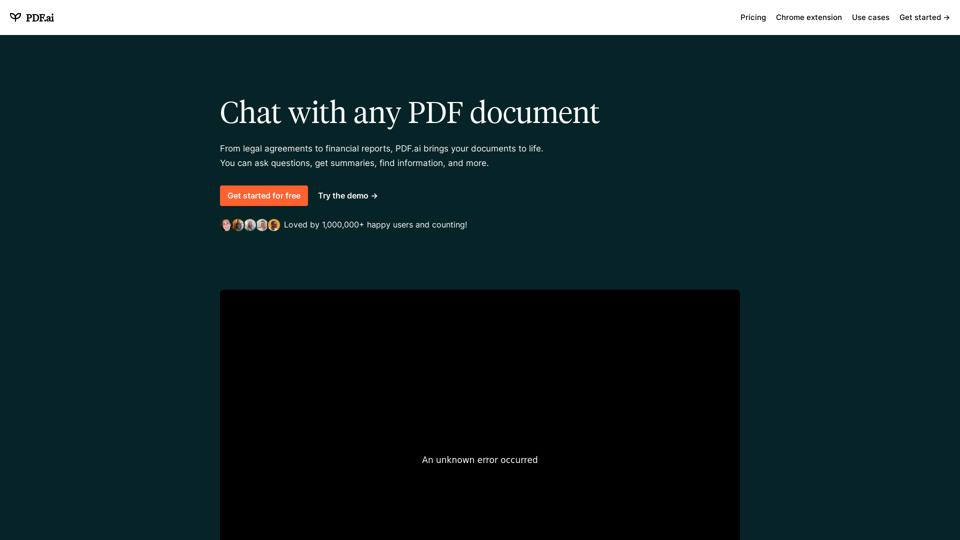
PDF.ai | Chat with your PDF documents

We built the ultimate ChatPDF app that allows you to chat with any PDF: ask questions, get summaries, find anything you need!
Visit Website
PDF.ai | Chat with your PDF documents
Visit Website

Introduction

PDF.ai is an innovative AI-powered platform that transforms how users interact with PDF documents. It enables users to chat with their PDFs, ask questions, extract information, and generate summaries effortlessly. With over 1,000,000 happy users, including students from all Ivy League schools, PDF.ai offers a versatile solution for various document types, from legal agreements to scientific papers.

Feature

AI-Powered Document Interaction

Upload and chat with any PDF document, including legal agreements, financial reports, books, scientific papers, user manuals, and employee training materials.

Instant AI Responses

Receive quick, AI-generated answers to questions and document summaries, enhancing productivity and comprehension.

Source Attribution

Every response is backed by sources extracted from the uploaded document, ensuring reliability and traceability of information.

Chrome Extension

Seamlessly integrate PDF.ai with web browsing through the provided Chrome extension for enhanced user experience.

Free Tier Access

Get started with PDF.ai's free tier, no credit card required, allowing users to explore the platform's capabilities.

API for Developers

Access API documentation for integrating PDF.ai's capabilities into custom applications, expanding its utility for developers.

Additional AI Tools

Explore complementary tools offered by the company, including Resume AI Scanner, Invoice AI Scanner, AI Quiz Generator, QuickyAI, Docsium, and PDF GPTs.

FAQ

What types of documents work best with PDF.ai?

PDF.ai is designed to work with a wide range of documents, including legal papers, financial reports, books, scientific papers, user manuals, and training materials.

Is PDF.ai suitable for academic use?

Yes, PDF.ai is used by students from all Ivy League schools, making it suitable for academic purposes.

How do I use PDF.ai?

  1. Upload your PDF documents
  2. Ask questions using the chat interface
  3. Receive instant AI-generated responses and summaries
  4. Verify sources provided with each response for accuracy

Is there a free version of PDF.ai?

Yes, PDF.ai offers a free tier that allows you to get started without a credit card. There's also a demo version available to try.

Are there any additional tools offered by the company behind PDF.ai?

Yes, the company also offers Resume AI Scanner, Invoice AI Scanner, AI Quiz Generator, QuickyAI, Docsium, and PDF GPTs.

Latest Traffic Insights

  • Monthly Visits

    341.40 K

  • Bounce Rate

    39.54%

  • Pages Per Visit

    2.72

  • Time on Site(s)

    44.59

  • Global Rank

    127062

  • Country Rank

    India 33297

Recent Visits

Traffic Sources

  • Social Media:
    2.19%
  • Paid Referrals:
    0.56%
  • Email:
    0.15%
  • Referrals:
    7.12%
  • Search Engines:
    56.65%
  • Direct:
    33.27%
More Data

Related Websites

Copilot for Microsoft 365 – Microsoft Adoption

Copilot for Microsoft 365 is a powerful AI assistant that helps you work smarter and faster across Microsoft 365 apps and services. It combines the power of large language models (LLMs) with your organization's data in the Microsoft Graph and Microsoft 365 apps to turn your words into the most powerful productivity tool on the planet.

Copilot is designed to help you:

• Unleash creativity
• Unlock productivity
• Uplevel skills

Copilot is built on Microsoft's comprehensive approach to security, compliance, and privacy. Copilot in Microsoft 365 apps and services:

• Does not use your data to train the underlying LLM
• Does not replace human ingenuity and judgment
• Is designed to keep humans in the loop

Copilot is currently available in Word, Excel, PowerPoint, Outlook, Teams, and more.

Getting Started with Copilot

To get started with Copilot, follow these steps:

1. Check availability: Ensure your organization has access to Copilot.
2. Learn the basics: Familiarize yourself with Copilot's capabilities and how to use it effectively.
3. Explore use cases: Discover how Copilot can help you in your specific role and tasks.
4. Practice and refine: Use Copilot regularly and refine your prompts for better results.
5. Share and collaborate: Collaborate with colleagues using Copilot and share best practices.

Best Practices for Using Copilot

1. Be specific in your prompts
2. Provide context for better results
3. Review and edit Copilot's output
4. Use Copilot as a starting point, not a final product
5. Experiment with different approaches
6. Stay informed about new features and updates

Copilot in Different Microsoft 365 Apps

• Word: Draft, edit, summarize, and rewrite content
• Excel: Analyze data, create formulas, and generate insights
• PowerPoint: Create presentations, design slides, and generate content
• Outlook: Compose emails, summarize threads, and manage your inbox
• Teams: Summarize meetings, generate action items, and create meeting notes

Responsible AI and Copilot

Microsoft is committed to developing AI systems responsibly. When using Copilot, keep in mind:

• AI-generated content may contain biases or inaccuracies
• Always review and verify Copilot's output
• Use your judgment and expertise alongside Copilot's suggestions
• Be aware of your organization's policies regarding AI use

Conclusion

Copilot for Microsoft 365 is a powerful tool that can significantly enhance your productivity and creativity. By understanding its capabilities, following best practices, and using it responsibly, you can make the most of this AI assistant in your daily work.
View Detail

Copilot for Microsoft 365 – Microsoft Adoption Copilot for Microsoft 365 is a powerful AI assistant that helps you work smarter and faster across Microsoft 365 apps and services. It combines the power of large language models (LLMs) with your organization's data in the Microsoft Graph and Microsoft 365 apps to turn your words into the most powerful productivity tool on the planet. Copilot is designed to help you: • Unleash creativity • Unlock productivity • Uplevel skills Copilot is built on Microsoft's comprehensive approach to security, compliance, and privacy. Copilot in Microsoft 365 apps and services: • Does not use your data to train the underlying LLM • Does not replace human ingenuity and judgment • Is designed to keep humans in the loop Copilot is currently available in Word, Excel, PowerPoint, Outlook, Teams, and more. Getting Started with Copilot To get started with Copilot, follow these steps: 1. Check availability: Ensure your organization has access to Copilot. 2. Learn the basics: Familiarize yourself with Copilot's capabilities and how to use it effectively. 3. Explore use cases: Discover how Copilot can help you in your specific role and tasks. 4. Practice and refine: Use Copilot regularly and refine your prompts for better results. 5. Share and collaborate: Collaborate with colleagues using Copilot and share best practices. Best Practices for Using Copilot 1. Be specific in your prompts 2. Provide context for better results 3. Review and edit Copilot's output 4. Use Copilot as a starting point, not a final product 5. Experiment with different approaches 6. Stay informed about new features and updates Copilot in Different Microsoft 365 Apps • Word: Draft, edit, summarize, and rewrite content • Excel: Analyze data, create formulas, and generate insights • PowerPoint: Create presentations, design slides, and generate content • Outlook: Compose emails, summarize threads, and manage your inbox • Teams: Summarize meetings, generate action items, and create meeting notes Responsible AI and Copilot Microsoft is committed to developing AI systems responsibly. When using Copilot, keep in mind: • AI-generated content may contain biases or inaccuracies • Always review and verify Copilot's output • Use your judgment and expertise alongside Copilot's suggestions • Be aware of your organization's policies regarding AI use Conclusion Copilot for Microsoft 365 is a powerful tool that can significantly enhance your productivity and creativity. By understanding its capabilities, following best practices, and using it responsibly, you can make the most of this AI assistant in your daily work.

Copilot for Microsoft 365 – Microsoft Adoption Copilot for Microsoft 365 is a powerful AI assistant that helps you work smarter and faster across Microsoft 365 apps and services. It combines the power of large language models (LLMs) with your organization's data in the Microsoft Graph and Microsoft 365 apps to turn your words into the most powerful productivity tool on the planet. Copilot is designed to help you: • Unleash creativity • Unlock productivity • Uplevel skills Copilot is built on Microsoft's comprehensive approach to security, compliance, and privacy. Copilot in Microsoft 365 apps and services: • Does not use your data to train the underlying LLM • Does not replace human ingenuity and judgment • Is designed to keep humans in the loop Copilot is currently available in Word, Excel, PowerPoint, Outlook, Teams, and more. Getting Started with Copilot To get started with Copilot, follow these steps: 1. Check availability: Ensure your organization has access to Copilot. 2. Learn the basics: Familiarize yourself with Copilot's capabilities and how to use it effectively. 3. Explore use cases: Discover how Copilot can help you in your specific role and tasks. 4. Practice and refine: Use Copilot regularly and refine your prompts for better results. 5. Share and collaborate: Collaborate with colleagues using Copilot and share best practices. Best Practices for Using Copilot 1. Be specific in your prompts 2. Provide context for better results 3. Review and edit Copilot's output 4. Use Copilot as a starting point, not a final product 5. Experiment with different approaches 6. Stay informed about new features and updates Copilot in Different Microsoft 365 Apps • Word: Draft, edit, summarize, and rewrite content • Excel: Analyze data, create formulas, and generate insights • PowerPoint: Create presentations, design slides, and generate content • Outlook: Compose emails, summarize threads, and manage your inbox • Teams: Summarize meetings, generate action items, and create meeting notes Responsible AI and Copilot Microsoft is committed to developing AI systems responsibly. When using Copilot, keep in mind: • AI-generated content may contain biases or inaccuracies • Always review and verify Copilot's output • Use your judgment and expertise alongside Copilot's suggestions • Be aware of your organization's policies regarding AI use Conclusion Copilot for Microsoft 365 is a powerful tool that can significantly enhance your productivity and creativity. By understanding its capabilities, following best practices, and using it responsibly, you can make the most of this AI assistant in your daily work.

Microsoft Copilot combines the power of large language models (LLMs) with your organization's data to turn your words into one of the most powerful productivity tools on the planet.

608.60 K
AI Posts Generator - Robopost AI

Generate high-quality content in minutes with Robopost AI, the ultimate AI posts generator.
View Detail

AI Posts Generator - Robopost AI Generate high-quality content in minutes with Robopost AI, the ultimate AI posts generator.

AI Posts Generator - Robopost AI Generate high-quality content in minutes with Robopost AI, the ultimate AI posts generator.

Generate engaging and compelling social media posts with Robopost AI. Our AI-powered tool helps you create content that resonates with your audience.

73.03 K
Discover and Learn AI Tools with AiToolGo | Your AI Learning Platform
View Detail

Discover and Learn AI Tools with AiToolGo | Your AI Learning Platform

Discover and Learn AI Tools with AiToolGo | Your AI Learning Platform

Find the best AI tools and learning resources tailored to your needs at AiToolGo. Empower your AI journey with solutions for everyone, regardless of background or expertise. Join our community today!

65.31 K
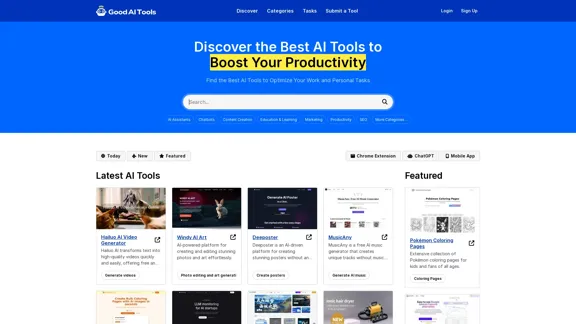
Good AI Tools
View Detail

Good AI Tools

Good AI Tools

Good AI Tools is your ultimate resource for discovering the best AI tools to enhance your productivity. Explore our extensive AI directory and find leading software and applications that match what you're looking for.

0
Interview Intelligence Platform for Streamlined Hiring | BrightHire
View Detail

Interview Intelligence Platform for Streamlined Hiring | BrightHire

Interview Intelligence Platform for Streamlined Hiring | BrightHire

An Interview Intelligence platform that creates recruitment strategies, produces interview summaries and key points, provides candidate insights, and offers additional features.

40.01 K
The AI Spreadsheet Everyone Has Been Anticipating
View Detail

The AI Spreadsheet Everyone Has Been Anticipating

The AI Spreadsheet Everyone Has Been Anticipating

Ever feel like you spend more time managing spreadsheets than actually using them to get things done? Bricks AI spreadsheet does the work for you. No more formulas. No more hours of data cleanup — just answers. And best of all, it's free to use.

705.85 K
Beyz AI | AI Interview Assistant
View Detail

Beyz AI | AI Interview Assistant

Beyz AI | AI Interview Assistant

Beyz AI listens to interviewer questions and delivers concise, accurate answers tailored to your background in real-time, boosting your interview success.

0
Manus
View Detail

Manus

Manus

Manus is a general AI agent that transforms your thoughts into actions. It excels at a variety of tasks in both work and life, accomplishing everything while you relax.

13.88 M