Open-source RightAI Tools Directory
  • Discover AI
  • Submit
  • Startup
  • Blog
Open-source RightAI Tools Directory
Discover the best AI tools of 2025 with the RightAI Tools Directory!

Friend Links

AI Anime GeneratorToolsApp AI

Support

Tap4
Privacy policyTerms & ConditionsContact Us
Loading...
loading...

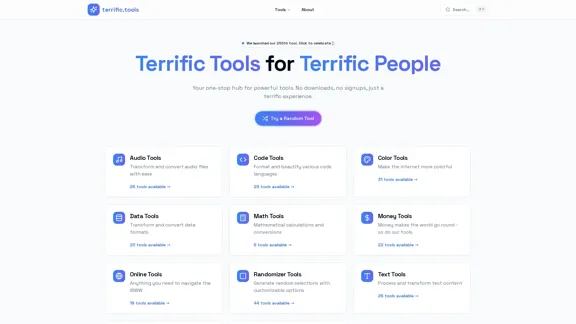
terrific.tools - Free Online Tools

A modern collection of free, browser-based tools for everyone. Transform images, convert audio, format code, and much more.
Visit Website
terrific.tools - Free Online Tools
Visit Website

Introduction

Terrific.tools is a comprehensive platform offering a wide range of free online tools designed for various purposes. Users can access tools without the need for downloads or signups, ensuring a seamless experience. The website features an extensive collection of tools categorized into different functionalities, making it easy for users to find what they need.

Feature

  1. Audio Tools

    Transform and convert audio files with 26 available tools, catering to various audio processing needs.

  2. Code Tools

    Format and beautify code across 29 programming languages, enhancing readability and organization.

  3. Color Tools

    Make the internet more vibrant with 31 tools dedicated to color manipulation and selection.

  4. Data Tools

    Convert and transform data formats using 20 specialized tools, streamlining data management tasks.

  5. Math Tools

    Perform mathematical calculations and conversions with 6 dedicated tools for quick and accurate results.

  6. Money Tools

    Access 22 tools related to financial calculations and conversions, assisting users in managing their finances.

  7. Online Tools

    Navigate the web efficiently with 19 tools designed for various online tasks.

  8. Randomizer Tools

    Generate random selections with customizable options using 44 tools, perfect for games and decision-making.

  9. Text Tools

    Process and transform text content with 26 tools, enhancing text manipulation capabilities.

  10. Time Tools

    Utilize 20 tools designed for time management and conversions, aiding busy individuals.

  11. YouTube Tools

    Access 23 tools specifically for the world's largest video platform, enhancing user experience on YouTube.

How to Use?

  1. Explore the categories on the homepage to find the tools that suit your needs.
  2. Use the search function to quickly locate specific tools.
  3. Try out random tools to discover new functionalities you might find useful.
  4. Bookmark your favorite tools for easy access in the future.

FAQ

What is Terrific.tools?

Terrific.tools is a platform that provides a variety of free online tools for different tasks, ranging from audio processing to data conversion.

Do I need to sign up to use the tools?

No, Terrific.tools allows users to access all tools without the need for downloads or signups.

Are the tools really free?

Yes, all tools on Terrific.tools are free to use, with no hidden charges or strings attached.

How many tools are available on Terrific.tools?

Terrific.tools offers a total of 250 tools across various categories, ensuring a comprehensive resource for users.

Can I use these tools for commercial purposes?

While the tools are free to use, it's advisable to check the specific terms of use for each tool to ensure compliance with any restrictions.

Price

All tools on Terrific.tools are free to use, with no subscription or payment required.

The price is for reference only, please refer to the latest official data for actual information.

Evaluation

  1. Terrific.tools excels in providing a vast array of free online tools that cater to diverse user needs, making it a valuable resource for individuals and professionals alike.

  2. The user-friendly interface and categorization of tools enhance the overall experience, allowing users to navigate easily.

  3. However, the website could benefit from additional features such as user reviews or ratings for each tool, which would help users make informed choices.

  4. Some tools may lack advanced functionalities that professionals might require, suggesting a potential area for improvement to attract a broader audience.

Related Websites
Copilot for Microsoft 365 – Microsoft Adoption

Copilot for Microsoft 365 is a powerful AI assistant that helps you work smarter and faster across Microsoft 365 apps and services. It combines the power of large language models (LLMs) with your organization's data in the Microsoft Graph and Microsoft 365 apps to turn your words into the most powerful productivity tool on the planet.

Copilot is designed to help you:

• Unleash creativity
• Unlock productivity
• Uplevel skills

Copilot is built on Microsoft's comprehensive approach to security, compliance, and privacy. Copilot in Microsoft 365 apps and services:

• Does not use your data to train the underlying LLM
• Does not replace human ingenuity and judgment
• Is designed to keep humans in the loop

Copilot is currently available in Word, Excel, PowerPoint, Outlook, Teams, and more.

Getting Started with Copilot

To get started with Copilot, follow these steps:

1. Check availability: Ensure your organization has access to Copilot.
2. Learn the basics: Familiarize yourself with Copilot's capabilities and how to use it effectively.
3. Explore use cases: Discover how Copilot can help you in your specific role and tasks.
4. Practice and refine: Use Copilot regularly and refine your prompts for better results.
5. Share and collaborate: Collaborate with colleagues using Copilot and share best practices.

Best Practices for Using Copilot

1. Be specific in your prompts
2. Provide context for better results
3. Review and edit Copilot's output
4. Use Copilot as a starting point, not a final product
5. Experiment with different approaches
6. Stay informed about new features and updates

Copilot in Different Microsoft 365 Apps

• Word: Draft, edit, summarize, and rewrite content
• Excel: Analyze data, create formulas, and generate insights
• PowerPoint: Create presentations, design slides, and generate content
• Outlook: Compose emails, summarize threads, and manage your inbox
• Teams: Summarize meetings, generate action items, and create meeting notes

Responsible AI and Copilot

Microsoft is committed to developing AI systems responsibly. When using Copilot, keep in mind:

• AI-generated content may contain biases or inaccuracies
• Always review and verify Copilot's output
• Use your judgment and expertise alongside Copilot's suggestions
• Be aware of your organization's policies regarding AI use

Conclusion

Copilot for Microsoft 365 is a powerful tool that can significantly enhance your productivity and creativity. By understanding its capabilities, following best practices, and using it responsibly, you can make the most of this AI assistant in your daily work.
View Detail

Copilot for Microsoft 365 – Microsoft Adoption Copilot for Microsoft 365 is a powerful AI assistant that helps you work smarter and faster across Microsoft 365 apps and services. It combines the power of large language models (LLMs) with your organization's data in the Microsoft Graph and Microsoft 365 apps to turn your words into the most powerful productivity tool on the planet. Copilot is designed to help you: • Unleash creativity • Unlock productivity • Uplevel skills Copilot is built on Microsoft's comprehensive approach to security, compliance, and privacy. Copilot in Microsoft 365 apps and services: • Does not use your data to train the underlying LLM • Does not replace human ingenuity and judgment • Is designed to keep humans in the loop Copilot is currently available in Word, Excel, PowerPoint, Outlook, Teams, and more. Getting Started with Copilot To get started with Copilot, follow these steps: 1. Check availability: Ensure your organization has access to Copilot. 2. Learn the basics: Familiarize yourself with Copilot's capabilities and how to use it effectively. 3. Explore use cases: Discover how Copilot can help you in your specific role and tasks. 4. Practice and refine: Use Copilot regularly and refine your prompts for better results. 5. Share and collaborate: Collaborate with colleagues using Copilot and share best practices. Best Practices for Using Copilot 1. Be specific in your prompts 2. Provide context for better results 3. Review and edit Copilot's output 4. Use Copilot as a starting point, not a final product 5. Experiment with different approaches 6. Stay informed about new features and updates Copilot in Different Microsoft 365 Apps • Word: Draft, edit, summarize, and rewrite content • Excel: Analyze data, create formulas, and generate insights • PowerPoint: Create presentations, design slides, and generate content • Outlook: Compose emails, summarize threads, and manage your inbox • Teams: Summarize meetings, generate action items, and create meeting notes Responsible AI and Copilot Microsoft is committed to developing AI systems responsibly. When using Copilot, keep in mind: • AI-generated content may contain biases or inaccuracies • Always review and verify Copilot's output • Use your judgment and expertise alongside Copilot's suggestions • Be aware of your organization's policies regarding AI use Conclusion Copilot for Microsoft 365 is a powerful tool that can significantly enhance your productivity and creativity. By understanding its capabilities, following best practices, and using it responsibly, you can make the most of this AI assistant in your daily work.

Copilot for Microsoft 365 – Microsoft Adoption Copilot for Microsoft 365 is a powerful AI assistant that helps you work smarter and faster across Microsoft 365 apps and services. It combines the power of large language models (LLMs) with your organization's data in the Microsoft Graph and Microsoft 365 apps to turn your words into the most powerful productivity tool on the planet. Copilot is designed to help you: • Unleash creativity • Unlock productivity • Uplevel skills Copilot is built on Microsoft's comprehensive approach to security, compliance, and privacy. Copilot in Microsoft 365 apps and services: • Does not use your data to train the underlying LLM • Does not replace human ingenuity and judgment • Is designed to keep humans in the loop Copilot is currently available in Word, Excel, PowerPoint, Outlook, Teams, and more. Getting Started with Copilot To get started with Copilot, follow these steps: 1. Check availability: Ensure your organization has access to Copilot. 2. Learn the basics: Familiarize yourself with Copilot's capabilities and how to use it effectively. 3. Explore use cases: Discover how Copilot can help you in your specific role and tasks. 4. Practice and refine: Use Copilot regularly and refine your prompts for better results. 5. Share and collaborate: Collaborate with colleagues using Copilot and share best practices. Best Practices for Using Copilot 1. Be specific in your prompts 2. Provide context for better results 3. Review and edit Copilot's output 4. Use Copilot as a starting point, not a final product 5. Experiment with different approaches 6. Stay informed about new features and updates Copilot in Different Microsoft 365 Apps • Word: Draft, edit, summarize, and rewrite content • Excel: Analyze data, create formulas, and generate insights • PowerPoint: Create presentations, design slides, and generate content • Outlook: Compose emails, summarize threads, and manage your inbox • Teams: Summarize meetings, generate action items, and create meeting notes Responsible AI and Copilot Microsoft is committed to developing AI systems responsibly. When using Copilot, keep in mind: • AI-generated content may contain biases or inaccuracies • Always review and verify Copilot's output • Use your judgment and expertise alongside Copilot's suggestions • Be aware of your organization's policies regarding AI use Conclusion Copilot for Microsoft 365 is a powerful tool that can significantly enhance your productivity and creativity. By understanding its capabilities, following best practices, and using it responsibly, you can make the most of this AI assistant in your daily work.

Microsoft Copilot combines the power of large language models (LLMs) with your organization's data to turn your words into one of the most powerful productivity tools on the planet.

608.60 K
Jestor - Build apps for operations without code
View Detail

Jestor - Build apps for operations without code

Jestor - Build apps for operations without code

Build scalable Apps, automations, and workflows for your entire company without any coding required. Do it yourself.

36.60 K
Good AI Tools
View Detail

Good AI Tools

Good AI Tools

Good AI Tools is your ultimate resource for discovering the best AI tools to enhance your productivity. Explore our extensive AI directory and find leading software and applications that match what you're looking for.

0
QuickMagic
View Detail

QuickMagic

QuickMagic

Product Introduction: Quick Magic Mocap is an innovative AI-powered mocap tool that rivals the quality of optical mocap systems. There's no need for specialized cameras or to be in a specific studio. Simply import your video and quickly receive high-quality motion data. Quick Magic Mocap is widely used in fields such as film, games, and virtual reality, helping users to create high-quality animations more quickly and accurately.

114.94 K
AI to PDF
View Detail

AI to PDF

AI to PDF

AI to PDF Converter is a free and fast online file conversion service.

0
Feta - Better stand-ups, retros, syncs and more
View Detail

Feta - Better stand-ups, retros, syncs and more

Feta - Better stand-ups, retros, syncs and more

Feta helps product and engineering teams capture meeting context, automate post-meeting tasks, and focus only on high-impact work.

0
Home - Coming Together
View Detail

Home - Coming Together

Home - Coming Together

🎉 Proxy 1.0 Your AI assistant for your daily tasks Proxy is a fully automated AI assistant for your daily tasks. Message* New Templates Shuffle Show less Summarize articles about a company Find relevant jobs Find trending GitHub authors' LinkedIn profiles Summarize pull requests on Github Summarize top news stories as an email Summarize daily […]

11.66 K
Open Multiple URLs
View Detail

Open Multiple URLs

Open Multiple URLs

Multiple URL Opener is a free online tool to open multiple URLs simultaneously.

0