Open-source RightAI Tools Directory
  • Discover AI
  • Submit
  • Startup
  • Blog
Open-source RightAI Tools Directory
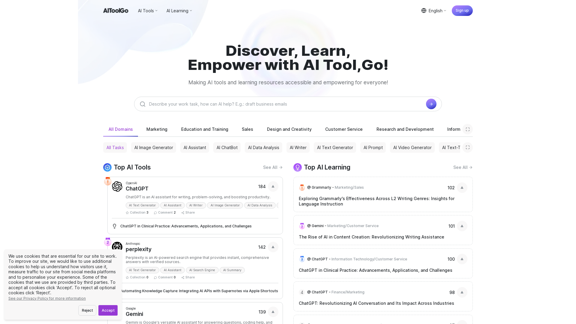
Discover the best AI tools of 2025 with the RightAI Tools Directory!

Friend Links

AI Anime GeneratorToolsApp AI

Support

Tap4
Privacy policyTerms & ConditionsContact Us
Loading...
loading...

Auto Generate Clicker - Chrome Web Store

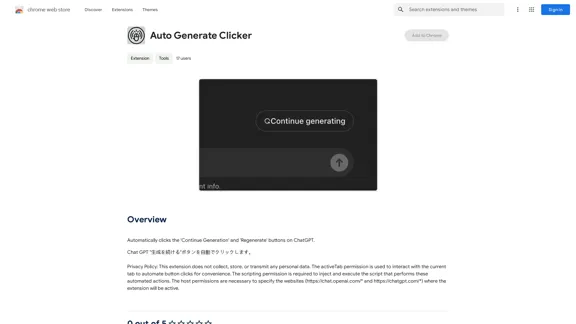
Automatically clicks the 'Continue Generation' and 'Regenerate' buttons on ChatGPT.
Visit Website
Auto Generate Clicker - Chrome Web Store
Visit Website

Introduction

Auto Generate Clicker is a Chrome extension designed to streamline interactions with ChatGPT. This tool automates the process of clicking 'Continue Generation' and 'Regenerate' buttons, enhancing user efficiency and convenience. Supporting both English and Japanese interfaces, it caters to a diverse user base and simplifies the ChatGPT experience.

Feature

Automated Button Clicking

Auto Generate Clicker automatically clicks the 'Continue Generation' and 'Regenerate' buttons on ChatGPT, saving users time and effort during their interactions.

Multi-language Support

The extension supports both English and Japanese interfaces, making it accessible to a wider range of users globally.

Lightweight and Efficient

With a size of only 38.61 KiB, Auto Generate Clicker is a lightweight extension that doesn't burden system resources while providing valuable functionality.

Privacy-Focused Design

The extension prioritizes user privacy by not collecting, storing, or transmitting personal data. It operates solely within the necessary permissions to function effectively.

Compatibility

Auto Generate Clicker is designed to work seamlessly with ChatGPT's web interface, ensuring a smooth user experience.

FAQ

What permissions does Auto Generate Clicker require?

Auto Generate Clicker requires the following permissions:

  • activeTab: To interact with the current tab
  • scripting: To inject and execute automated actions
  • Host permissions for https://chat.openai.com/* and https://chatgpt.com/*

How do I install and use Auto Generate Clicker?

  1. Install the extension from the Chrome Web Store
  2. Navigate to ChatGPT's website
  3. The extension will automatically click 'Continue Generation' and 'Regenerate' buttons when they appear

Who developed Auto Generate Clicker?

The extension was developed by Hidetaka Miura. For support, users can contact [email protected].

Are there similar extensions available?

Yes, some similar extensions include:

  1. ChatGPT - Auto-continue Generating
  2. PromptFolder - ChatGPT Prompt Manager
  3. Auto "Continue Generating" (Japanese version)
  4. ChatGPT Plus
  5. ChatGPT Auto-Continue & Token Counter

What is the current user base of Auto Generate Clicker?

At the time of listing, the extension had 17 users. However, this number may have changed since then.

Related Websites

Slashit App
View Detail

Slashit App

Slashit App

Turn your regular text into shortcuts.

258
Relay.app: AI-powered automations with a human in the loop
View Detail

Relay.app: AI-powered automations with a human in the loop

Relay.app: AI-powered automations with a human in the loop

An automation platform you'll love. Relay.app provides deep integrations, AI-powered automations, and human-in-the-loop control.

257.86 K
PodExtra AI—Unleash the power of podcast
View Detail

PodExtra AI—Unleash the power of podcast

PodExtra AI—Unleash the power of podcast

PodExtra is an innovative AI-powered podcast tool that provides transcripts, summaries, mind maps, outlines, highlights, and takeaways for your favorite podcasts. It allows you to quickly browse through the content, saving time and improving efficiency.

1.70 K
Good AI Tools
View Detail

Good AI Tools

Good AI Tools

Good AI Tools is your ultimate resource for discovering the best AI tools to enhance your productivity. Explore our extensive AI directory and find leading software and applications that match what you're looking for.

0
Copilot for Microsoft 365 – Microsoft Adoption

Copilot for Microsoft 365 is a powerful AI assistant that helps you work smarter and faster across Microsoft 365 apps and services. It combines the power of large language models (LLMs) with your organization's data in the Microsoft Graph and Microsoft 365 apps to turn your words into the most powerful productivity tool on the planet.

Copilot is designed to help you:

• Unleash creativity
• Unlock productivity
• Uplevel skills

Copilot is built on Microsoft's comprehensive approach to security, compliance, and privacy. Copilot in Microsoft 365 apps and services:

• Does not use your data to train the underlying LLM
• Does not replace human ingenuity and judgment
• Is designed to keep humans in the loop

Copilot is currently available in Word, Excel, PowerPoint, Outlook, Teams, and more.

Getting Started with Copilot

To get started with Copilot, follow these steps:

1. Check availability: Ensure your organization has access to Copilot.
2. Learn the basics: Familiarize yourself with Copilot's capabilities and how to use it effectively.
3. Explore use cases: Discover how Copilot can help you in your specific role and tasks.
4. Practice and refine: Use Copilot regularly and refine your prompts for better results.
5. Share and collaborate: Collaborate with colleagues using Copilot and share best practices.

Best Practices for Using Copilot

1. Be specific in your prompts
2. Provide context for better results
3. Review and edit Copilot's output
4. Use Copilot as a starting point, not a final product
5. Experiment with different approaches
6. Stay informed about new features and updates

Copilot in Different Microsoft 365 Apps

• Word: Draft, edit, summarize, and rewrite content
• Excel: Analyze data, create formulas, and generate insights
• PowerPoint: Create presentations, design slides, and generate content
• Outlook: Compose emails, summarize threads, and manage your inbox
• Teams: Summarize meetings, generate action items, and create meeting notes

Responsible AI and Copilot

Microsoft is committed to developing AI systems responsibly. When using Copilot, keep in mind:

• AI-generated content may contain biases or inaccuracies
• Always review and verify Copilot's output
• Use your judgment and expertise alongside Copilot's suggestions
• Be aware of your organization's policies regarding AI use

Conclusion

Copilot for Microsoft 365 is a powerful tool that can significantly enhance your productivity and creativity. By understanding its capabilities, following best practices, and using it responsibly, you can make the most of this AI assistant in your daily work.
View Detail

Copilot for Microsoft 365 – Microsoft Adoption Copilot for Microsoft 365 is a powerful AI assistant that helps you work smarter and faster across Microsoft 365 apps and services. It combines the power of large language models (LLMs) with your organization's data in the Microsoft Graph and Microsoft 365 apps to turn your words into the most powerful productivity tool on the planet. Copilot is designed to help you: • Unleash creativity • Unlock productivity • Uplevel skills Copilot is built on Microsoft's comprehensive approach to security, compliance, and privacy. Copilot in Microsoft 365 apps and services: • Does not use your data to train the underlying LLM • Does not replace human ingenuity and judgment • Is designed to keep humans in the loop Copilot is currently available in Word, Excel, PowerPoint, Outlook, Teams, and more. Getting Started with Copilot To get started with Copilot, follow these steps: 1. Check availability: Ensure your organization has access to Copilot. 2. Learn the basics: Familiarize yourself with Copilot's capabilities and how to use it effectively. 3. Explore use cases: Discover how Copilot can help you in your specific role and tasks. 4. Practice and refine: Use Copilot regularly and refine your prompts for better results. 5. Share and collaborate: Collaborate with colleagues using Copilot and share best practices. Best Practices for Using Copilot 1. Be specific in your prompts 2. Provide context for better results 3. Review and edit Copilot's output 4. Use Copilot as a starting point, not a final product 5. Experiment with different approaches 6. Stay informed about new features and updates Copilot in Different Microsoft 365 Apps • Word: Draft, edit, summarize, and rewrite content • Excel: Analyze data, create formulas, and generate insights • PowerPoint: Create presentations, design slides, and generate content • Outlook: Compose emails, summarize threads, and manage your inbox • Teams: Summarize meetings, generate action items, and create meeting notes Responsible AI and Copilot Microsoft is committed to developing AI systems responsibly. When using Copilot, keep in mind: • AI-generated content may contain biases or inaccuracies • Always review and verify Copilot's output • Use your judgment and expertise alongside Copilot's suggestions • Be aware of your organization's policies regarding AI use Conclusion Copilot for Microsoft 365 is a powerful tool that can significantly enhance your productivity and creativity. By understanding its capabilities, following best practices, and using it responsibly, you can make the most of this AI assistant in your daily work.

Copilot for Microsoft 365 – Microsoft Adoption Copilot for Microsoft 365 is a powerful AI assistant that helps you work smarter and faster across Microsoft 365 apps and services. It combines the power of large language models (LLMs) with your organization's data in the Microsoft Graph and Microsoft 365 apps to turn your words into the most powerful productivity tool on the planet. Copilot is designed to help you: • Unleash creativity • Unlock productivity • Uplevel skills Copilot is built on Microsoft's comprehensive approach to security, compliance, and privacy. Copilot in Microsoft 365 apps and services: • Does not use your data to train the underlying LLM • Does not replace human ingenuity and judgment • Is designed to keep humans in the loop Copilot is currently available in Word, Excel, PowerPoint, Outlook, Teams, and more. Getting Started with Copilot To get started with Copilot, follow these steps: 1. Check availability: Ensure your organization has access to Copilot. 2. Learn the basics: Familiarize yourself with Copilot's capabilities and how to use it effectively. 3. Explore use cases: Discover how Copilot can help you in your specific role and tasks. 4. Practice and refine: Use Copilot regularly and refine your prompts for better results. 5. Share and collaborate: Collaborate with colleagues using Copilot and share best practices. Best Practices for Using Copilot 1. Be specific in your prompts 2. Provide context for better results 3. Review and edit Copilot's output 4. Use Copilot as a starting point, not a final product 5. Experiment with different approaches 6. Stay informed about new features and updates Copilot in Different Microsoft 365 Apps • Word: Draft, edit, summarize, and rewrite content • Excel: Analyze data, create formulas, and generate insights • PowerPoint: Create presentations, design slides, and generate content • Outlook: Compose emails, summarize threads, and manage your inbox • Teams: Summarize meetings, generate action items, and create meeting notes Responsible AI and Copilot Microsoft is committed to developing AI systems responsibly. When using Copilot, keep in mind: • AI-generated content may contain biases or inaccuracies • Always review and verify Copilot's output • Use your judgment and expertise alongside Copilot's suggestions • Be aware of your organization's policies regarding AI use Conclusion Copilot for Microsoft 365 is a powerful tool that can significantly enhance your productivity and creativity. By understanding its capabilities, following best practices, and using it responsibly, you can make the most of this AI assistant in your daily work.

Microsoft Copilot combines the power of large language models (LLMs) with your organization's data to turn your words into one of the most powerful productivity tools on the planet.

608.60 K
Dr. Muscle
View Detail

Dr. Muscle

Dr. Muscle

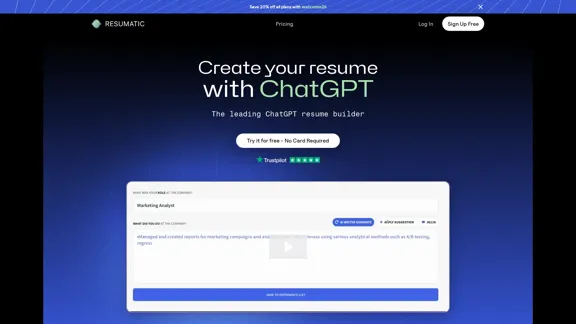
Imagine ChatGPT, but for fitness. Automated yet personal, with expert coaching and workouts tailored specifically to you—optimized to get you in shape faster, on autopilot.

385
Gigasheet - Big Data Analytics That's Spreadsheet Easy.
View Detail

Gigasheet - Big Data Analytics That's Spreadsheet Easy.

Gigasheet - Big Data Analytics That's Spreadsheet Easy.

Our powerful, no-code platform is designed for big data analysis, enabling anyone to effortlessly explore and analyze vast datasets via a user-friendly, spreadsheet-like interface. Gigasheet supports a wide variety of data sources from CSV, XLSX, and JSON to popular CRMs, data warehouses, and cloud data stores.

127.47 K
Langtrace AI
View Detail

Langtrace AI

Langtrace AI

Discover Langtrace, the comprehensive tool for monitoring, evaluating, and optimizing large language models. Enhance your AI applications with real-time insights and detailed performance metrics.

15.51 K