Open-source RightAI Tools Directory
  • Discover AI
  • Submit
  • Startup
  • Blog
Open-source RightAI Tools Directory
Discover the best AI tools of 2025 with the RightAI Tools Directory!

Friend Links

AI Anime GeneratorToolsApp AI

Support

Tap4
Privacy policyTerms & ConditionsContact Us
Loading...
loading...

JustRecap

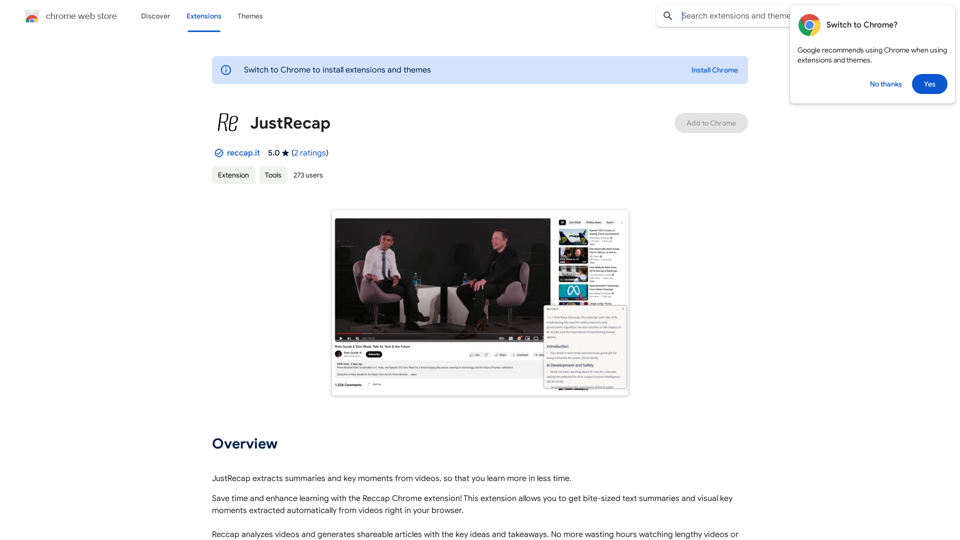
JustRecap extracts summaries and key moments from videos so you can learn more in less time.
Visit Website
JustRecap
Visit Website

Introduction

Reccap is a Chrome extension designed to enhance video learning efficiency. It automatically extracts summaries and key moments from videos, allowing users to grasp essential information quickly. This tool bridges the gap between visual and textual learning, offering a unique approach to content consumption that saves time and improves retention.

Feature

One-Click Summary Extraction

Reccap provides instant access to bite-sized text summaries and visual key moments from videos with just a single click, streamlining the learning process.

Dual-Format Learning

Users can benefit from both summarized text and visual frames highlighting key points, enhancing information retention and catering to diverse learning preferences.

Flexible Learning Experience

Seamless Switching Between Reading and Watching

Reccap allows users to effortlessly alternate between text summaries and video content, accommodating various learning styles and preferences.

Focused Content Delivery

The extension offers a consolidated set of concise takeaways, helping users concentrate on the most crucial information without getting overwhelmed by excessive details.

Time-Efficient Learning

By providing quick access to core content, Reccap enables users to learn more efficiently and get to the essence of the material faster.

Subscription Model

While basic features are available to all users, a subscription grants additional benefits and extended access beyond free usage limits.

FAQ

What is Reccap?

Reccap is a Chrome extension that automatically extracts summaries and key moments from videos, enabling users to learn more efficiently in less time.

How does Reccap work?

Reccap analyzes video content and generates concise text summaries and visual key moments, which users can access with a single click directly in their browser.

What are the main benefits of using Reccap?

Key Benefits of Reccap:

BenefitDescription
Time-savingQuickly access core content without watching entire videos
Improved retentionPair summarized text with visual frames for better information recall
Flexible learningSwitch between reading and watching to suit individual learning styles
Focused learningConcentrate on essential information with concise takeaways

Is Reccap free to use?

Reccap offers basic features for free, but also provides a subscription model with additional benefits and extended access beyond free usage limits.

How can I get started with Reccap?

To begin using Reccap, simply install the Chrome extension and start extracting summaries and key moments from videos you watch in your browser.

Latest Traffic Insights

  • Monthly Visits

    193.90 M

  • Bounce Rate

    56.27%

  • Pages Per Visit

    2.71

  • Time on Site(s)

    115.91

  • Global Rank

    -

  • Country Rank

    -

Recent Visits

Traffic Sources

  • Social Media:
    0.48%
  • Paid Referrals:
    0.55%
  • Email:
    0.15%
  • Referrals:
    12.81%
  • Search Engines:
    16.21%
  • Direct:
    69.81%
More Data

Related Websites

Converting JPG Images to Text

Converting a JPG image to text is a process known as Optical Character Recognition (OCR). This technology enables you to extract text from images, scanned documents, and photos. Here's how to do it:

Method 1: Online OCR Tools

You can use online OCR tools to convert JPG images to text. Here are the steps:

1. Upload your JPG image: Go to an online OCR tool website, such as Online OCR Tools or OCR.space, and upload your JPG image.
2. Select the language: Choose the language of the text in your image.
3. Click on "Convert": The tool will convert the image to text.
4. Download the text: You can download the extracted text as a Word document, PDF, or plain text file.

Method 2: Google Drive

You can also use Google Drive to convert JPG images to text. Here's how:

1. Upload your JPG image: Upload your JPG image to Google Drive.
2. Right-click on the image: Right-click on the uploaded image and select "Open with" > "Google Docs".
3. The image will be converted: Google Docs will automatically convert the image to text.
4. Edit and download: You can edit the extracted text and download it as a Word document or PDF.

Method 3: Adobe Acrobat

If you have Adobe Acrobat installed on your computer, you can use it to convert JPG images to text. Here's how:

1. Open Adobe Acrobat: Open Adobe Acrobat on your computer.
2. Create a new document: Create a new document and click on "Tools" > "Recognize Text".
3. Select the image: Select the JPG image you want to convert.
4. Click on "Recognize": Adobe Acrobat will convert the image to text.
5. Edit and save: You can edit the extracted text and save it as a Word document or PDF.

These are the three methods to convert JPG images to text. Choose the method that works best for you!
View Detail

Converting JPG Images to Text Converting a JPG image to text is a process known as Optical Character Recognition (OCR). This technology enables you to extract text from images, scanned documents, and photos. Here's how to do it: Method 1: Online OCR Tools You can use online OCR tools to convert JPG images to text. Here are the steps: 1. Upload your JPG image: Go to an online OCR tool website, such as Online OCR Tools or OCR.space, and upload your JPG image. 2. Select the language: Choose the language of the text in your image. 3. Click on "Convert": The tool will convert the image to text. 4. Download the text: You can download the extracted text as a Word document, PDF, or plain text file. Method 2: Google Drive You can also use Google Drive to convert JPG images to text. Here's how: 1. Upload your JPG image: Upload your JPG image to Google Drive. 2. Right-click on the image: Right-click on the uploaded image and select "Open with" > "Google Docs". 3. The image will be converted: Google Docs will automatically convert the image to text. 4. Edit and download: You can edit the extracted text and download it as a Word document or PDF. Method 3: Adobe Acrobat If you have Adobe Acrobat installed on your computer, you can use it to convert JPG images to text. Here's how: 1. Open Adobe Acrobat: Open Adobe Acrobat on your computer. 2. Create a new document: Create a new document and click on "Tools" > "Recognize Text". 3. Select the image: Select the JPG image you want to convert. 4. Click on "Recognize": Adobe Acrobat will convert the image to text. 5. Edit and save: You can edit the extracted text and save it as a Word document or PDF. These are the three methods to convert JPG images to text. Choose the method that works best for you!

Converting JPG Images to Text Converting a JPG image to text is a process known as Optical Character Recognition (OCR). This technology enables you to extract text from images, scanned documents, and photos. Here's how to do it: Method 1: Online OCR Tools You can use online OCR tools to convert JPG images to text. Here are the steps: 1. Upload your JPG image: Go to an online OCR tool website, such as Online OCR Tools or OCR.space, and upload your JPG image. 2. Select the language: Choose the language of the text in your image. 3. Click on "Convert": The tool will convert the image to text. 4. Download the text: You can download the extracted text as a Word document, PDF, or plain text file. Method 2: Google Drive You can also use Google Drive to convert JPG images to text. Here's how: 1. Upload your JPG image: Upload your JPG image to Google Drive. 2. Right-click on the image: Right-click on the uploaded image and select "Open with" > "Google Docs". 3. The image will be converted: Google Docs will automatically convert the image to text. 4. Edit and download: You can edit the extracted text and download it as a Word document or PDF. Method 3: Adobe Acrobat If you have Adobe Acrobat installed on your computer, you can use it to convert JPG images to text. Here's how: 1. Open Adobe Acrobat: Open Adobe Acrobat on your computer. 2. Create a new document: Create a new document and click on "Tools" > "Recognize Text". 3. Select the image: Select the JPG image you want to convert. 4. Click on "Recognize": Adobe Acrobat will convert the image to text. 5. Edit and save: You can edit the extracted text and save it as a Word document or PDF. These are the three methods to convert JPG images to text. Choose the method that works best for you!

It is an online tool that uses Optical Character Recognition (OCR) to make it possible to extract text from images in JPG format.

193.90 M
uReview
View Detail

uReview

uReview

That's a great idea! To make automated reviews, we need to figure out what kind of reviews you want to automate. For example: * Product reviews: Analyzing customer feedback to identify common themes and sentiment. * Code reviews: Using tools to automatically check for coding errors and style inconsistencies. * Academic paper reviews: Summarizing key findings and identifying potential areas for improvement. Tell me more about the type of automated reviews you have in mind, and I can give you more specific information and examples.

193.90 M
RESIPT.AI
View Detail

RESIPT.AI

RESIPT.AI

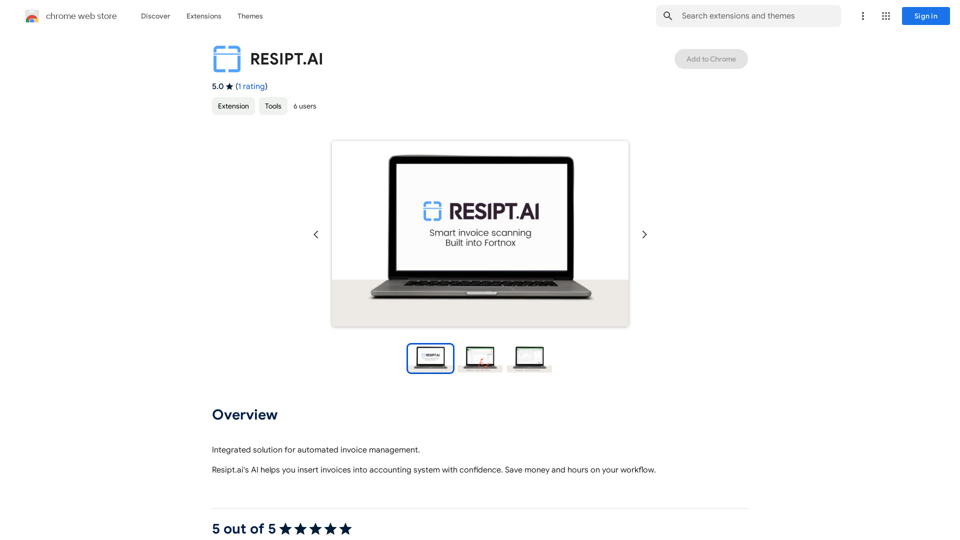
Integrated solution for automated invoice management.

193.90 M
Corely: AI YouTube Summarizer with ChatGPT
View Detail

Corely: AI YouTube Summarizer with ChatGPT

Corely: AI YouTube Summarizer with ChatGPT

AI tool that boosts your productivity - grab key insights from any lengthy videos in 10 seconds. AI YouTube Summarizer with ChatGPT.

193.90 M
iVu.AI - Intelligent Search Engine Powered by Artificial Intelligence - iVu.AI
View Detail

iVu.AI - Intelligent Search Engine Powered by Artificial Intelligence - iVu.AI

iVu.AI - Intelligent Search Engine Powered by Artificial Intelligence - iVu.AI

An AI-powered search engine

0
Clearscope: The #1 Content-First SEO Platform
View Detail

Clearscope: The #1 Content-First SEO Platform

Clearscope: The #1 Content-First SEO Platform

Clearscope is the leading content-first SEO platform that enables marketing teams to increase traffic by simplifying SEO and content optimization, keyword identification, workflow management, and content monitoring.

146.92 K
Smart Template - DocumentAI 


This is a placeholder for content about Smart Templates in DocumentAI. 

Please provide me with the content you'd like me to translate.
View Detail

Smart Template - DocumentAI This is a placeholder for content about Smart Templates in DocumentAI. Please provide me with the content you'd like me to translate.

Smart Template - DocumentAI This is a placeholder for content about Smart Templates in DocumentAI. Please provide me with the content you'd like me to translate.

Boost your productivity with the best tool around, making it easy to create and edit documents and saving you precious time.

193.90 M
Podly - AI Toolset for Merch By Amazon
View Detail

Podly - AI Toolset for Merch By Amazon

Podly - AI Toolset for Merch By Amazon

Introducing AI Listing Creator by Podly, a revolutionary tool that uses artificial intelligence technology to help Merch by Amazon sellers create high-quality product listings quickly and efficiently.

193.90 M