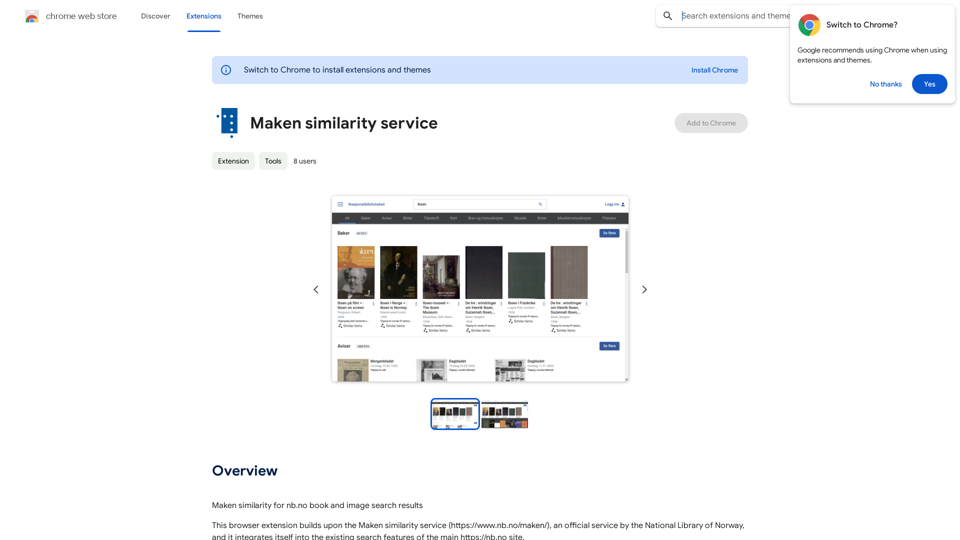
Maken similarity service is a browser extension that enhances the search capabilities of the National Library of Norway's website (nb.no). It integrates seamlessly with the existing search features, adding functionality to discover similar items for books and images. This innovative tool, developed by the AI Lab at the National Library of Norway, offers users a new way to explore and discover related content without leaving the main library website.
Make a similarity service
Comparing Similarity for nb.no Book and Image Search Results
Let's explore how to measure the similarity between:
* Book search results from nb.no (the Norwegian National Library)
* Image search results from various sources
This comparison can be valuable for understanding:
* How well visual representations match textual descriptions.
* Potential for using images to enhance book discovery.
* Developing new search functionalities that combine text and image data.
We can use various techniques to assess similarity, including:
* Textual Similarity: Analyzing the keywords, topics, and overall content of book descriptions and image captions.
* Visual Similarity: Comparing the visual features of images using algorithms like convolutional neural networks (CNNs).
* Hybrid Approaches: Combining textual and visual similarity measures for a more comprehensive evaluation.
By comparing similarity scores across different methods, we can gain insights into the strengths and weaknesses of each approach and identify the most effective way to connect books and images.
Introduction
Feature
Seamless Integration with nb.no
The extension integrates directly into the National Library of Norway's website, adding new functionality without disrupting the user experience.
Similar Item Discovery
For each search result in the books and images categories, Maken adds a new button that allows users to find and explore similar items.
AI-Powered Recommendations
Leveraging artificial intelligence developed by the National Library's AI Lab, the service provides intelligent recommendations for related content.
Free and Easy to Use
The browser extension is free to download and install, making it accessible to all users of the National Library's website.
Enhanced Search Experience
By providing similar item suggestions, Maken enriches the search process, helping users discover new and relevant content they might have otherwise missed.
Visual Similarity Search
The service allows users to explore similar items and goods based on image content, enhancing the visual search capabilities of the library's collection.
FAQ
What is Maken similarity service?
Maken similarity service is a free browser extension that enhances the National Library of Norway's website by adding a feature to find similar books and images within search results.
How does Maken similarity service work?
The extension adds a new button to each search result in the books and images categories. When clicked, this button displays similar items, allowing users to discover related content easily.
Is Maken similarity service available for all content on nb.no?
Currently, the service focuses on providing similar item suggestions for books and images. It's unclear if it will expand to other content types in the future.
How can I start using Maken similarity service?
To use the service:
- Download and install the browser extension
- Enable the extension for the nb.no website
- Use the new buttons that appear next to search results to find similar items
Are there any costs associated with using Maken similarity service?
No, Maken similarity service is completely free to download, install, and use.
Related Websites
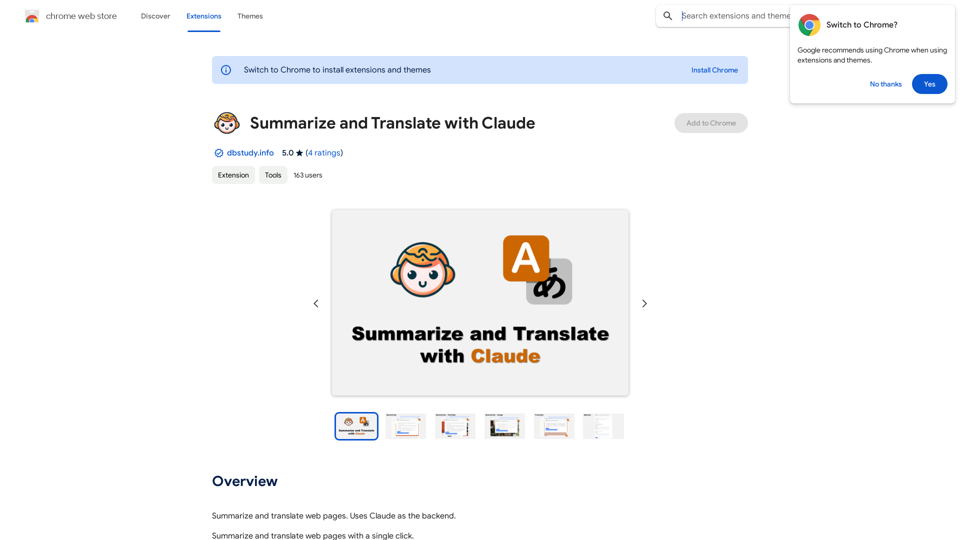
Please provide me with the text you'd like me to summarize and translate. I'm ready! 😊
Please provide me with the text you'd like me to summarize and translate. I'm ready! 😊I can help you with that! Just paste the web page URL here, and I'll use Claude's powerful abilities to: * Summarize the main points of the page in clear, concise language. * Translate the entire page into English for you. Let me know if you have a page you'd like me to work on!
193.90 M
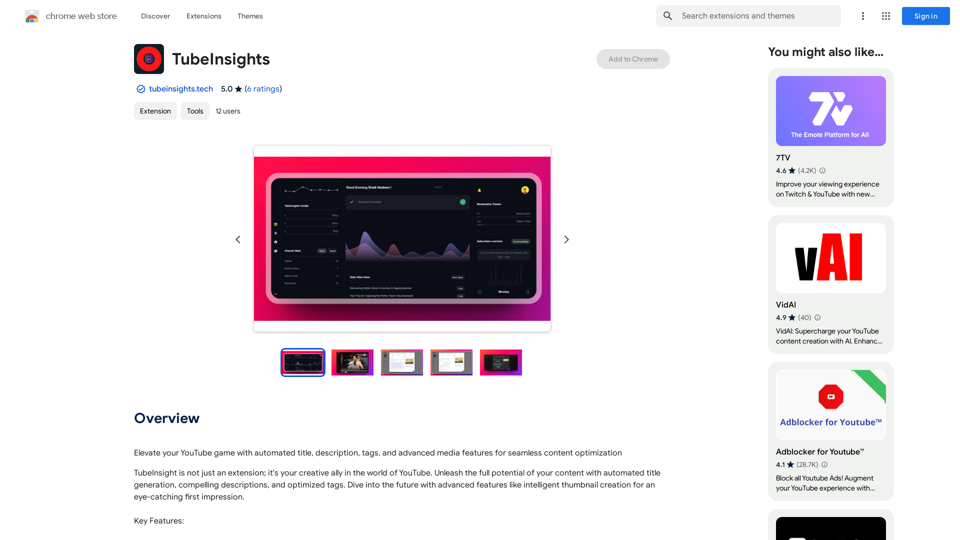
Boost your YouTube channel with automatic titles, descriptions, tags, and powerful media tools for effortless content improvement.
193.90 M
Converting JPG Images to Text Converting a JPG image to text is a process known as Optical Character Recognition (OCR). This technology enables you to extract text from images, scanned documents, and photos. Here's how to do it: Method 1: Online OCR Tools You can use online OCR tools to convert JPG images to text. Here are the steps: 1. Upload your JPG image: Go to an online OCR tool website, such as Online OCR Tools or OCR.space, and upload your JPG image. 2. Select the language: Choose the language of the text in your image. 3. Click on "Convert": The tool will convert the image to text. 4. Download the text: You can download the extracted text as a Word document, PDF, or plain text file. Method 2: Google Drive You can also use Google Drive to convert JPG images to text. Here's how: 1. Upload your JPG image: Upload your JPG image to Google Drive. 2. Right-click on the image: Right-click on the uploaded image and select "Open with" > "Google Docs". 3. The image will be converted: Google Docs will automatically convert the image to text. 4. Edit and download: You can edit the extracted text and download it as a Word document or PDF. Method 3: Adobe Acrobat If you have Adobe Acrobat installed on your computer, you can use it to convert JPG images to text. Here's how: 1. Open Adobe Acrobat: Open Adobe Acrobat on your computer. 2. Create a new document: Create a new document and click on "Tools" > "Recognize Text". 3. Select the image: Select the JPG image you want to convert. 4. Click on "Recognize": Adobe Acrobat will convert the image to text. 5. Edit and save: You can edit the extracted text and save it as a Word document or PDF. These are the three methods to convert JPG images to text. Choose the method that works best for you!
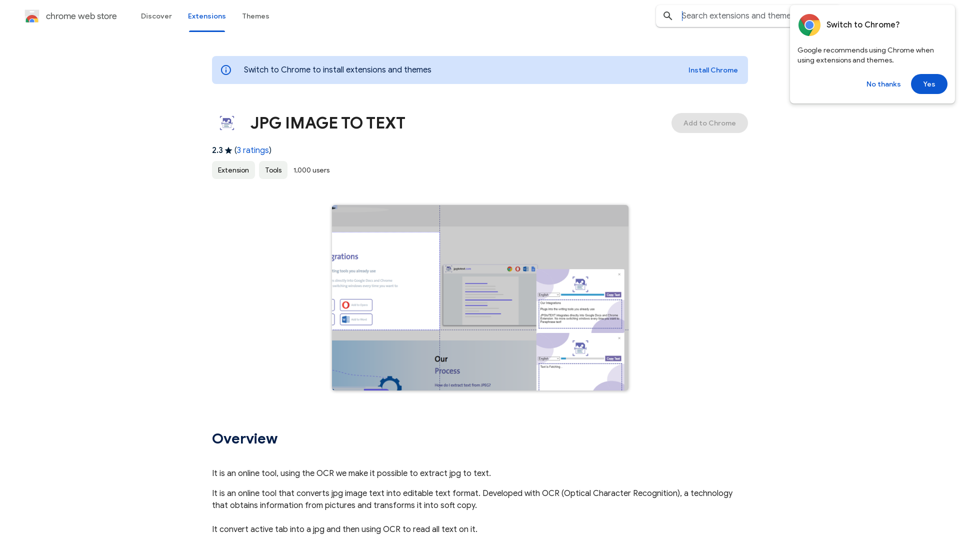
Converting JPG Images to Text Converting a JPG image to text is a process known as Optical Character Recognition (OCR). This technology enables you to extract text from images, scanned documents, and photos. Here's how to do it: Method 1: Online OCR Tools You can use online OCR tools to convert JPG images to text. Here are the steps: 1. Upload your JPG image: Go to an online OCR tool website, such as Online OCR Tools or OCR.space, and upload your JPG image. 2. Select the language: Choose the language of the text in your image. 3. Click on "Convert": The tool will convert the image to text. 4. Download the text: You can download the extracted text as a Word document, PDF, or plain text file. Method 2: Google Drive You can also use Google Drive to convert JPG images to text. Here's how: 1. Upload your JPG image: Upload your JPG image to Google Drive. 2. Right-click on the image: Right-click on the uploaded image and select "Open with" > "Google Docs". 3. The image will be converted: Google Docs will automatically convert the image to text. 4. Edit and download: You can edit the extracted text and download it as a Word document or PDF. Method 3: Adobe Acrobat If you have Adobe Acrobat installed on your computer, you can use it to convert JPG images to text. Here's how: 1. Open Adobe Acrobat: Open Adobe Acrobat on your computer. 2. Create a new document: Create a new document and click on "Tools" > "Recognize Text". 3. Select the image: Select the JPG image you want to convert. 4. Click on "Recognize": Adobe Acrobat will convert the image to text. 5. Edit and save: You can edit the extracted text and save it as a Word document or PDF. These are the three methods to convert JPG images to text. Choose the method that works best for you!It is an online tool that uses Optical Character Recognition (OCR) to make it possible to extract text from images in JPG format.
193.90 M
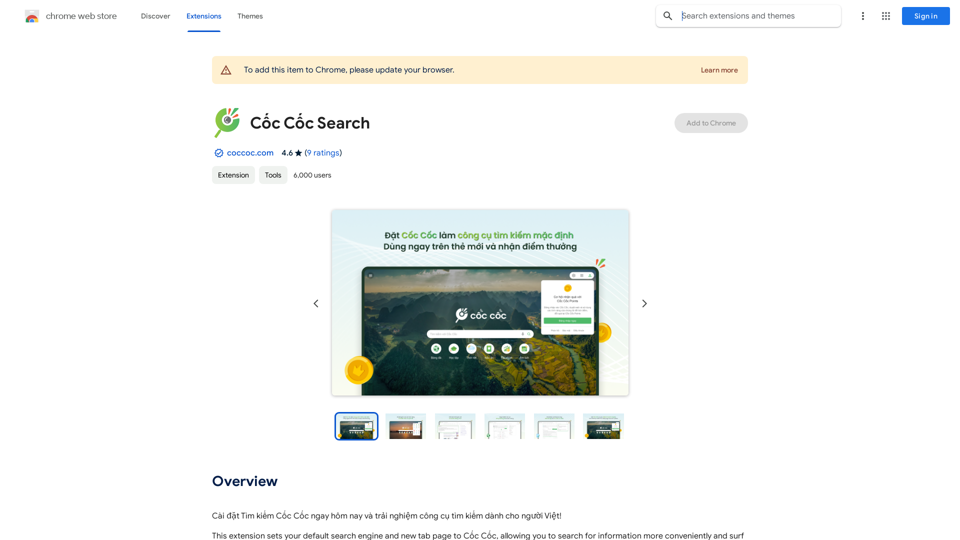
Install Cốc Cốc Search today and experience the search engine designed for Vietnamese people!
193.90 M