Open-source RightAI Tools Directory
  • Discover AI
  • Submit
  • Startup
  • Blog
Open-source RightAI Tools Directory
Discover the best AI tools of 2025 with the RightAI Tools Directory!

Friend Links

AI Anime GeneratorToolsApp AI

Support

Tap4
Privacy policyTerms & ConditionsContact Us
Loading...
loading...

SEO All Stars tools: in 1 place ⭐️

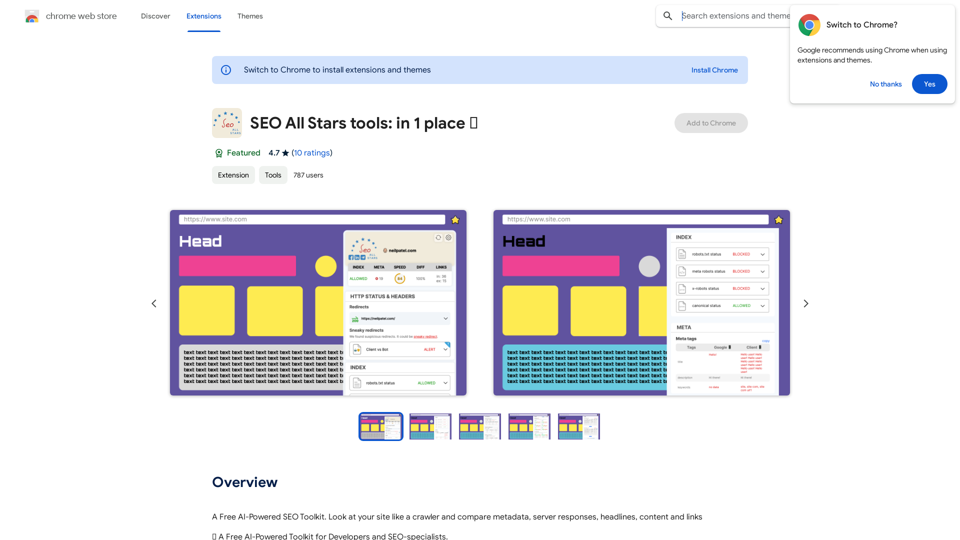
A Free AI-Powered SEO Toolkit. Analyze your website from a crawler's perspective, comparing metadata, server responses, headlines, content, and links.
Visit Website
SEO All Stars tools: in 1 place ⭐️
Visit Website

Introduction

SEO All Stars is a free AI-powered SEO toolkit designed to help website owners and marketers analyze their sites from a crawler's perspective. This comprehensive tool allows users to compare various aspects of their website, including metadata, server responses, headlines, content, and links. By identifying differences between client and bot data, users can optimize their sites for better search engine performance and visibility.

Feature

Comprehensive Website Analysis

SEO All Stars provides a thorough examination of your website, comparing client and bot data to reveal crucial insights for SEO optimization.

Data Comparison

The tool identifies differences in text and HTML between what users see and what search engine bots crawl, helping to pinpoint potential SEO issues.

Server and JavaScript Analysis

SEO All Stars analyzes server redirects and JavaScript implementation, ensuring proper functionality for both users and search engines.

HTTP Header Inspection

Users can review HTTP headers to ensure proper configuration and optimize for search engine crawlers.

Metadata Evaluation

The tool examines meta tags, allowing users to verify and improve their website's metadata for better search engine performance.

Headline Analysis

SEO All Stars reviews H1 tags, helping users optimize their headlines for both users and search engines.

Link Assessment

The tool provides a comprehensive analysis of links, helping users understand which links are indexed or missed by bots.

User-Friendly Interface

With a simple installation process and easy-to-follow steps, SEO All Stars makes website analysis accessible to both beginners and experienced SEO professionals.

Cost-Effective Solution

As a free extension, SEO All Stars offers powerful SEO analysis capabilities without any financial investment.

FAQ

What is SEO All Stars?

SEO All Stars is a free AI-powered SEO toolkit that allows users to analyze their websites from a crawler's perspective, comparing various aspects such as metadata, server responses, headlines, content, and links.

What are the main features of SEO All Stars?

The main features include:

  • Comparing client and bot data
  • Identifying differences in text and HTML
  • Analyzing server redirects and JavaScript
  • Checking HTTP headers
  • Reviewing meta tags
  • Examining H1 tags
  • Analyzing links

How do I use SEO All Stars?

To use SEO All Stars:

  1. Install the extension
  2. Open the extension and select the website to analyze
  3. Click the "Analyze" button
  4. Review the detailed report on your website's SEO performance

Is SEO All Stars compatible with my browser?

SEO All Stars is compatible with Chrome and other browsers that support extensions.

How much does SEO All Stars cost?

SEO All Stars is completely free to use, with no costs or subscriptions required.

Latest Traffic Insights

  • Monthly Visits

    193.90 M

  • Bounce Rate

    56.27%

  • Pages Per Visit

    2.71

  • Time on Site(s)

    115.91

  • Global Rank

    -

  • Country Rank

    -

Recent Visits

Traffic Sources

  • Social Media:
    0.48%
  • Paid Referrals:
    0.55%
  • Email:
    0.15%
  • Referrals:
    12.81%
  • Search Engines:
    16.21%
  • Direct:
    69.81%
More Data

Related Websites

Physna Nexus+
View Detail

Physna Nexus+

Physna Nexus+

Physna Nexus+ is a tool that improves Unity Asset Manager by adding search features powered by Physna.

193.90 M
Image Enhancer
View Detail

Image Enhancer

Image Enhancer

Enhance photos effortlessly with AI photo enhancer. Increase image resolution, improve colors, and make photo clear with just a click!

193.90 M
Audio to Text
View Detail

Audio to Text

Audio to Text

A Chrome extension for transcribing audio and video files.

193.90 M
FLUX.1 AI: Advanced Text-to-Image Generation Model
View Detail

FLUX.1 AI: Advanced Text-to-Image Generation Model

FLUX.1 AI: Advanced Text-to-Image Generation Model

Experience the next level of image synthesis with FLUX.1 AI. Our cutting-edge AI technology creates stunning, diverse, and highly detailed images from text prompts.

152
Image to SVG Converter
View Detail

Image to SVG Converter

Image to SVG Converter

Help me convert images to vector graphics (SVG).

193.90 M
AI Character Generator (free, no sign-up, unlimited)―Perchance AI
View Detail

AI Character Generator (free, no sign-up, unlimited)―Perchance AI

AI Character Generator (free, no sign-up, unlimited)―Perchance AI

AI text to image generator. Generate AI art from text, completely free, online, no login or sign-up, no daily credit limits/restrictions/gimmicks, and it's fast. Other AI art generators often have annoying daily credit limits and require sign-up, or are slow - this one doesn't. Use this AI to generate high quality art, photos, cartoons, drawings, anime, thumbnails, profile pictures, and more. Create original characters, anime characters, AI villains, fanfiction artwork, and pretty much anything else. It's an AI-based image generator that uses the Stable Diffusion text-to-image model. No watermark, no signup/login, unlimited images. Type words, make pics.

199
SellingPilot - Your AI-powered assistant for e-commerce.
View Detail

SellingPilot - Your AI-powered assistant for e-commerce.

SellingPilot - Your AI-powered assistant for e-commerce.

SellingPilot is your AI-powered assistant for e-commerce. It helps you streamline your operations and accelerate your e-commerce business.

193.90 M
Batch Save ChatGPT to Notion

This is a guide on how to save multiple ChatGPT responses to Notion in a batch. 

Tools You'll Need:

* ChatGPT: An AI chatbot that can generate text.
* Notion: A note-taking and project management tool.
* Python: A programming language.
* Requests Library: A Python library for making HTTP requests.

Steps:

1. Get Your Notion API Token:
   - Go to your Notion workspace settings.
   - Navigate to the "Integrations" tab.
   - Click "Create new integration" and choose "API Token".
   - Copy your API token.

2. Install Python Libraries:
   - Open your terminal or command prompt.
   - Type `pip install requests` and press Enter.

3. Write Python Script:
   - Create a new Python file (e.g., `save_chatgpt_to_notion.py`).
   - Paste the following code into the file, replacing `YOUR_NOTION_API_TOKEN` with your actual token:

```python
import requests

def save_chatgpt_response_to_notion(response, page_id, token):
  """Saves a ChatGPT response to a Notion page."""
  url = f"https://api.notion.com/v1/pages/{page_id}/children"
  headers = {"Authorization": f"Bearer {token}"}
  data = {
    "parent": {
      "page_id": page_id
    },
    "properties": {
      "title": {
        "title": [
          {
            "text": {
              "content": "ChatGPT Response"
            }
          }
        ]
      },
      "content": {
        "rich_text": [
          {
            "text": {
              "content": response
            }
          }
        ]
      }
    }
  }
  response = requests.post(url, headers=headers, json=data)
  print(response.status_code)

Example usage
page_id = "YOUR_NOTION_PAGE_ID"
token = "YOUR_NOTION_API_TOKEN"

Get ChatGPT responses (replace with your actual ChatGPT interaction)
chatgpt_responses = [
  "This is the first ChatGPT response.",
  "This is the second ChatGPT response.",
  "This is the third ChatGPT response."
]

Save each response to Notion
for response in chatgpt_responses:
  save_chatgpt_response_to_notion(response, page_id, token)
```

4. Run the Script:
   - In your terminal, navigate to the directory where you saved the Python file.
   - Type `python save_chatgpt_to_notion.py` and press Enter.

5. Check Notion:
   - Open your Notion workspace and go to the page specified by `page_id`.
   - You should see your ChatGPT responses saved as separate blocks.
View Detail

Batch Save ChatGPT to Notion This is a guide on how to save multiple ChatGPT responses to Notion in a batch. Tools You'll Need: * ChatGPT: An AI chatbot that can generate text. * Notion: A note-taking and project management tool. * Python: A programming language. * Requests Library: A Python library for making HTTP requests. Steps: 1. Get Your Notion API Token: - Go to your Notion workspace settings. - Navigate to the "Integrations" tab. - Click "Create new integration" and choose "API Token". - Copy your API token. 2. Install Python Libraries: - Open your terminal or command prompt. - Type `pip install requests` and press Enter. 3. Write Python Script: - Create a new Python file (e.g., `save_chatgpt_to_notion.py`). - Paste the following code into the file, replacing `YOUR_NOTION_API_TOKEN` with your actual token: ```python import requests def save_chatgpt_response_to_notion(response, page_id, token): """Saves a ChatGPT response to a Notion page.""" url = f"https://api.notion.com/v1/pages/{page_id}/children" headers = {"Authorization": f"Bearer {token}"} data = { "parent": { "page_id": page_id }, "properties": { "title": { "title": [ { "text": { "content": "ChatGPT Response" } } ] }, "content": { "rich_text": [ { "text": { "content": response } } ] } } } response = requests.post(url, headers=headers, json=data) print(response.status_code) Example usage page_id = "YOUR_NOTION_PAGE_ID" token = "YOUR_NOTION_API_TOKEN" Get ChatGPT responses (replace with your actual ChatGPT interaction) chatgpt_responses = [ "This is the first ChatGPT response.", "This is the second ChatGPT response.", "This is the third ChatGPT response." ] Save each response to Notion for response in chatgpt_responses: save_chatgpt_response_to_notion(response, page_id, token) ``` 4. Run the Script: - In your terminal, navigate to the directory where you saved the Python file. - Type `python save_chatgpt_to_notion.py` and press Enter. 5. Check Notion: - Open your Notion workspace and go to the page specified by `page_id`. - You should see your ChatGPT responses saved as separate blocks.

Batch Save ChatGPT to Notion This is a guide on how to save multiple ChatGPT responses to Notion in a batch. Tools You'll Need: * ChatGPT: An AI chatbot that can generate text. * Notion: A note-taking and project management tool. * Python: A programming language. * Requests Library: A Python library for making HTTP requests. Steps: 1. Get Your Notion API Token: - Go to your Notion workspace settings. - Navigate to the "Integrations" tab. - Click "Create new integration" and choose "API Token". - Copy your API token. 2. Install Python Libraries: - Open your terminal or command prompt. - Type `pip install requests` and press Enter. 3. Write Python Script: - Create a new Python file (e.g., `save_chatgpt_to_notion.py`). - Paste the following code into the file, replacing `YOUR_NOTION_API_TOKEN` with your actual token: ```python import requests def save_chatgpt_response_to_notion(response, page_id, token): """Saves a ChatGPT response to a Notion page.""" url = f"https://api.notion.com/v1/pages/{page_id}/children" headers = {"Authorization": f"Bearer {token}"} data = { "parent": { "page_id": page_id }, "properties": { "title": { "title": [ { "text": { "content": "ChatGPT Response" } } ] }, "content": { "rich_text": [ { "text": { "content": response } } ] } } } response = requests.post(url, headers=headers, json=data) print(response.status_code) Example usage page_id = "YOUR_NOTION_PAGE_ID" token = "YOUR_NOTION_API_TOKEN" Get ChatGPT responses (replace with your actual ChatGPT interaction) chatgpt_responses = [ "This is the first ChatGPT response.", "This is the second ChatGPT response.", "This is the third ChatGPT response." ] Save each response to Notion for response in chatgpt_responses: save_chatgpt_response_to_notion(response, page_id, token) ``` 4. Run the Script: - In your terminal, navigate to the directory where you saved the Python file. - Type `python save_chatgpt_to_notion.py` and press Enter. 5. Check Notion: - Open your Notion workspace and go to the page specified by `page_id`. - You should see your ChatGPT responses saved as separate blocks.

Save ChatGPT Conversations to Notion with One Click Export your ChatGPT conversations directly to Notion with a single click.

193.90 M