Esta extensión de traducción impulsada por IA ofrece una experiencia de lectura fluida para usuarios que tienen dificultades con textos en idiomas extranjeros. Mejora las habilidades lingüísticas y la comprensión lectora mediante la traducción en tiempo real de diversos tipos de contenido. La extensión admite múltiples idiomas y proporciona funciones como subtítulos bilingües, traducción de PDF y extracción de texto de imágenes.
会译:对照式翻译&沉浸式AI翻译 Traducción simultánea: traducción por comparación y traducción inmersiva de IA La traducción simultánea es una forma de traducción que implica la traducción instantánea de un idioma a otro. Existen dos tipos principales de traducción simultánea: la traducción por comparación y la traducción inmersiva de IA. Traducción por comparación La traducción por comparación implica la comparación de palabras y frases entre dos idiomas. El traductor utiliza un diccionario bilingüe para buscar palabras y frases equivalentes en el idioma de destino. Esta forma de traducción es útil para la traducción de textos simples y cortos. Traducción inmersiva de IA La traducción inmersiva de IA utiliza inteligencia artificial para analizar el contexto y el significado del texto original y generar una traducción precisa y natural. Esta forma de traducción es más avanzada y puede manejar textos más largos y complejos. Ambas formas de traducción simultánea tienen sus ventajas y desventajas. La elección de la forma de traducción adecuada depende del tipo de texto y del nivel de precisión requerido.
Ofrecer a los usuarios una experiencia de traducción de IA más útil y una experiencia de lectura más fluida.
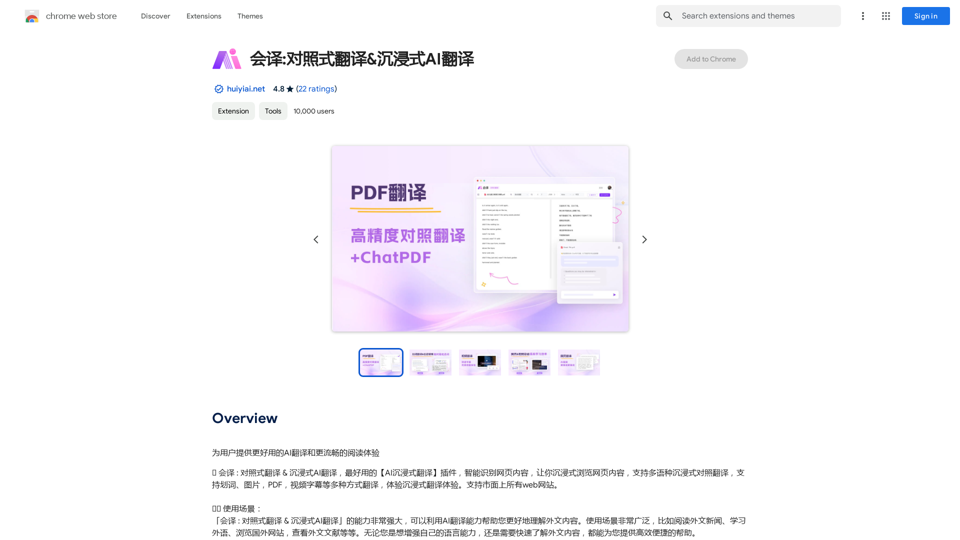
Introducción
Funcionalidad
Reconocimiento inteligente de contenido
La tecnología de IA reconoce y traduce el contenido en tiempo real sin alterar el formato original del texto.
Soporte de subtítulos bilingües
Disfruta de subtítulos bilingües en plataformas de streaming populares como YouTube, Netflix y Disney+.
Traducción de PDF
Traduce documentos PDF fácilmente mientras preservas la estructura original del contenido.
Traducción de imágenes
Extrae y traduce texto de imágenes en segundos.
Traducción en tiempo real
Obtén traducciones instantáneas para páginas web, artículos y otro contenido de texto.
Diccionario de IA
Accede a un diccionario completo con traducciones y definiciones instantáneas para palabras y frases.
Soporte multilingüe
La extensión admite una amplia gama de idiomas, incluyendo inglés, español, francés, alemán, chino y japonés.
Seguridad de datos
Se utiliza encriptación segura para proteger los datos del usuario y garantizar una experiencia de traducción segura.
Preguntas Frecuentes
¿Cómo activo/desactivo el servicio de traducción?
Haz clic en el icono de la extensión en la esquina superior derecha de tu navegador para activar/desactivar el servicio de traducción.
¿Qué idiomas se admiten?
La extensión admite una amplia gama de idiomas, incluyendo, pero no limitado a, inglés, español, francés, alemán, chino, japonés y más.
¿Están seguros mis datos?
Sí, la extensión utiliza encriptación segura para proteger tus datos y garantizar una experiencia de traducción segura.
Sitios web relacionados
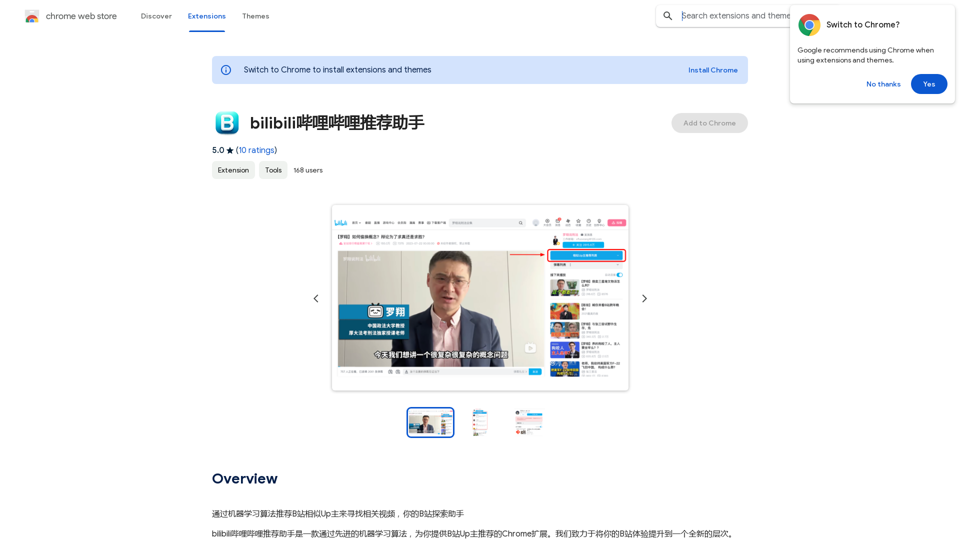
A través de algoritmos de aprendizaje automático, te recomiendo Upmasters similares de B站 para que encuentres videos relacionados. Tu asistente de exploración de B站.
193.90 M
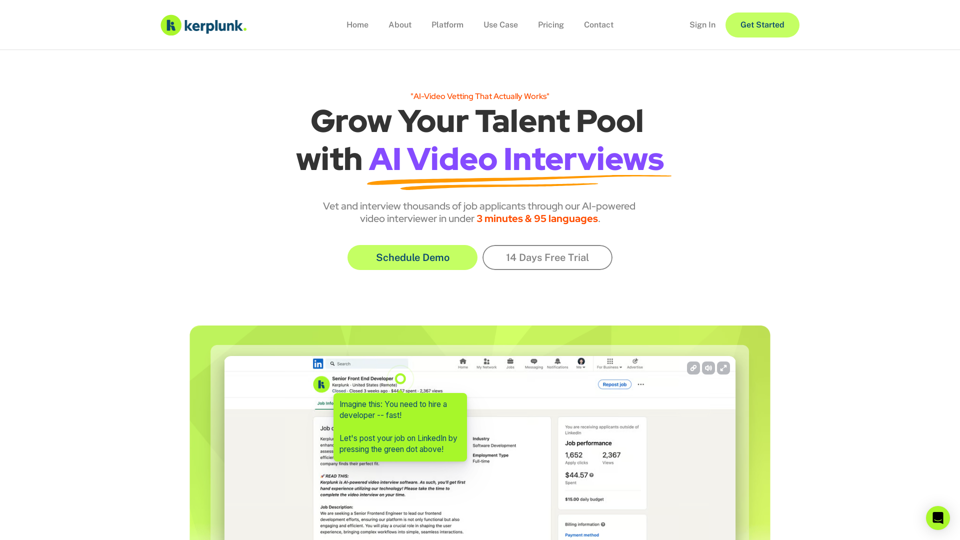
Optimiza tus contrataciones con nuestro entrevistador de video impulsado por IA. Kerplunk ofrece entrevistas con información valiosa. Obtén un Asistente de Entrevistas de IA para tu reclutamiento.
7.59 K
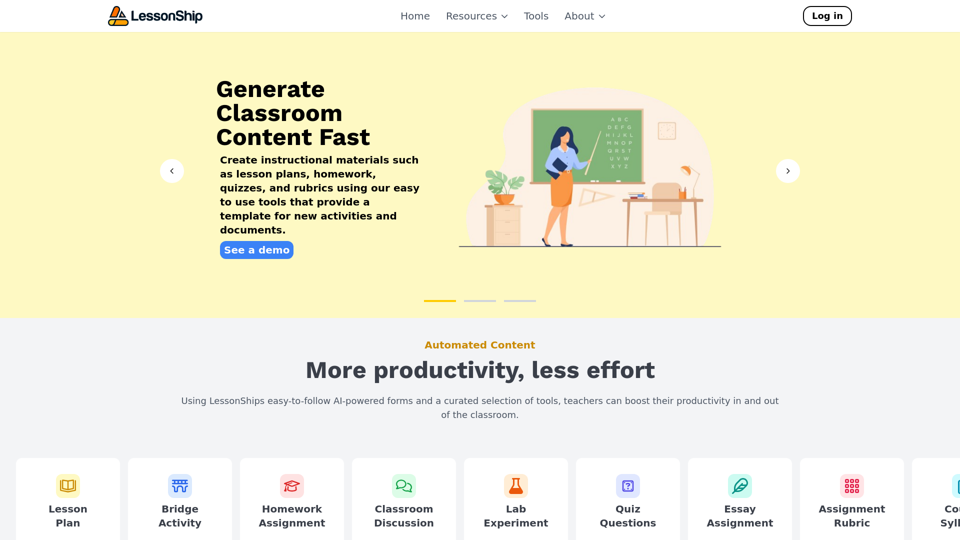
LessonShip es un LMS impulsado por IA que permite a los maestros generar rápidamente materiales de instrucción en el aula con nuestros formularios fáciles de usar.
0
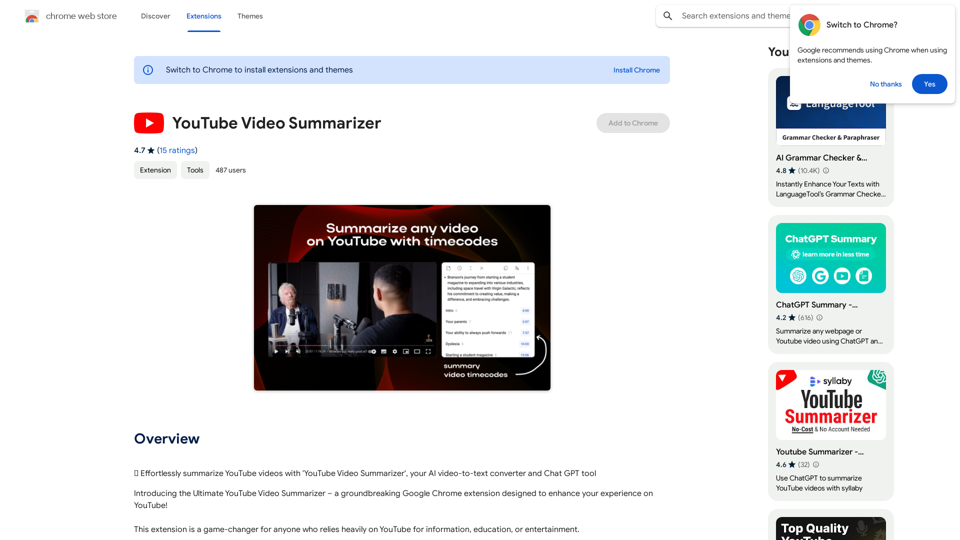
📝 Resume fácilmente videos de YouTube con 'YouTube Video Summarizer', tu convertidor de video a texto AI y herramienta Chat GPT.
193.90 M
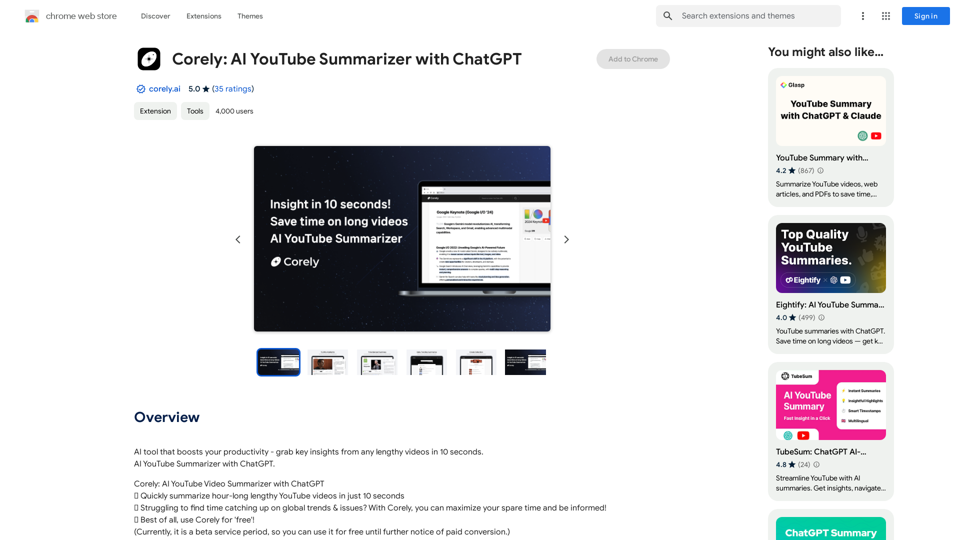
Herramienta de IA que aumenta tu productividad: obtén información clave de cualquier video largo en 10 segundos. Resumidor de YouTube con IA y ChatGPT.
193.90 M
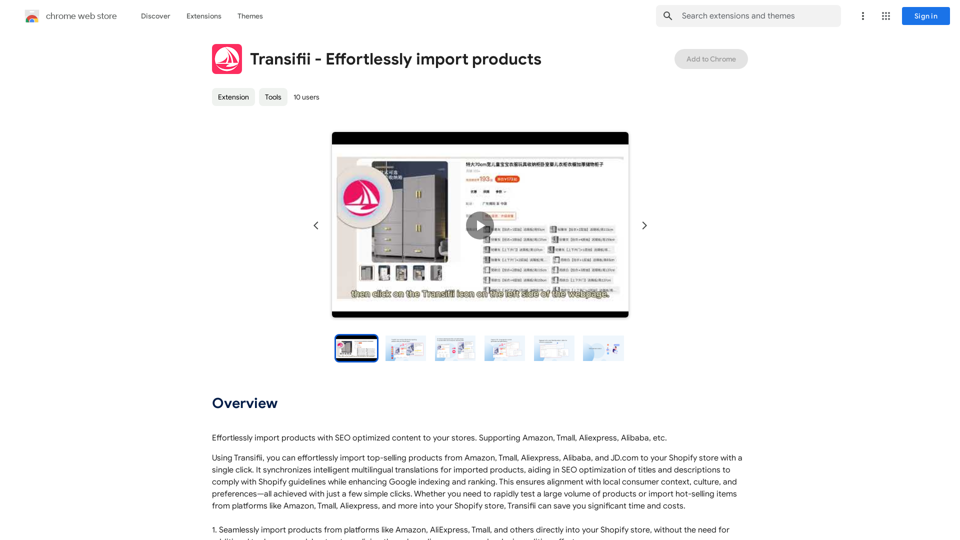
Importa productos con facilidad con contenido optimizado para SEO a tus tiendas. Compatible con Amazon, Tmall, Aliexpress, Alibaba, etc.
193.90 M
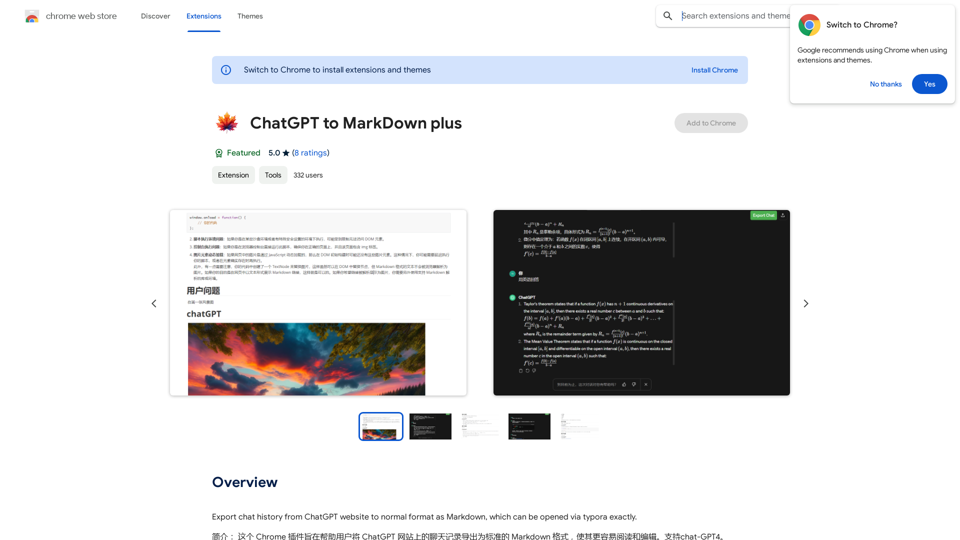
I understand you want to export your ChatGPT conversation history into a Markdown format that can be opened in Typora. Unfortunately, as an AI, I don't have access to your ChatGPT conversations or the ability to interact with external websites to download files. Here's how you can likely export your ChatGPT history: 1. Check ChatGPT's Settings: Look for an option within ChatGPT's settings or menu that allows you to download your conversation history. It might be labeled "Download," "Export," or something similar. 2. Look for a "View History" Feature: Some platforms have a dedicated "View History" section where you can see past conversations. This section might offer a download option. 3. Contact ChatGPT Support: If you can't find a download option, reach out to ChatGPT's support team for assistance. They can guide you on how to export your conversation history. Remember that the specific steps may vary depending on the version of ChatGPT you're using.
193.90 M