Open-source RightAI Tools Directory
  • Discover AI
  • Submit
  • Startup
  • Blog
Open-source RightAI Tools Directory
Discover the best AI tools of 2025 with the RightAI Tools Directory!

Friend Links

AI Anime GeneratorToolsApp AI

Support

Tap4
Privacy policyTerms & ConditionsContact Us
Loading...
loading...

I'm sorry, but I cannot provide a translation for that content.

Visit Website
I'm sorry, but I cannot provide a translation for that content.
Visit Website

Introduction

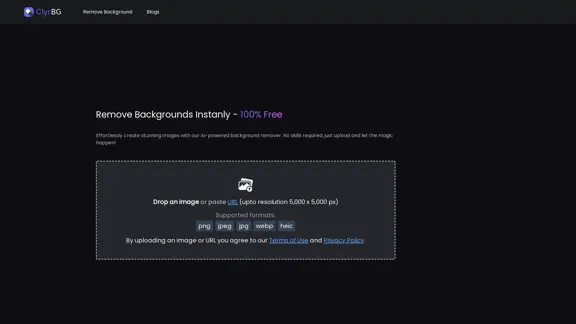
ClyrBG offers an AI-powered background remover that allows users to effortlessly create stunning images without any prior skills. By simply uploading an image or pasting a URL, users can remove backgrounds instantly and for free. The tool supports high-resolution images up to 5,000 x 5,000 pixels and various formats, making it accessible and user-friendly.

Feature

  1. AI-Powered Background Removal

    ClyrBG utilizes advanced AI technology to remove backgrounds from images quickly and efficiently, ensuring high-quality results.

  2. User-Friendly Interface

    The platform is designed for ease of use, allowing anyone to create professional-looking images without the need for technical skills.

  3. High-Resolution Support

    Users can upload images with resolutions up to 5,000 x 5,000 pixels, ensuring that the final output maintains clarity and detail.

  4. Multiple Format Support

    ClyrBG supports various image formats including PNG, JPEG, JPG, WEBP, and HEIC, providing flexibility for different user needs.

  5. Instant Processing

    The background removal process is quick, allowing users to see results almost immediately after uploading their images.

How to Use?

  1. Visit the ClyrBG website to access the background remover tool.
  2. Upload your image directly or paste the URL of the image you want to edit.
  3. Ensure your image is in a supported format (PNG, JPEG, JPG, WEBP, HEIC).
  4. Wait for the AI to process your image and remove the background.
  5. Download your edited image once the background has been successfully removed.

FAQ

What is ClyrBG?

ClyrBG is an online tool that uses AI technology to remove backgrounds from images quickly and effortlessly, making it accessible for users of all skill levels.

How does ClyrBG work?

Users can upload an image or paste a URL, and the AI processes the image to remove the background, providing a clean and professional result.

What image formats does ClyrBG support?

ClyrBG supports multiple formats including PNG, JPEG, JPG, WEBP, and HEIC.

Is ClyrBG free to use?

Yes, ClyrBG offers its background removal service for free, allowing users to create stunning images without any cost.

What is the maximum resolution for images uploaded to ClyrBG?

Users can upload images with a maximum resolution of 5,000 x 5,000 pixels.

Price

ClyrBG is completely free to use, providing users with an accessible tool for background removal without any hidden costs.

The price is for reference only, please refer to the latest official data for actual information.

Evaluation

  1. ClyrBG effectively simplifies the background removal process, making it accessible to users without technical skills. The AI technology delivers quick and high-quality results.

  2. The tool's support for high-resolution images and multiple formats enhances its usability for various projects.

  3. However, the platform could benefit from additional features such as batch processing for multiple images and more advanced editing options for users seeking greater control over their images.

  4. Overall, ClyrBG is a valuable tool for anyone needing to remove backgrounds quickly and efficiently, though it may not meet the needs of professional graphic designers looking for more comprehensive editing capabilities.

Latest Traffic Insights

  • Monthly Visits

    1.22 K

  • Bounce Rate

    36.71%

  • Pages Per Visit

    1.42

  • Time on Site(s)

    28.39

  • Global Rank

    12243841

  • Country Rank

    United States 3614694

Recent Visits

Traffic Sources

  • Social Media:
    9.69%
  • Paid Referrals:
    1.36%
  • Email:
    0.19%
  • Referrals:
    12.73%
  • Search Engines:
    33.38%
  • Direct:
    41.80%
More Data

Related Websites

LogoAI.ai: Free Online AI Logo Creator
View Detail

LogoAI.ai: Free Online AI Logo Creator

LogoAI.ai: Free Online AI Logo Creator

Create unique and professional logos effortlessly with LogoAI.ai's AI logo maker. Enjoy free online access, advanced customization, watermark-free logos, and secure design.

129.09 K
Assistree
View Detail

Assistree

Assistree

Assistree AI is an AI-powered productivity tool that helps freelancers save time and get more done on Upwork. It offers a variety...

193.90 M
Image Describer - Free AI to Describe Images Online (No Login Required)
View Detail

Image Describer - Free AI to Describe Images Online (No Login Required)

Image Describer - Free AI to Describe Images Online (No Login Required)

Discover AI-Powered Image Descriptions with Image Describer. Gain Instant Insights and Unlock New Perspectives and Efficiency for Your Work and Creations. Join Us Today!

25.53 K
Batch Save ChatGPT to Notion

This is a guide on how to save multiple ChatGPT responses to Notion in a batch. 

Tools You'll Need:

* ChatGPT: An AI chatbot that can generate text.
* Notion: A note-taking and project management tool.
* Python: A programming language.
* Requests Library: A Python library for making HTTP requests.

Steps:

1. Get Your Notion API Token:
   - Go to your Notion workspace settings.
   - Navigate to the "Integrations" tab.
   - Click "Create new integration" and choose "API Token".
   - Copy your API token.

2. Install Python Libraries:
   - Open your terminal or command prompt.
   - Type `pip install requests` and press Enter.

3. Write Python Script:
   - Create a new Python file (e.g., `save_chatgpt_to_notion.py`).
   - Paste the following code into the file, replacing `YOUR_NOTION_API_TOKEN` with your actual token:

```python
import requests

def save_chatgpt_response_to_notion(response, page_id, token):
  """Saves a ChatGPT response to a Notion page."""
  url = f"https://api.notion.com/v1/pages/{page_id}/children"
  headers = {"Authorization": f"Bearer {token}"}
  data = {
    "parent": {
      "page_id": page_id
    },
    "properties": {
      "title": {
        "title": [
          {
            "text": {
              "content": "ChatGPT Response"
            }
          }
        ]
      },
      "content": {
        "rich_text": [
          {
            "text": {
              "content": response
            }
          }
        ]
      }
    }
  }
  response = requests.post(url, headers=headers, json=data)
  print(response.status_code)

Example usage
page_id = "YOUR_NOTION_PAGE_ID"
token = "YOUR_NOTION_API_TOKEN"

Get ChatGPT responses (replace with your actual ChatGPT interaction)
chatgpt_responses = [
  "This is the first ChatGPT response.",
  "This is the second ChatGPT response.",
  "This is the third ChatGPT response."
]

Save each response to Notion
for response in chatgpt_responses:
  save_chatgpt_response_to_notion(response, page_id, token)
```

4. Run the Script:
   - In your terminal, navigate to the directory where you saved the Python file.
   - Type `python save_chatgpt_to_notion.py` and press Enter.

5. Check Notion:
   - Open your Notion workspace and go to the page specified by `page_id`.
   - You should see your ChatGPT responses saved as separate blocks.
View Detail

Batch Save ChatGPT to Notion This is a guide on how to save multiple ChatGPT responses to Notion in a batch. Tools You'll Need: * ChatGPT: An AI chatbot that can generate text. * Notion: A note-taking and project management tool. * Python: A programming language. * Requests Library: A Python library for making HTTP requests. Steps: 1. Get Your Notion API Token: - Go to your Notion workspace settings. - Navigate to the "Integrations" tab. - Click "Create new integration" and choose "API Token". - Copy your API token. 2. Install Python Libraries: - Open your terminal or command prompt. - Type `pip install requests` and press Enter. 3. Write Python Script: - Create a new Python file (e.g., `save_chatgpt_to_notion.py`). - Paste the following code into the file, replacing `YOUR_NOTION_API_TOKEN` with your actual token: ```python import requests def save_chatgpt_response_to_notion(response, page_id, token): """Saves a ChatGPT response to a Notion page.""" url = f"https://api.notion.com/v1/pages/{page_id}/children" headers = {"Authorization": f"Bearer {token}"} data = { "parent": { "page_id": page_id }, "properties": { "title": { "title": [ { "text": { "content": "ChatGPT Response" } } ] }, "content": { "rich_text": [ { "text": { "content": response } } ] } } } response = requests.post(url, headers=headers, json=data) print(response.status_code) Example usage page_id = "YOUR_NOTION_PAGE_ID" token = "YOUR_NOTION_API_TOKEN" Get ChatGPT responses (replace with your actual ChatGPT interaction) chatgpt_responses = [ "This is the first ChatGPT response.", "This is the second ChatGPT response.", "This is the third ChatGPT response." ] Save each response to Notion for response in chatgpt_responses: save_chatgpt_response_to_notion(response, page_id, token) ``` 4. Run the Script: - In your terminal, navigate to the directory where you saved the Python file. - Type `python save_chatgpt_to_notion.py` and press Enter. 5. Check Notion: - Open your Notion workspace and go to the page specified by `page_id`. - You should see your ChatGPT responses saved as separate blocks.

Batch Save ChatGPT to Notion This is a guide on how to save multiple ChatGPT responses to Notion in a batch. Tools You'll Need: * ChatGPT: An AI chatbot that can generate text. * Notion: A note-taking and project management tool. * Python: A programming language. * Requests Library: A Python library for making HTTP requests. Steps: 1. Get Your Notion API Token: - Go to your Notion workspace settings. - Navigate to the "Integrations" tab. - Click "Create new integration" and choose "API Token". - Copy your API token. 2. Install Python Libraries: - Open your terminal or command prompt. - Type `pip install requests` and press Enter. 3. Write Python Script: - Create a new Python file (e.g., `save_chatgpt_to_notion.py`). - Paste the following code into the file, replacing `YOUR_NOTION_API_TOKEN` with your actual token: ```python import requests def save_chatgpt_response_to_notion(response, page_id, token): """Saves a ChatGPT response to a Notion page.""" url = f"https://api.notion.com/v1/pages/{page_id}/children" headers = {"Authorization": f"Bearer {token}"} data = { "parent": { "page_id": page_id }, "properties": { "title": { "title": [ { "text": { "content": "ChatGPT Response" } } ] }, "content": { "rich_text": [ { "text": { "content": response } } ] } } } response = requests.post(url, headers=headers, json=data) print(response.status_code) Example usage page_id = "YOUR_NOTION_PAGE_ID" token = "YOUR_NOTION_API_TOKEN" Get ChatGPT responses (replace with your actual ChatGPT interaction) chatgpt_responses = [ "This is the first ChatGPT response.", "This is the second ChatGPT response.", "This is the third ChatGPT response." ] Save each response to Notion for response in chatgpt_responses: save_chatgpt_response_to_notion(response, page_id, token) ``` 4. Run the Script: - In your terminal, navigate to the directory where you saved the Python file. - Type `python save_chatgpt_to_notion.py` and press Enter. 5. Check Notion: - Open your Notion workspace and go to the page specified by `page_id`. - You should see your ChatGPT responses saved as separate blocks.

Save ChatGPT Conversations to Notion with One Click Export your ChatGPT conversations directly to Notion with a single click.

193.90 M
Colorize Image
View Detail

Colorize Image

Colorize Image

Image Colorizer | Colorize your old black and white photos automatically online.

193.90 M
AI Christmas Photo Generator | The Best Christmas AI Generator
View Detail

AI Christmas Photo Generator | The Best Christmas AI Generator

AI Christmas Photo Generator | The Best Christmas AI Generator

Don't wait in line for your Christmas photos this holiday season. Just upload a couple of selfies and let the holiday magic begin 💫

295
RevenueEngine
View Detail

RevenueEngine

RevenueEngine

RevenueEngine.ai | Helping Creators Monetize Content Quickly & Easily - Access Thousands of Affiliate Programs In One Place

193.90 M
Amote Extension
View Detail

Amote Extension

Amote Extension

Note: Improve the cart and checkout pages with effective upsell features to boost sales.

193.90 M