Open-source RightAI Tools Directory
  • Discover AI
  • Submit
  • Startup
  • Blog
Open-source RightAI Tools Directory
Discover the best AI tools of 2025 with the RightAI Tools Directory!

Friend Links

AI Anime GeneratorToolsApp AI

Support

Tap4
Privacy policyTerms & ConditionsContact Us
Loading...
loading...

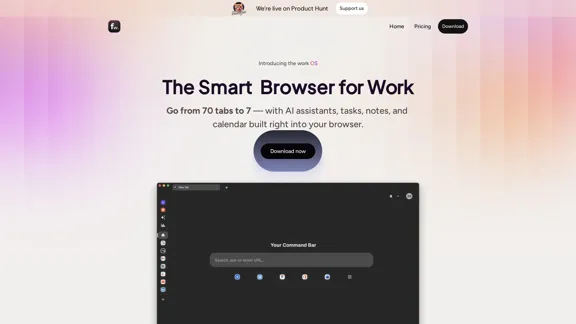
Floutwork – The AI-Enhanced Browser for Work and Efficiency

Floutwork is an AI-powered productivity browser that brings together workspaces, organizes your tabs, and integrates AI assistants directly into your workflow. It is designed to help you stay focused, streamline tasks, and accomplish more without distractions.
Visit Website
Floutwork – The AI-Enhanced Browser for Work and Efficiency
Visit Website

Introduction

Floutwork is an AI-powered browser designed specifically for work and productivity. It aims to streamline the user experience by reducing tab chaos and integrating essential tools like tasks, notes, and calendars directly into the browser. By focusing on organization and efficiency, Floutwork transforms the way users interact with their digital workspace.

Feature

  1. App-Based Tabs

    Floutwork organizes tabs by app, reducing clutter and allowing users to focus on their work without distraction.

  2. Contextual AI Assistants

    Users can create or utilize prebuilt AI assistants that integrate seamlessly into their workflow across platforms like Slack, Jira, and email.

  3. Productivity Metrics

    The browser automatically calculates a productivity score based on user activity, helping identify strengths and areas for improvement.

  4. AI Command Center

    Access multiple leading AI models in one unified workspace, enhancing productivity without the need to switch tabs.

  5. Integrated Task Management

    Users can add tasks from any webpage, which are then scheduled into their calendar for timely completion.

  6. Smart Inbox Cleaner

    Floutwork helps manage events and share documents efficiently, ensuring that everything is organized and easily accessible.

  7. Real-Time Collaboration

    The platform supports collaborative efforts, making it easier for teams to work together on projects and share important information.

How to Use?

  1. Download and install Floutwork from the official website.
  2. Organize your workspace by grouping tabs based on the applications you use most frequently.
  3. Utilize AI assistants to automate repetitive tasks and enhance your workflow.
  4. Regularly check your productivity metrics to identify areas for improvement.
  5. Use the integrated task management feature to keep track of your to-do list without leaving the browser.

FAQ

What is Floutwork?

Floutwork is an AI-powered browser designed to enhance productivity by integrating essential tools and reducing tab clutter.

How does Floutwork improve productivity?

By organizing tabs, providing AI assistants, and offering productivity metrics, Floutwork helps users maintain focus and streamline their workflow.

Can I use Floutwork for team collaboration?

Yes, Floutwork includes features that facilitate real-time collaboration, making it easier for teams to work together on projects.

How does Floutwork compare to traditional browsers?

Unlike traditional browsers that are often cluttered and unfocused, Floutwork is specifically designed for work, offering organization and integrated tools to enhance productivity.

Is Floutwork free to use?

Floutwork offers various pricing plans, including a free option, allowing users to choose a plan that best fits their needs.

Price

PlanPrice
Free Plan$0/month
Basic Plan$9.99/month
Standard Plan$19.99/month
Professional Plan$49.99/month
The price is for reference only, please refer to the latest official data for actual information.

Evaluation

Floutwork effectively addresses the common issues associated with traditional browsers by providing a focused environment for work. Its integration of AI assistants and productivity metrics is a significant advantage, allowing users to streamline their tasks and improve efficiency.

However, there are areas for improvement. The user interface could benefit from further refinement to enhance usability, especially for new users. Additionally, expanding the range of prebuilt AI assistants could cater to a broader audience and various workflows. Overall, Floutwork is a promising tool for enhancing productivity, but continuous updates and user feedback will be essential for its evolution.

Latest Traffic Insights

  • Monthly Visits

    0

  • Bounce Rate

    0.00%

  • Pages Per Visit

    0.00

  • Time on Site(s)

    0.00

  • Global Rank

    -

  • Country Rank

    -

Recent Visits

Traffic Sources

  • Social Media:
    0.00%
  • Paid Referrals:
    0.00%
  • Email:
    0.00%
  • Referrals:
    0.00%
  • Search Engines:
    0.00%
  • Direct:
    0.00%
More Data

Related Websites

Trade Ideas: AI-Driven Stock Scanning & Charting Platform
View Detail

Trade Ideas: AI-Driven Stock Scanning & Charting Platform

Trade Ideas: AI-Driven Stock Scanning & Charting Platform

Trade Ideas: Real-time AI stock scanning, automated trades, entry/exit signals & trade alerts. Manage your portfolio, mitigate risk, backtest, & analyze markets

355.16 K
AI assistant and enterprise search for teams | Findr
View Detail

AI assistant and enterprise search for teams | Findr

AI assistant and enterprise search for teams | Findr

AI assistant to search and chat with information, documents, and insights from multiple apps. Get answers to all your questions with AI search.

12.47 K
UCG - Chrome Web Store
View Detail

UCG - Chrome Web Store

UCG - Chrome Web Store

ChatGPT without leaving the tab or visible chat!

193.90 M
Dr. Muscle
View Detail

Dr. Muscle

Dr. Muscle

Imagine ChatGPT, but for fitness. Automated yet personal, with expert coaching and workouts tailored specifically to you—optimized to get you in shape faster, on autopilot.

385
FolderPilot - AI-Driven Document Intelligence Platform
View Detail

FolderPilot - AI-Driven Document Intelligence Platform

FolderPilot - AI-Driven Document Intelligence Platform

Experience intelligent document interaction with FolderPilot. Chat naturally with your PDFs, documents, files, and videos. Get instant insights, answers, and analysis through AI-powered conversations with your content. Smart document management made simple.

0
Feta - Better stand-ups, retros, syncs and more
View Detail

Feta - Better stand-ups, retros, syncs and more

Feta - Better stand-ups, retros, syncs and more

Feta helps product and engineering teams capture meeting context, automate post-meeting tasks, and focus only on high-impact work.

0
Quist AI
View Detail

Quist AI

Quist AI

Quist, your AI-powered employee for data-driven success

744
Copilot for Microsoft 365 – Microsoft Adoption

Copilot for Microsoft 365 is a powerful AI assistant that helps you work smarter and faster across Microsoft 365 apps and services. It combines the power of large language models (LLMs) with your organization's data in the Microsoft Graph and Microsoft 365 apps to turn your words into the most powerful productivity tool on the planet.

Copilot is designed to help you:

• Unleash creativity
• Unlock productivity
• Uplevel skills

Copilot is built on Microsoft's comprehensive approach to security, compliance, and privacy. Copilot in Microsoft 365 apps and services:

• Does not use your data to train the underlying LLM
• Does not replace human ingenuity and judgment
• Is designed to keep humans in the loop

Copilot is currently available in Word, Excel, PowerPoint, Outlook, Teams, and more.

Getting Started with Copilot

To get started with Copilot, follow these steps:

1. Check availability: Ensure your organization has access to Copilot.
2. Learn the basics: Familiarize yourself with Copilot's capabilities and how to use it effectively.
3. Explore use cases: Discover how Copilot can help you in your specific role and tasks.
4. Practice and refine: Use Copilot regularly and refine your prompts for better results.
5. Share and collaborate: Collaborate with colleagues using Copilot and share best practices.

Best Practices for Using Copilot

1. Be specific in your prompts
2. Provide context for better results
3. Review and edit Copilot's output
4. Use Copilot as a starting point, not a final product
5. Experiment with different approaches
6. Stay informed about new features and updates

Copilot in Different Microsoft 365 Apps

• Word: Draft, edit, summarize, and rewrite content
• Excel: Analyze data, create formulas, and generate insights
• PowerPoint: Create presentations, design slides, and generate content
• Outlook: Compose emails, summarize threads, and manage your inbox
• Teams: Summarize meetings, generate action items, and create meeting notes

Responsible AI and Copilot

Microsoft is committed to developing AI systems responsibly. When using Copilot, keep in mind:

• AI-generated content may contain biases or inaccuracies
• Always review and verify Copilot's output
• Use your judgment and expertise alongside Copilot's suggestions
• Be aware of your organization's policies regarding AI use

Conclusion

Copilot for Microsoft 365 is a powerful tool that can significantly enhance your productivity and creativity. By understanding its capabilities, following best practices, and using it responsibly, you can make the most of this AI assistant in your daily work.
View Detail

Copilot for Microsoft 365 – Microsoft Adoption Copilot for Microsoft 365 is a powerful AI assistant that helps you work smarter and faster across Microsoft 365 apps and services. It combines the power of large language models (LLMs) with your organization's data in the Microsoft Graph and Microsoft 365 apps to turn your words into the most powerful productivity tool on the planet. Copilot is designed to help you: • Unleash creativity • Unlock productivity • Uplevel skills Copilot is built on Microsoft's comprehensive approach to security, compliance, and privacy. Copilot in Microsoft 365 apps and services: • Does not use your data to train the underlying LLM • Does not replace human ingenuity and judgment • Is designed to keep humans in the loop Copilot is currently available in Word, Excel, PowerPoint, Outlook, Teams, and more. Getting Started with Copilot To get started with Copilot, follow these steps: 1. Check availability: Ensure your organization has access to Copilot. 2. Learn the basics: Familiarize yourself with Copilot's capabilities and how to use it effectively. 3. Explore use cases: Discover how Copilot can help you in your specific role and tasks. 4. Practice and refine: Use Copilot regularly and refine your prompts for better results. 5. Share and collaborate: Collaborate with colleagues using Copilot and share best practices. Best Practices for Using Copilot 1. Be specific in your prompts 2. Provide context for better results 3. Review and edit Copilot's output 4. Use Copilot as a starting point, not a final product 5. Experiment with different approaches 6. Stay informed about new features and updates Copilot in Different Microsoft 365 Apps • Word: Draft, edit, summarize, and rewrite content • Excel: Analyze data, create formulas, and generate insights • PowerPoint: Create presentations, design slides, and generate content • Outlook: Compose emails, summarize threads, and manage your inbox • Teams: Summarize meetings, generate action items, and create meeting notes Responsible AI and Copilot Microsoft is committed to developing AI systems responsibly. When using Copilot, keep in mind: • AI-generated content may contain biases or inaccuracies • Always review and verify Copilot's output • Use your judgment and expertise alongside Copilot's suggestions • Be aware of your organization's policies regarding AI use Conclusion Copilot for Microsoft 365 is a powerful tool that can significantly enhance your productivity and creativity. By understanding its capabilities, following best practices, and using it responsibly, you can make the most of this AI assistant in your daily work.

Copilot for Microsoft 365 – Microsoft Adoption Copilot for Microsoft 365 is a powerful AI assistant that helps you work smarter and faster across Microsoft 365 apps and services. It combines the power of large language models (LLMs) with your organization's data in the Microsoft Graph and Microsoft 365 apps to turn your words into the most powerful productivity tool on the planet. Copilot is designed to help you: • Unleash creativity • Unlock productivity • Uplevel skills Copilot is built on Microsoft's comprehensive approach to security, compliance, and privacy. Copilot in Microsoft 365 apps and services: • Does not use your data to train the underlying LLM • Does not replace human ingenuity and judgment • Is designed to keep humans in the loop Copilot is currently available in Word, Excel, PowerPoint, Outlook, Teams, and more. Getting Started with Copilot To get started with Copilot, follow these steps: 1. Check availability: Ensure your organization has access to Copilot. 2. Learn the basics: Familiarize yourself with Copilot's capabilities and how to use it effectively. 3. Explore use cases: Discover how Copilot can help you in your specific role and tasks. 4. Practice and refine: Use Copilot regularly and refine your prompts for better results. 5. Share and collaborate: Collaborate with colleagues using Copilot and share best practices. Best Practices for Using Copilot 1. Be specific in your prompts 2. Provide context for better results 3. Review and edit Copilot's output 4. Use Copilot as a starting point, not a final product 5. Experiment with different approaches 6. Stay informed about new features and updates Copilot in Different Microsoft 365 Apps • Word: Draft, edit, summarize, and rewrite content • Excel: Analyze data, create formulas, and generate insights • PowerPoint: Create presentations, design slides, and generate content • Outlook: Compose emails, summarize threads, and manage your inbox • Teams: Summarize meetings, generate action items, and create meeting notes Responsible AI and Copilot Microsoft is committed to developing AI systems responsibly. When using Copilot, keep in mind: • AI-generated content may contain biases or inaccuracies • Always review and verify Copilot's output • Use your judgment and expertise alongside Copilot's suggestions • Be aware of your organization's policies regarding AI use Conclusion Copilot for Microsoft 365 is a powerful tool that can significantly enhance your productivity and creativity. By understanding its capabilities, following best practices, and using it responsibly, you can make the most of this AI assistant in your daily work.

Microsoft Copilot combines the power of large language models (LLMs) with your organization's data to turn your words into one of the most powerful productivity tools on the planet.

608.60 K