Open-source RightAI Tools Directory
  • Discover AI
  • Submit
  • Startup
  • Blog
Open-source RightAI Tools Directory
Discover the best AI tools of 2025 with the RightAI Tools Directory!

Friend Links

AI Anime GeneratorToolsApp AI

Support

Tap4
Privacy policyTerms & ConditionsContact Us
Loading...
loading...

OneTask | AI to-do app designed for ADHD

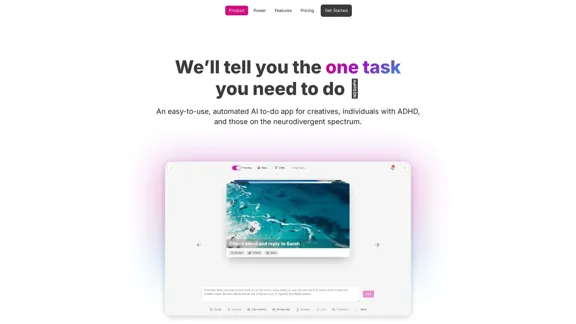
OneTask is an AI to-do app that assists you in organizing and prioritizing your tasks, allowing you to concentrate on what really matters.
Visit Website
OneTask | AI to-do app designed for ADHD
Visit Website

Introduction

OneTask is an AI-powered to-do app designed specifically for creatives, individuals with ADHD, and those on the neurodivergent spectrum. It simplifies task management by automating prioritization, allowing users to focus on what matters most. The app aims to enhance productivity and reduce decision fatigue, making it easier to manage workloads effectively.

Feature

  1. Autoprioritize Tasks

    With a simple toggle, users can autoprioritize their tasks, ensuring that the most important tasks are highlighted first. This feature helps manage workloads efficiently.

  2. Focus on Current Tasks

    OneTask removes analysis-paralysis by displaying only the tasks that require immediate attention, allowing users to concentrate on what they can work on right now.

  3. AI-Assisted Task Management

    The app offers AI-assisted task entry, helping users break down complex tasks into smaller, manageable steps.

  4. Multiple Views

    Users can choose from various views including list, card, calendar, and kanban, providing flexibility in how they manage their tasks.

  5. Detailed Task History

    OneTask maintains a detailed history of tasks, allowing users to track their progress over time.

  6. Zen Simplicity

    The app is designed with a clean user interface, making it easy for users to navigate and manage their tasks without distractions.

How to Use?

  1. Start by signing up for a free account on the OneTask website.
  2. Use the autoprioritize feature to automatically highlight your most important tasks.
  3. Explore different views (list, kanban, calendar) to find the layout that works best for you.
  4. Take advantage of AI-assisted task entry to simplify your workflow.
  5. Regularly check your task history to monitor your productivity and progress.

FAQ

What is OneTask?

OneTask is an AI-driven to-do app that helps users manage their tasks more effectively, particularly benefiting those with ADHD and neurodivergent thinkers.

How does OneTask help with productivity?

By automating task prioritization and simplifying task management, OneTask allows users to focus on what is most important, reducing decision fatigue and enhancing overall productivity.

Can I integrate OneTask with other tools?

Yes, OneTask offers integrations with Google Calendar and Todoist, allowing for seamless task management across different platforms.

Is OneTask suitable for team collaboration?

Yes, OneTask supports unlimited shared workspaces, making it a great tool for team collaboration.

What are the pricing options for OneTask?

OneTask offers a freemium model with a free forever plan, a Pro plan at $8 per month, and a lifetime option for $195.

Price

PlanPriceFeatures
FreeFree foreverAuto-prioritize tasks, unlimited workspaces, customer support
Pro$8/monthEverything in Free, Focus mode, integrations, AI task analysis
Lifetime$195Everything in Pro, one-time purchase
The price is for reference only, please refer to the latest official data for actual information.

Evaluation

OneTask effectively addresses the needs of its target audience by providing a user-friendly interface and powerful AI features that enhance productivity. The autoprioritization feature is particularly beneficial for users who struggle with task management. However, the app could improve by offering more customization options for task views and additional integrations with other productivity tools. While it serves as a valuable tool for occasional users, those seeking advanced project management features may find it lacking. Overall, OneTask is a promising solution for individuals looking to streamline their task management process.

Latest Traffic Insights

  • Monthly Visits

    13.99 K

  • Bounce Rate

    43.89%

  • Pages Per Visit

    1.43

  • Time on Site(s)

    9.47

  • Global Rank

    1843802

  • Country Rank

    United States 1527755

Recent Visits

Traffic Sources

  • Social Media:
    8.52%
  • Paid Referrals:
    1.31%
  • Email:
    0.11%
  • Referrals:
    11.58%
  • Search Engines:
    37.01%
  • Direct:
    41.17%
More Data

Related Websites

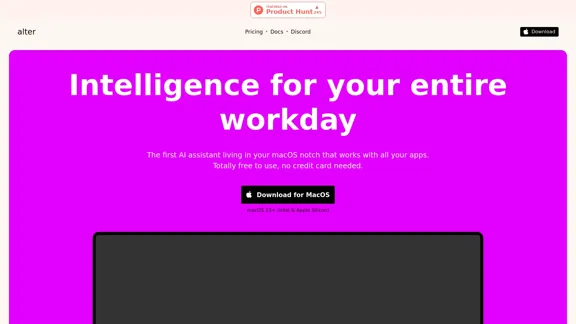
AI Note Taking & Transcribe & Summarizer | AI Notebook App
View Detail

AI Note Taking & Transcribe & Summarizer | AI Notebook App

AI Note Taking & Transcribe & Summarizer | AI Notebook App

Generate transcripts and AI summarize for College Students in lectures. Specializing in YouTube Video Summarizer, PDF Summarizer, Article Summarizer. Save key insights and review with study guides, quizzes, and flashcards. Build your AI-powered notes library.

0
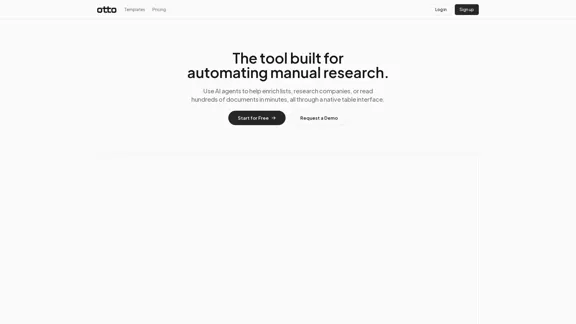
Tell a story
View Detail

Tell a story

Tell a story

the first voice-to-AI content solution

627
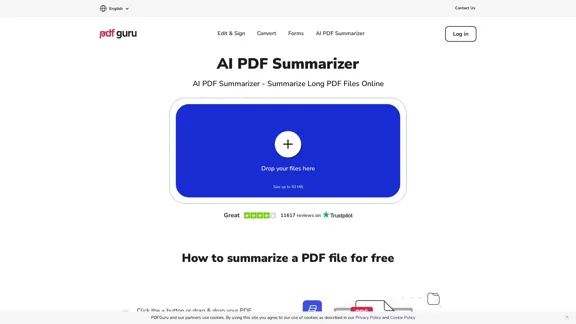
Merlin AI | Ask AI to Research, Write, Summarize in 1-click
View Detail

Merlin AI | Ask AI to Research, Write, Summarize in 1-click

Merlin AI | Ask AI to Research, Write, Summarize in 1-click

Free AI Chat to answer all your questions. Ask Merlin to summarize videos, articles, PDFs, and websites, write emails and content for social media, and review content using an AI detector.

1.84 M
OneTask | AI to-do app designed for ADHD
View Detail

OneTask | AI to-do app designed for ADHD

OneTask | AI to-do app designed for ADHD

OneTask is an AI to-do app that assists you in organizing and prioritizing your tasks, allowing you to concentrate on what really matters.

13.99 K
WHOOP | Unlock Your Potential
View Detail

WHOOP | Unlock Your Potential

WHOOP | Unlock Your Potential

Monitor your sleep, strain, recovery, and health with the most advanced fitness and health wearable available today. WHOOP helps you uncover data-driven insights for a healthier, more empowered life.

4.21 M
Tech Tool Decode - New Age Content Services LLP
View Detail

Tech Tool Decode - New Age Content Services LLP

Tech Tool Decode - New Age Content Services LLP

Our "Tech Tool Decode" consultancy service offers specialized evaluation services for artificial intelligence (AI) tools, apps, services, and everything in between.* If the tool is not AI, don't worry, we'll still evaluate it for you. We provide the human in the loop to test AI tools, products, services, etc. No automation or algorithms here. This

0
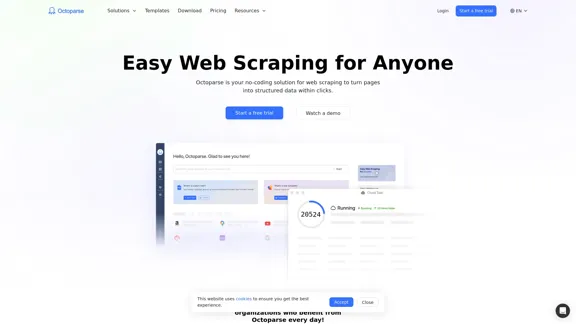
SharpAPI - Automate with AI-powered API, AI automation for: E-Commerce, Marketing, Content Management, HR Tech, Travel -
View Detail

SharpAPI - Automate with AI-powered API, AI automation for: E-Commerce, Marketing, Content Management, HR Tech, Travel -

SharpAPI - Automate with AI-powered API, AI automation for: E-Commerce, Marketing, Content Management, HR Tech, Travel -

Leverage AI API to streamline workflow in E-Commerce, Marketing, Content Management, HR Tech, Travel, and more.

2.92 K
Copilot for Microsoft 365 – Microsoft Adoption

Copilot for Microsoft 365 is a powerful AI assistant that helps you work smarter and faster across Microsoft 365 apps and services. It combines the power of large language models (LLMs) with your organization's data in the Microsoft Graph and Microsoft 365 apps to turn your words into the most powerful productivity tool on the planet.

Copilot is designed to help you:

• Unleash creativity
• Unlock productivity
• Uplevel skills

Copilot is built on Microsoft's comprehensive approach to security, compliance, and privacy. Copilot in Microsoft 365 apps and services:

• Does not use your data to train the underlying LLM
• Does not replace human ingenuity and judgment
• Is designed to keep humans in the loop

Copilot is currently available in Word, Excel, PowerPoint, Outlook, Teams, and more.

Getting Started with Copilot

To get started with Copilot, follow these steps:

1. Check availability: Ensure your organization has access to Copilot.
2. Learn the basics: Familiarize yourself with Copilot's capabilities and how to use it effectively.
3. Explore use cases: Discover how Copilot can help you in your specific role and tasks.
4. Practice and refine: Use Copilot regularly and refine your prompts for better results.
5. Share and collaborate: Collaborate with colleagues using Copilot and share best practices.

Best Practices for Using Copilot

1. Be specific in your prompts
2. Provide context for better results
3. Review and edit Copilot's output
4. Use Copilot as a starting point, not a final product
5. Experiment with different approaches
6. Stay informed about new features and updates

Copilot in Different Microsoft 365 Apps

• Word: Draft, edit, summarize, and rewrite content
• Excel: Analyze data, create formulas, and generate insights
• PowerPoint: Create presentations, design slides, and generate content
• Outlook: Compose emails, summarize threads, and manage your inbox
• Teams: Summarize meetings, generate action items, and create meeting notes

Responsible AI and Copilot

Microsoft is committed to developing AI systems responsibly. When using Copilot, keep in mind:

• AI-generated content may contain biases or inaccuracies
• Always review and verify Copilot's output
• Use your judgment and expertise alongside Copilot's suggestions
• Be aware of your organization's policies regarding AI use

Conclusion

Copilot for Microsoft 365 is a powerful tool that can significantly enhance your productivity and creativity. By understanding its capabilities, following best practices, and using it responsibly, you can make the most of this AI assistant in your daily work.
View Detail

Copilot for Microsoft 365 – Microsoft Adoption Copilot for Microsoft 365 is a powerful AI assistant that helps you work smarter and faster across Microsoft 365 apps and services. It combines the power of large language models (LLMs) with your organization's data in the Microsoft Graph and Microsoft 365 apps to turn your words into the most powerful productivity tool on the planet. Copilot is designed to help you: • Unleash creativity • Unlock productivity • Uplevel skills Copilot is built on Microsoft's comprehensive approach to security, compliance, and privacy. Copilot in Microsoft 365 apps and services: • Does not use your data to train the underlying LLM • Does not replace human ingenuity and judgment • Is designed to keep humans in the loop Copilot is currently available in Word, Excel, PowerPoint, Outlook, Teams, and more. Getting Started with Copilot To get started with Copilot, follow these steps: 1. Check availability: Ensure your organization has access to Copilot. 2. Learn the basics: Familiarize yourself with Copilot's capabilities and how to use it effectively. 3. Explore use cases: Discover how Copilot can help you in your specific role and tasks. 4. Practice and refine: Use Copilot regularly and refine your prompts for better results. 5. Share and collaborate: Collaborate with colleagues using Copilot and share best practices. Best Practices for Using Copilot 1. Be specific in your prompts 2. Provide context for better results 3. Review and edit Copilot's output 4. Use Copilot as a starting point, not a final product 5. Experiment with different approaches 6. Stay informed about new features and updates Copilot in Different Microsoft 365 Apps • Word: Draft, edit, summarize, and rewrite content • Excel: Analyze data, create formulas, and generate insights • PowerPoint: Create presentations, design slides, and generate content • Outlook: Compose emails, summarize threads, and manage your inbox • Teams: Summarize meetings, generate action items, and create meeting notes Responsible AI and Copilot Microsoft is committed to developing AI systems responsibly. When using Copilot, keep in mind: • AI-generated content may contain biases or inaccuracies • Always review and verify Copilot's output • Use your judgment and expertise alongside Copilot's suggestions • Be aware of your organization's policies regarding AI use Conclusion Copilot for Microsoft 365 is a powerful tool that can significantly enhance your productivity and creativity. By understanding its capabilities, following best practices, and using it responsibly, you can make the most of this AI assistant in your daily work.

Copilot for Microsoft 365 – Microsoft Adoption Copilot for Microsoft 365 is a powerful AI assistant that helps you work smarter and faster across Microsoft 365 apps and services. It combines the power of large language models (LLMs) with your organization's data in the Microsoft Graph and Microsoft 365 apps to turn your words into the most powerful productivity tool on the planet. Copilot is designed to help you: • Unleash creativity • Unlock productivity • Uplevel skills Copilot is built on Microsoft's comprehensive approach to security, compliance, and privacy. Copilot in Microsoft 365 apps and services: • Does not use your data to train the underlying LLM • Does not replace human ingenuity and judgment • Is designed to keep humans in the loop Copilot is currently available in Word, Excel, PowerPoint, Outlook, Teams, and more. Getting Started with Copilot To get started with Copilot, follow these steps: 1. Check availability: Ensure your organization has access to Copilot. 2. Learn the basics: Familiarize yourself with Copilot's capabilities and how to use it effectively. 3. Explore use cases: Discover how Copilot can help you in your specific role and tasks. 4. Practice and refine: Use Copilot regularly and refine your prompts for better results. 5. Share and collaborate: Collaborate with colleagues using Copilot and share best practices. Best Practices for Using Copilot 1. Be specific in your prompts 2. Provide context for better results 3. Review and edit Copilot's output 4. Use Copilot as a starting point, not a final product 5. Experiment with different approaches 6. Stay informed about new features and updates Copilot in Different Microsoft 365 Apps • Word: Draft, edit, summarize, and rewrite content • Excel: Analyze data, create formulas, and generate insights • PowerPoint: Create presentations, design slides, and generate content • Outlook: Compose emails, summarize threads, and manage your inbox • Teams: Summarize meetings, generate action items, and create meeting notes Responsible AI and Copilot Microsoft is committed to developing AI systems responsibly. When using Copilot, keep in mind: • AI-generated content may contain biases or inaccuracies • Always review and verify Copilot's output • Use your judgment and expertise alongside Copilot's suggestions • Be aware of your organization's policies regarding AI use Conclusion Copilot for Microsoft 365 is a powerful tool that can significantly enhance your productivity and creativity. By understanding its capabilities, following best practices, and using it responsibly, you can make the most of this AI assistant in your daily work.

Microsoft Copilot combines the power of large language models (LLMs) with your organization's data to turn your words into one of the most powerful productivity tools on the planet.

608.60 K