Open-source RightAI Tools Directory
  • Discover AI
  • Submit
  • Startup
  • Blog
Open-source RightAI Tools Directory
Discover the best AI tools of 2025 with the RightAI Tools Directory!

Friend Links

AI Anime GeneratorToolsApp AI

Support

Tap4
Privacy policyTerms & ConditionsContact Us
Loading...
loading...

Tell a story

the first voice-to-AI content solution

Visit Website
Tell a story
Visit Website

Introduction

Saystory is an innovative platform designed to empower professionals in becoming thought leaders. It offers a comprehensive suite of tools and resources for developing and sharing expertise, ideas, and insights with a wider audience. The platform caters to various professionals, including entrepreneurs, executives, consultants, educators, and industry experts, helping them establish their presence as thought leaders in their respective fields.

Feature

Thought Leadership Development

Saystory provides resources and tools to help users develop their expertise and establish themselves as thought leaders in their industries.

Content Creation Tools

The platform offers a range of tools to assist users in creating high-quality content across various formats, including text, video, and audio.

Storytelling Assistance

Saystory helps users craft compelling narratives to effectively communicate their ideas and insights.

Audience Engagement Analytics

Users can access data-driven insights to understand and improve their audience engagement, refining their approach based on analytics.

Personal Branding Support

The platform offers features to help users build and maintain a strong personal brand as a thought leader.

User-Friendly Interface

Saystory provides an intuitive interface for easy content creation and management.

Community Engagement

Users can connect with a community of like-minded professionals, fostering collaboration and networking opportunities.

Flexible Pricing Options

Saystory offers various pricing plans to suit different needs:

PlanPriceFeatures
BasicFreeLimited access to tools, basic analytics
Pro$19.99/monthFull suite of tools, advanced analytics
EnterpriseCustom pricingTailored solutions for teams and organizations

FAQ

What types of professionals can benefit from Saystory?

Saystory is designed for a wide range of professionals, including entrepreneurs, executives, consultants, educators, and industry experts who want to establish themselves as thought leaders in their respective fields.

Can I book a demo of Saystory?

Yes, Saystory offers the option to book a demo. This allows potential users to see the platform in action and understand how it can benefit their thought leadership journey.

How does Saystory help me "blossom" as a thought leader?

Saystory provides tools for content creation, storytelling assistance, and audience engagement analytics. These features help you develop your ideas, present them effectively, and understand your impact, allowing you to grow and refine your thought leadership skills.

Is there a mobile app for Saystory?

While the website doesn't explicitly mention a mobile app, many similar platforms offer mobile accessibility. Contact Saystory's support team for the most up-to-date information on mobile options.

How can I view success stories on Saystory?

The website mentions a "Success Stories" section. This likely showcases examples of professionals who have effectively used Saystory to enhance their thought leadership presence and achieve their goals.

Latest Traffic Insights

  • Monthly Visits

    627

  • Bounce Rate

    35.71%

  • Pages Per Visit

    1.09

  • Time on Site(s)

    0.00

  • Global Rank

    -

  • Country Rank

    -

Recent Visits

Traffic Sources

  • Social Media:
    0.00%
  • Paid Referrals:
    0.00%
  • Email:
    0.00%
  • Referrals:
    0.00%
  • Search Engines:
    0.00%
  • Direct:
    0.00%
More Data

Related Websites

Slashit App
View Detail

Slashit App

Slashit App

Turn your regular text into shortcuts.

258
Adaptive Planning EPM Software | Workday US
View Detail

Adaptive Planning EPM Software | Workday US

Adaptive Planning EPM Software | Workday US

Drive enterprise-wide business planning with Workday Adaptive Planning Cloud. Our EPM platform helps organizations plan smarter, report faster, and analyze better.

511.80 K
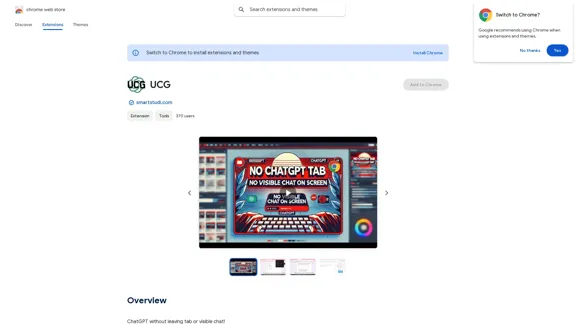
UCG - Chrome Web Store
View Detail

UCG - Chrome Web Store

UCG - Chrome Web Store

ChatGPT without leaving the tab or visible chat!

193.90 M
Rock AI
View Detail

Rock AI

Rock AI

Run and fine-tune open source models, and deploy custom models at scale, all with just one line of code

630
VibeTrack - Scheduling for Podcasters
View Detail

VibeTrack - Scheduling for Podcasters

VibeTrack - Scheduling for Podcasters

VibeTrack is a scheduling tool designed for location-flexible professionals and hobbyists who prefer in-person meetings.

0
AI for Email Security & Sustainability | mxHERO Inc.
View Detail

AI for Email Security & Sustainability | mxHERO Inc.

AI for Email Security & Sustainability | mxHERO Inc.

mxHERO AI combines the power of LLM AI with your email in a single dashboard. It offers robust email security, governance, and environmental sustainability features.

20.76 K
Copilot for Microsoft 365 – Microsoft Adoption

Copilot for Microsoft 365 is a powerful AI assistant that helps you work smarter and faster across Microsoft 365 apps and services. It combines the power of large language models (LLMs) with your organization's data in the Microsoft Graph and Microsoft 365 apps to turn your words into the most powerful productivity tool on the planet.

Copilot is designed to help you:

• Unleash creativity
• Unlock productivity
• Uplevel skills

Copilot is built on Microsoft's comprehensive approach to security, compliance, and privacy. Copilot in Microsoft 365 apps and services:

• Does not use your data to train the underlying LLM
• Does not replace human ingenuity and judgment
• Is designed to keep humans in the loop

Copilot is currently available in Word, Excel, PowerPoint, Outlook, Teams, and more.

Getting Started with Copilot

To get started with Copilot, follow these steps:

1. Check availability: Ensure your organization has access to Copilot.
2. Learn the basics: Familiarize yourself with Copilot's capabilities and how to use it effectively.
3. Explore use cases: Discover how Copilot can help you in your specific role and tasks.
4. Practice and refine: Use Copilot regularly and refine your prompts for better results.
5. Share and collaborate: Collaborate with colleagues using Copilot and share best practices.

Best Practices for Using Copilot

1. Be specific in your prompts
2. Provide context for better results
3. Review and edit Copilot's output
4. Use Copilot as a starting point, not a final product
5. Experiment with different approaches
6. Stay informed about new features and updates

Copilot in Different Microsoft 365 Apps

• Word: Draft, edit, summarize, and rewrite content
• Excel: Analyze data, create formulas, and generate insights
• PowerPoint: Create presentations, design slides, and generate content
• Outlook: Compose emails, summarize threads, and manage your inbox
• Teams: Summarize meetings, generate action items, and create meeting notes

Responsible AI and Copilot

Microsoft is committed to developing AI systems responsibly. When using Copilot, keep in mind:

• AI-generated content may contain biases or inaccuracies
• Always review and verify Copilot's output
• Use your judgment and expertise alongside Copilot's suggestions
• Be aware of your organization's policies regarding AI use

Conclusion

Copilot for Microsoft 365 is a powerful tool that can significantly enhance your productivity and creativity. By understanding its capabilities, following best practices, and using it responsibly, you can make the most of this AI assistant in your daily work.
View Detail

Copilot for Microsoft 365 – Microsoft Adoption Copilot for Microsoft 365 is a powerful AI assistant that helps you work smarter and faster across Microsoft 365 apps and services. It combines the power of large language models (LLMs) with your organization's data in the Microsoft Graph and Microsoft 365 apps to turn your words into the most powerful productivity tool on the planet. Copilot is designed to help you: • Unleash creativity • Unlock productivity • Uplevel skills Copilot is built on Microsoft's comprehensive approach to security, compliance, and privacy. Copilot in Microsoft 365 apps and services: • Does not use your data to train the underlying LLM • Does not replace human ingenuity and judgment • Is designed to keep humans in the loop Copilot is currently available in Word, Excel, PowerPoint, Outlook, Teams, and more. Getting Started with Copilot To get started with Copilot, follow these steps: 1. Check availability: Ensure your organization has access to Copilot. 2. Learn the basics: Familiarize yourself with Copilot's capabilities and how to use it effectively. 3. Explore use cases: Discover how Copilot can help you in your specific role and tasks. 4. Practice and refine: Use Copilot regularly and refine your prompts for better results. 5. Share and collaborate: Collaborate with colleagues using Copilot and share best practices. Best Practices for Using Copilot 1. Be specific in your prompts 2. Provide context for better results 3. Review and edit Copilot's output 4. Use Copilot as a starting point, not a final product 5. Experiment with different approaches 6. Stay informed about new features and updates Copilot in Different Microsoft 365 Apps • Word: Draft, edit, summarize, and rewrite content • Excel: Analyze data, create formulas, and generate insights • PowerPoint: Create presentations, design slides, and generate content • Outlook: Compose emails, summarize threads, and manage your inbox • Teams: Summarize meetings, generate action items, and create meeting notes Responsible AI and Copilot Microsoft is committed to developing AI systems responsibly. When using Copilot, keep in mind: • AI-generated content may contain biases or inaccuracies • Always review and verify Copilot's output • Use your judgment and expertise alongside Copilot's suggestions • Be aware of your organization's policies regarding AI use Conclusion Copilot for Microsoft 365 is a powerful tool that can significantly enhance your productivity and creativity. By understanding its capabilities, following best practices, and using it responsibly, you can make the most of this AI assistant in your daily work.

Copilot for Microsoft 365 – Microsoft Adoption Copilot for Microsoft 365 is a powerful AI assistant that helps you work smarter and faster across Microsoft 365 apps and services. It combines the power of large language models (LLMs) with your organization's data in the Microsoft Graph and Microsoft 365 apps to turn your words into the most powerful productivity tool on the planet. Copilot is designed to help you: • Unleash creativity • Unlock productivity • Uplevel skills Copilot is built on Microsoft's comprehensive approach to security, compliance, and privacy. Copilot in Microsoft 365 apps and services: • Does not use your data to train the underlying LLM • Does not replace human ingenuity and judgment • Is designed to keep humans in the loop Copilot is currently available in Word, Excel, PowerPoint, Outlook, Teams, and more. Getting Started with Copilot To get started with Copilot, follow these steps: 1. Check availability: Ensure your organization has access to Copilot. 2. Learn the basics: Familiarize yourself with Copilot's capabilities and how to use it effectively. 3. Explore use cases: Discover how Copilot can help you in your specific role and tasks. 4. Practice and refine: Use Copilot regularly and refine your prompts for better results. 5. Share and collaborate: Collaborate with colleagues using Copilot and share best practices. Best Practices for Using Copilot 1. Be specific in your prompts 2. Provide context for better results 3. Review and edit Copilot's output 4. Use Copilot as a starting point, not a final product 5. Experiment with different approaches 6. Stay informed about new features and updates Copilot in Different Microsoft 365 Apps • Word: Draft, edit, summarize, and rewrite content • Excel: Analyze data, create formulas, and generate insights • PowerPoint: Create presentations, design slides, and generate content • Outlook: Compose emails, summarize threads, and manage your inbox • Teams: Summarize meetings, generate action items, and create meeting notes Responsible AI and Copilot Microsoft is committed to developing AI systems responsibly. When using Copilot, keep in mind: • AI-generated content may contain biases or inaccuracies • Always review and verify Copilot's output • Use your judgment and expertise alongside Copilot's suggestions • Be aware of your organization's policies regarding AI use Conclusion Copilot for Microsoft 365 is a powerful tool that can significantly enhance your productivity and creativity. By understanding its capabilities, following best practices, and using it responsibly, you can make the most of this AI assistant in your daily work.

Microsoft Copilot combines the power of large language models (LLMs) with your organization's data to turn your words into one of the most powerful productivity tools on the planet.

608.60 K
Parafact - Verify Any Text with AI
View Detail

Parafact - Verify Any Text with AI

Parafact - Verify Any Text with AI

Fact-check any human or AI-written text. You copy and paste, we fact-check your text in real-time using reliable sources. All with one click.

0