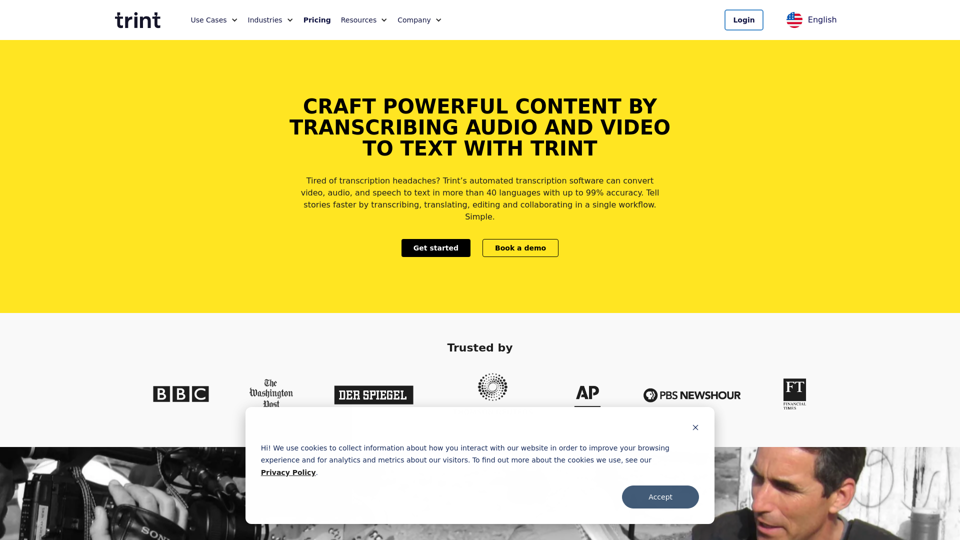
Trint is an AI-powered transcription and content editing platform that transforms audio and video into text. It provides a comprehensive toolkit for transcribing, translating, editing, and collaborating on content creation. With support for over 40 languages and advanced features like real-time collaboration and live transcription, Trint caters to a wide range of content creation needs across various industries.
Transcription Software | AI Transcription & Content Editor | Trint
Trint's AI-powered software swiftly converts video and audio files into text. Transcribe, edit, share, and collaborate to boost your team's productivity.
Introduction
Feature
AI-Driven Transcription
Trint's AI technology offers up to 99% accuracy in transcribing audio and video content, supporting over 40 languages.
Multilingual Support
- Transcription available in 40+ languages
- Translation capabilities for 50+ languages
Real-Time Collaboration
Trint provides tools for team members to work together on content in real-time, enhancing productivity and workflow efficiency.
Live Transcription
A mobile app enables on-the-go live transcription, perfect for interviews, press conferences, and field work.
Video Caption Generation
Automatically create captions for video content, improving accessibility and engagement.
Workflow Integration
Trint seamlessly integrates with existing content creation workflows and platforms.
Enterprise-Grade Security
- ISO 27001 certified
- Secure data servers in the US and EU
- AI trained externally to protect user data
Versatile Export Options
Users can export transcripts in multiple formats or use them within Trint's content creation tools.
FAQ
How does Trint work?
- Upload audio/video files or capture content live
- AI transcribes the content
- Edit and verify transcripts
- Collaborate with team members in real-time
- Export in multiple formats or integrate with other platforms
What makes Trint stand out?
- Founded by an Emmy Award-winning journalist
- Trusted by major organizations like The Washington Post and Tottenham Hotspur FC
- Offers a mobile app for on-the-go transcription
- Provides multilingual support for global reach
How accurate is Trint's transcription?
Trint claims up to 99% accuracy for its AI transcription.
Can Trint be used for live transcription?
Yes, Trint offers a mobile app for live transcription in 40+ languages.
Is my content secure with Trint?
Trint is ISO 27001 certified and maintains data servers in both the US and EU. They never listen to recordings and train their AI externally to protect user data.
Related Websites
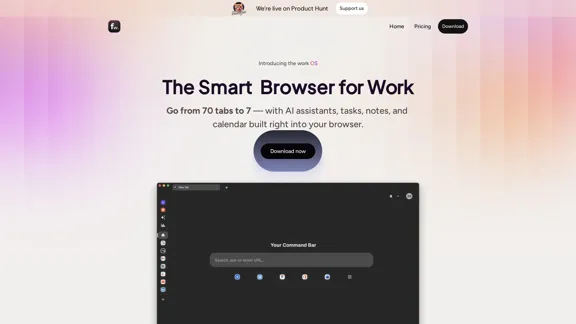
Floutwork – The AI-Enhanced Browser for Work and Efficiency
Floutwork – The AI-Enhanced Browser for Work and EfficiencyFloutwork is an AI-powered productivity browser that brings together workspaces, organizes your tabs, and integrates AI assistants directly into your workflow. It is designed to help you stay focused, streamline tasks, and accomplish more without distractions.
0
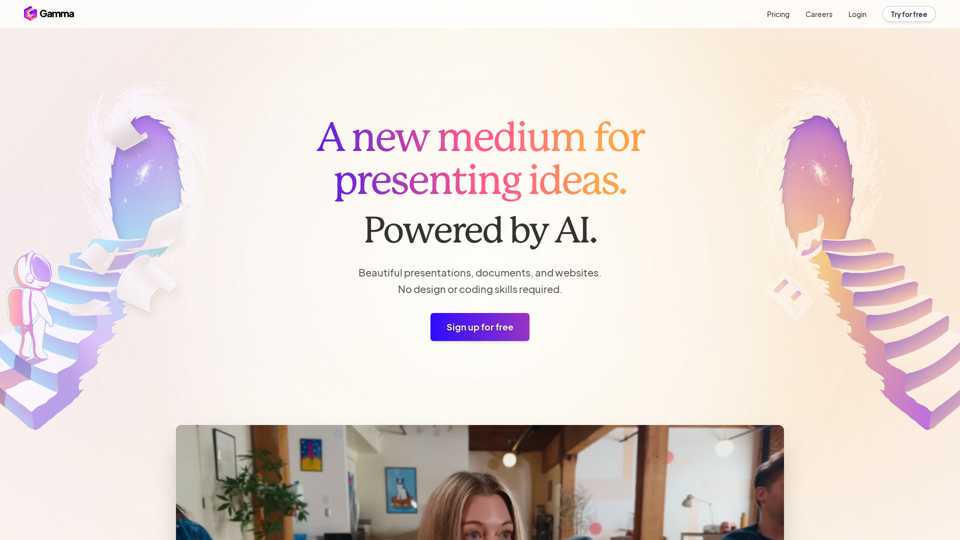

Get personalized daily news briefs powered by AI. Transform your news experience with Scottie's intelligent summaries.
0
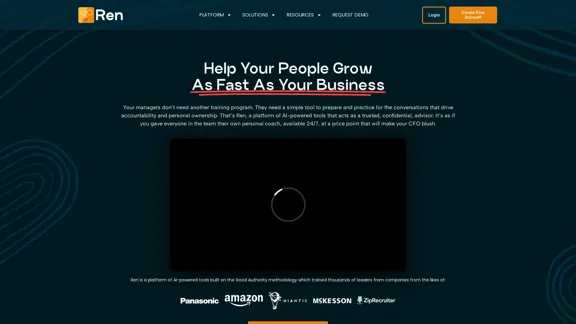
Leadership Coaching App | Create Free Account Today
Leadership Coaching App | Create Free Account TodayConversational AI leadership tool that is revolutionizing leadership coaching, infinitely scalable and capable of being deployed as a leadership development tool to your entire organization
0
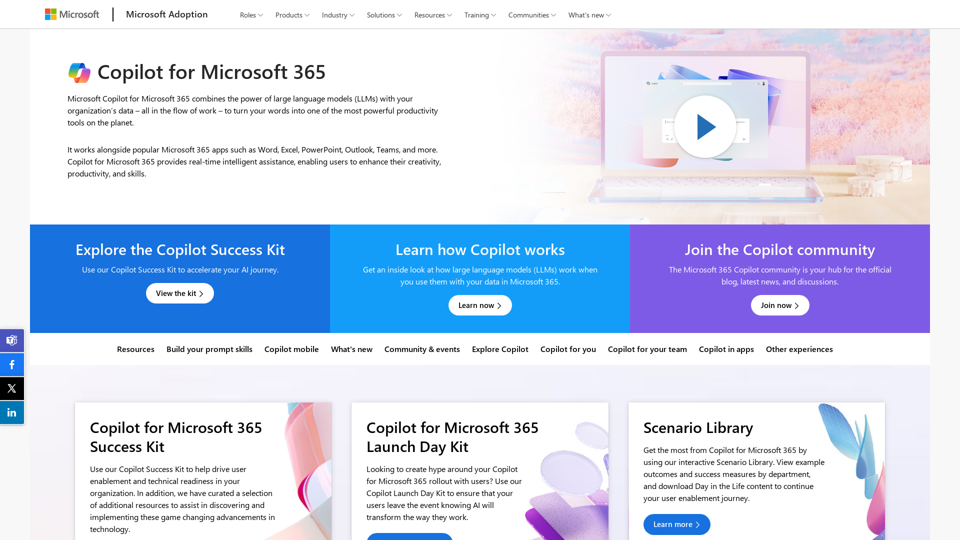
Copilot for Microsoft 365 – Microsoft Adoption Copilot for Microsoft 365 is a powerful AI assistant that helps you work smarter and faster across Microsoft 365 apps and services. It combines the power of large language models (LLMs) with your organization's data in the Microsoft Graph and Microsoft 365 apps to turn your words into the most powerful productivity tool on the planet. Copilot is designed to help you: • Unleash creativity • Unlock productivity • Uplevel skills Copilot is built on Microsoft's comprehensive approach to security, compliance, and privacy. Copilot in Microsoft 365 apps and services: • Does not use your data to train the underlying LLM • Does not replace human ingenuity and judgment • Is designed to keep humans in the loop Copilot is currently available in Word, Excel, PowerPoint, Outlook, Teams, and more. Getting Started with Copilot To get started with Copilot, follow these steps: 1. Check availability: Ensure your organization has access to Copilot. 2. Learn the basics: Familiarize yourself with Copilot's capabilities and how to use it effectively. 3. Explore use cases: Discover how Copilot can help you in your specific role and tasks. 4. Practice and refine: Use Copilot regularly and refine your prompts for better results. 5. Share and collaborate: Collaborate with colleagues using Copilot and share best practices. Best Practices for Using Copilot 1. Be specific in your prompts 2. Provide context for better results 3. Review and edit Copilot's output 4. Use Copilot as a starting point, not a final product 5. Experiment with different approaches 6. Stay informed about new features and updates Copilot in Different Microsoft 365 Apps • Word: Draft, edit, summarize, and rewrite content • Excel: Analyze data, create formulas, and generate insights • PowerPoint: Create presentations, design slides, and generate content • Outlook: Compose emails, summarize threads, and manage your inbox • Teams: Summarize meetings, generate action items, and create meeting notes Responsible AI and Copilot Microsoft is committed to developing AI systems responsibly. When using Copilot, keep in mind: • AI-generated content may contain biases or inaccuracies • Always review and verify Copilot's output • Use your judgment and expertise alongside Copilot's suggestions • Be aware of your organization's policies regarding AI use Conclusion Copilot for Microsoft 365 is a powerful tool that can significantly enhance your productivity and creativity. By understanding its capabilities, following best practices, and using it responsibly, you can make the most of this AI assistant in your daily work.
Copilot for Microsoft 365 – Microsoft Adoption Copilot for Microsoft 365 is a powerful AI assistant that helps you work smarter and faster across Microsoft 365 apps and services. It combines the power of large language models (LLMs) with your organization's data in the Microsoft Graph and Microsoft 365 apps to turn your words into the most powerful productivity tool on the planet. Copilot is designed to help you: • Unleash creativity • Unlock productivity • Uplevel skills Copilot is built on Microsoft's comprehensive approach to security, compliance, and privacy. Copilot in Microsoft 365 apps and services: • Does not use your data to train the underlying LLM • Does not replace human ingenuity and judgment • Is designed to keep humans in the loop Copilot is currently available in Word, Excel, PowerPoint, Outlook, Teams, and more. Getting Started with Copilot To get started with Copilot, follow these steps: 1. Check availability: Ensure your organization has access to Copilot. 2. Learn the basics: Familiarize yourself with Copilot's capabilities and how to use it effectively. 3. Explore use cases: Discover how Copilot can help you in your specific role and tasks. 4. Practice and refine: Use Copilot regularly and refine your prompts for better results. 5. Share and collaborate: Collaborate with colleagues using Copilot and share best practices. Best Practices for Using Copilot 1. Be specific in your prompts 2. Provide context for better results 3. Review and edit Copilot's output 4. Use Copilot as a starting point, not a final product 5. Experiment with different approaches 6. Stay informed about new features and updates Copilot in Different Microsoft 365 Apps • Word: Draft, edit, summarize, and rewrite content • Excel: Analyze data, create formulas, and generate insights • PowerPoint: Create presentations, design slides, and generate content • Outlook: Compose emails, summarize threads, and manage your inbox • Teams: Summarize meetings, generate action items, and create meeting notes Responsible AI and Copilot Microsoft is committed to developing AI systems responsibly. When using Copilot, keep in mind: • AI-generated content may contain biases or inaccuracies • Always review and verify Copilot's output • Use your judgment and expertise alongside Copilot's suggestions • Be aware of your organization's policies regarding AI use Conclusion Copilot for Microsoft 365 is a powerful tool that can significantly enhance your productivity and creativity. By understanding its capabilities, following best practices, and using it responsibly, you can make the most of this AI assistant in your daily work.Microsoft Copilot combines the power of large language models (LLMs) with your organization's data to turn your words into one of the most powerful productivity tools on the planet.
608.60 K
Resumeguru.pro is an advanced AI-powered resume optimization tool designed to transform and enhance job seekers' resumes. By leveraging cutting-edge artificial intelligence technology, it automates the entire process of creating a highly effective and hirable resume, including editing, formatting, and optimization. This innovative platform aims to help users stand out in the competitive job market by tailoring their resumes to perfection.
0